
Crochet App Settings: Left-Handed Mode, US or UK Terms, Inches or Centimeters
Set Crochet Bobble up the way you crochet. Switch on left-handed charts, pick US or UK stitch names, choose inches or centimeters, and set a weekly crochet goal.
Every setting in Crochet Bobble lives on one page, your Profile. It takes about a minute to set the app up the way you crochet, and you can change any of it later.
Open your Profile
Tap Profile, the last tab. On a phone the tabs run across the top of the screen. On a computer they're down the left side.
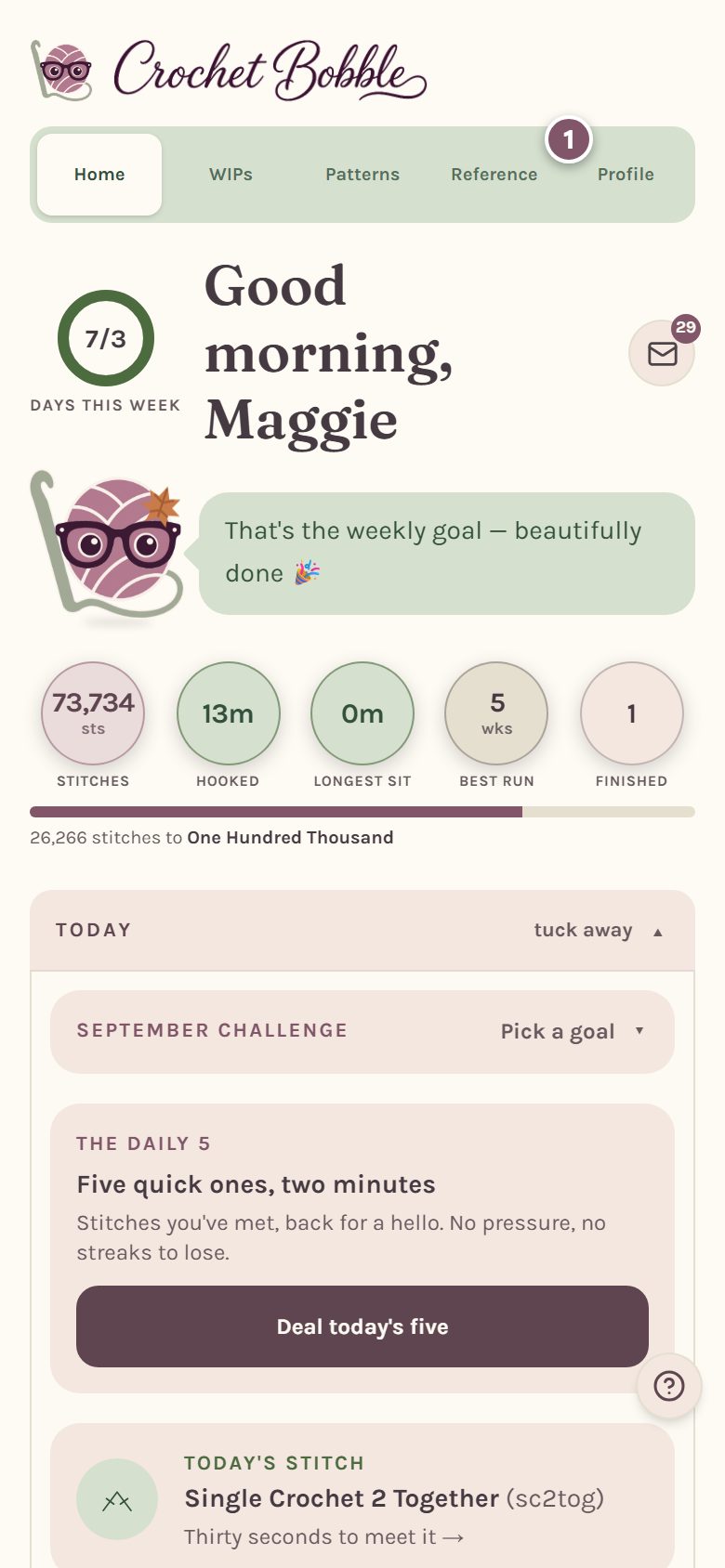
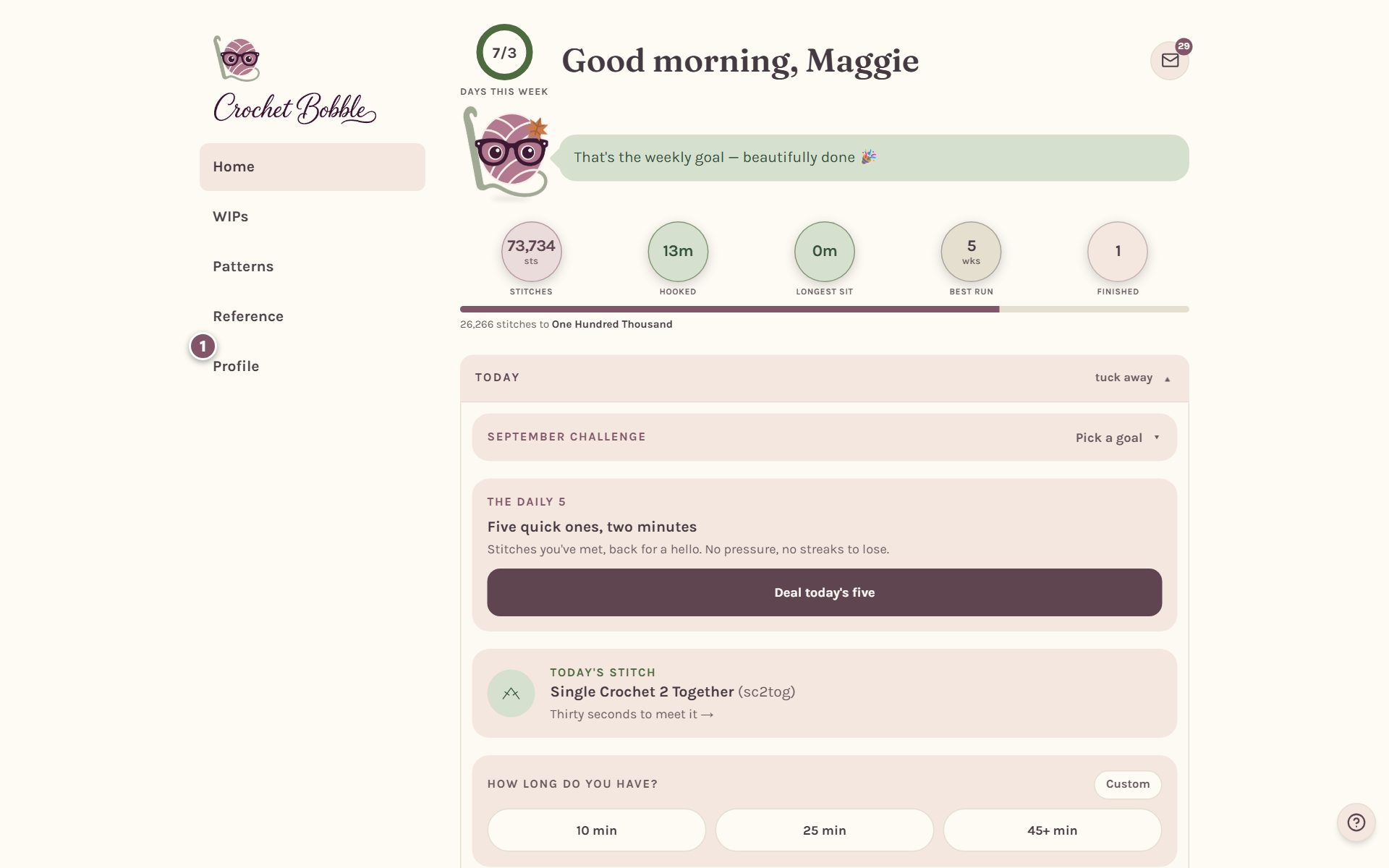
Choose inches or centimeters, US or UK terms, and left-handed mode
Scroll down to Preferences. Each choice is a pair of buttons, and the one that's filled in is the one you're using.
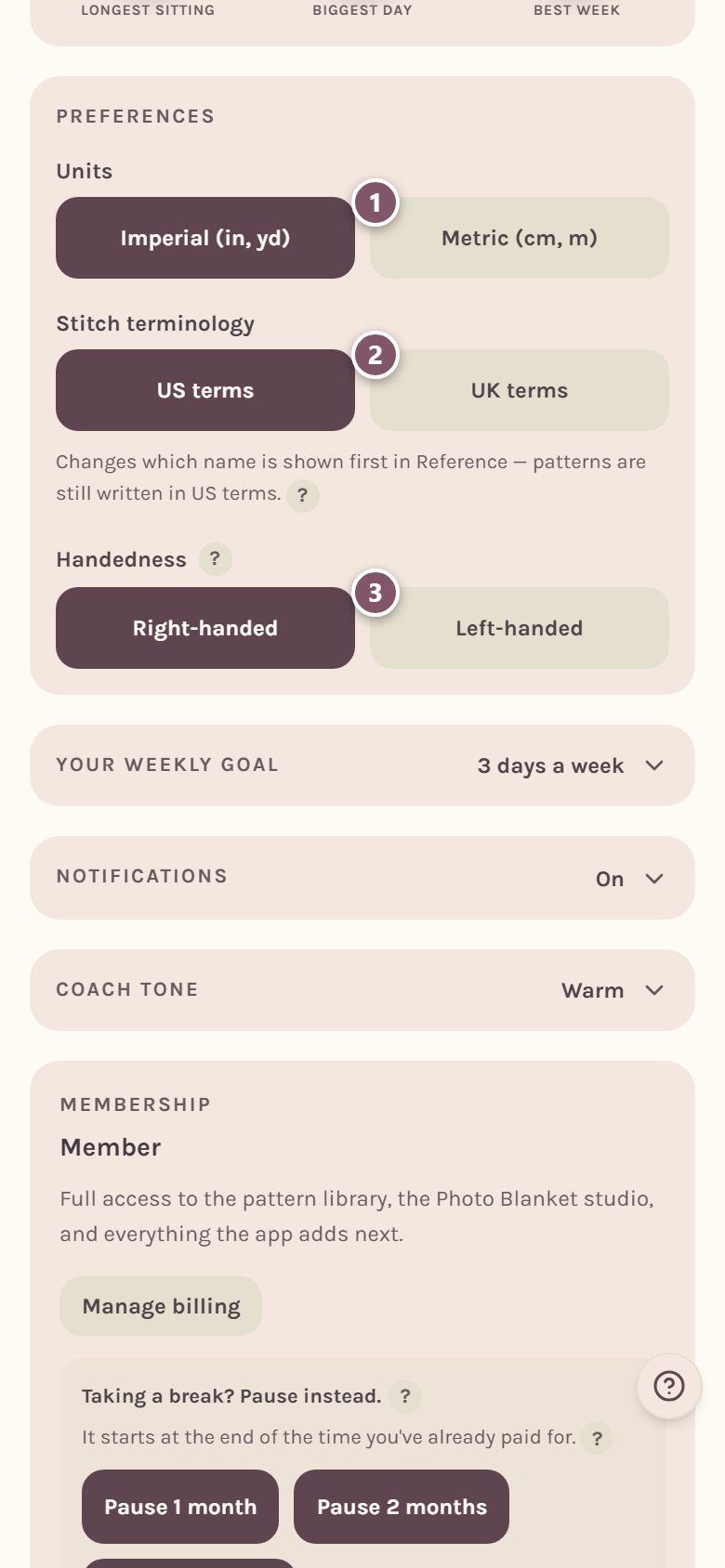
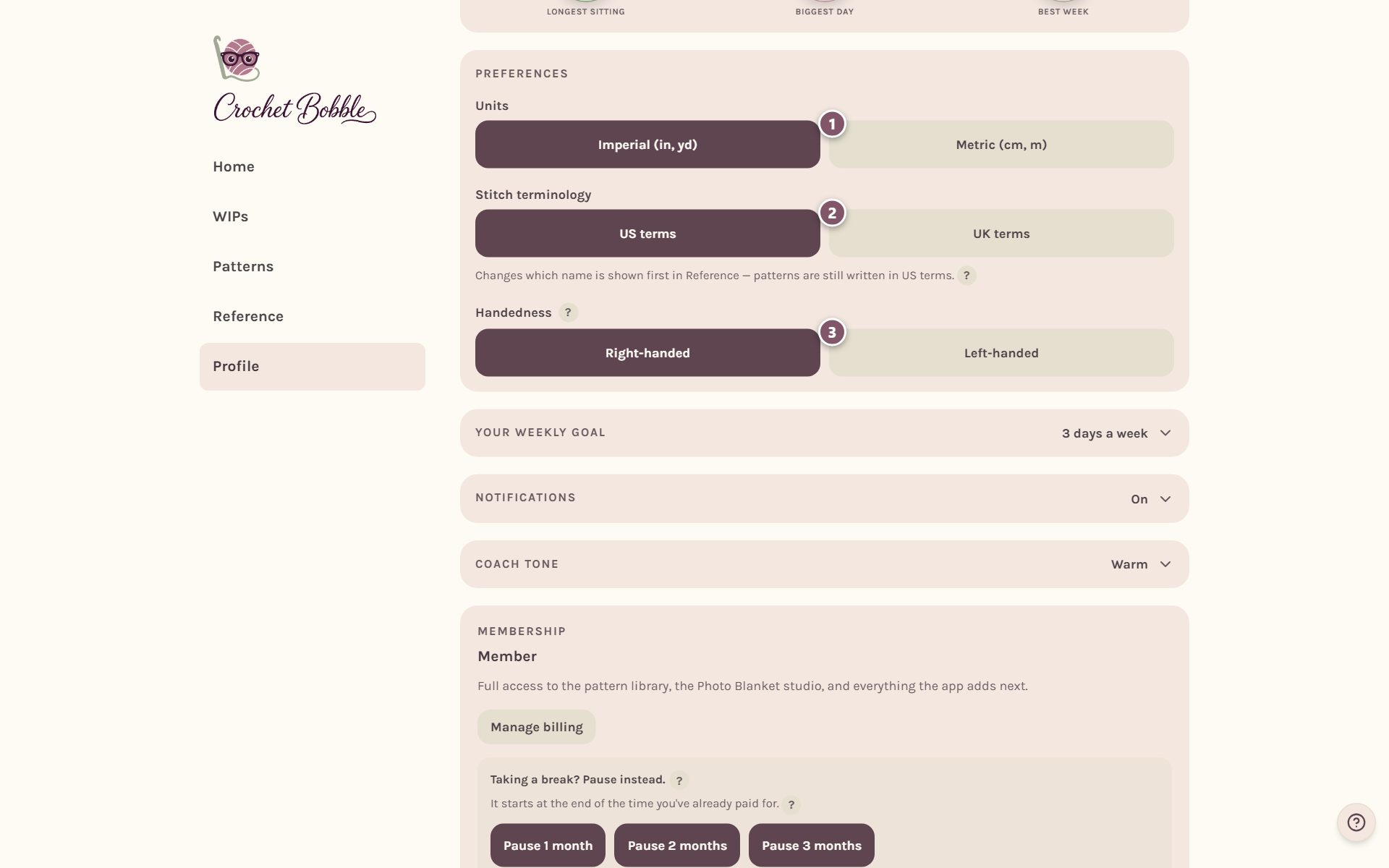
- Units. Pick Imperial (in, yd) or Metric (cm, m). Every size, gauge and yardage in the app follows this choice.
- Stitch terminology. Pick US terms or UK terms. A UK double crochet is a US single crochet, so this decides which name the Reference shows first. Patterns are still written in US terms.
- Handedness. Pick Left-handed if you crochet with your left hand. The whole app flips for you: photos and videos, stitch charts, their PDFs, and the order the blanket trackers walk each row.
Tip: left-handed mode is a full mirror, not just a flipped picture. Charts are redrawn so you read them in the direction you actually work.
Set a weekly crochet goal
Tap Your weekly goal to open it.
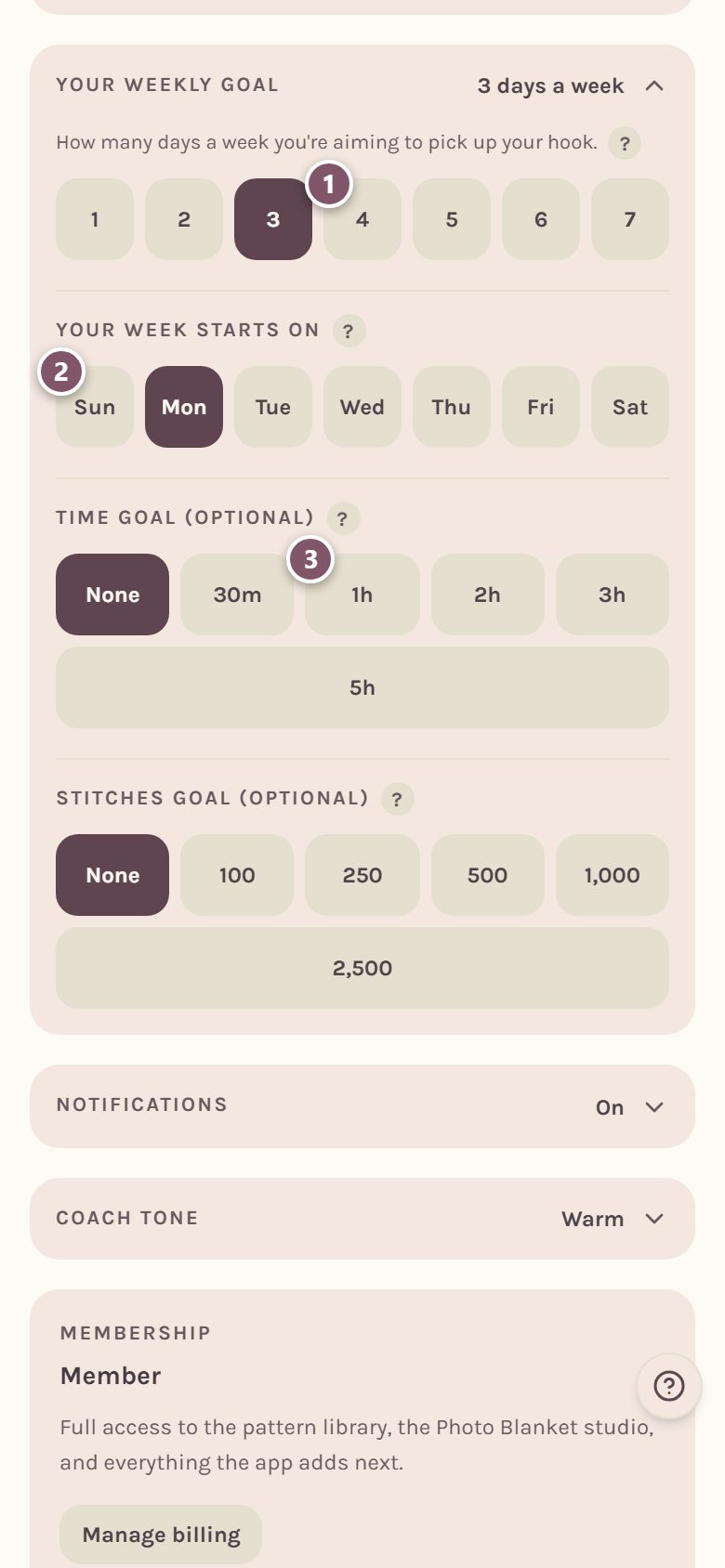
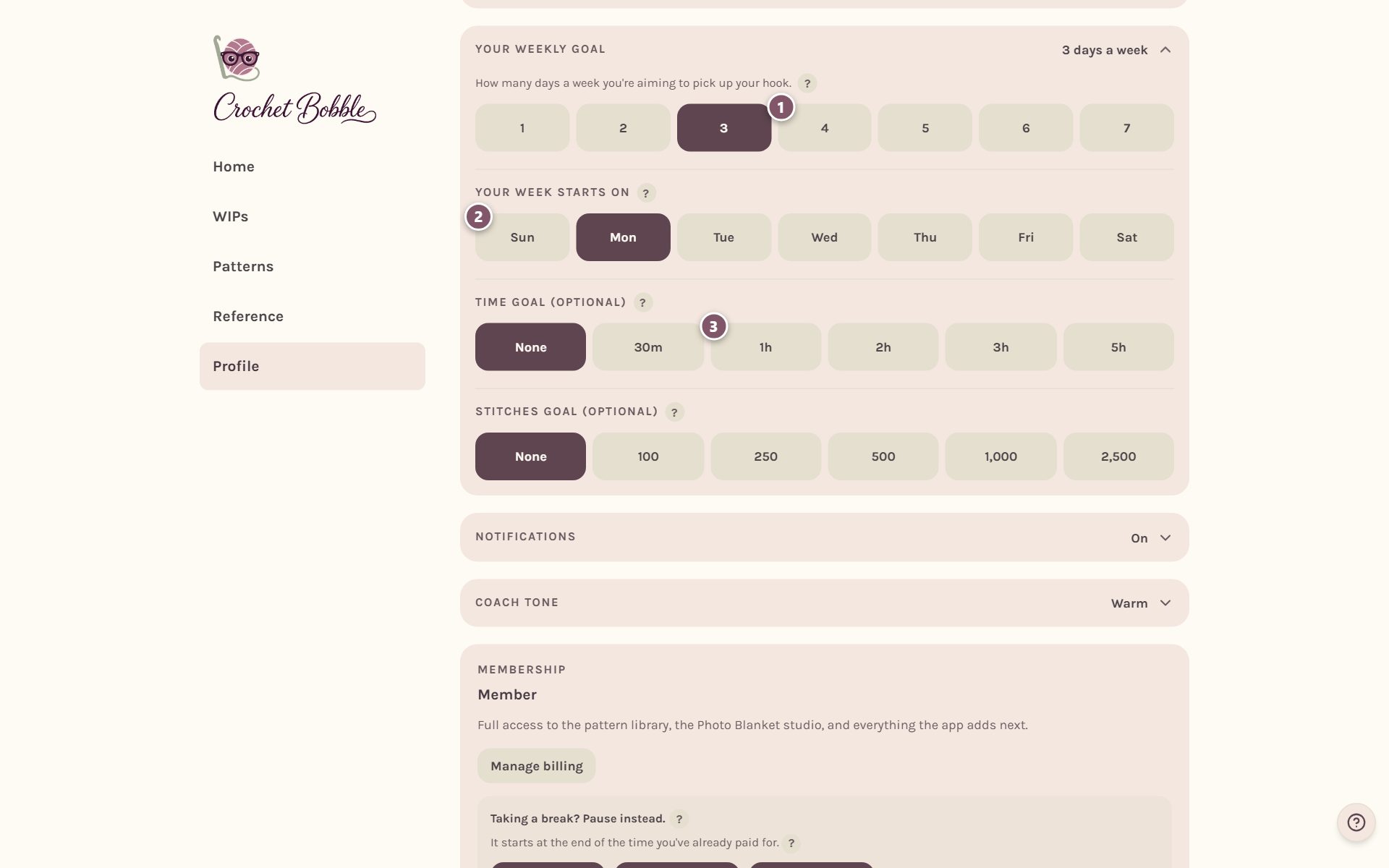
- Days a week. How many days you're aiming to pick up your hook. Home shows your progress as a ring, and it's met when you've crocheted on that many days.
- Your week starts on. The day your week resets. Pick the day that suits your routine.
- Time goal (optional). Aim for an amount of time a week, from 30 minutes to 5 hours, instead of, or as well as, days. It fills from the WIP timer, so it only counts time you actually spent stitching.
There's also an optional stitches goal, from 100 to 2,500 stitches a week, which fills as you log stitches in the trackers.
Turn reminders and cheers on or off
Tap Notifications. The main switch turns them all on or off, and you can pick each kind separately: a daily practice reminder, daily encouragement, a note when you earn something, and a note when someone answers your question.
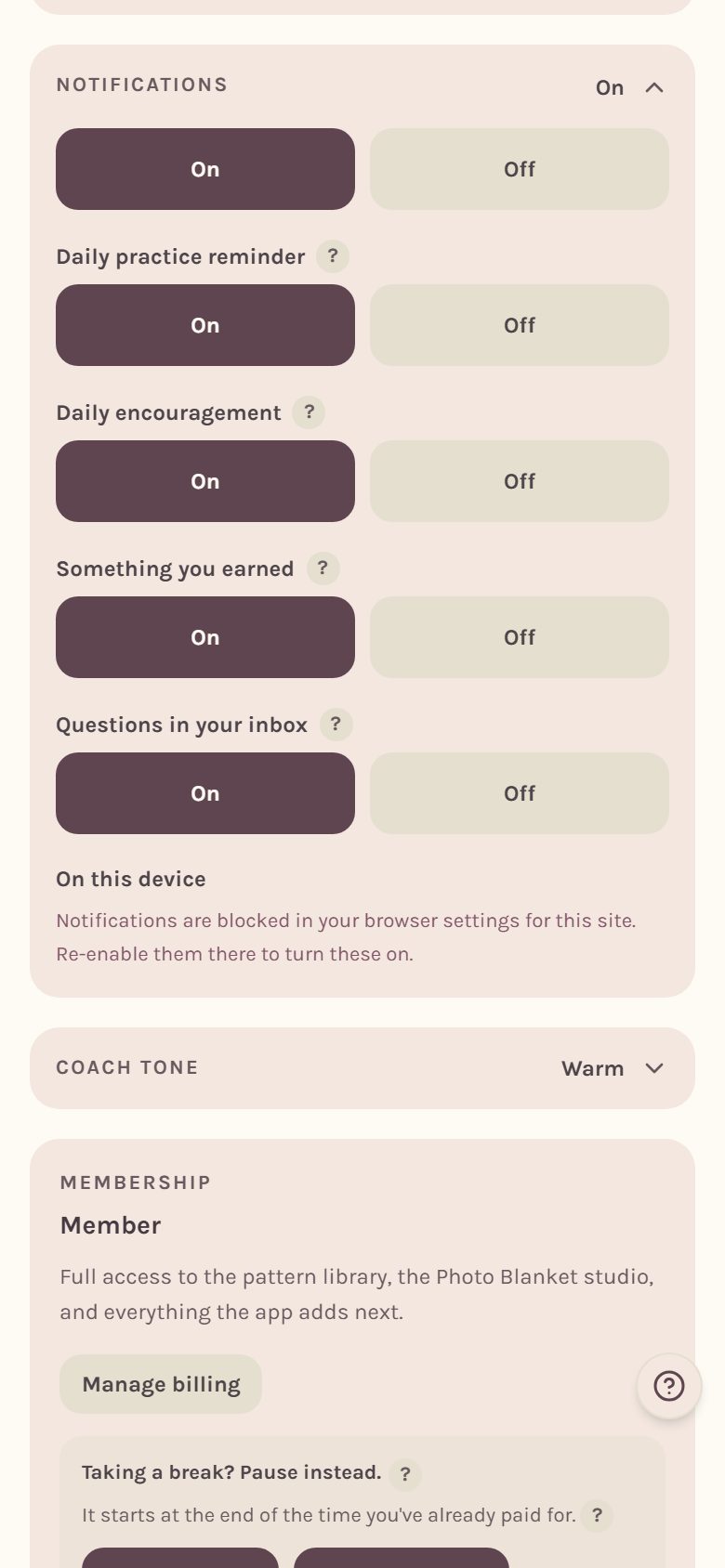
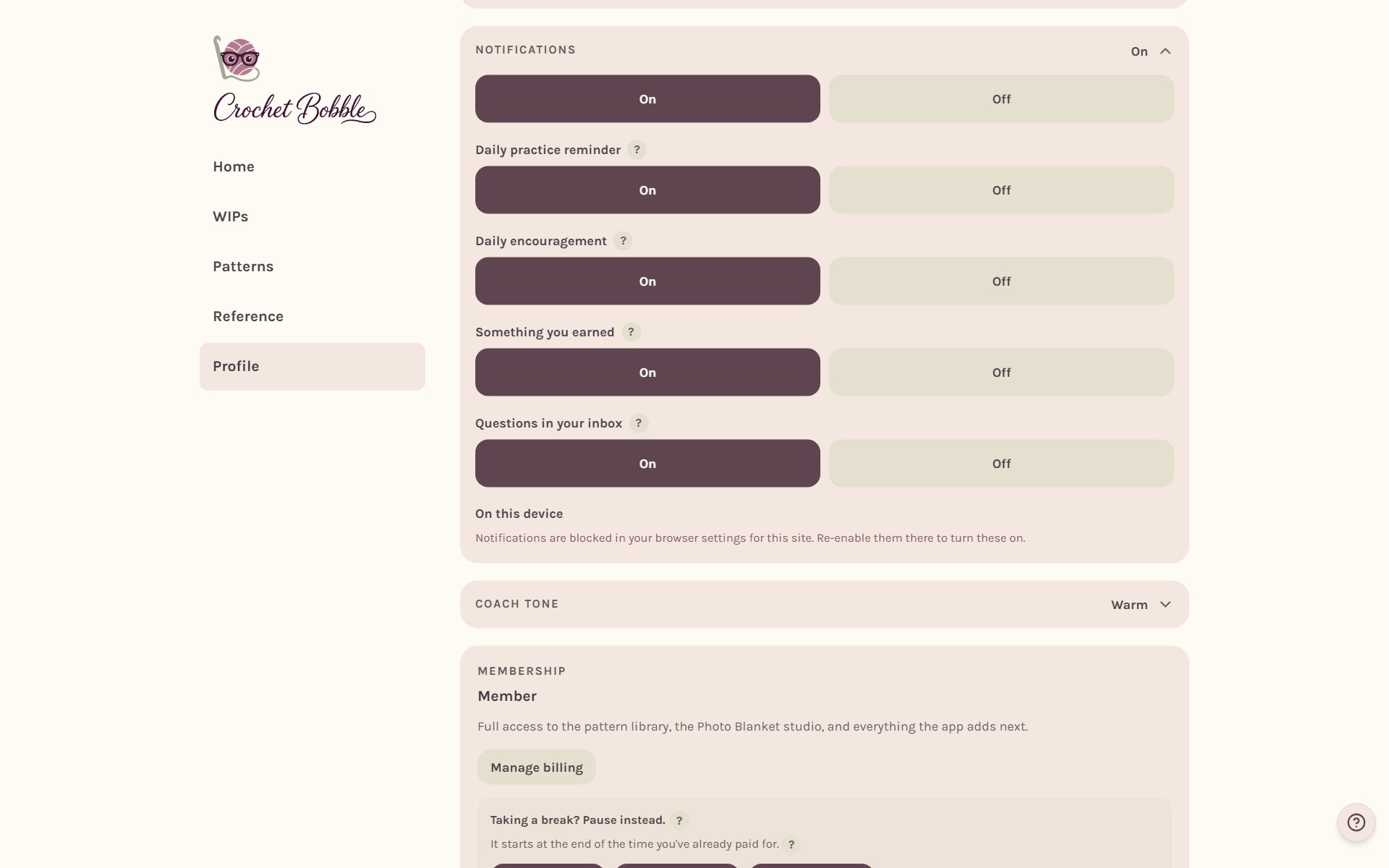
Notifications are turned on separately on each phone or computer you use. On an iPhone they only work once Crochet Bobble is on your home screen.
Pick how Bobble talks to you
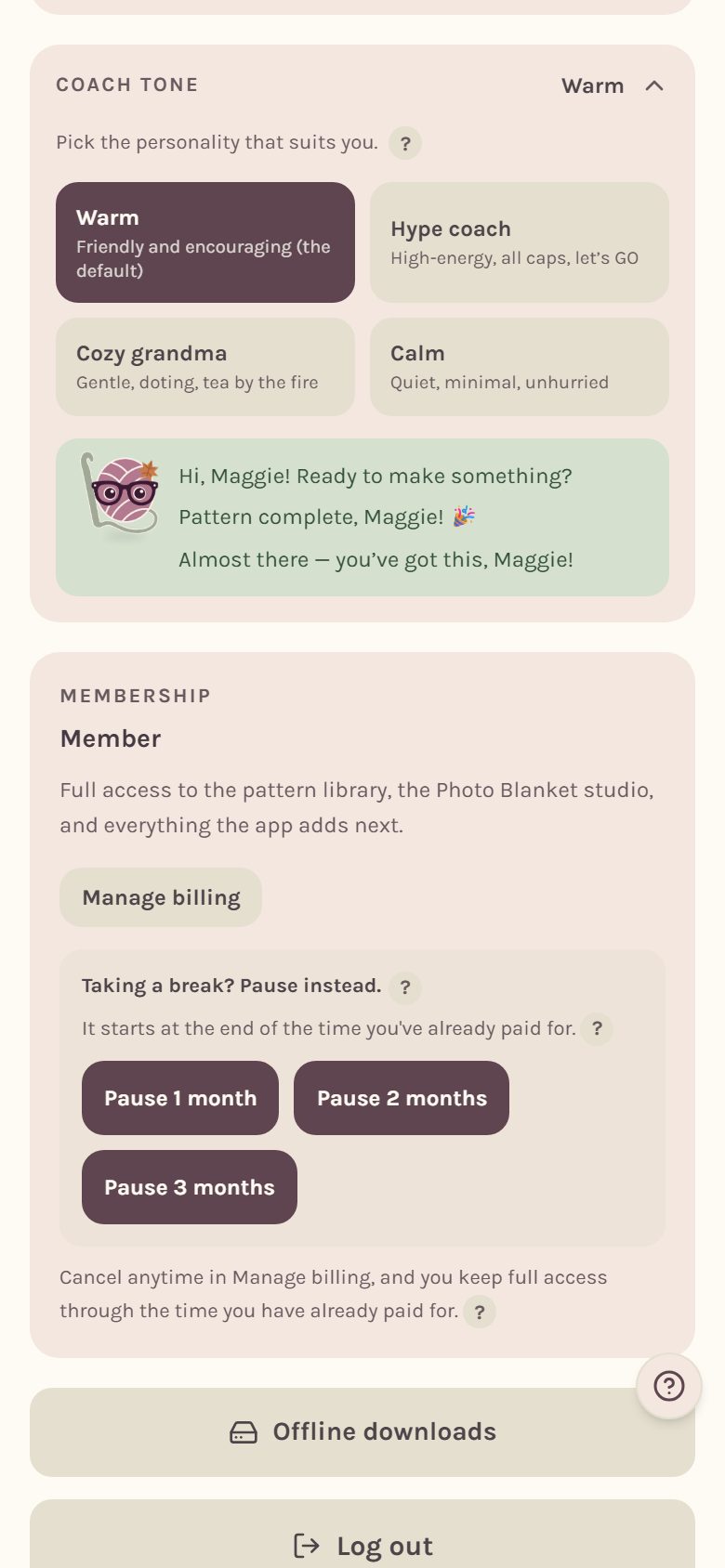
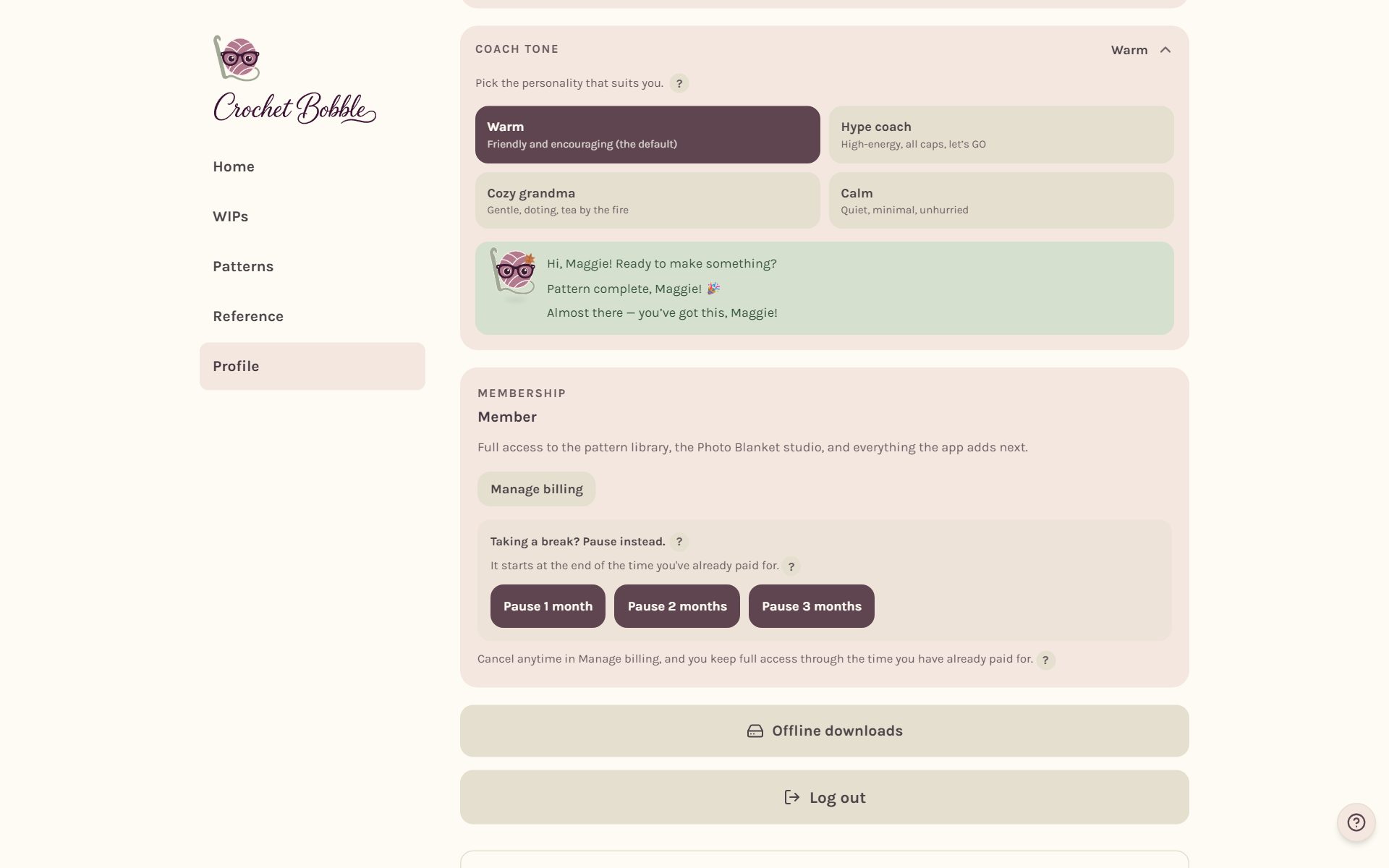
Bobble, the little ball of yarn, cheers you on around the app. Tap Coach tone to choose how: Warm (the default), Hype coach, Cozy grandma or Calm. A preview shows how each one sounds.
Frequently asked questions
Can I change these later? Anytime. Nothing you've made changes when you switch; the app just shows it your new way.
Does left-handed mode change my saved patterns? No. Your patterns stay exactly as they are. Only the way they're drawn for you changes, and a right-handed friend opening the same pattern sees it their way.
Where do I go next? Take the tour in getting around the app.
Ready to try it? Crochet Bobble opens right in your browser, on a phone or a computer.
Open Crochet Bobble