
Getting Around Crochet Bobble: Tabs, Help and Guided Tours
A quick tour of the Crochet Bobble app. What each tab is for, where the help button lives, how the back button works, and how to replay Bobble's guided tour.
Crochet Bobble does a lot, but it's built around five tabs and one help button. Once you know those, you can find anything.
The five tabs
On a phone the tabs run across the top of the screen. On a computer they run down the left side.
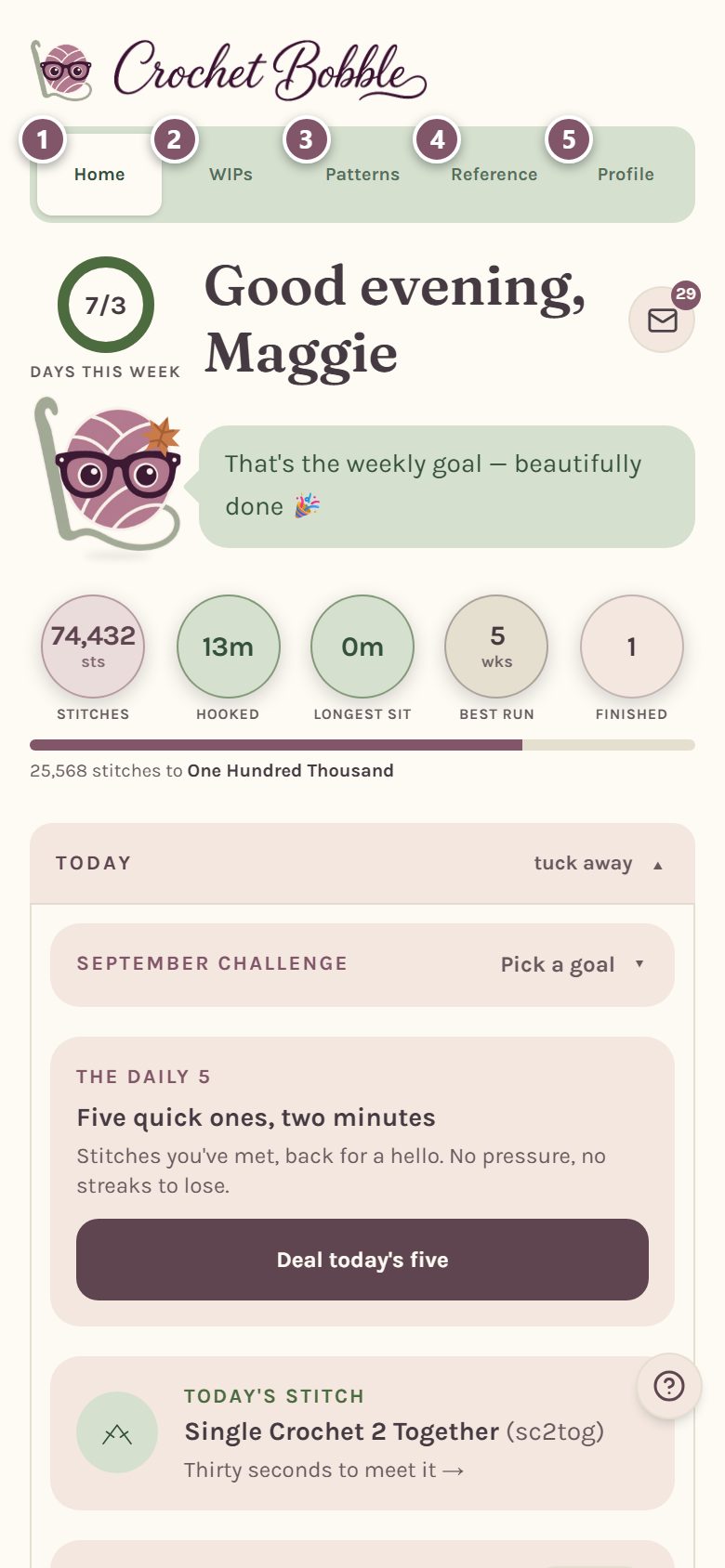
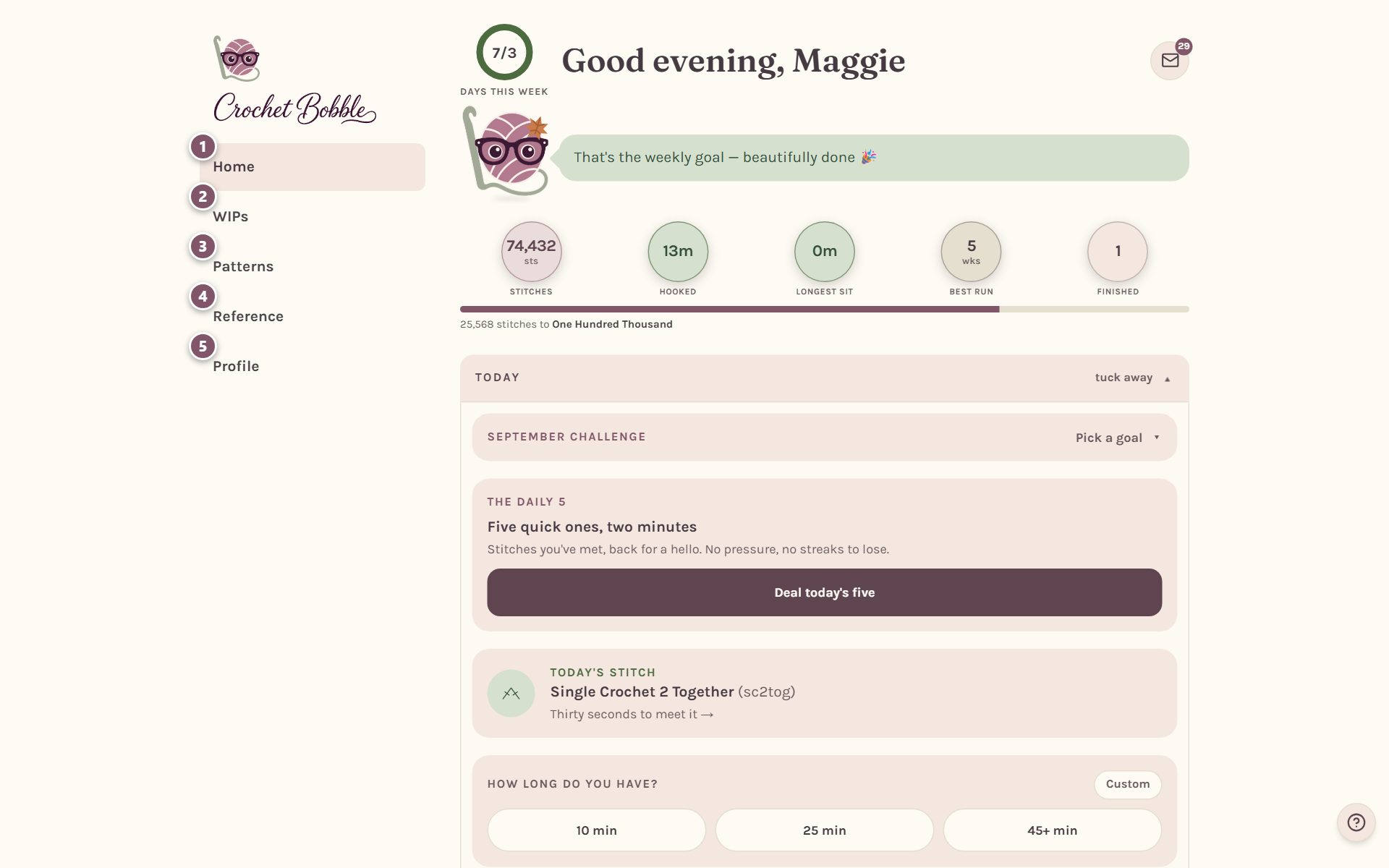
- Home is your starting point every day: your weekly goal, your stitch count, what's on your hook, and a countdown for when you only have a few minutes.
- WIPs holds your works in progress. Each one has its own row counter, timer, photos and notes. (WIP is crochet shorthand for "work in progress".)
- Patterns is where everything you make lives: photo blankets, charts you've drawn, shapes you've sketched and patterns you've pasted in. Start something new from the boxes at the top.
- Reference is the stitch dictionary, the chart symbols, and the hook and yarn charts. It's free for everyone.
- Profile holds your settings, your goals and your records. See crochet app settings.
Get help anytime with the ? button
The round ? button sits in the bottom corner of every screen. (In the chart builder on a phone, it moves into the Options menu so it never covers a stitch.)
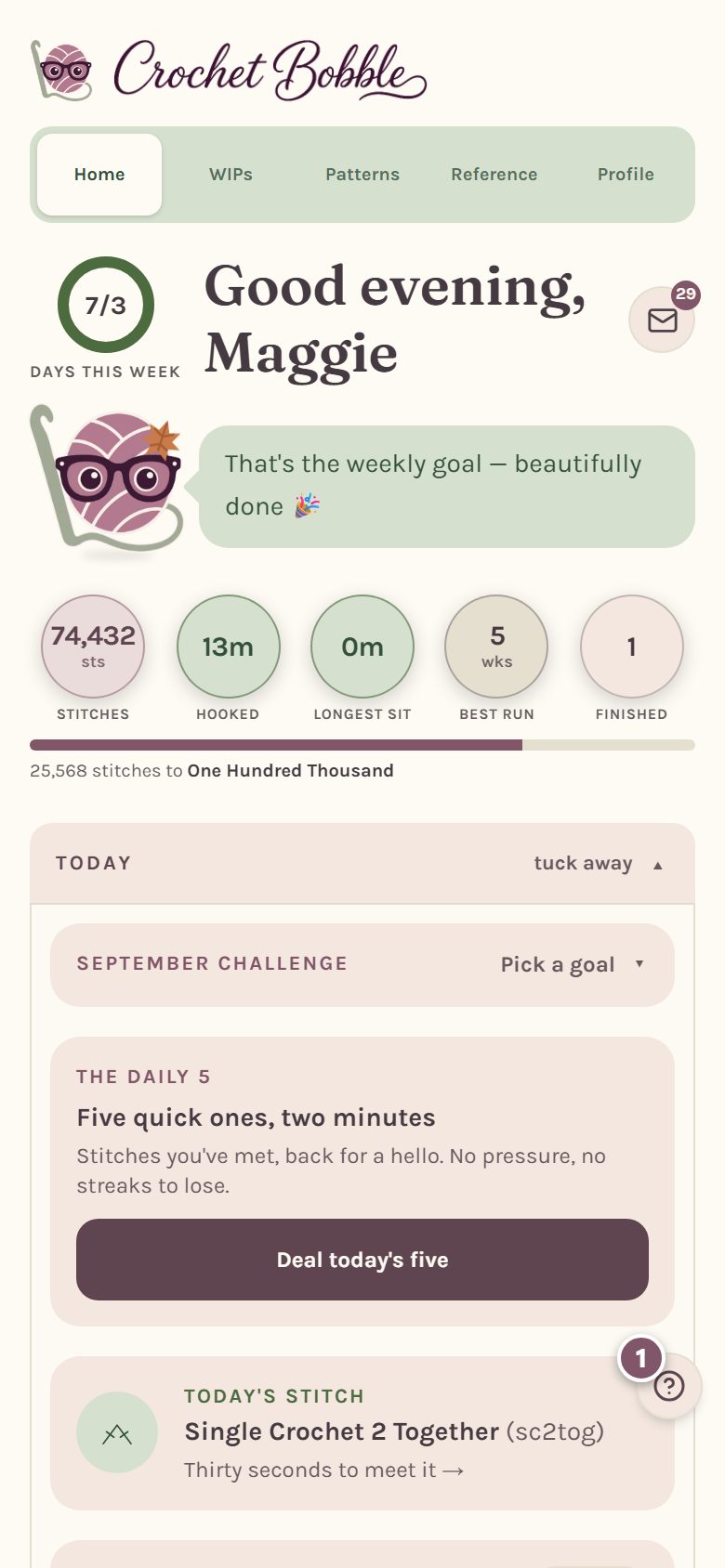
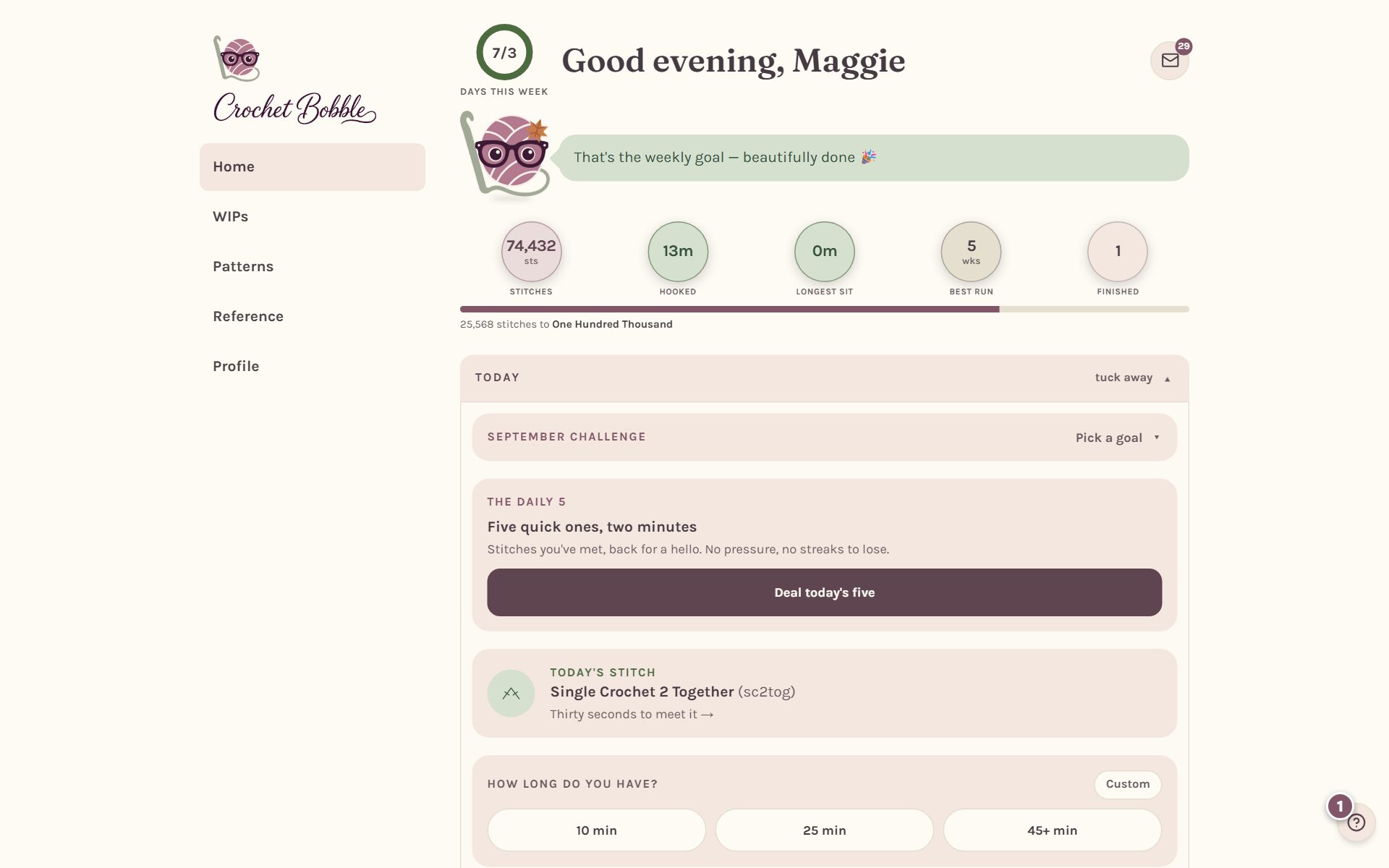
Tap it and you'll see everything help-related in one place:
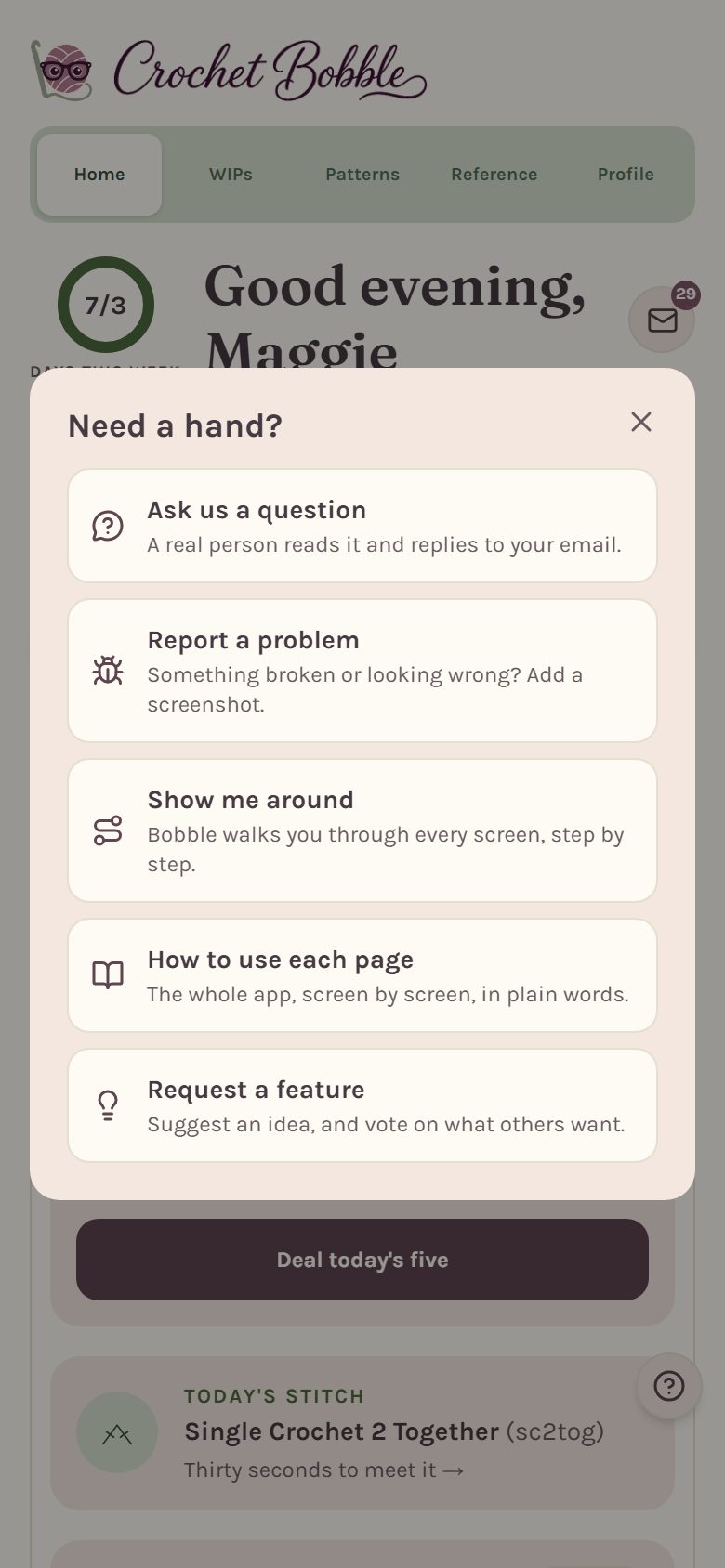
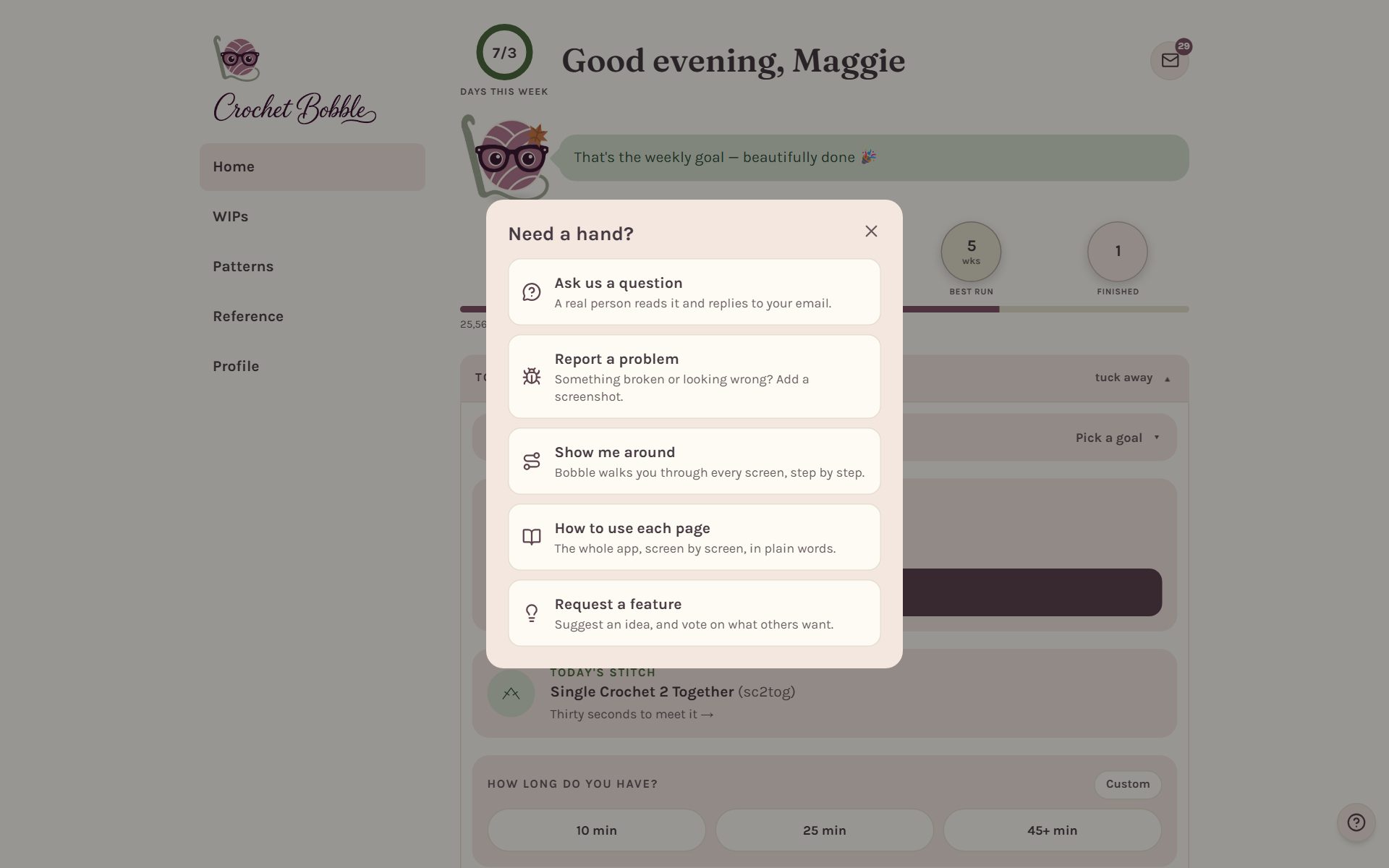
- Ask us a question. A real person reads it and replies to your email.
- Report a problem. Tell us what went wrong and add a screenshot if you can. Your report includes which screen you were on, so we can find it quickly.
- Show me around. Bobble walks you through every screen, step by step.
- Show me this screen. Just the page you're on, without leaving it. It only appears on pages that have their own tour.
- How to use each page. The whole app, screen by screen, in plain words.
- Request a feature. Suggest an idea and vote on the ones other crocheters want.
Take the guided tour again
Bobble shows you around the first time you open each page. If you skipped it, or you'd like to see it again, open How to use each page from the ? menu and tap Start the tour.
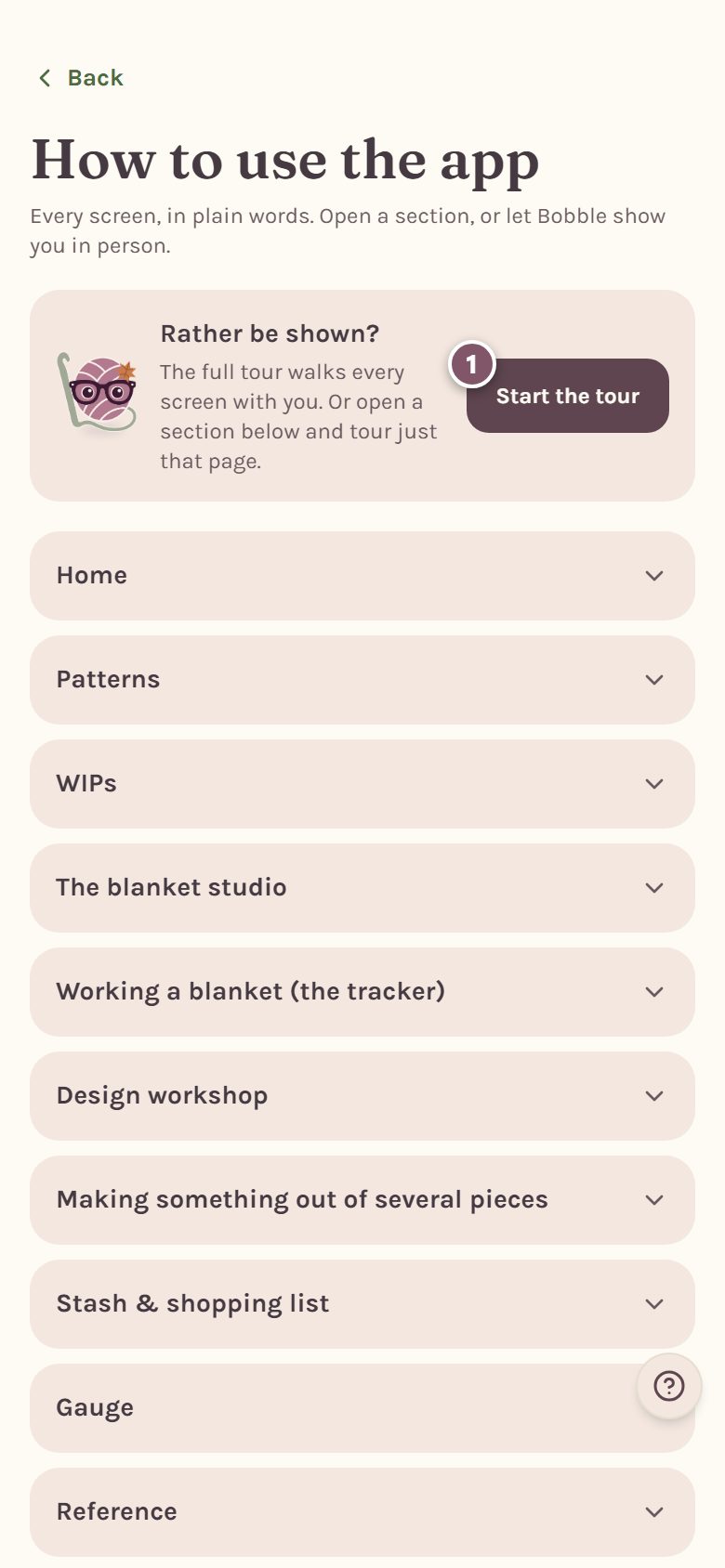
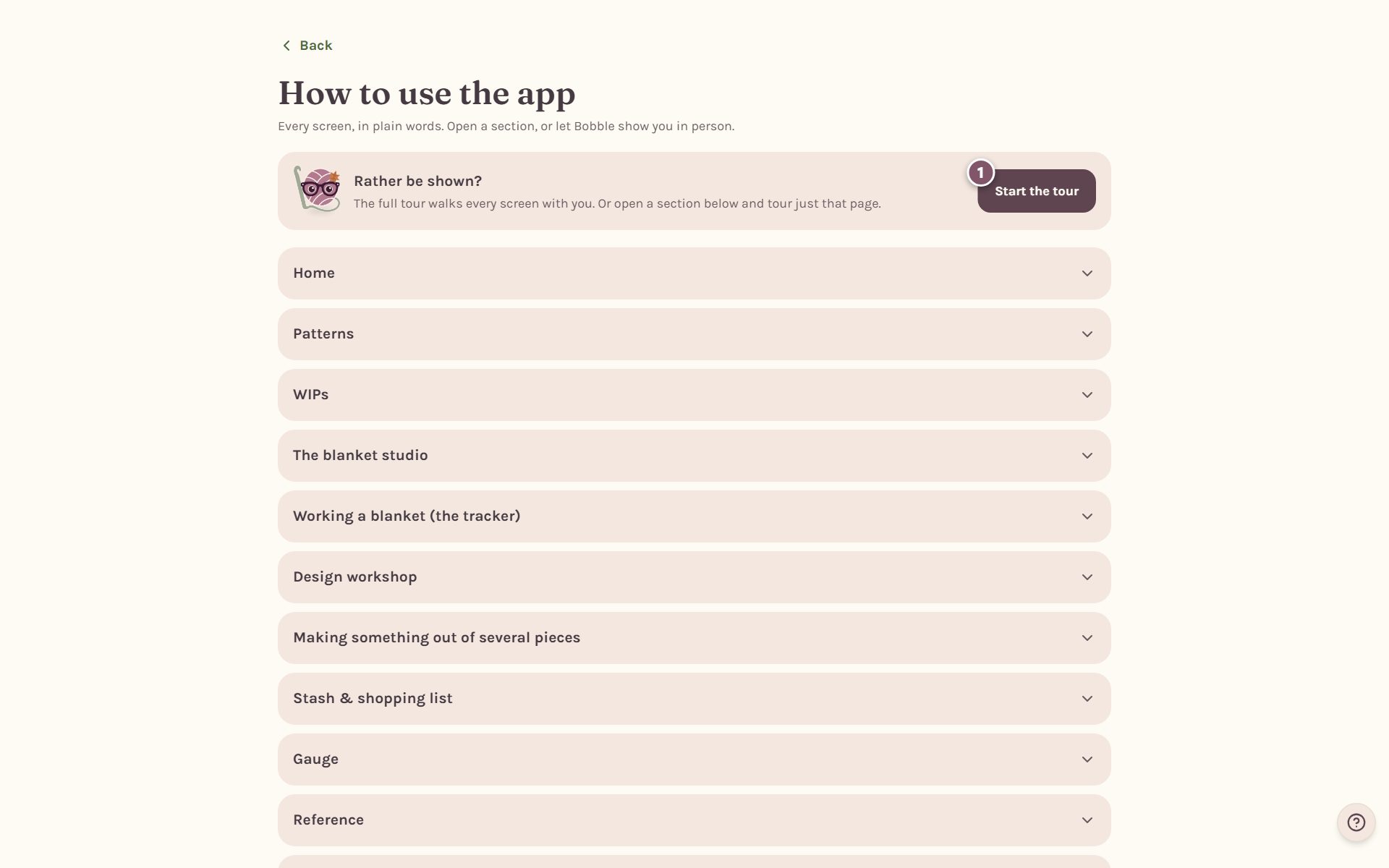
The tour moves one step at a time. Tap Next to go on, Back to go back a step, or Skip to close it.
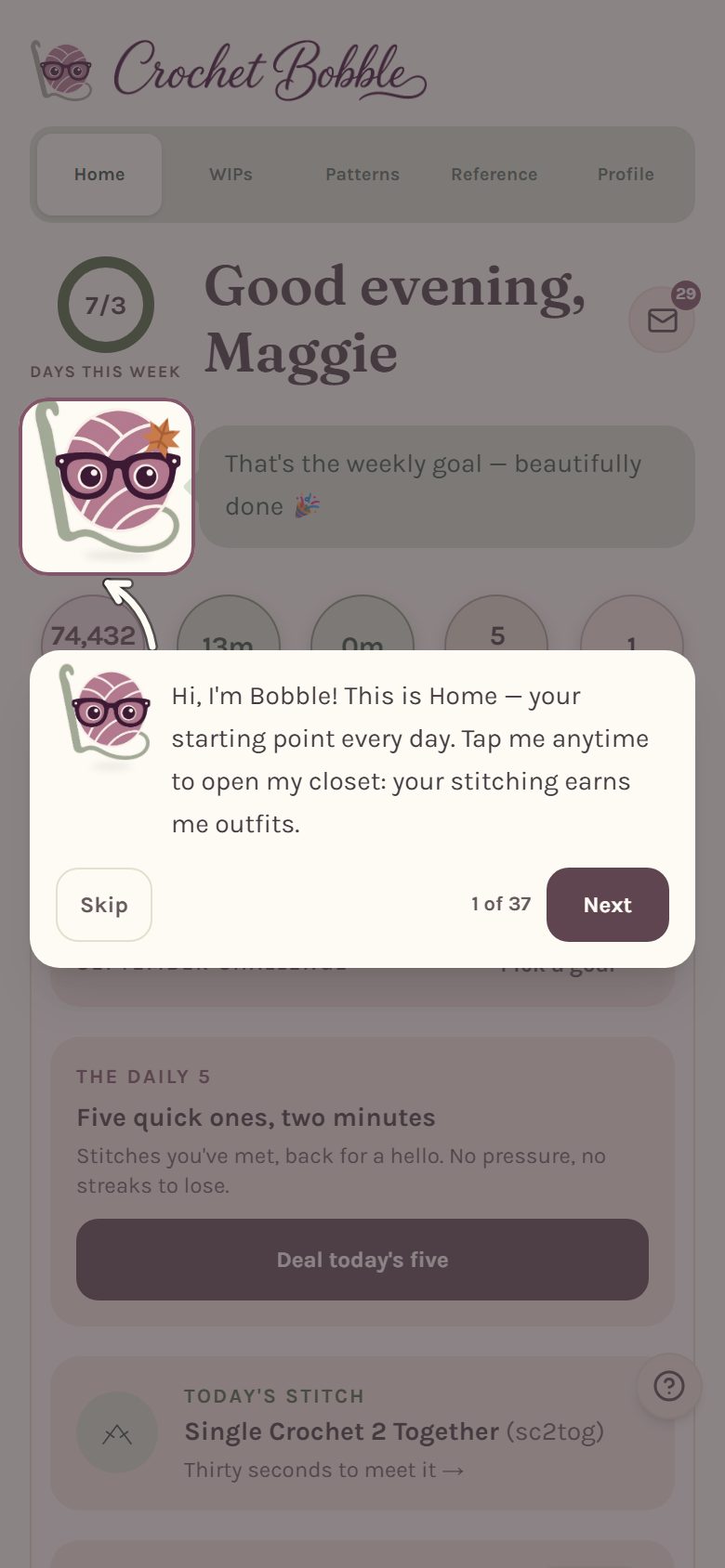
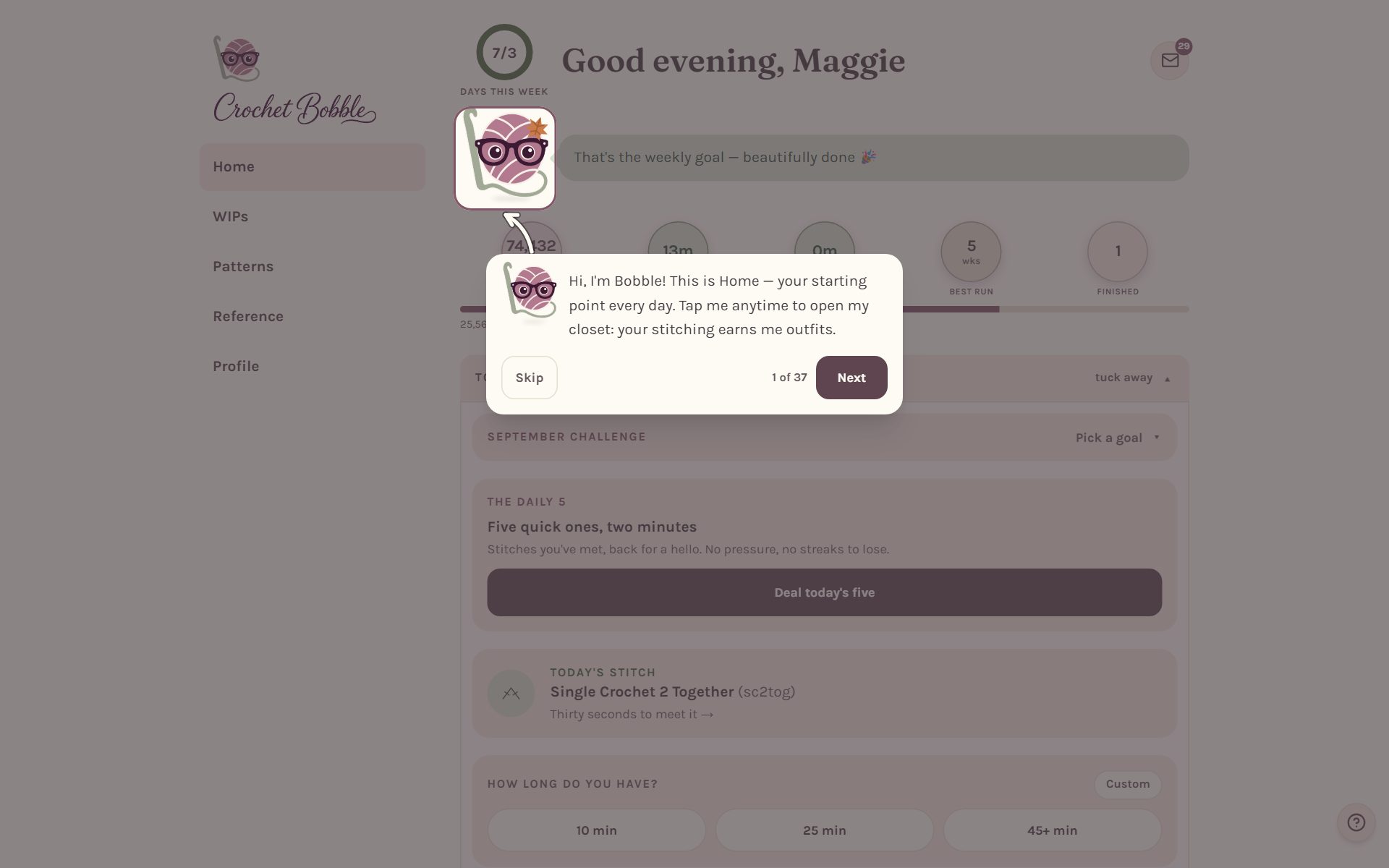
Tip: to start every tour and tip over from the beginning, go to Profile and tap Replay Bobble's tour & tips.
The back button
Pages you open from a tab, like your stash or a single pattern, have a Back button at the top. It takes you up to the page that page belongs to. A pattern goes back to Patterns, your stash goes back to Home, and so on.
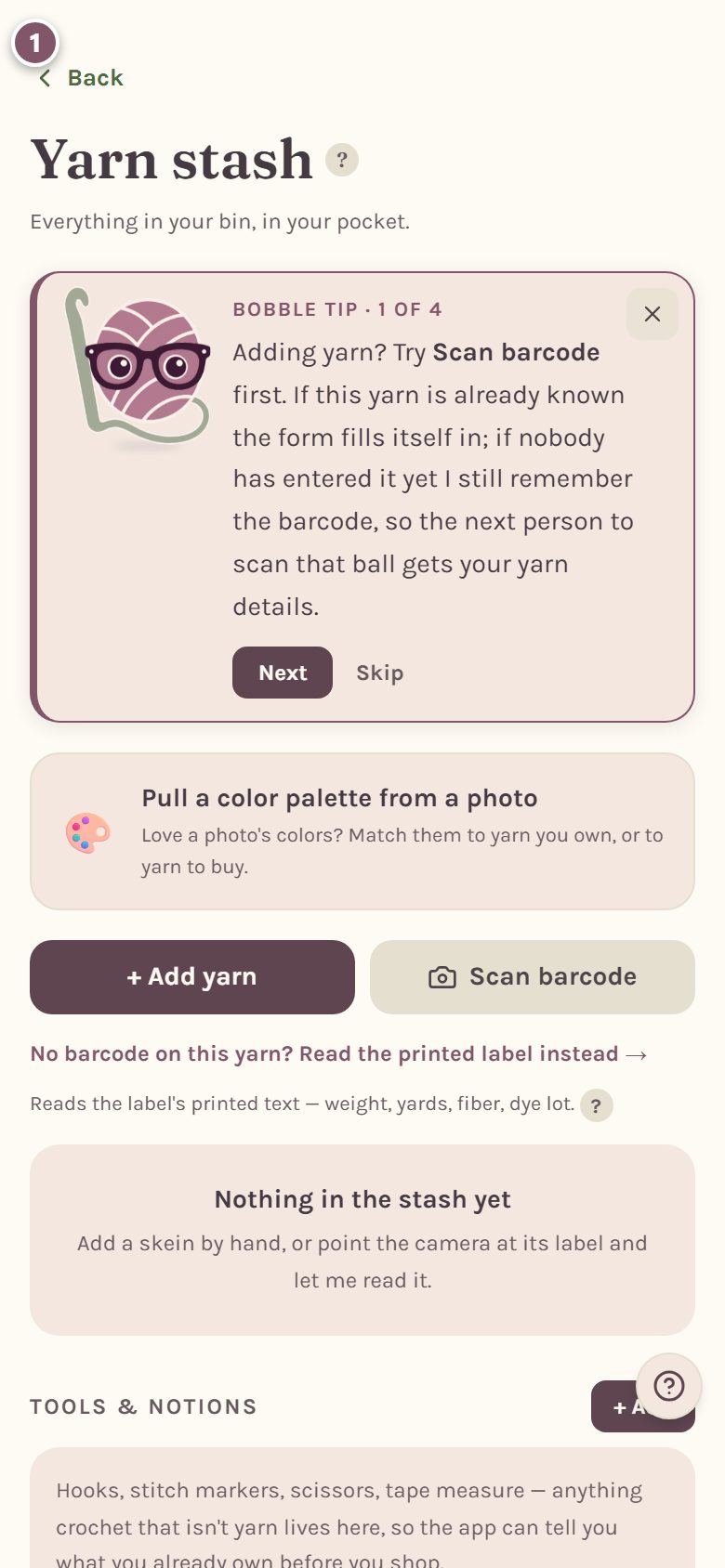
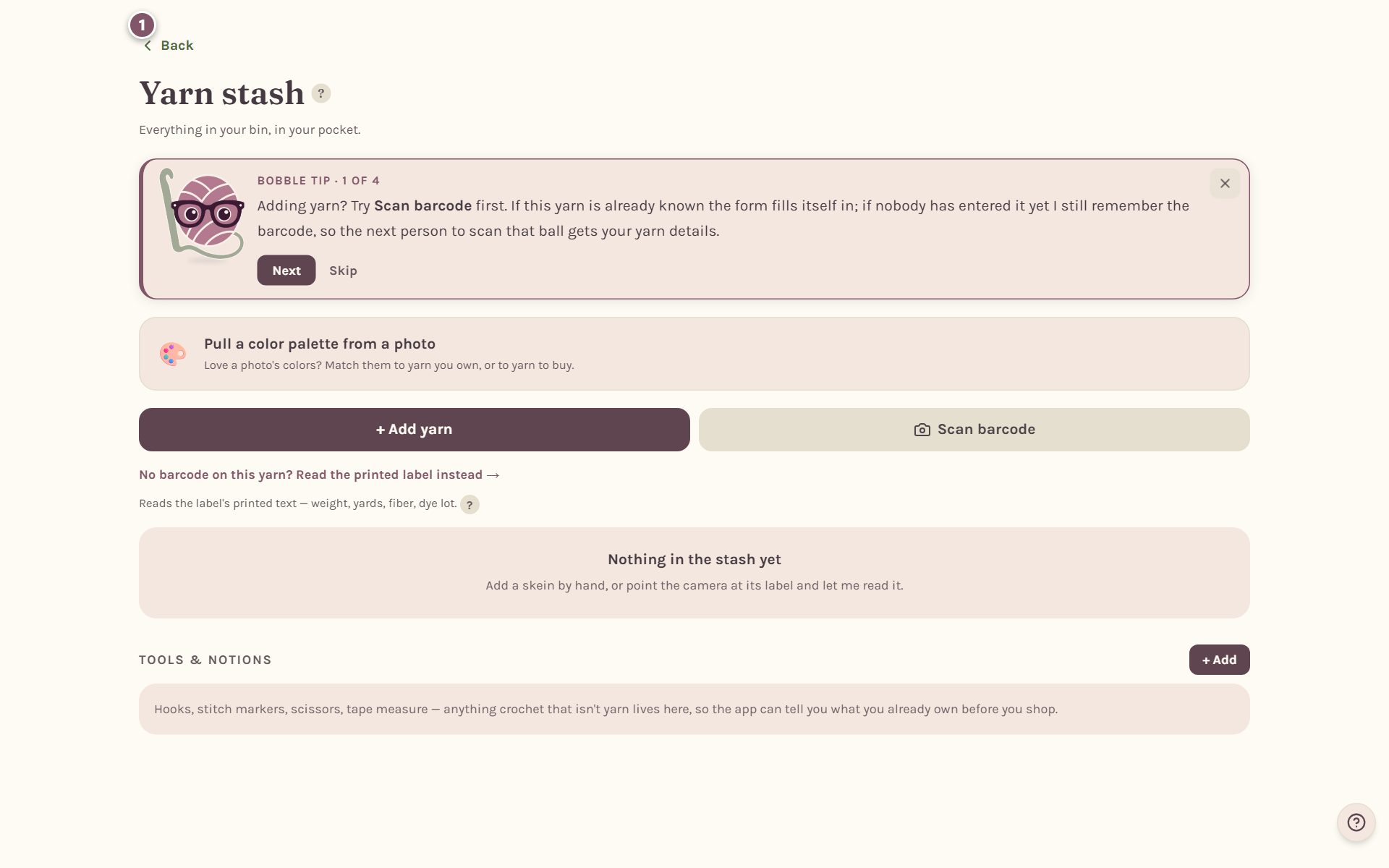
If your WIP timer is running when you tap Back, Crochet Bobble asks what to do with it first: keep it running, pause it, or stop it and save the time.
Frequently asked questions
Where's my row counter? In WIPs. Every project you're working on has its own. See the tracking guides for blankets and written patterns.
Where do I start a new blanket from a photo? In Patterns, tap Photo blanket.
I found a bug. What should I do? Tap ?, then Report a problem. A screenshot helps a lot.
Ready to try it? Crochet Bobble opens right in your browser, on a phone or a computer.
Open Crochet Bobble