
Yarn Label Scanner: Add Yarn to Your Stash by Scanning the Barcode or Ball Band
Point your phone at a yarn's barcode or its printed ball band and Crochet Bobble fills in the details for your stash. Here is what the scanner reads, what it misses, and how to get the best result.
Typing in every yarn is slow. The scanner in your yarn stash can do most of it for you: scan the barcode, or take a photo of the printed label, and the app fills in what it can read. It won't catch everything, so it always leaves the form open for you to check before anything is saved.
What you need
- The yarn with its ball band (the paper label).
- Your phone's camera, or a photo of the label you took earlier.
- An internet connection the first time you read a printed label.
Scan a yarn barcode
Open your stash from the Stash tile on Home, then tap Scan barcode.
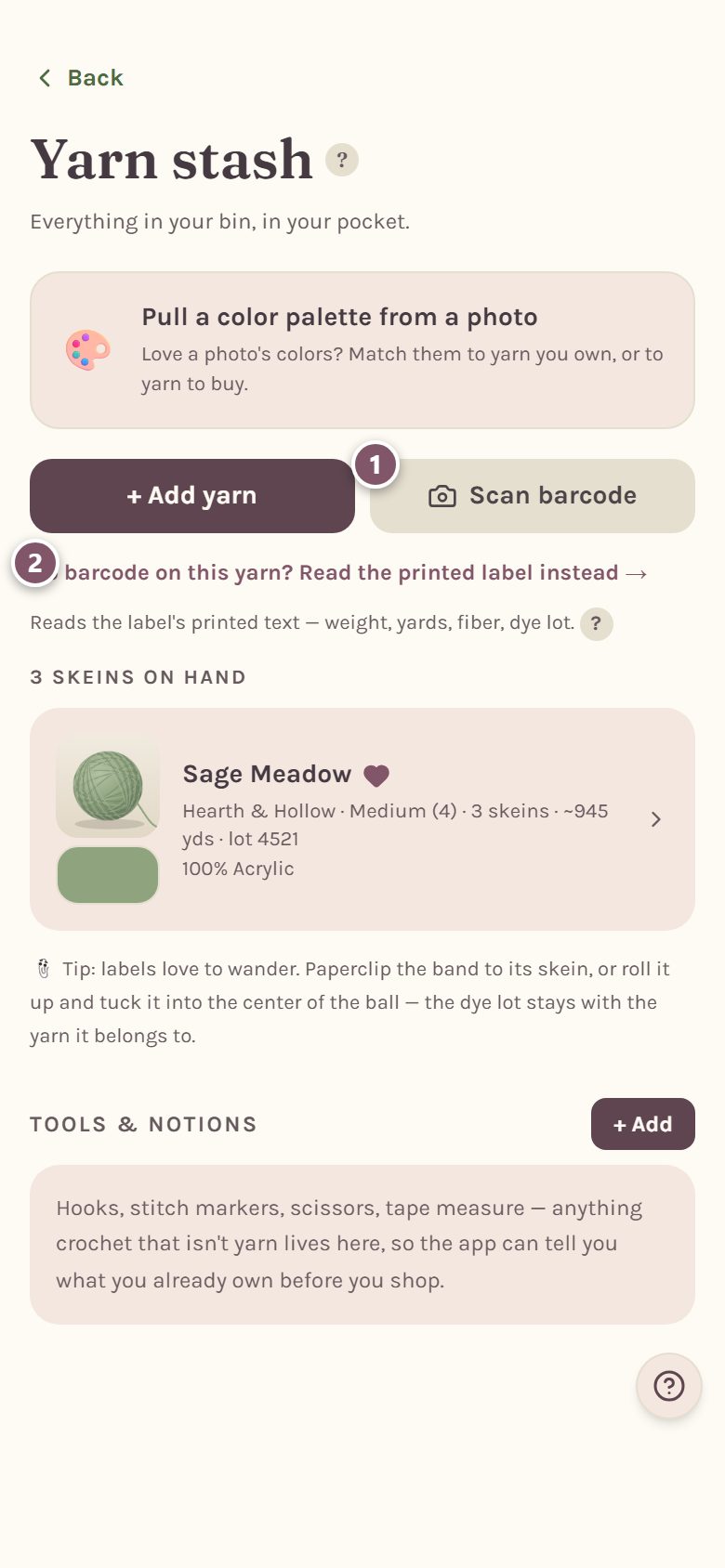
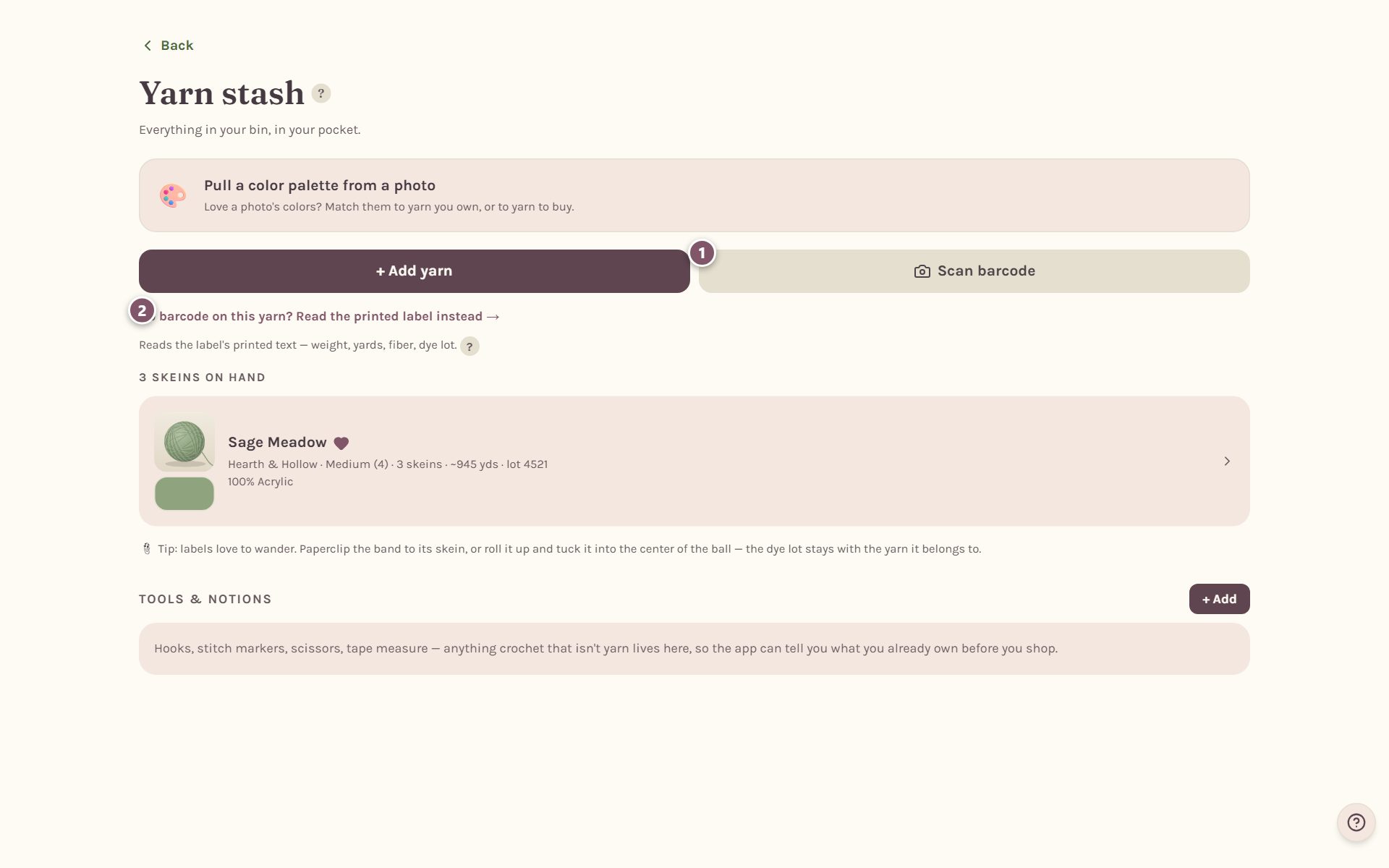
- Scan barcode reads the barcode on the ball band.
- No barcode on this yarn? Read the printed label instead → skips straight to reading the printed words. Some store brands print no barcode at all.
Next, pick Take a photo or Choose from gallery. A photo you took earlier in good light often scans better than one taken in a dim aisle.
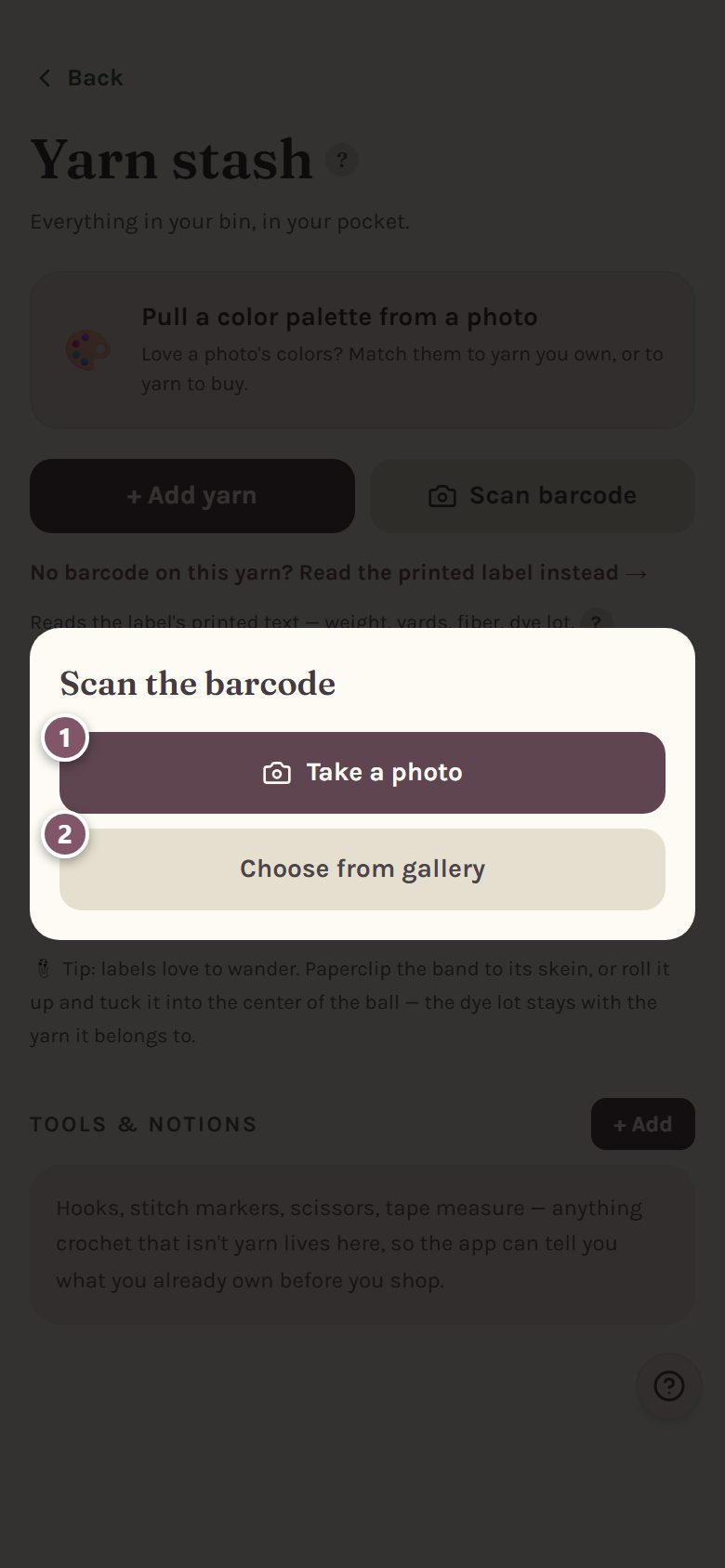
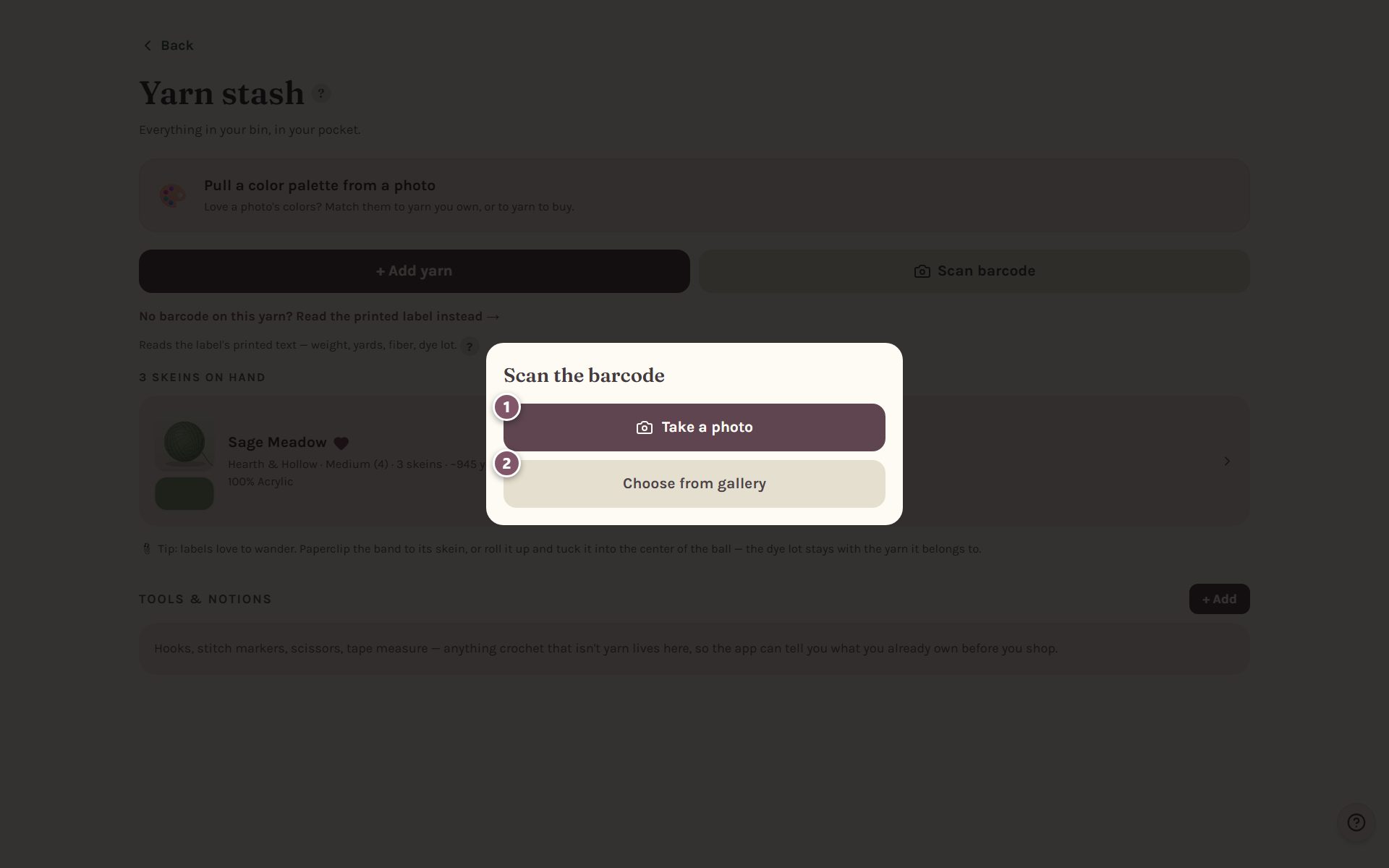
Get close enough that the barcode fills most of the picture, and keep it flat and in focus.
What happens after you scan
There are three things the barcode can turn up.
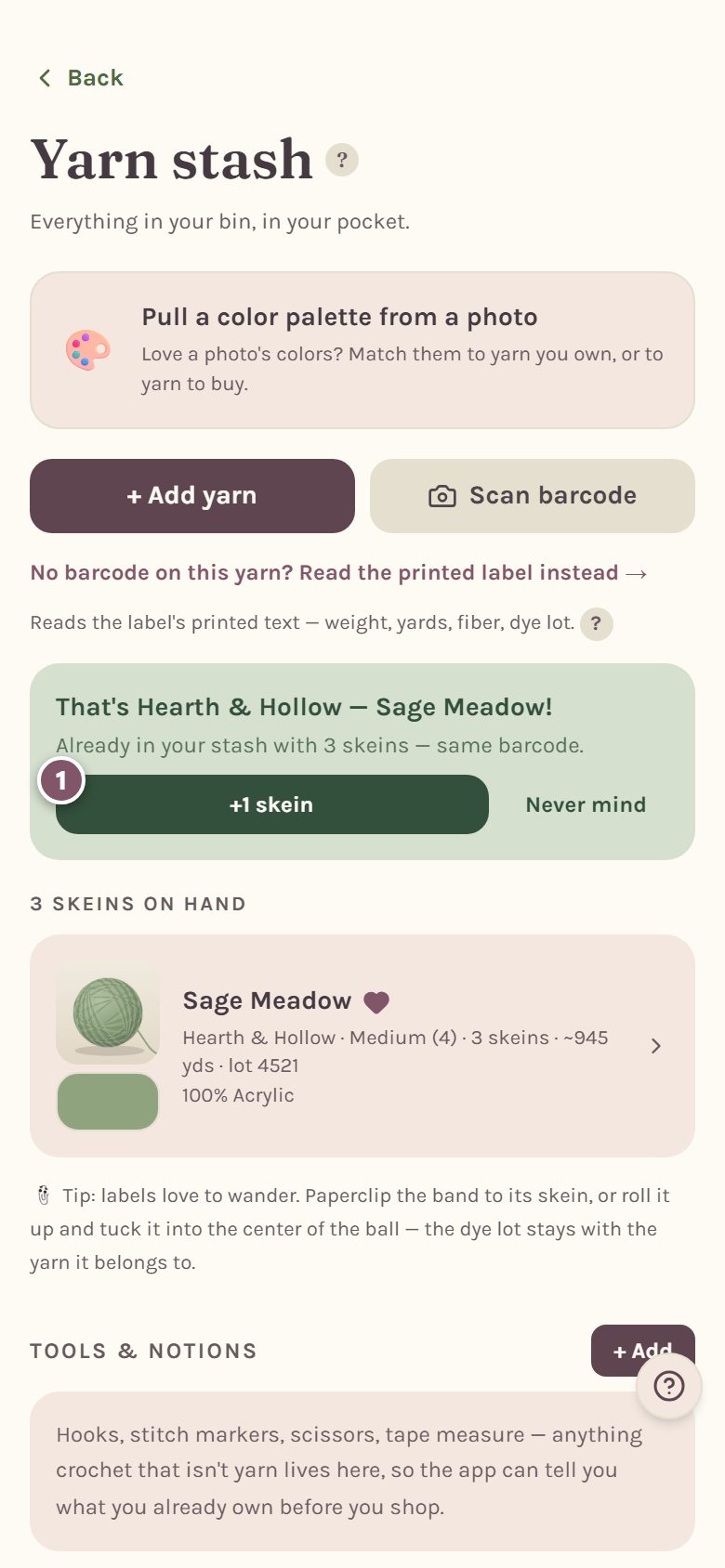
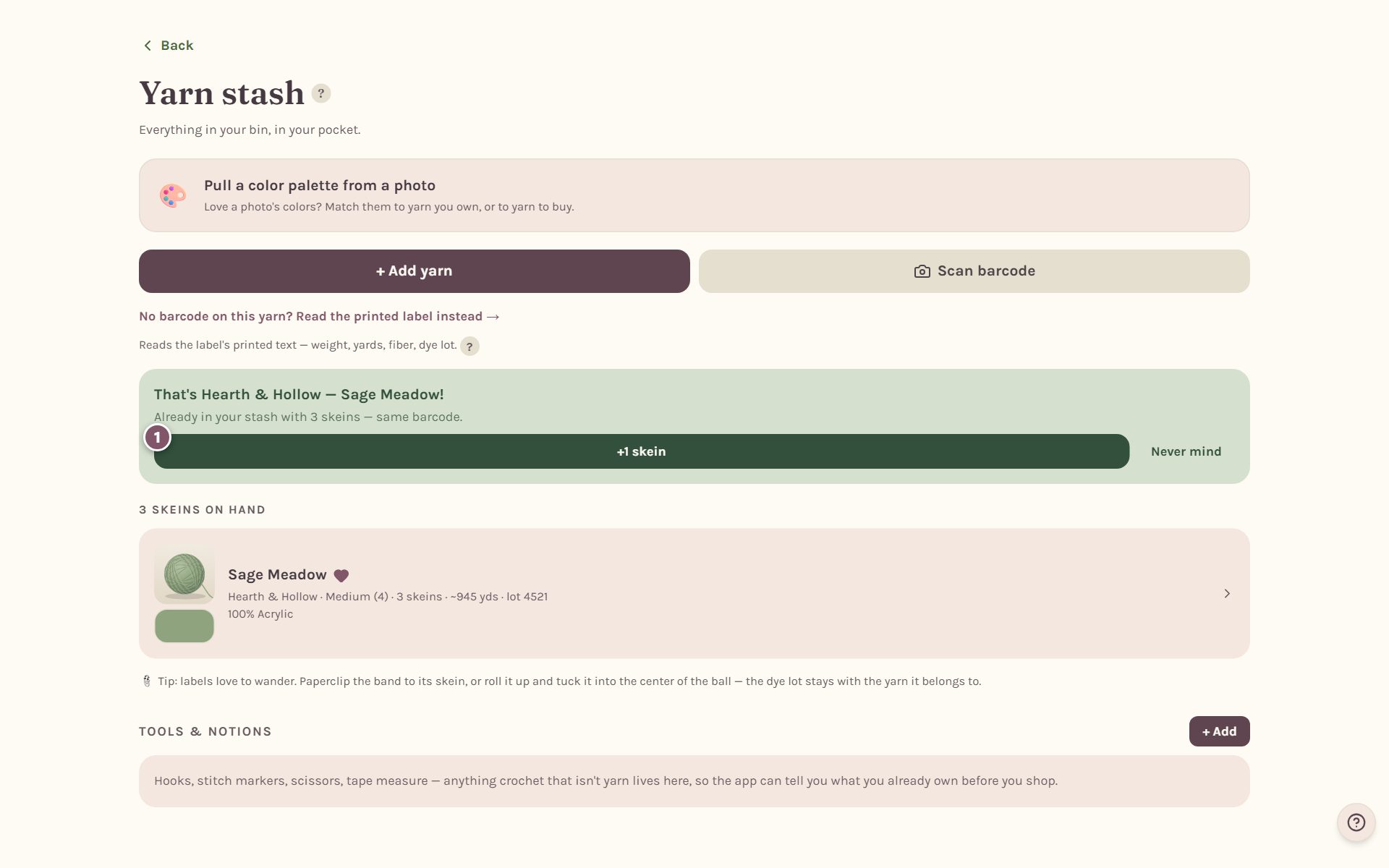
A yarn already in your stash. The app tells you which one, and offers +1 skein. This is the quickest way to add a skein you've bought again.
A yarn someone has entered before. The form opens with the details already filled in from the shared yarn library, or from a public barcode database. Check them, set how many skeins you have, and tap Add to stash.
A barcode nobody has entered yet. The app still remembers the barcode. The form opens with a green Scanned. note, and once you save the yarn, scanning that ball again fills it in.
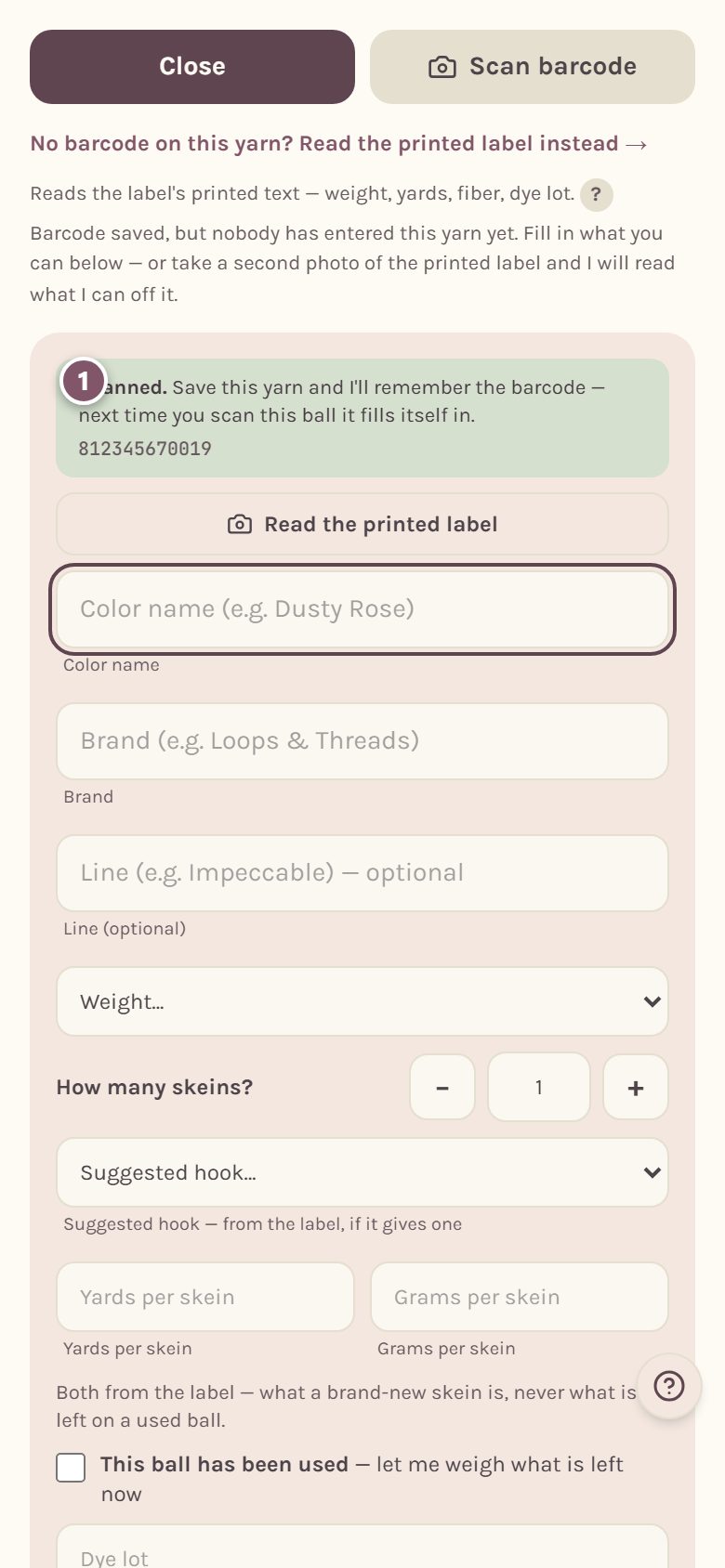
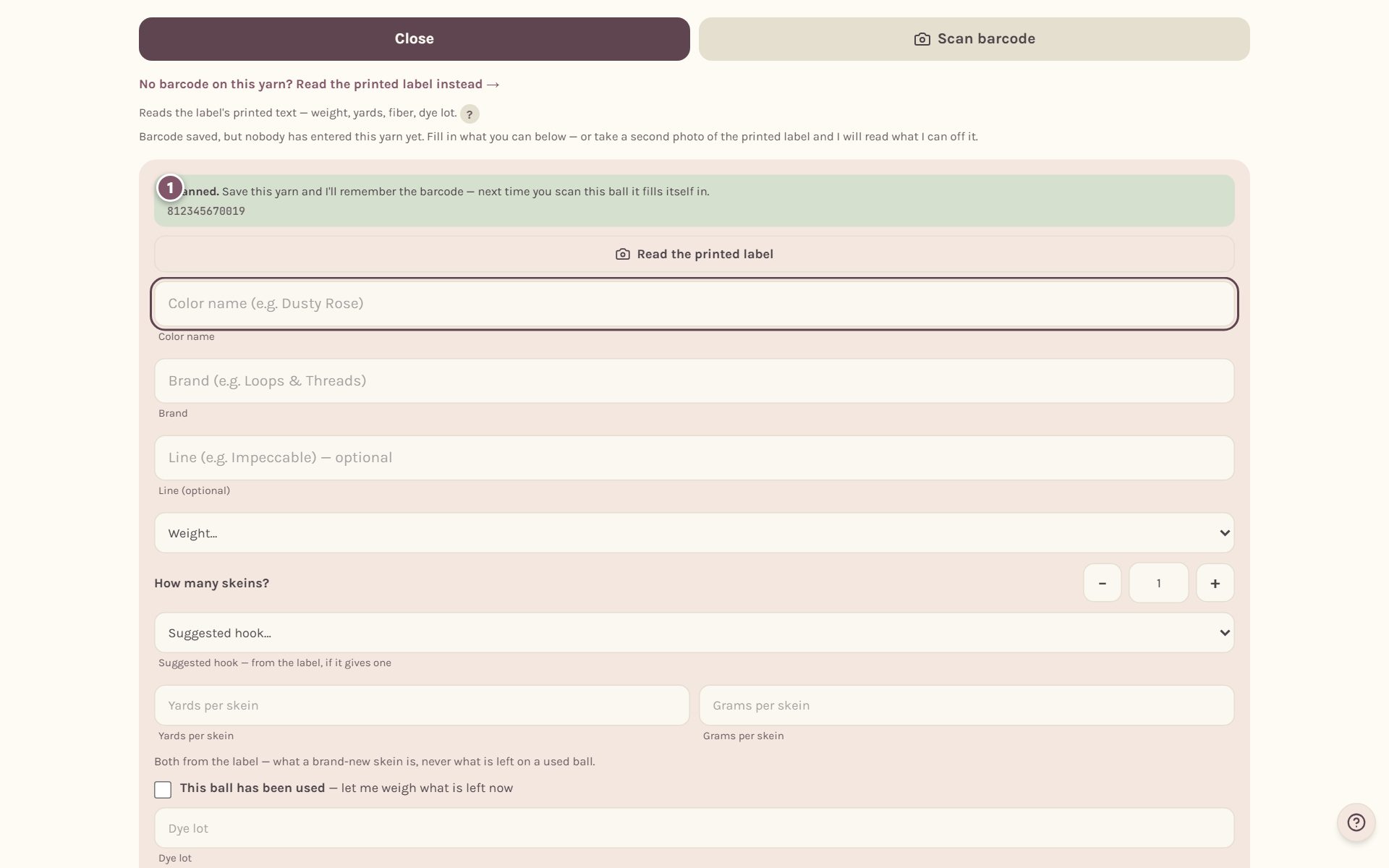
- The Scanned. note shows the barcode number, so you can see the scan worked.
- Tap Read the printed label to fill in the rest from a photo of the label.
Read the printed label with your camera
Tap Read the printed label, then photograph the part of the ball band with the words on it: the yarn name, the weight, the yardage and the fiber. Aim at that printed block, not the barcode. They are rarely in the same picture.
The app reads the words and tells you exactly what it found and what is still missing.
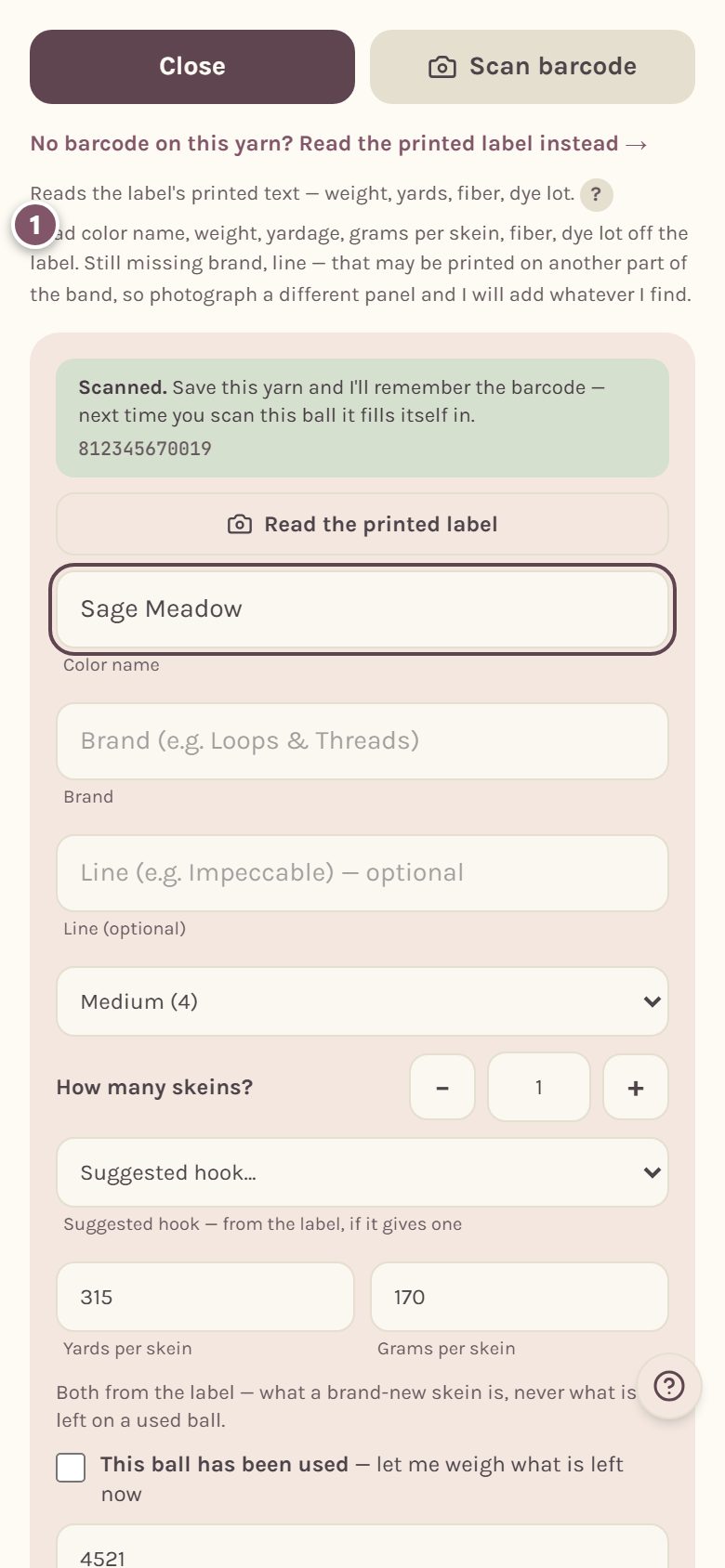
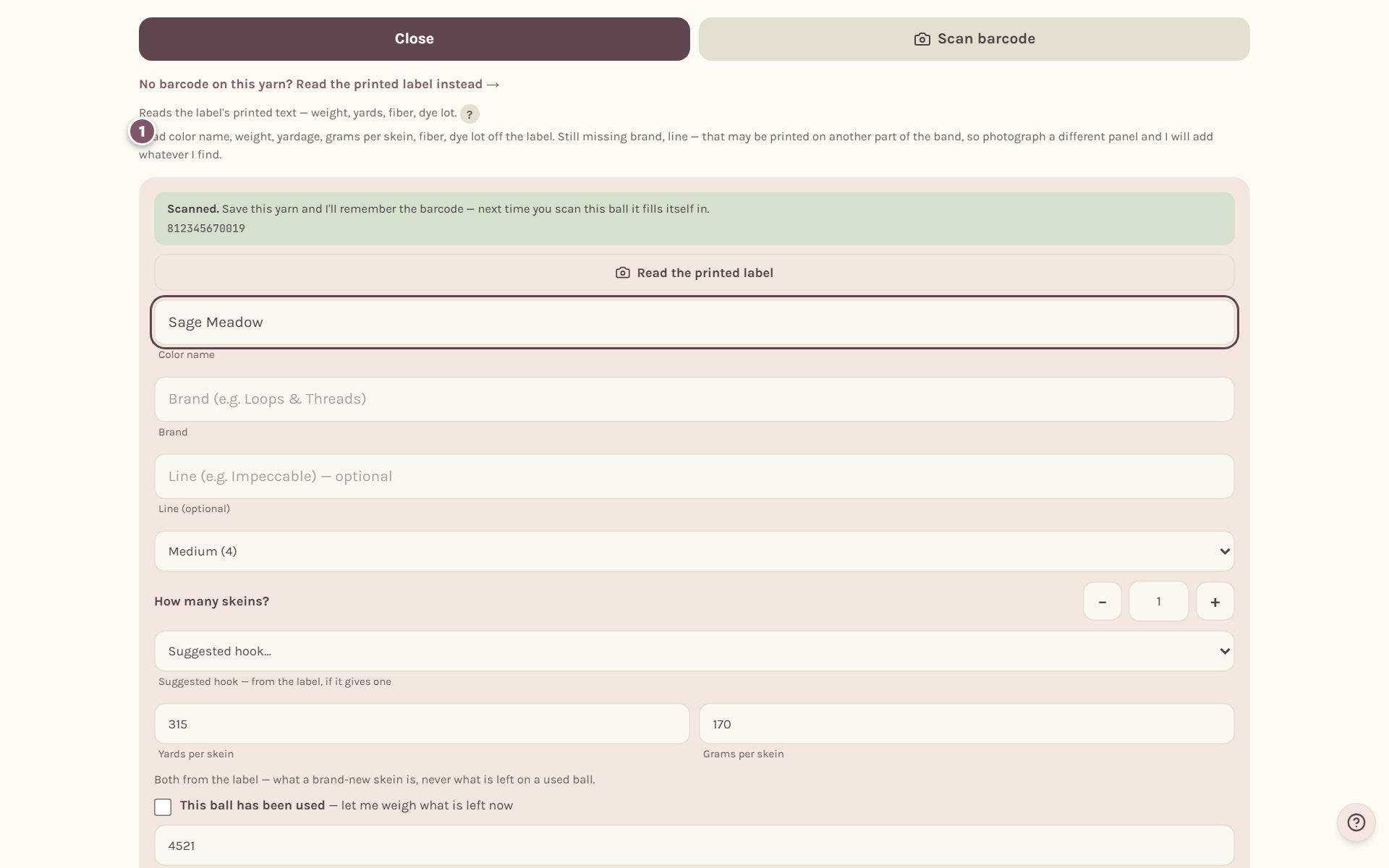
It looks for the brand, the yarn line, the color name, the weight, the yardage, the grams per skein, the fiber, the dye lot and the suggested hook. It only fills in boxes that are still empty, so it never replaces anything you typed.
Tip: labels often spread their details around the band. If the note says something is still missing, take another photo of a different side of the label. The app adds whatever new it finds.
What the scanner misses
It helps to know where the scanner struggles, so you know what to check:
- Logos. The app reads printed words, never pictures. A brand name that only appears as a logo has to be typed.
- Smaller brands. The app fills in a brand only when it recognizes the name. If your brand stays empty, type it in.
- Store brands in barcode databases. Big national brands are usually found. Store house brands usually aren't. The barcode is still remembered, so after you save the yarn once, it's recognized from then on.
- Curved, shiny or crumpled labels. Flatten the band and use even light. A label still wrapped around a round ball is hard to read.
- iPhones and iPads. Safari can't read barcodes, so on an iPhone or iPad the barcode scan won't work. Reading the printed label does work, and so does typing the details in.
The yardage and grams the app reads are what the label says a brand-new skein holds. For a ball you've already used, tick This ball has been used and weigh it. See weighing a leftover ball.
Check the details and save
Look over every field, fix anything the scanner got wrong, set How many skeins?, and tap Add to stash.
Changed your mind? Tap Close at the top. Nothing is saved, and the scanned barcode is dropped.
Frequently asked questions
Does scanning share anything about me? When you save a yarn you scanned, its barcode and label details go into the shared yarn library so the next crocheter who scans it gets the details filled in. Your name isn't attached. Your stash itself stays private.
Why did it fill in the wrong numbers? Label reading is a best guess from a photo, and it can misread a number, especially on a busy or curved label. That's why nothing is saved until you check the form and tap Add to stash.
Can it work out the yardage from the weight? Not from the weight alone. Once the label's yards and grams per skein are in, the app can turn the weight of any leftover ball into yards.
Ready to try it? Crochet Bobble opens right in your browser, on a phone or a computer.
Open Crochet Bobble