
Crochet Shopping List: Take Your Yarn and Supply List to the Store
Keep a crochet shopping list in your pocket. Add a pattern's yarn, hook and notions with one tap, tick things off in the store even with no signal, and put what you bought straight into your yarn stash.
The shopping list is for the trip to the yarn store. Add what a pattern needs in one tap, type in anything else, and tick things off as they go in your basket. It keeps working when the store has no signal.
Open your shopping list
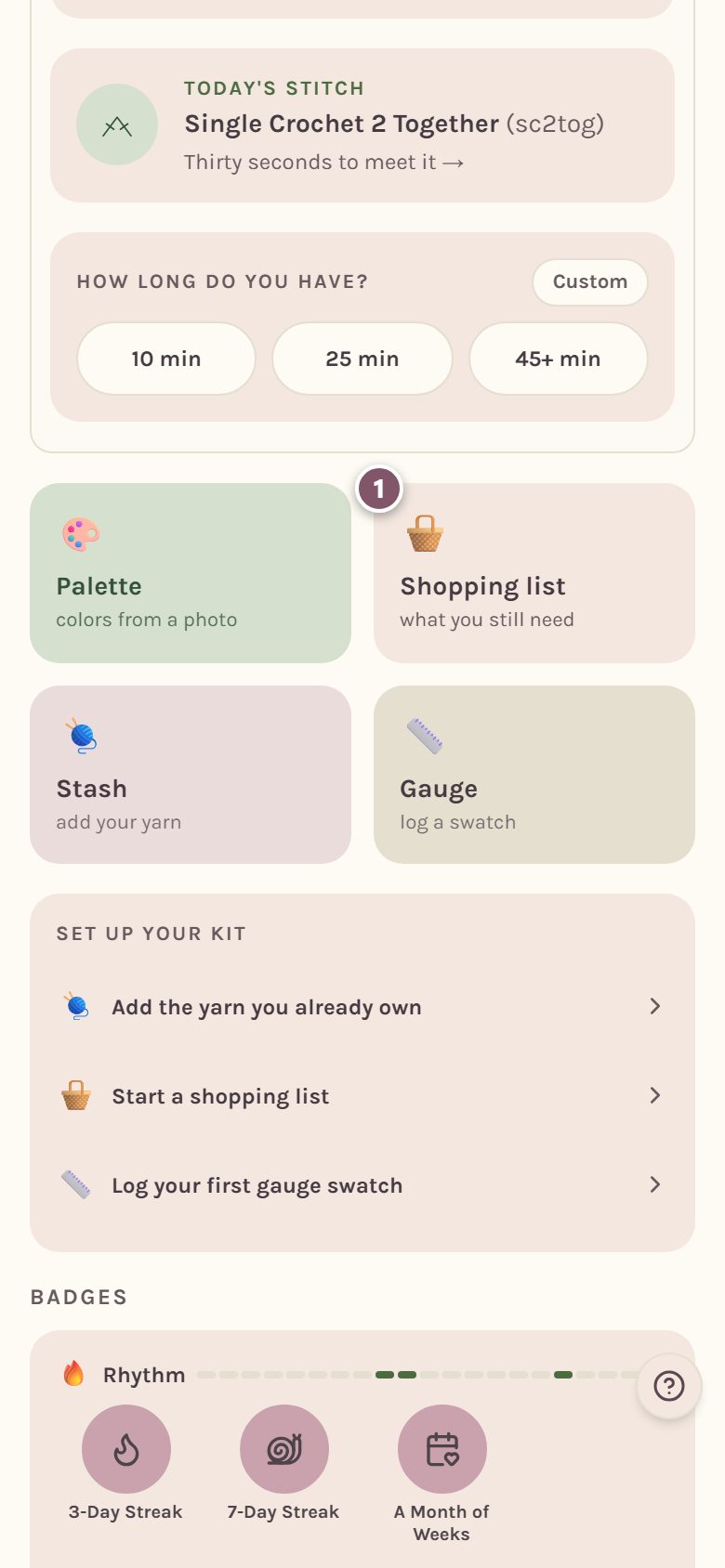
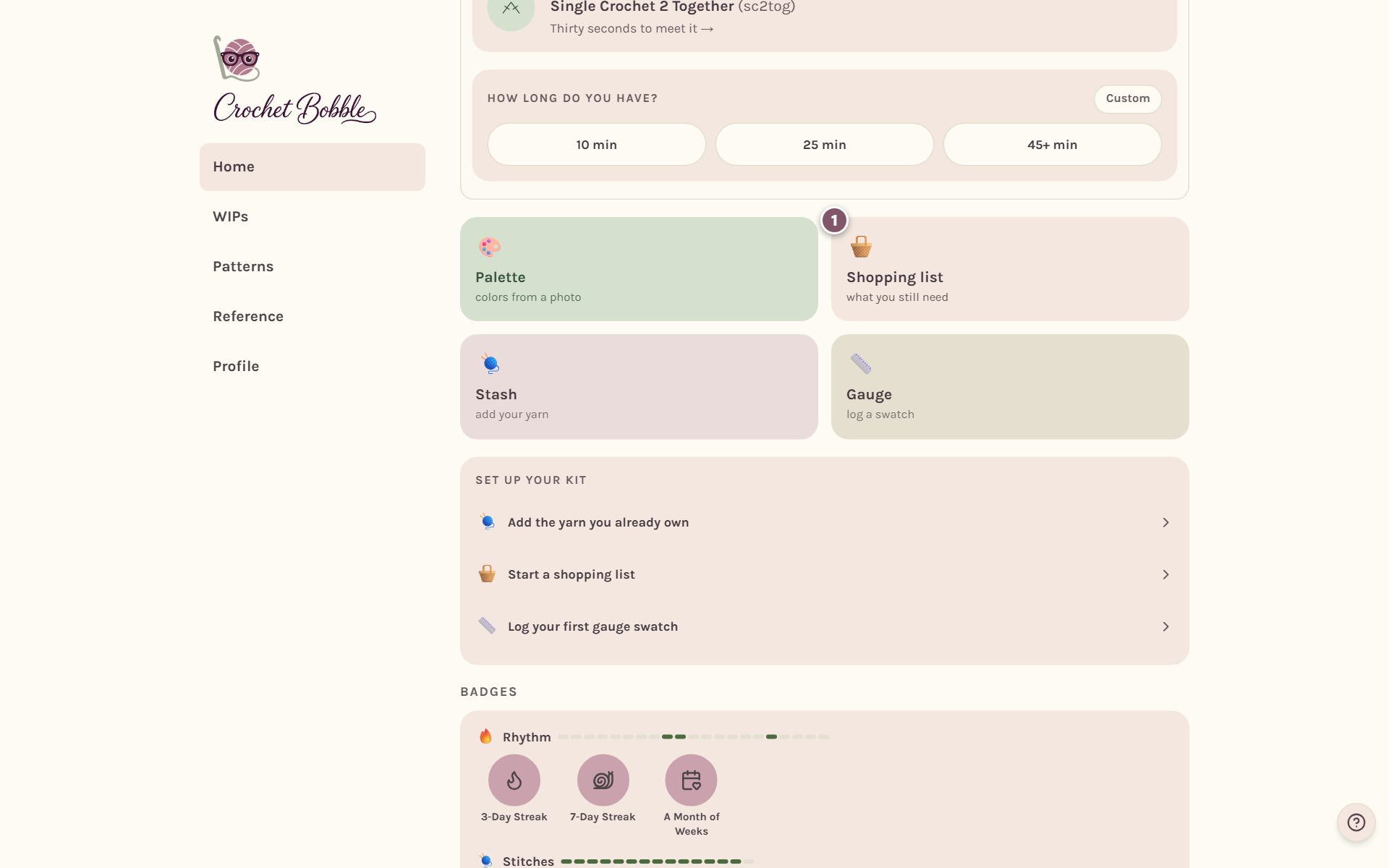
On Home, tap the Shopping list tile.
Add something by hand
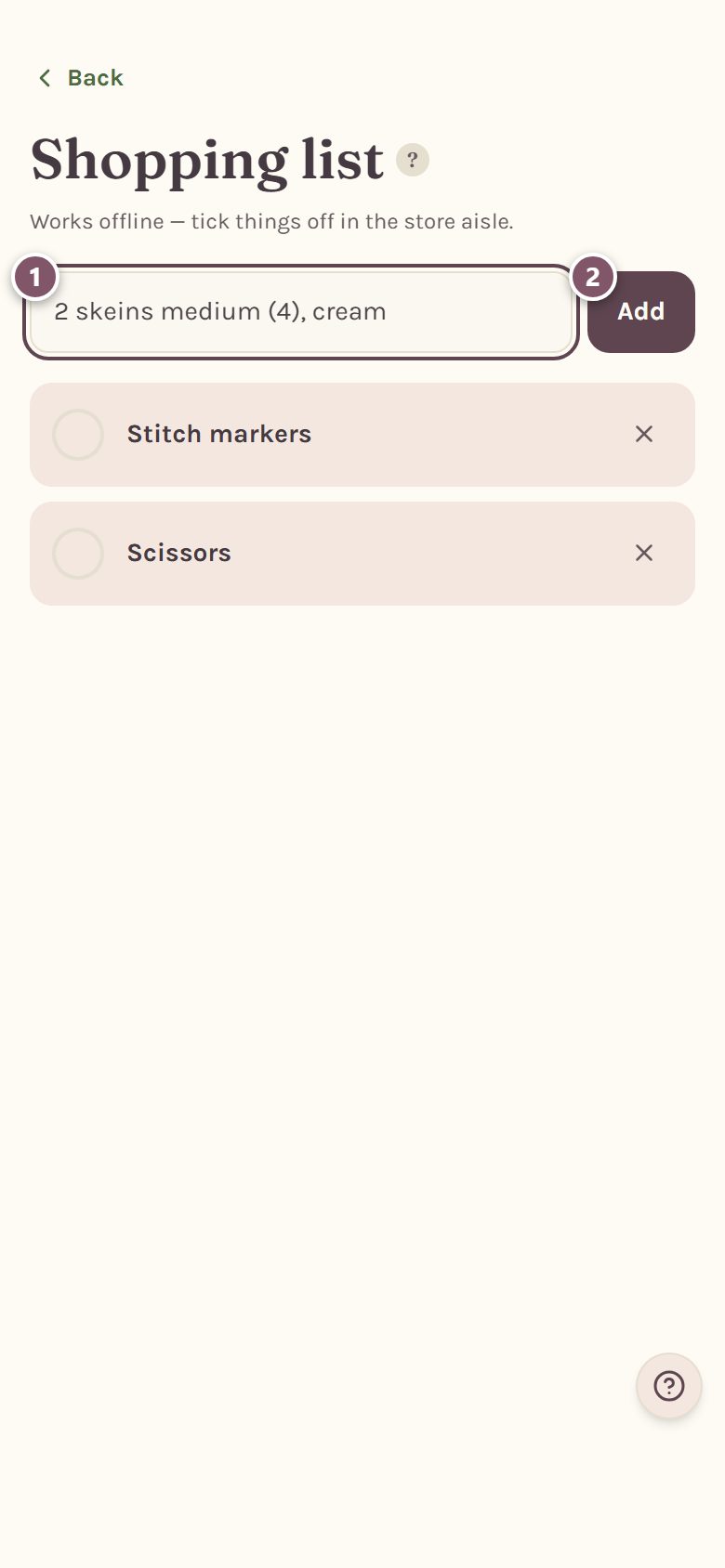
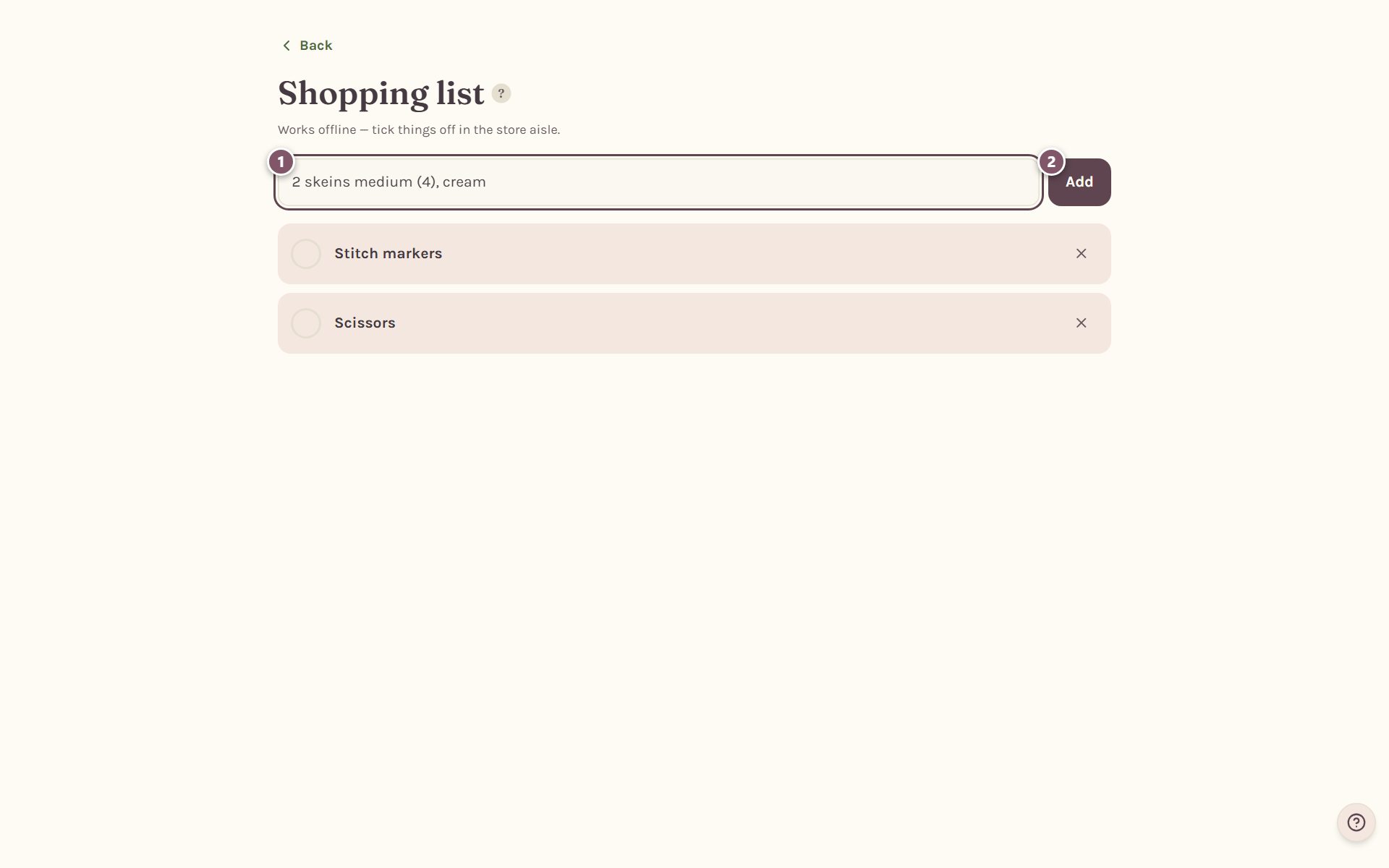
Type what you need in the box at the top and tap Add. Write it the way you'd want to read it in the aisle, like "2 skeins medium (4), cream".
Add a pattern's materials in one tap
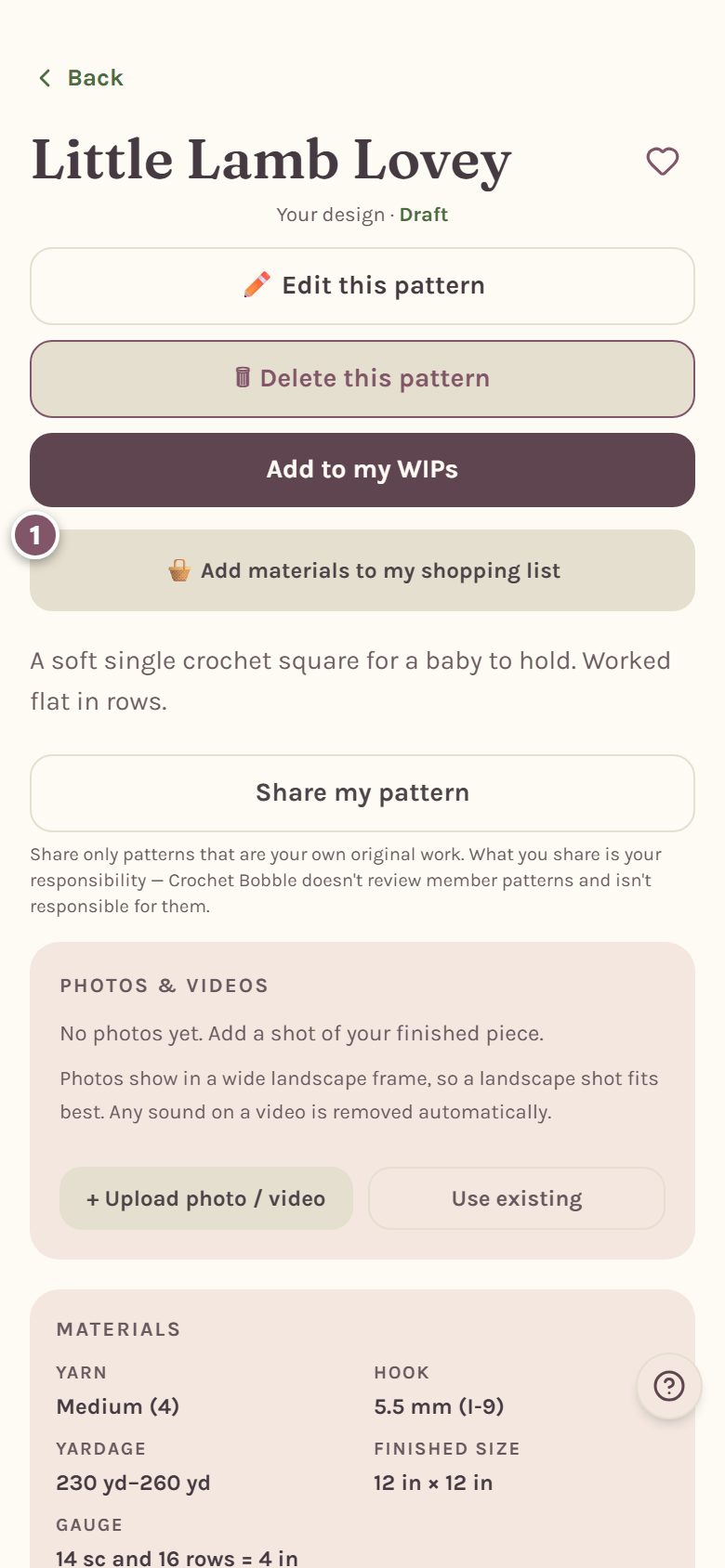
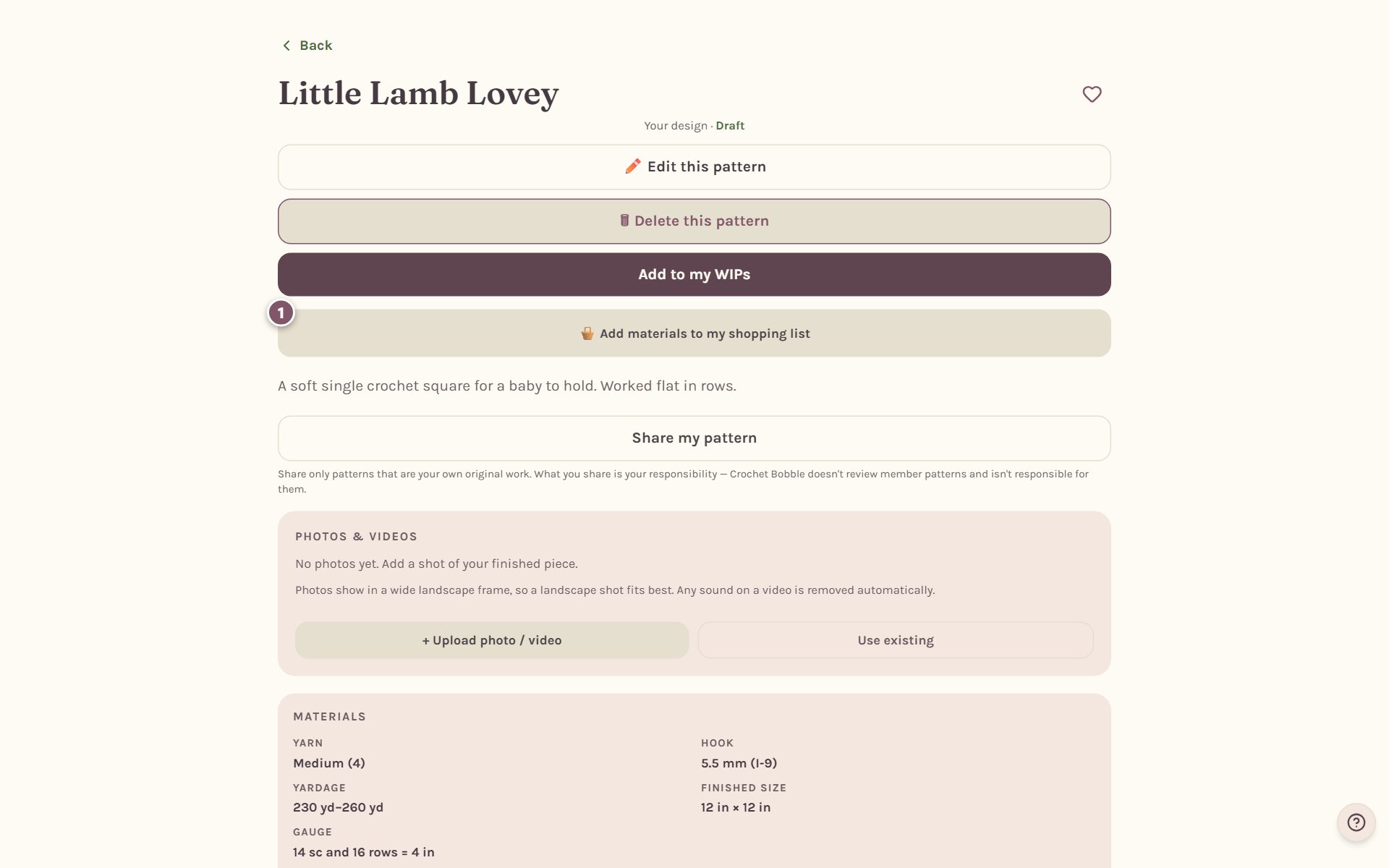
Open any pattern on your Patterns tab and tap 🧺 Add materials to my shopping list.
A list opens with everything the pattern needs: the yarn and how much of it, the hook, and any notions the pattern names.
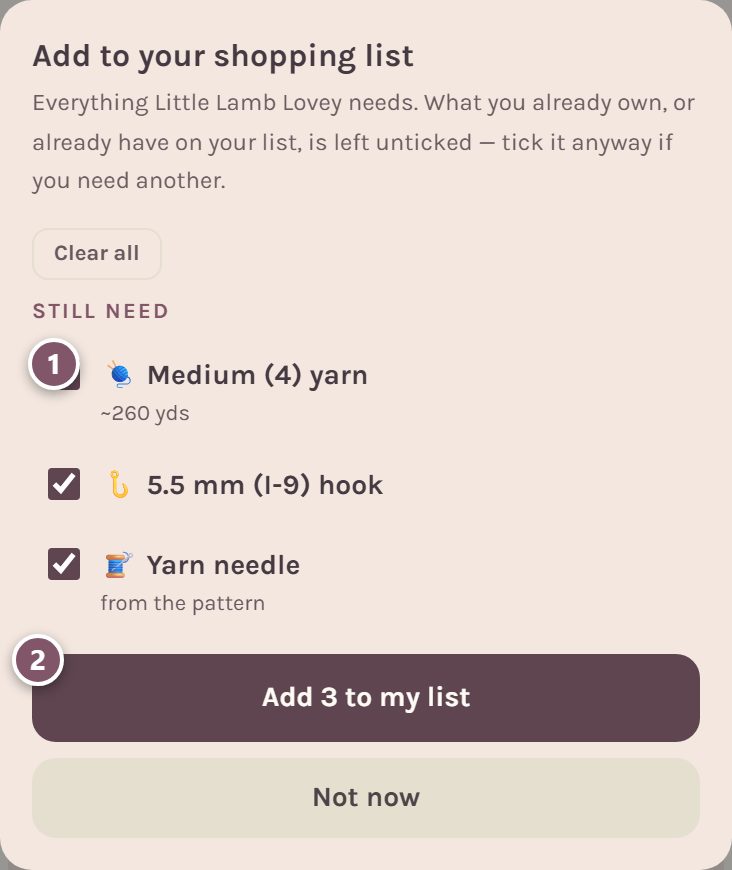
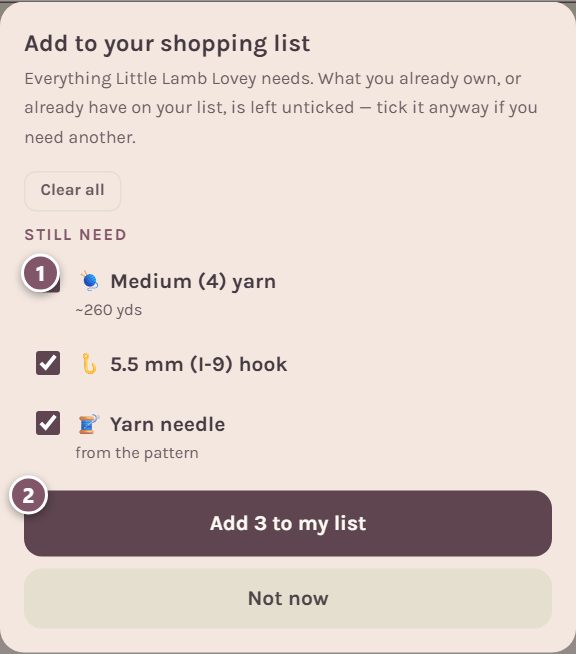
- Tick what you need to buy and untick what you don't. Anything already in your stash, or already on your list, starts unticked.
- Tap the Add button, which counts what you ticked, like Add 3 to my list.
Photo blankets have the same button, and it lists the blanket's yarn color by color. You can also add yarn from the color palette with + List.
Read your list in the store
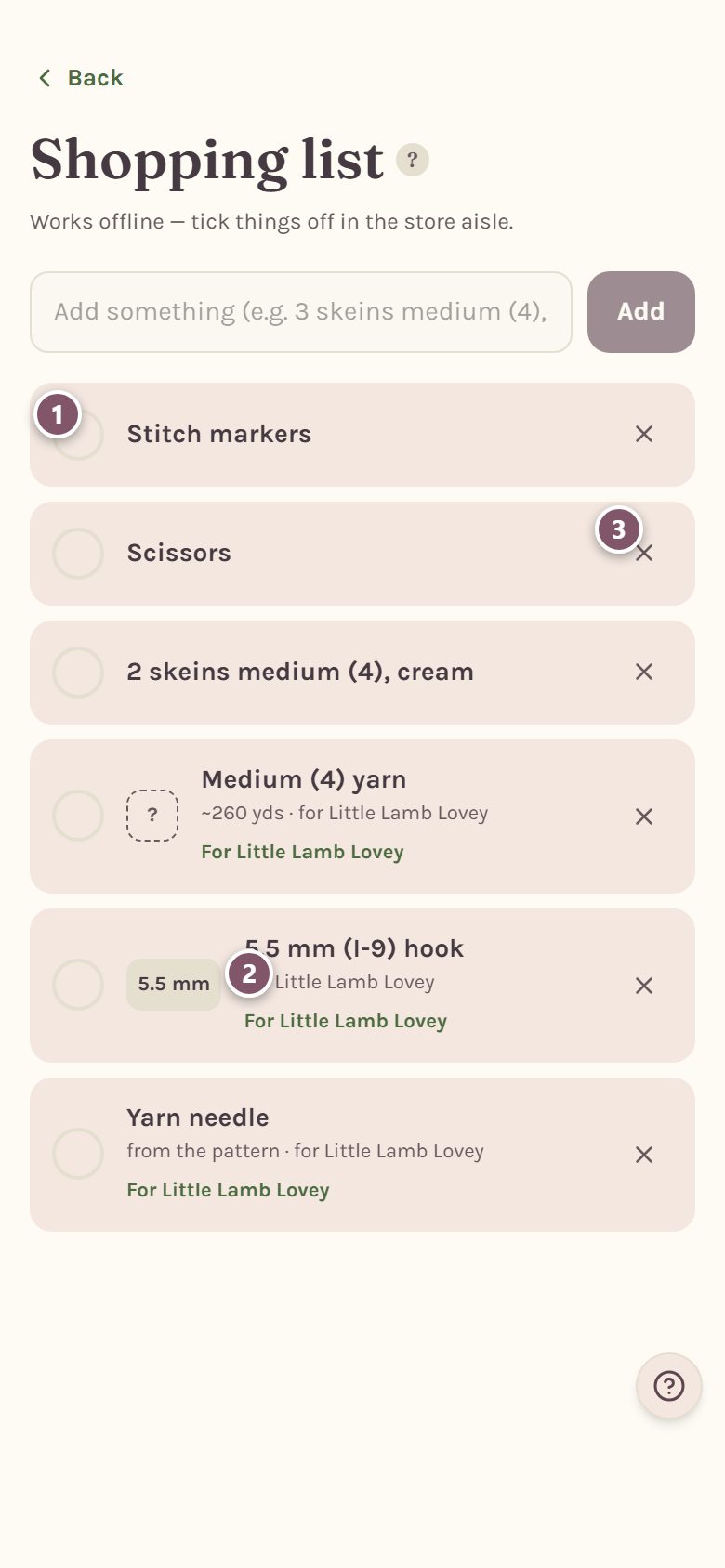
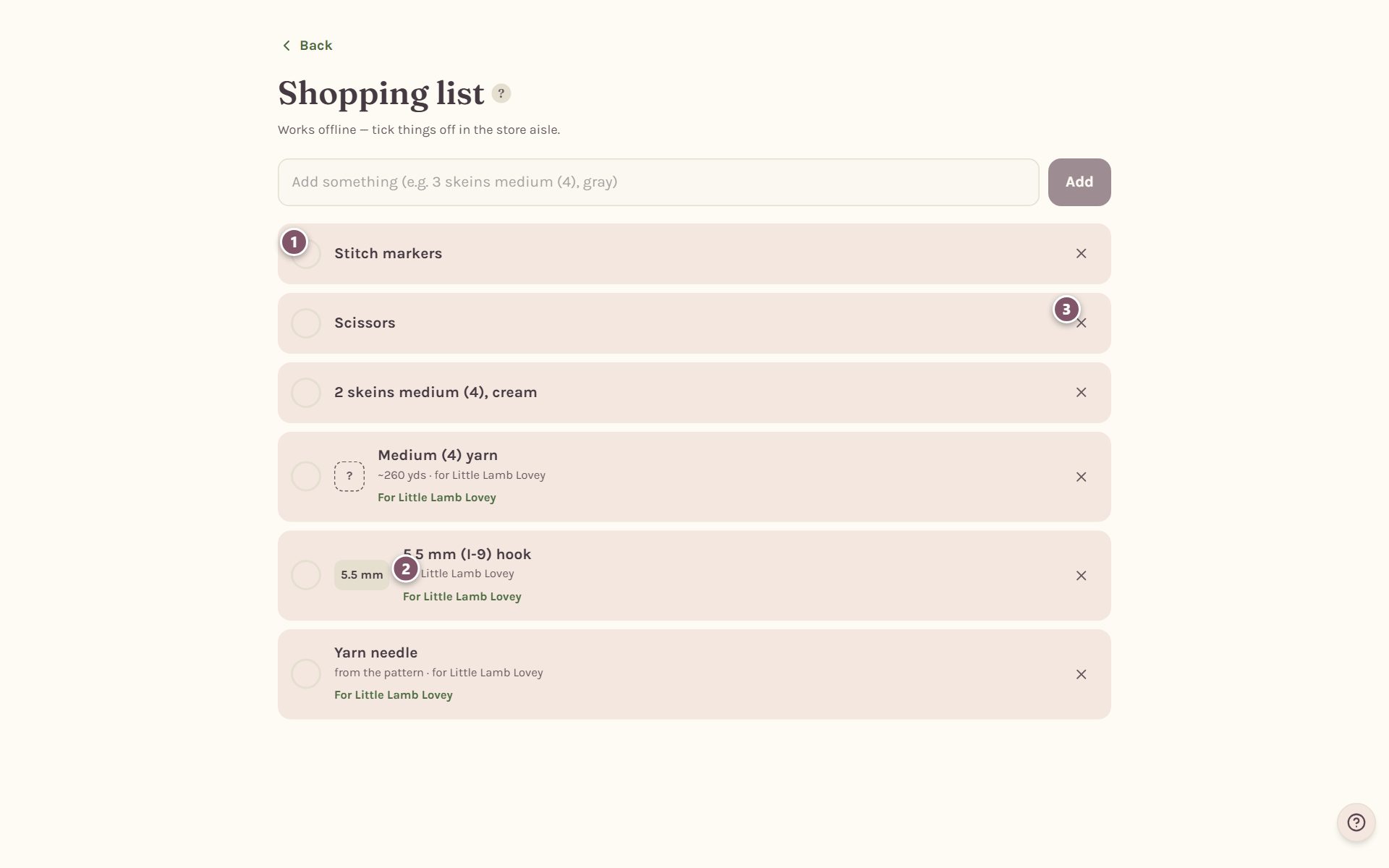
- Tap the circle to tick something off as it goes in your basket.
- Items from a pattern say which pattern they're for, so a list for three projects doesn't get mixed up.
- The ✕ takes an item off the list.
Yarn lines show a color swatch when the app knows the color, so you can hold it up against the shelf. A dashed ? means no color is saved for that yarn yet. A hook shows its size, like 5.5 mm.
Tip: you can tick things off with no signal at all. Stores often have terrible reception, so the app saves your ticks on your phone and catches up when you're back online.
For a photo blanket's yarn there's also Different yarn?, which lets you swap to another yarn right there in the aisle if the one you planned is sold out. That swap changes the blanket too. See picking yarn for a blanket.
Put what you bought into your yarn stash
Ticked items move down to In the basket.
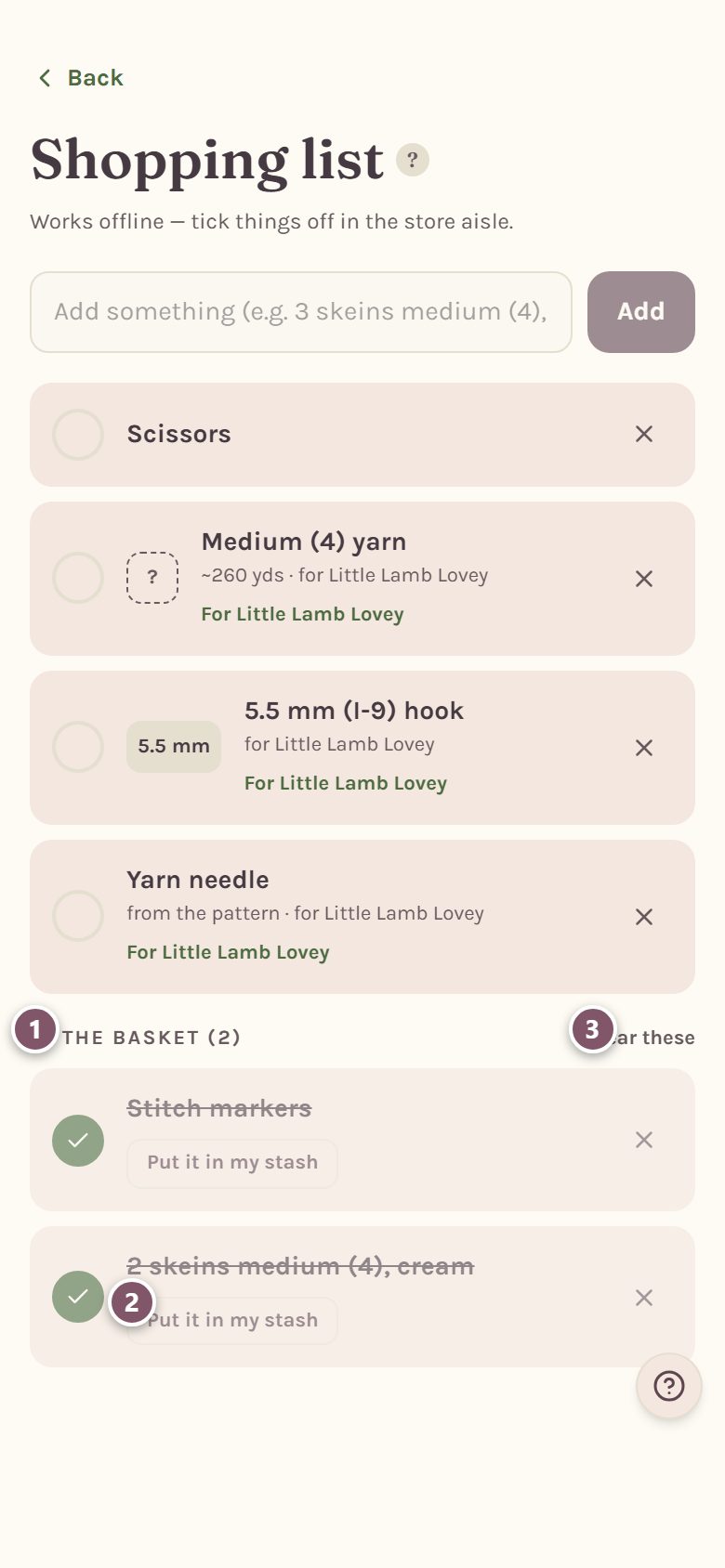
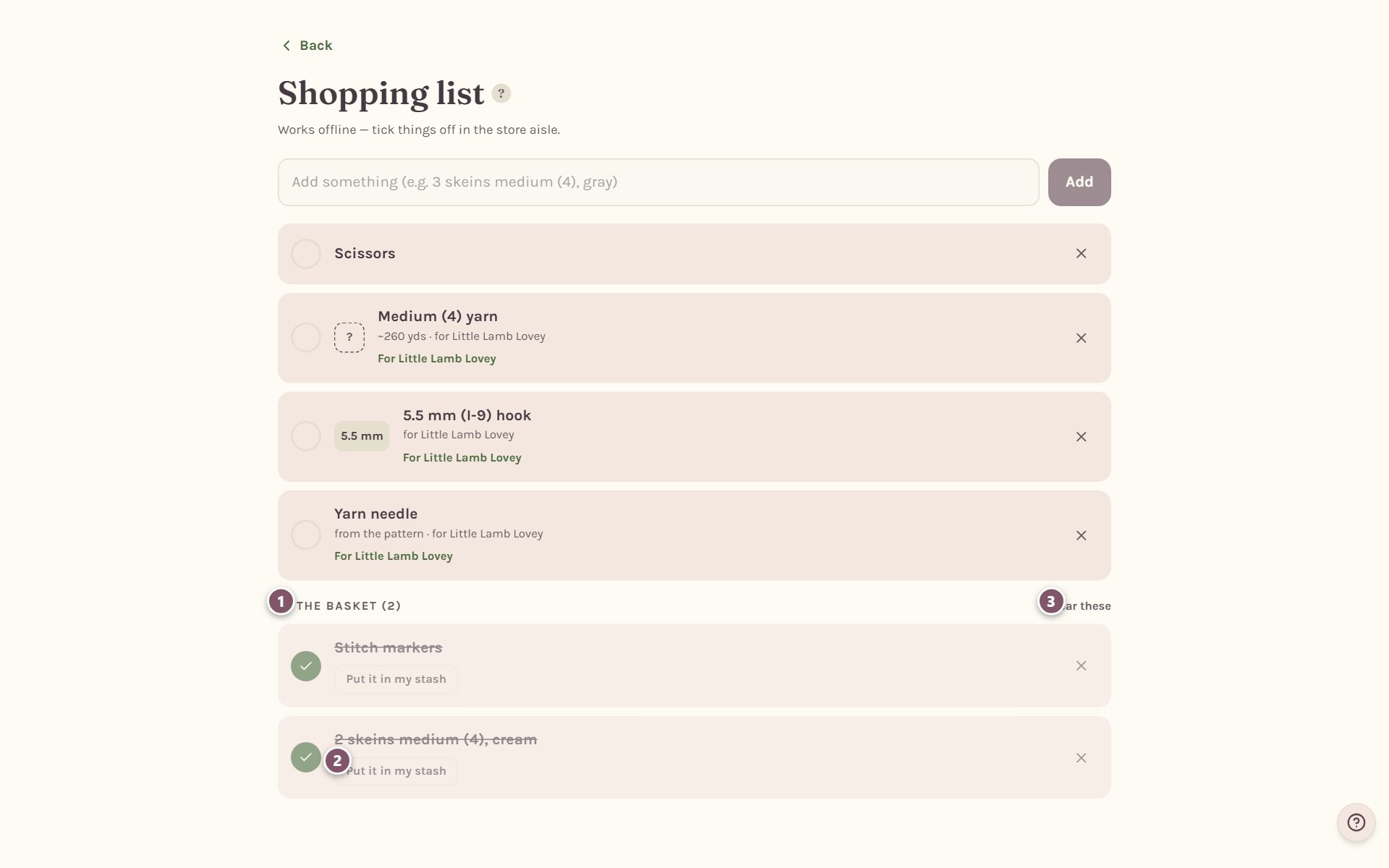
- In the basket holds everything you've ticked. Tap a circle again to untick it.
- Put it in my stash files it on your shelf. A tool goes straight into your tools. For yarn, the app opens your stash's add form with the name filled in. If the app can't tell whether it's yarn or a tool, you'll see Stash as yarn and Stash as a tool instead.
- Clear these removes everything in the basket from your list, all at once.
When you put yarn in your stash, check the details and, with the ball in your hand, tap Scan barcode first. See scanning a yarn label.
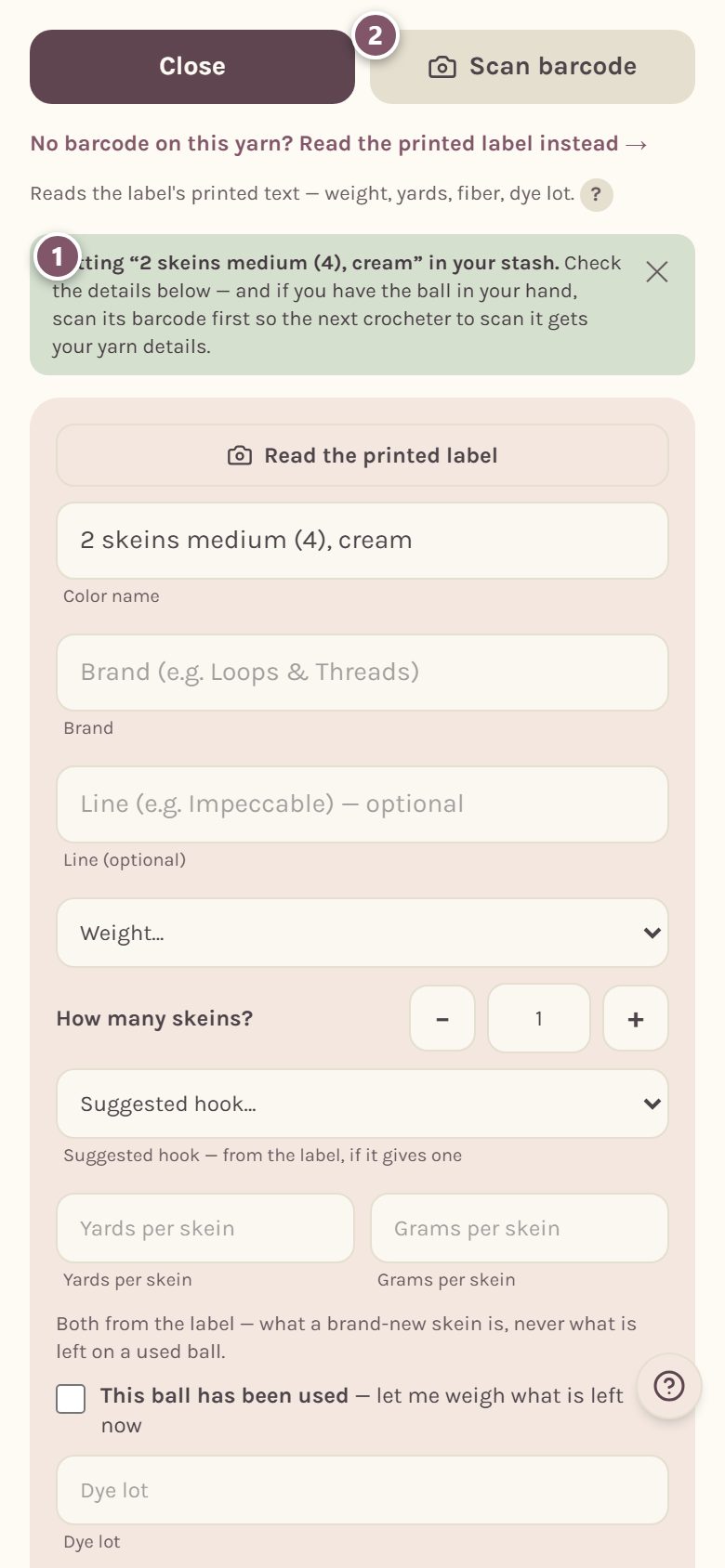
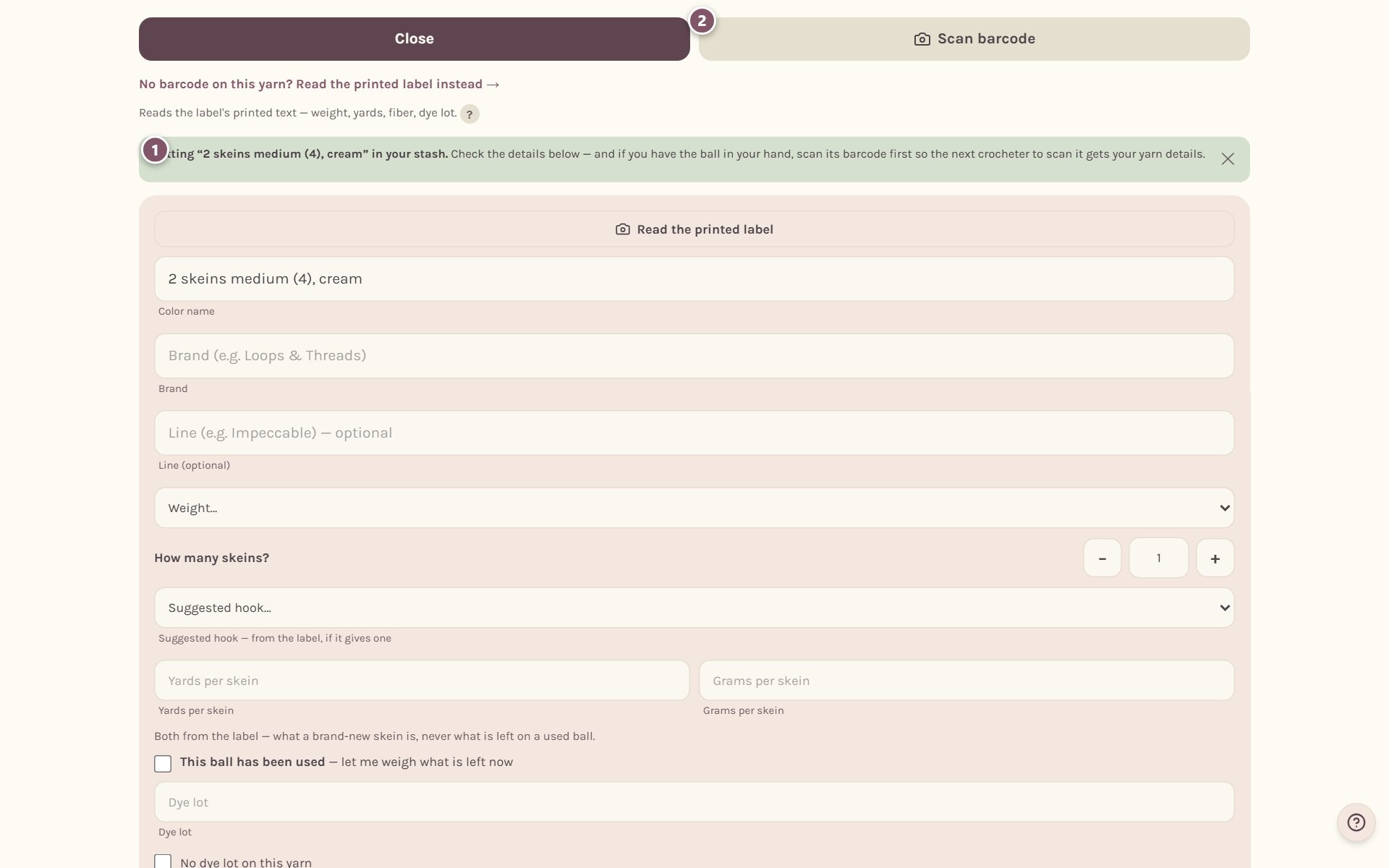
Once it's saved, the shopping list marks the item In your stash ✓.
Frequently asked questions
Does the list work offline? Ticking things off does. Your ticks are saved on your phone and sent when you're back online, even if you close the app in between.
I added the same pattern twice. Now what? When a pattern's materials are already on your list, the app asks whether to replace them or keep both, so you don't end up buying double.
Can I share my list with someone else? Not from inside the app. The list belongs to your account, and it's the same on every phone or computer you sign in on.
Ready to try it? Crochet Bobble opens right in your browser, on a phone or a computer.
Open Crochet Bobble