
Crochet Row Counter for Blankets: Track a Photo Blanket Stitch by Stitch
Turn your photo blanket into a WIP and let Crochet Bobble count every color change for you. Log stitches in handfuls, look back without losing your place, and watch the chart fill in as you go.
A photo blanket is hundreds of color changes, and losing your place costs you a whole row of counting. Crochet Bobble's blanket tracker keeps your place for you. It tells you which color to hold, how many stitches to work, and when the next change comes, one run at a time.
This guide uses a square chart worked in rows. Round, oval and C2C blankets track the same way. Only the word changes: rounds or diagonals instead of rows.
What you need
- A saved photo blanket. If you don't have one yet, see how to turn a photo into a crochet blanket pattern.
- Your yarn and hook, ready to go.
Start your blanket as a WIP
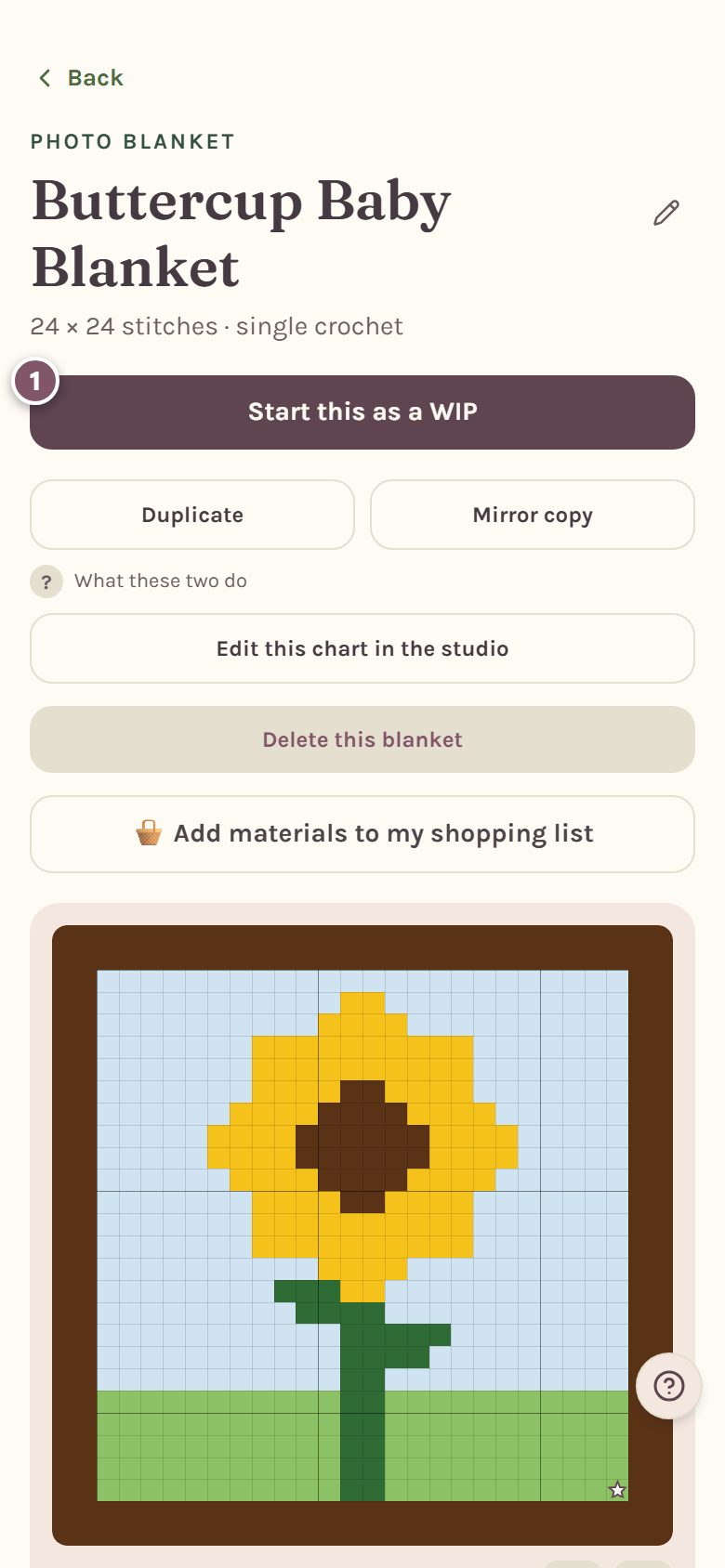
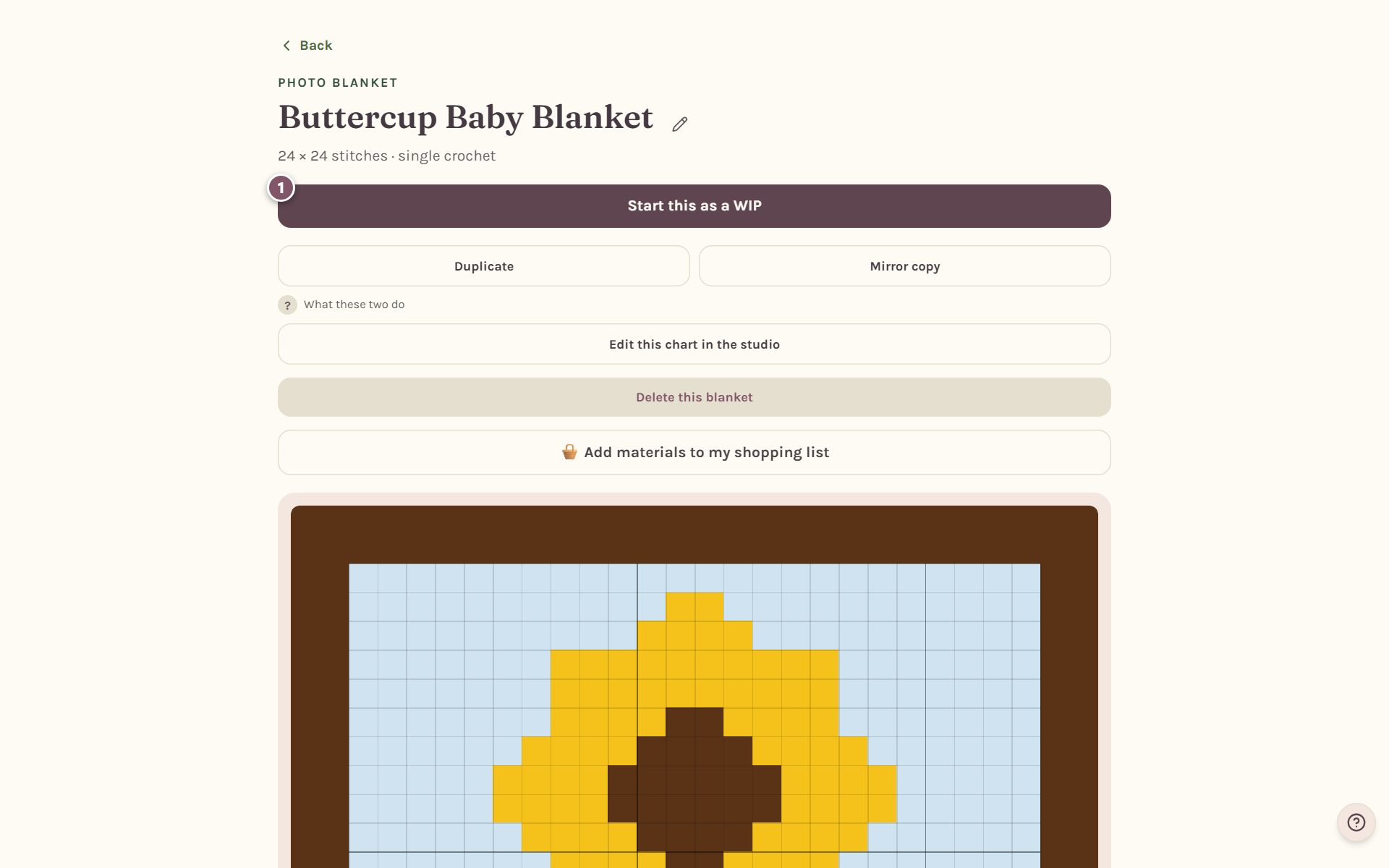
Saving a blanket puts it on your shelf, but it doesn't start tracking. Open the blanket and tap Start this as a WIP.
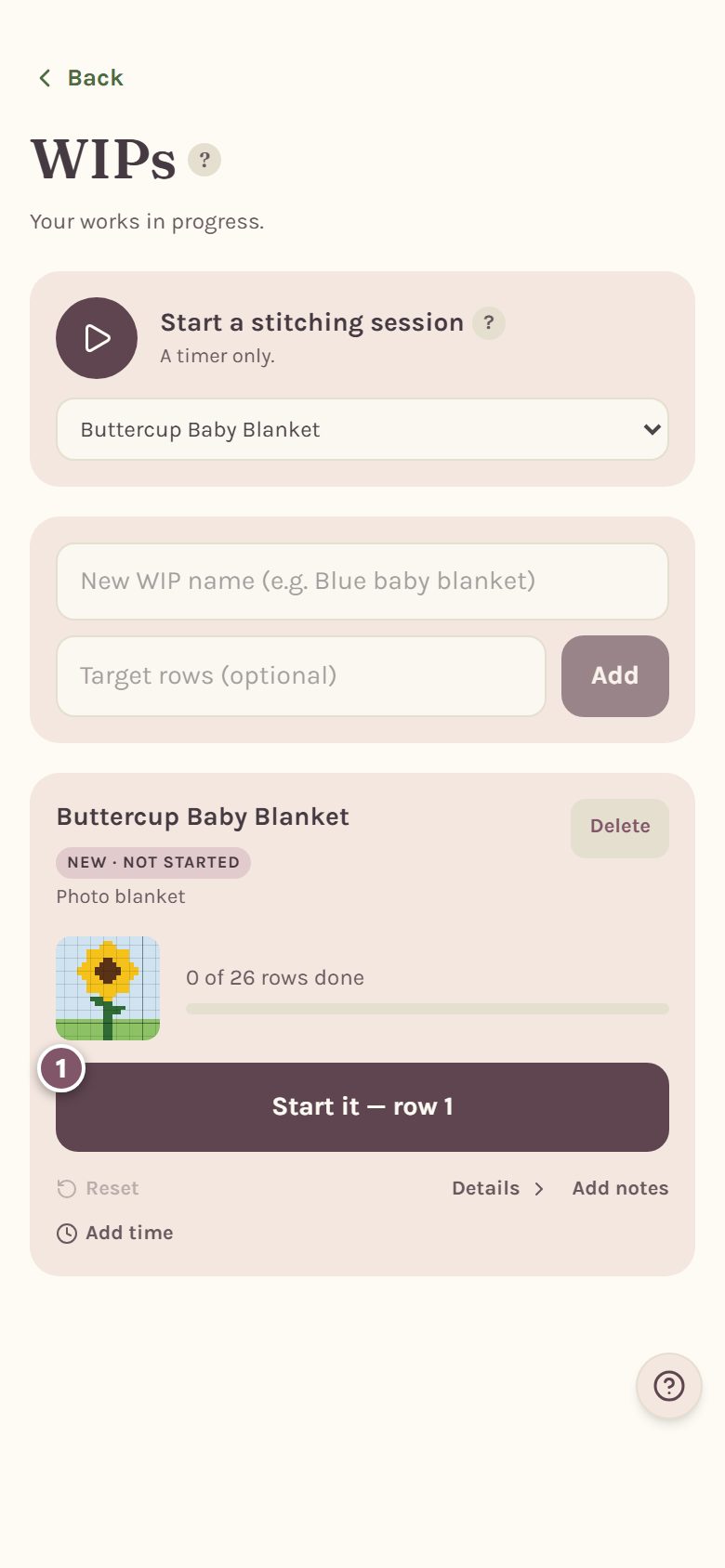
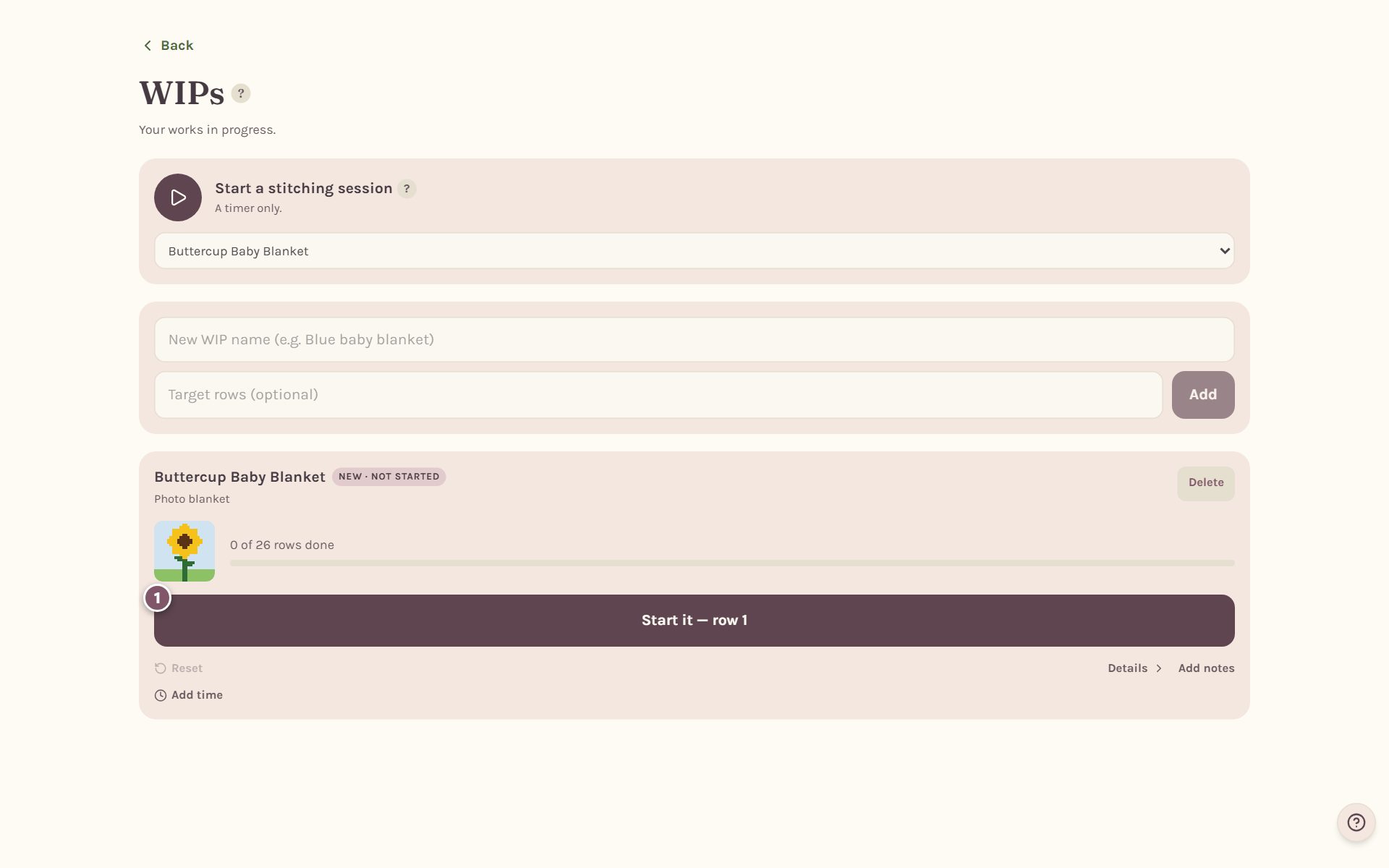
Crochet Bobble takes you to your WIPs, where the blanket now has its own card. Tap Start it — row 1 to open the tracker. Later, the same button reads Pick it back up with the row you're on.
Read the chart before you begin
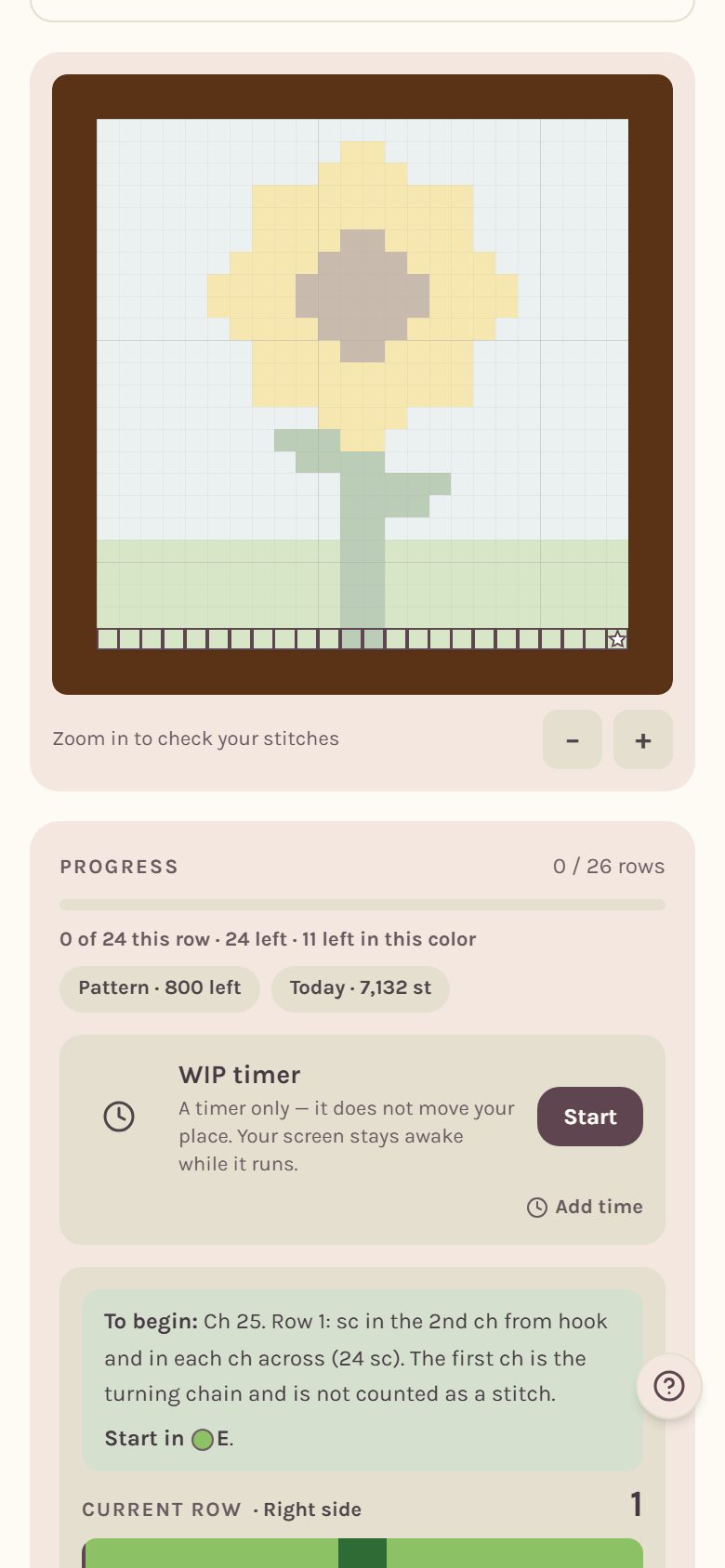
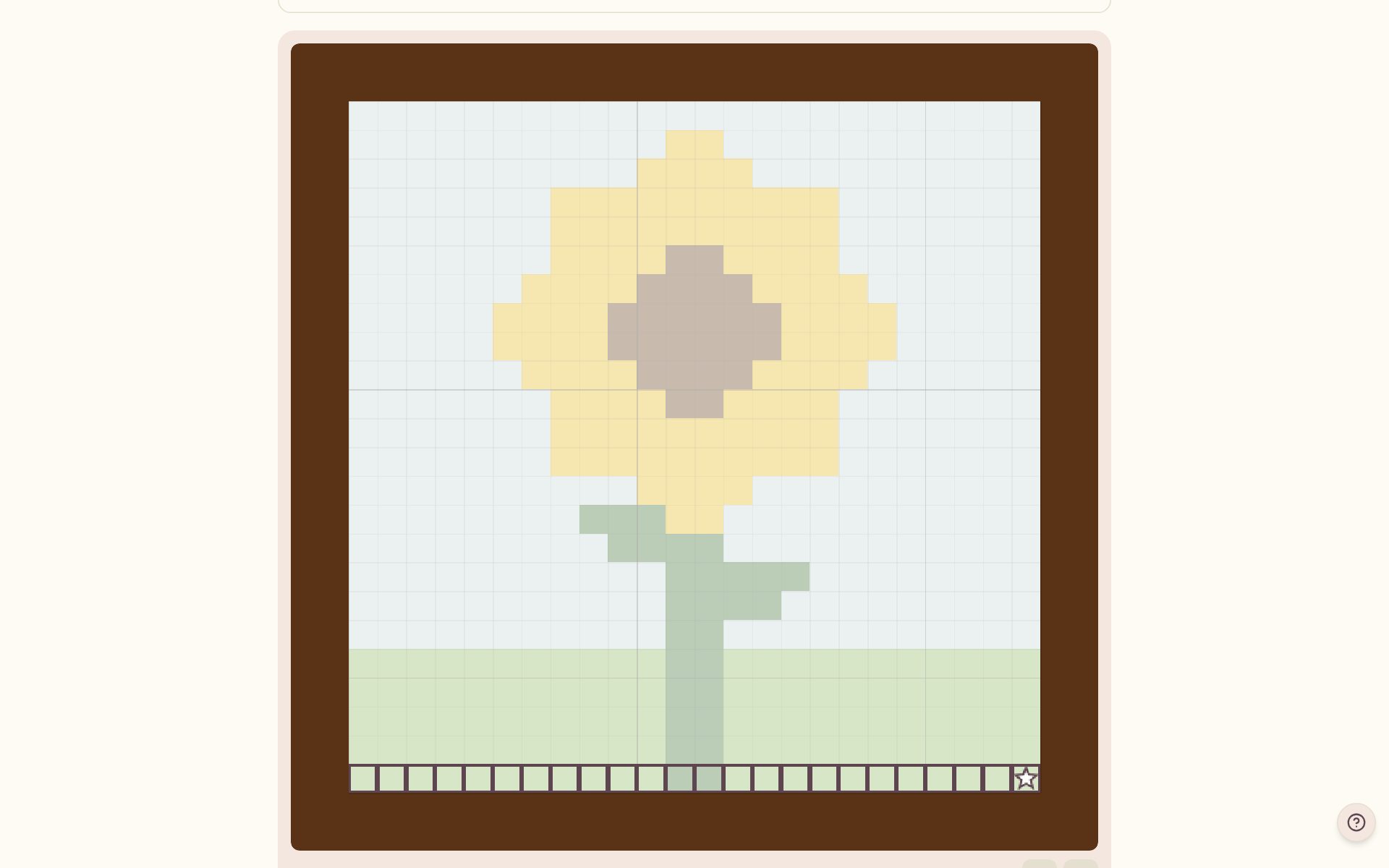
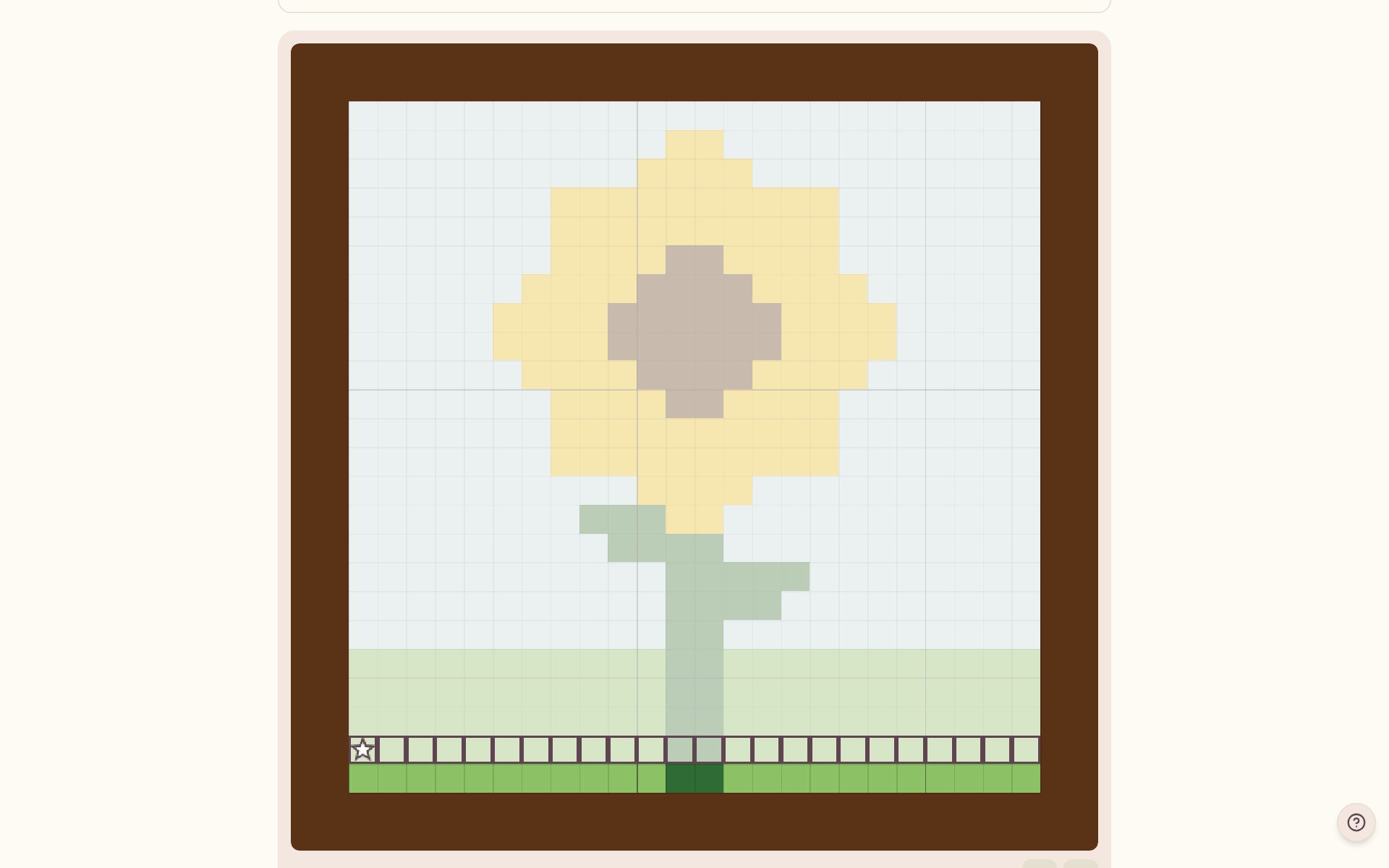
The chart sits at the top of the tracker. Everything you haven't worked yet is washed out, and the row you're on is outlined. Use + and − under the chart to zoom in on your stitches.
Work the current row, one color run at a time
Scroll down to Current row. The first time, a green box tells you how to begin: the foundation chain to make and the color to start in.
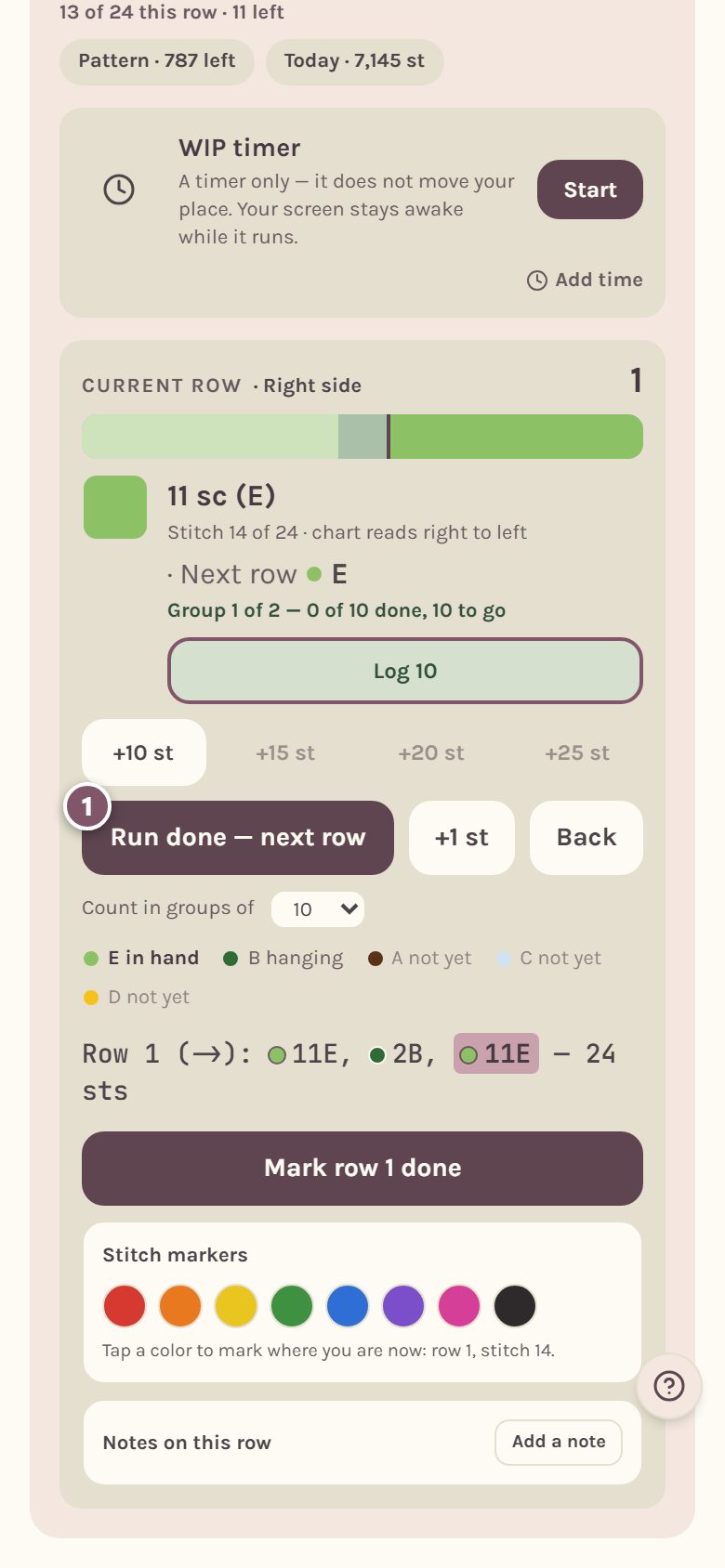
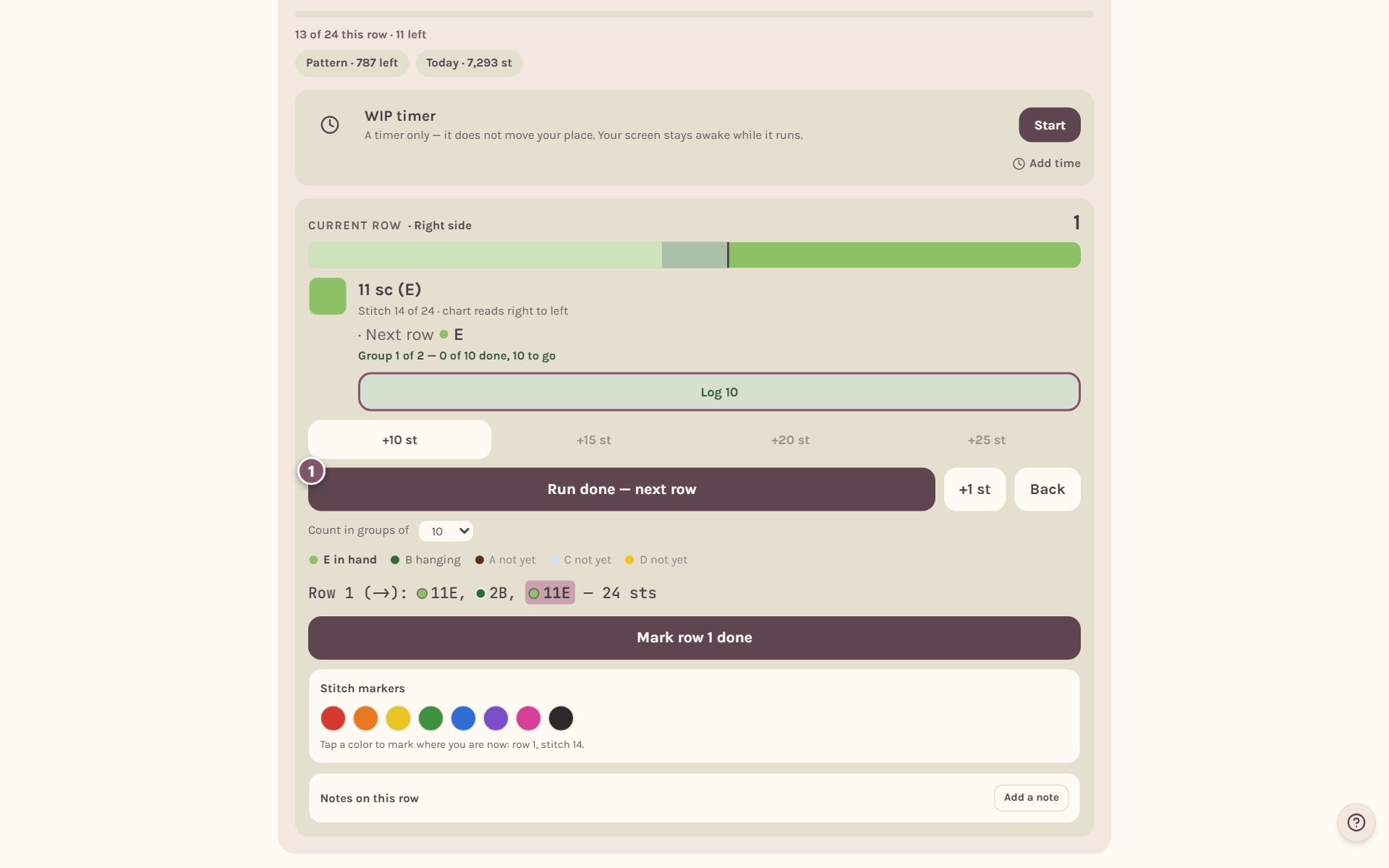
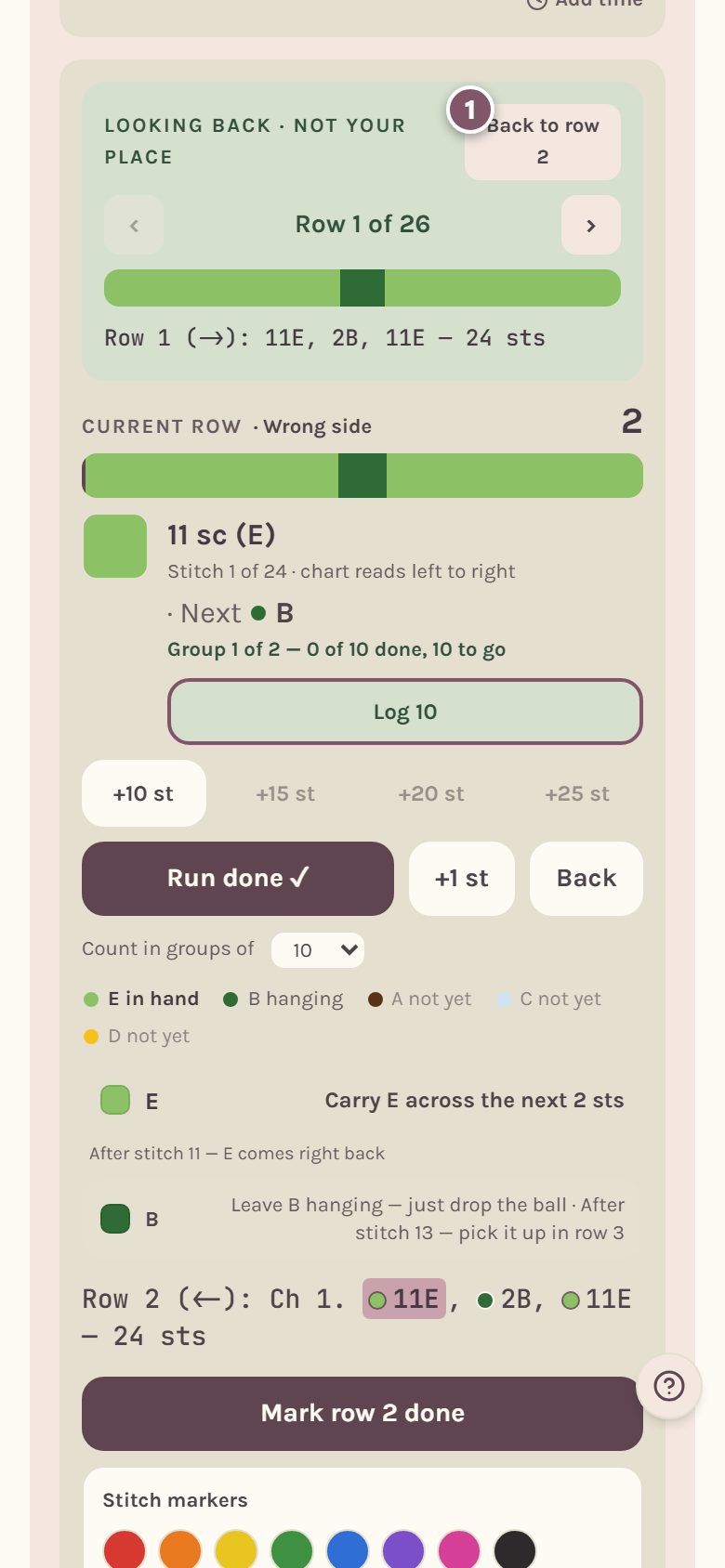
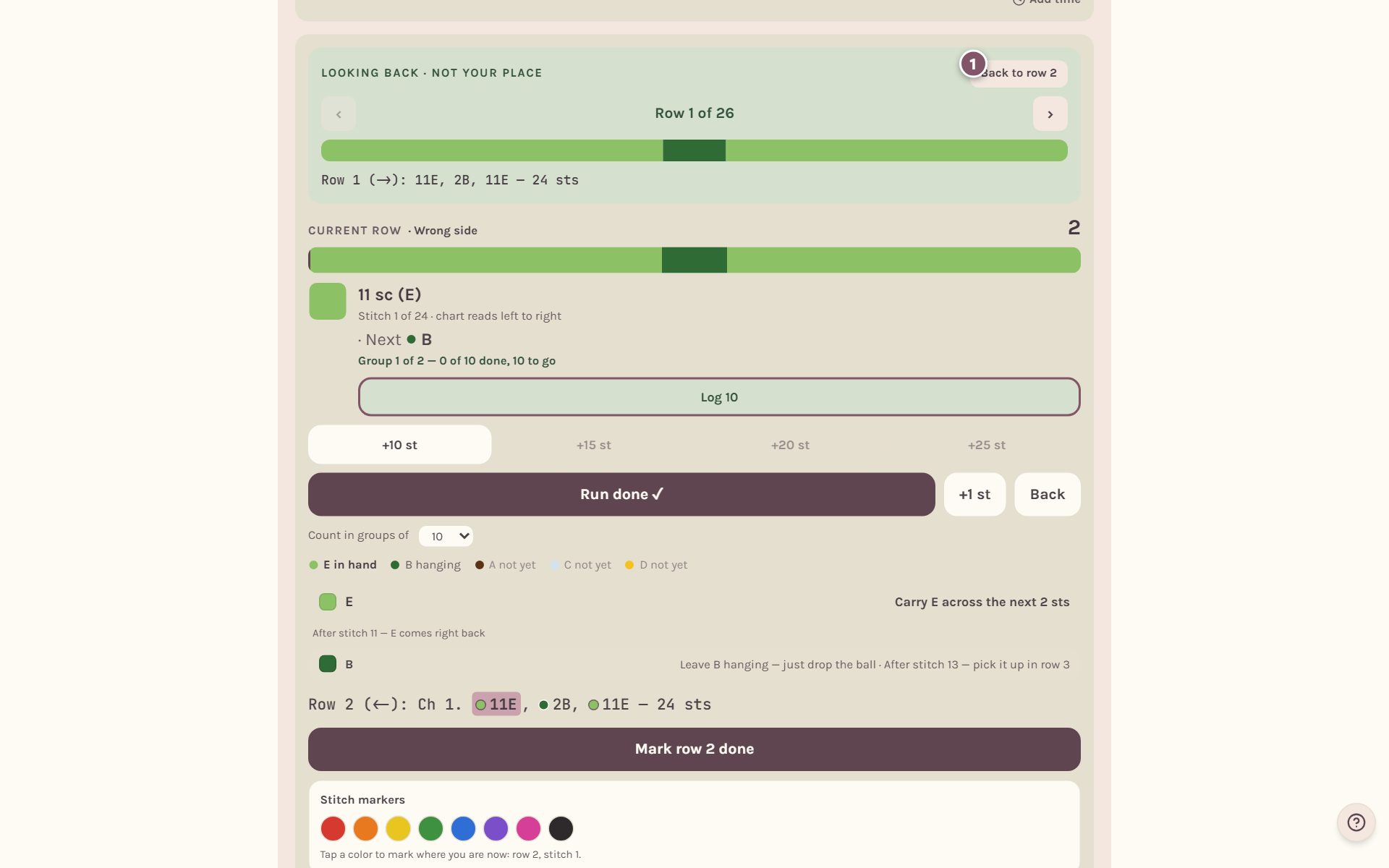
Each row is split into color runs. "11 sc (E)" means eleven single crochet in color E, and the strip above it shows the whole row with your run highlighted.
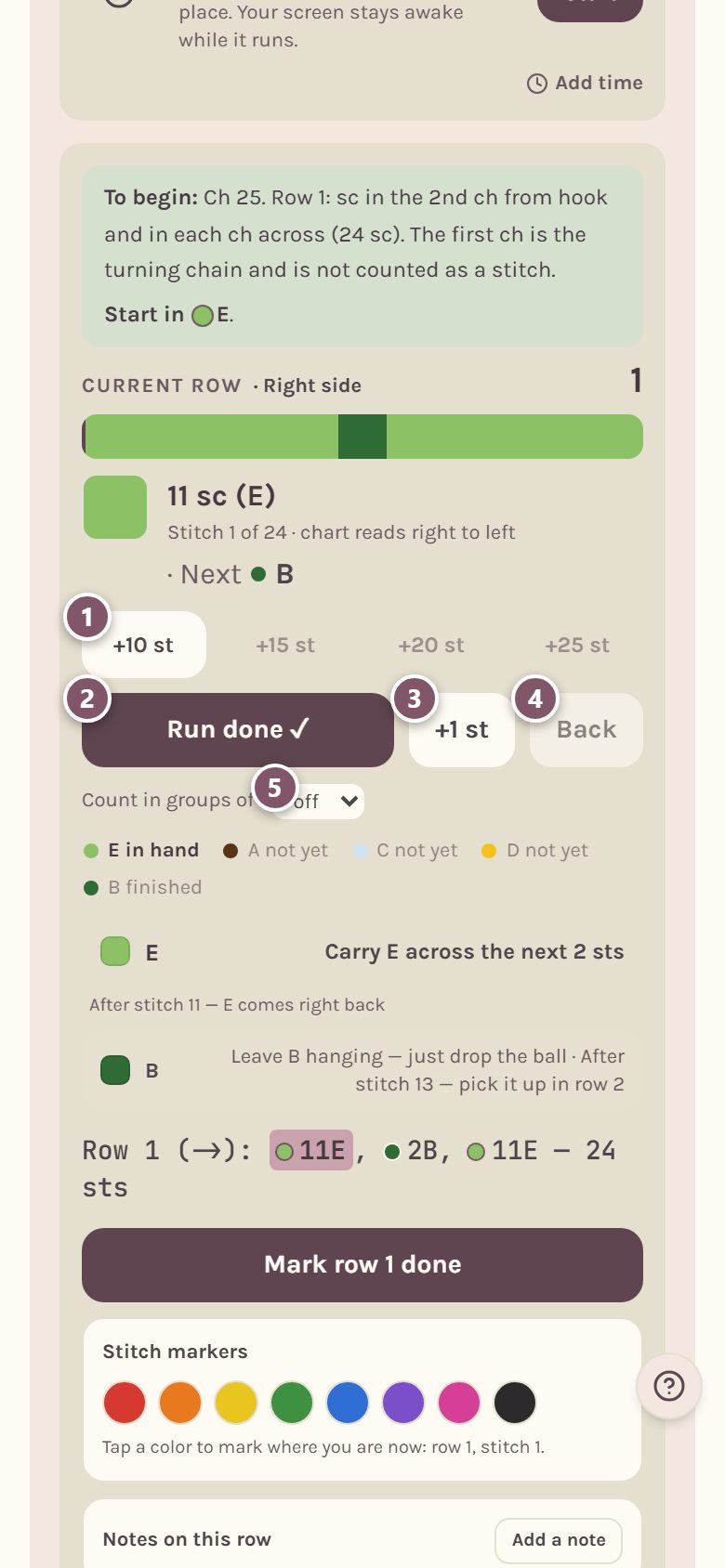
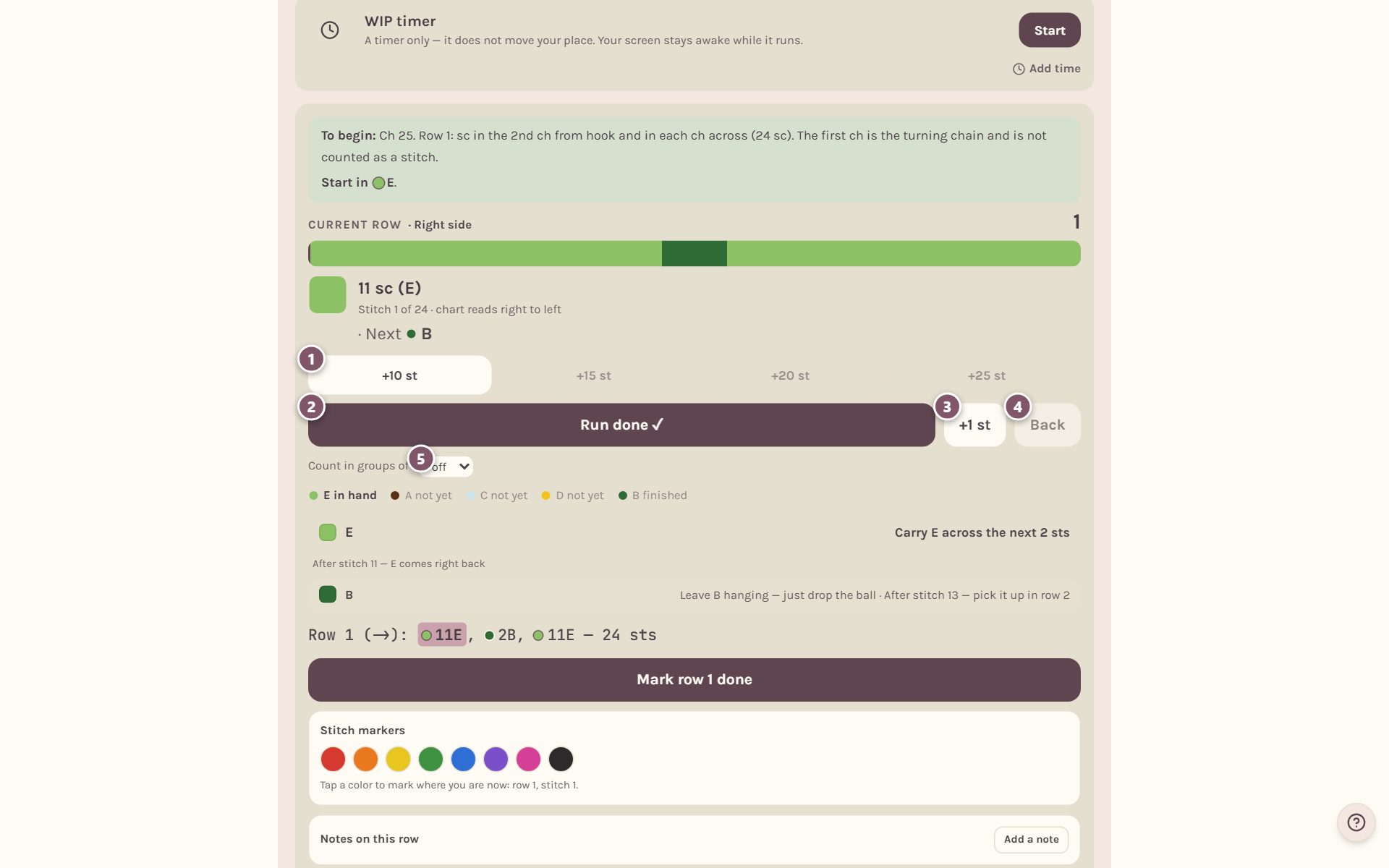
- +10 st, +15 st, +20 st and +25 st log a handful at once. A button bigger than what's left of the run is grayed out, so you can't count past a color change.
- Run done ✓ finishes the run you're on and moves you to the next color.
- +1 st logs one stitch.
- Back steps back a run to look. It never takes anything out.
- Count in groups of splits a long run into groups of 10, 15, 20 or 25, or turns groups off. It appears when a run is longer than 10 stitches.
Under the buttons, the tracker tells you what to do with each color you put down: carry it along, leave it hanging, or cut it.
Count a long run in groups
Pick a group size and the run gets a counter of its own: "Group 1 of 2 — 0 of 10 done, 10 to go". The Log 10 button finishes the group you're in.
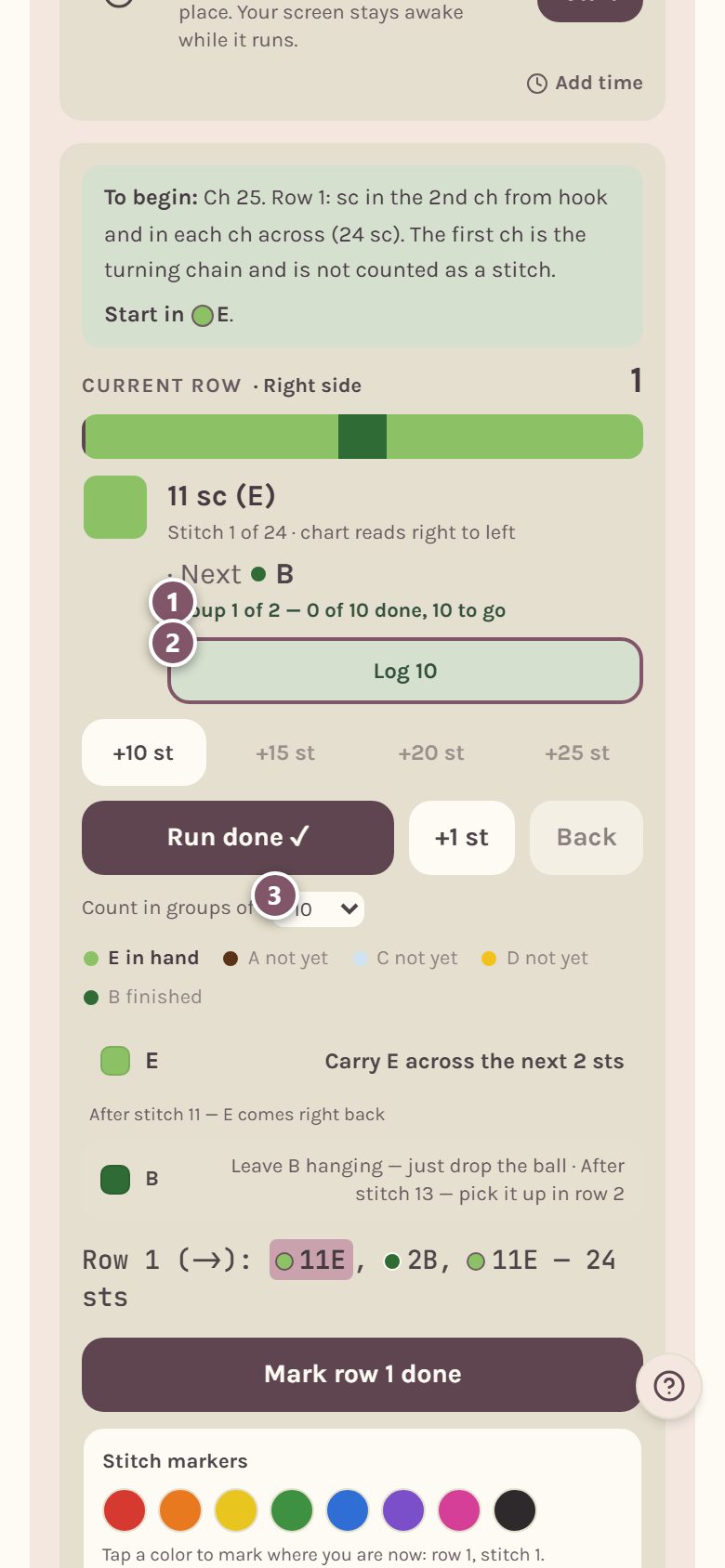
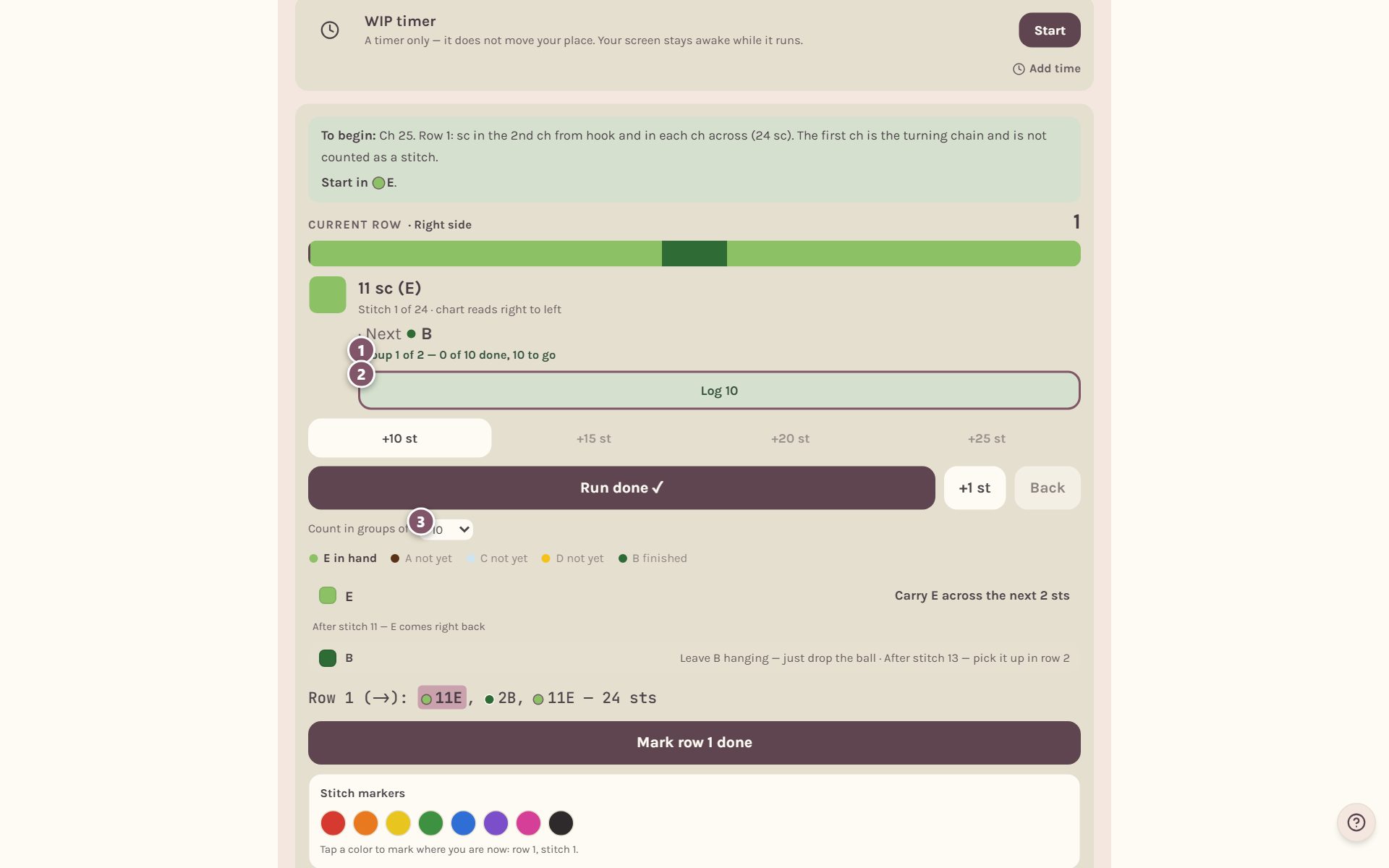
If you lose count, you only lose one group instead of the whole run. Your group size is remembered on this device.
Move on to the next color
Tap Run done ✓ when a run is finished. The card moves to the next color, and the strip shows how much of the row is behind you.
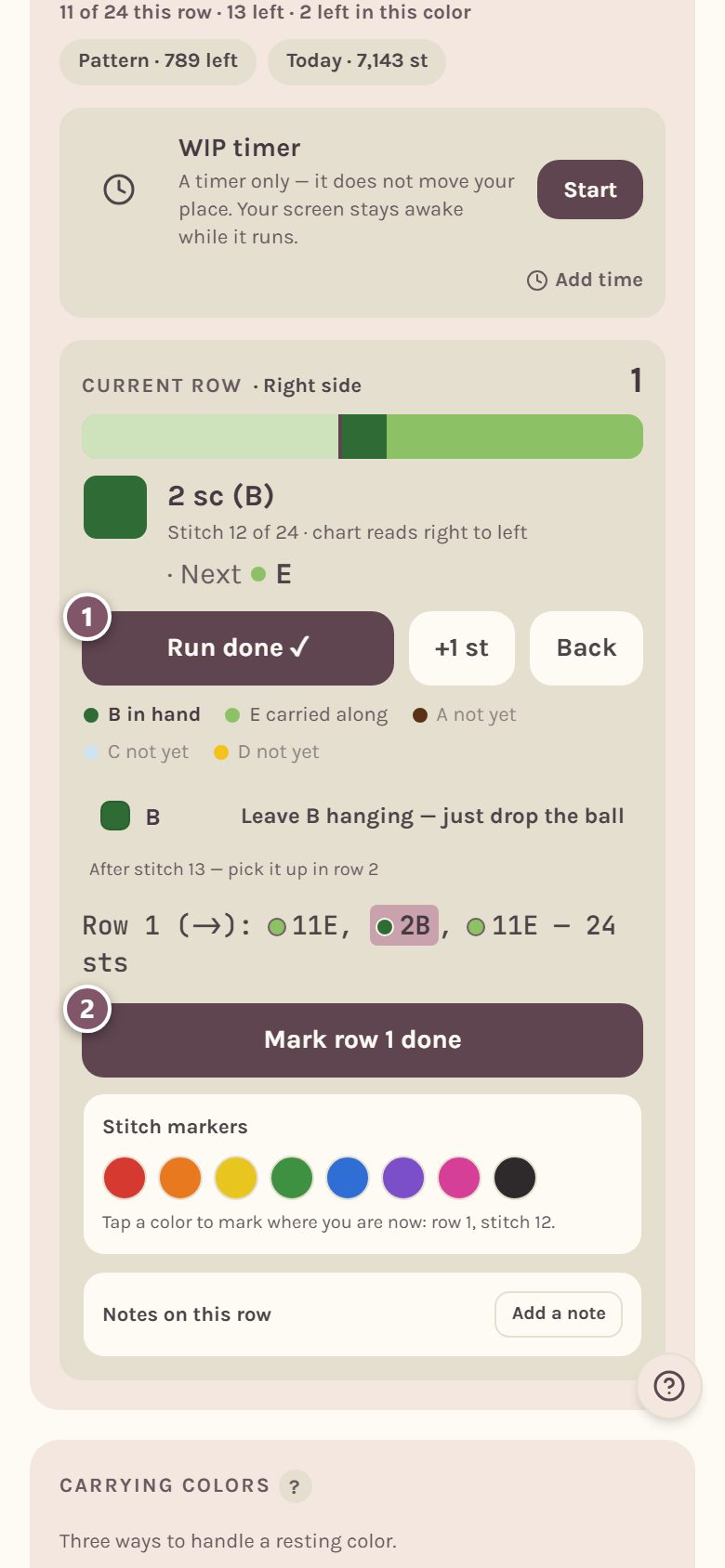
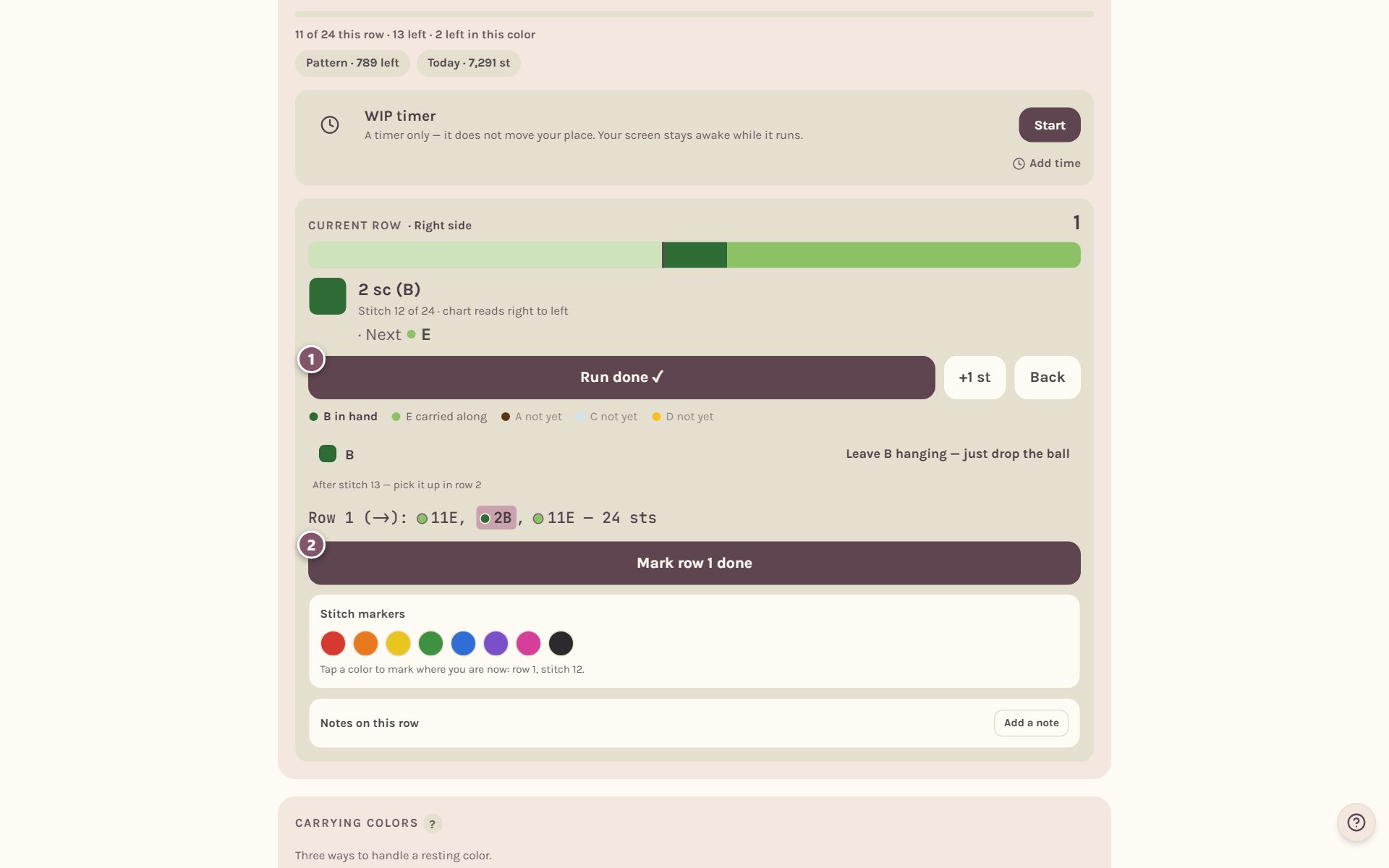
- Run done ✓ moves you run by run.
- Mark row 1 done finishes the whole row in one tap. If you're partway through, it asks first, since it counts the rest of the row as worked.
On the last run of a row, the button says where it takes you: Run done — next row.
Watch the chart fill in as you go
Every stitch you log fills in on the chart in full color, from the bottom up, while the rows ahead stay washed out. You can see at a glance how far you've come.
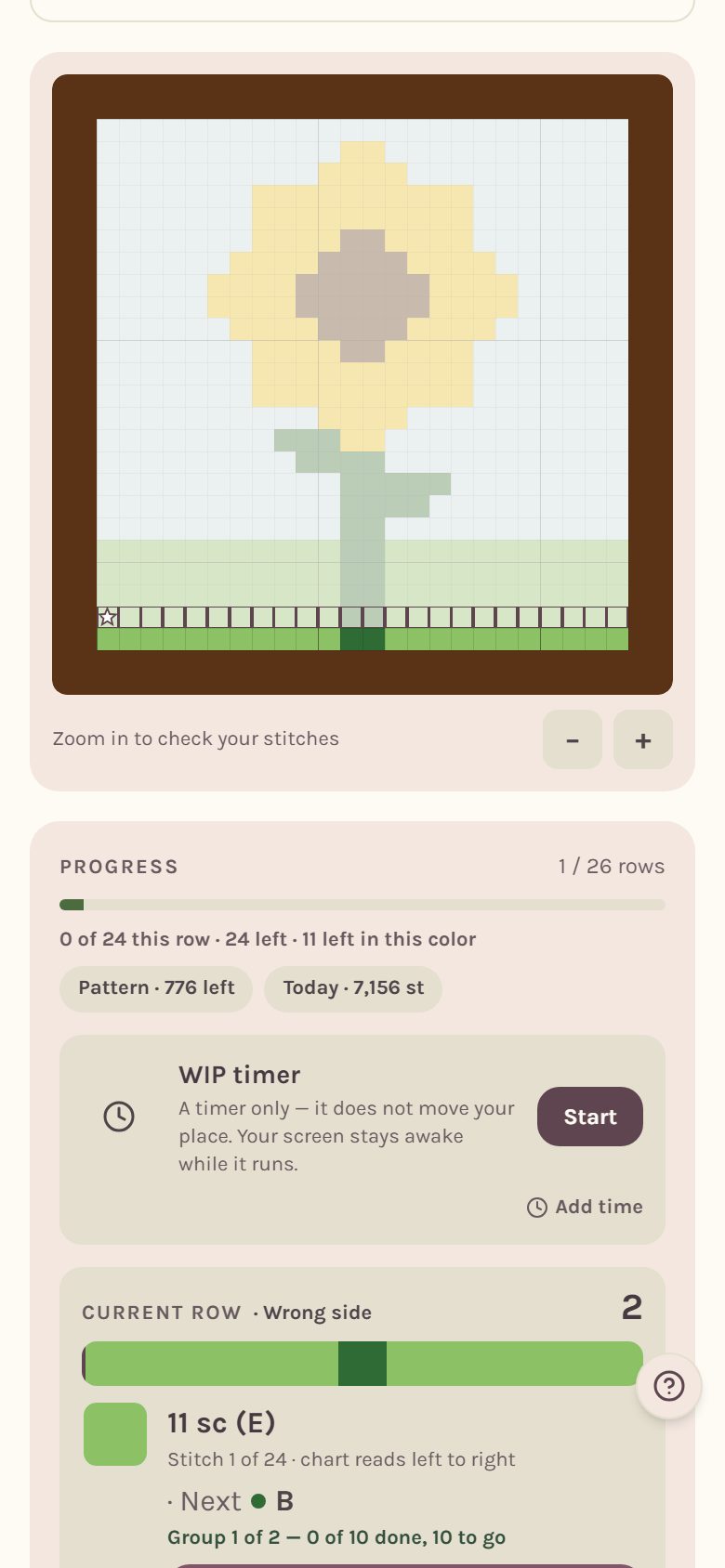
Tip: the tracker reads the chart in the direction you work each row, and it says so under the stitch count: "chart reads right to left" or "left to right". If you crochet left-handed, turn on left-handed mode in your settings and the whole tracker walks each row your way.
Fix a mistake: Back, Look back and Frog this row
Once you've finished a row, three more buttons appear under Mark row done.
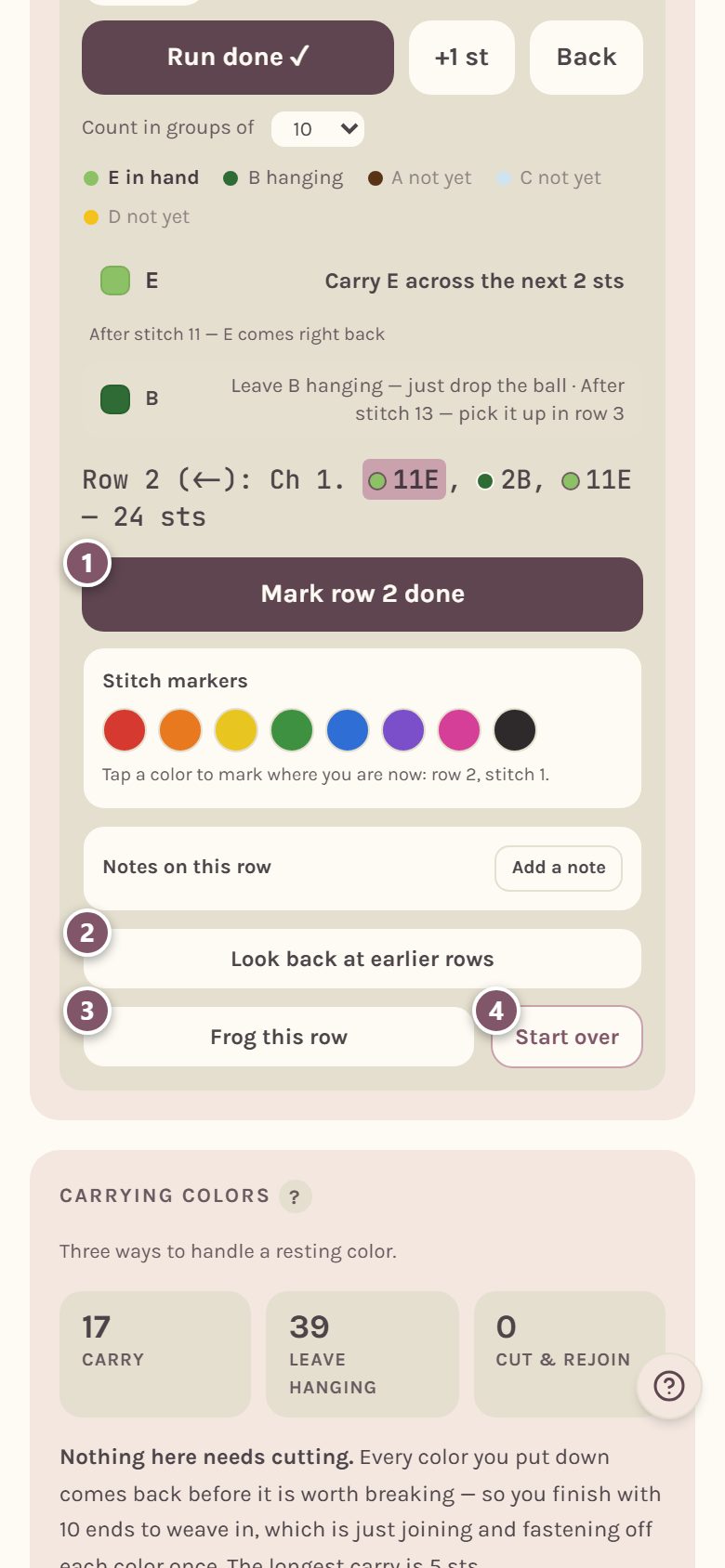
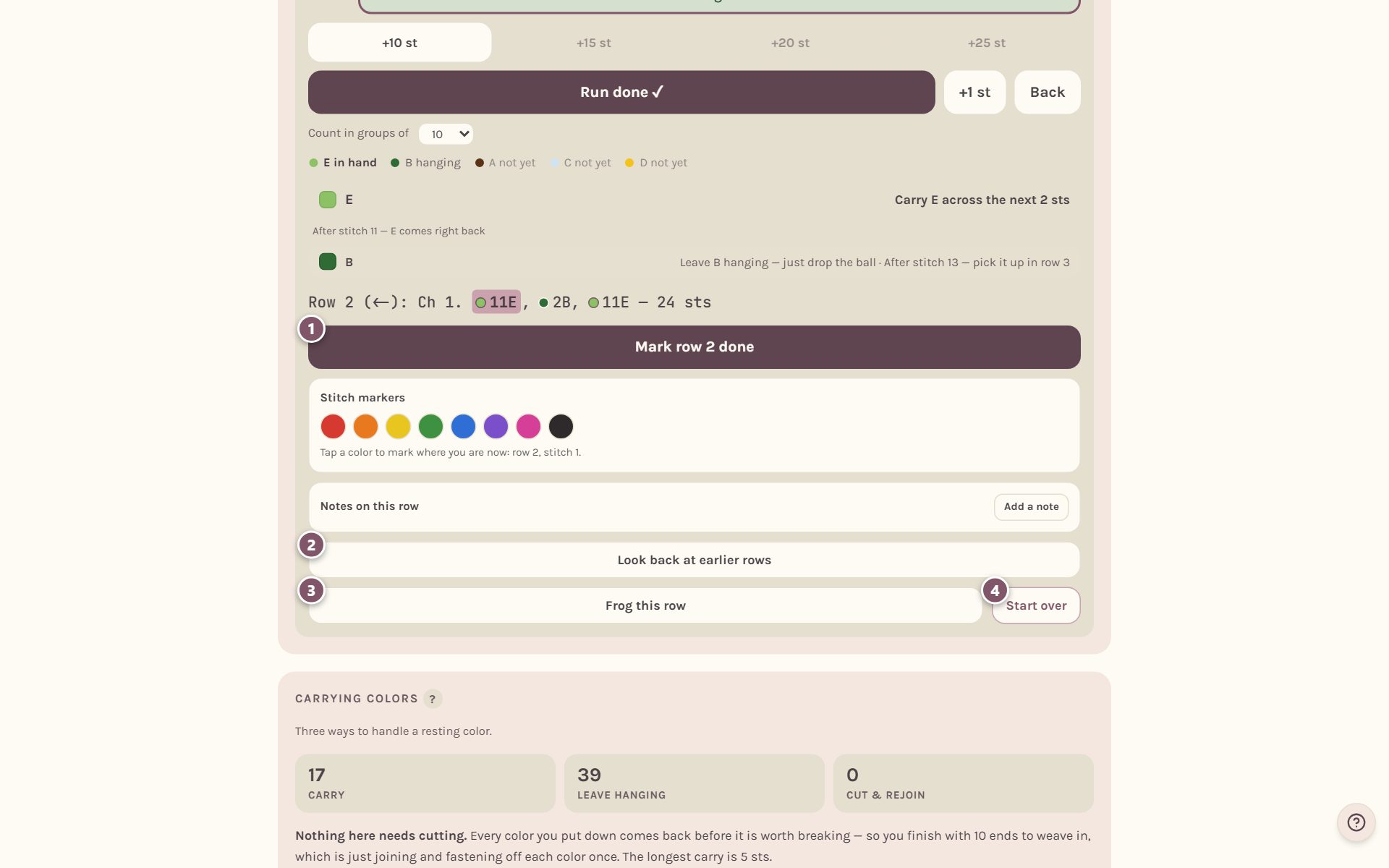
- Mark row 2 done finishes the row you're on.
- Look back at earlier rows opens any finished row to read it. It moves nothing.
- Frog this row takes out the row you're on and asks first. If you haven't started it yet, it reopens the row before instead.
- Start over clears your progress on this blanket, after asking.
Back only looks, too. Keep tapping it and it walks past the start of your row into the row before. A green band says your place is safe.
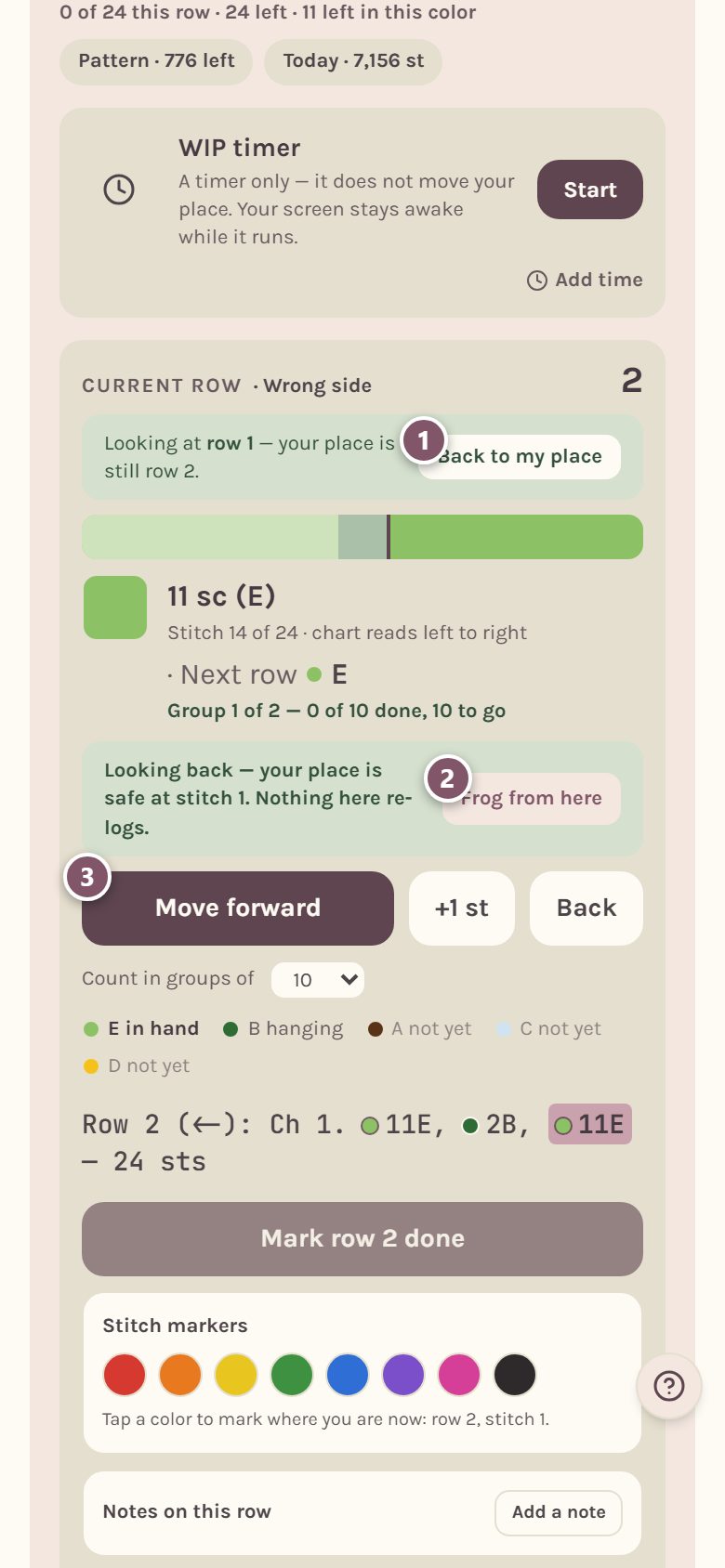
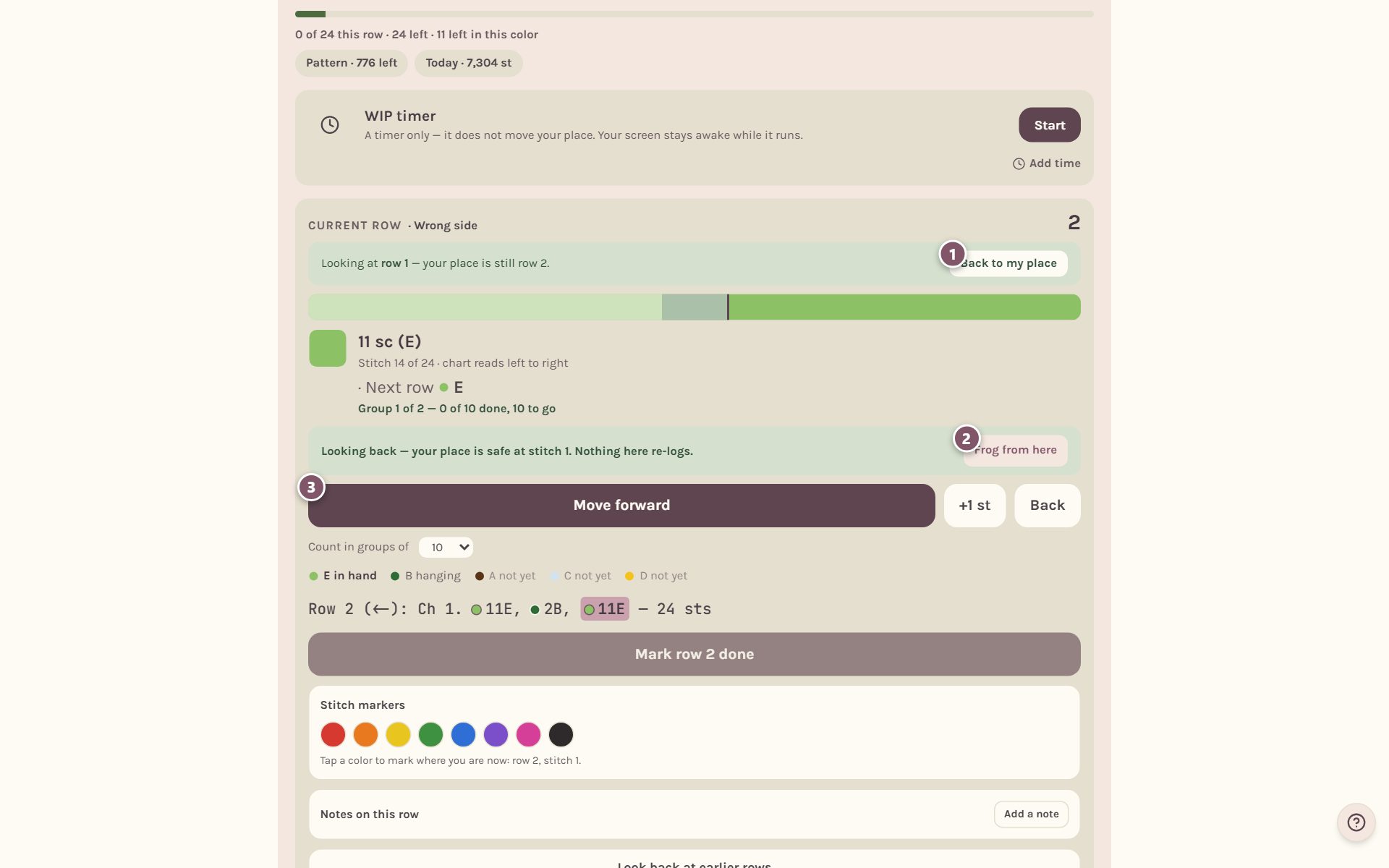
- Back to my place jumps you straight home.
- Frog from here is how you really take stitches out. Walk back to the last stitch you want to keep, then tap it. It asks first, and you can undo it.
- Move forward steps back the way you came.
Look back at earlier rows opens a panel above the tracker. Use ‹ and › to step through rows, and Back to row 2 to close it.
Tip: frogging never takes stitches off your lifetime count. Stitches your hands made still count, even when they have to be redone.
Add stitch markers and row notes
Under the buttons you'll find two helpers for the row you're on.
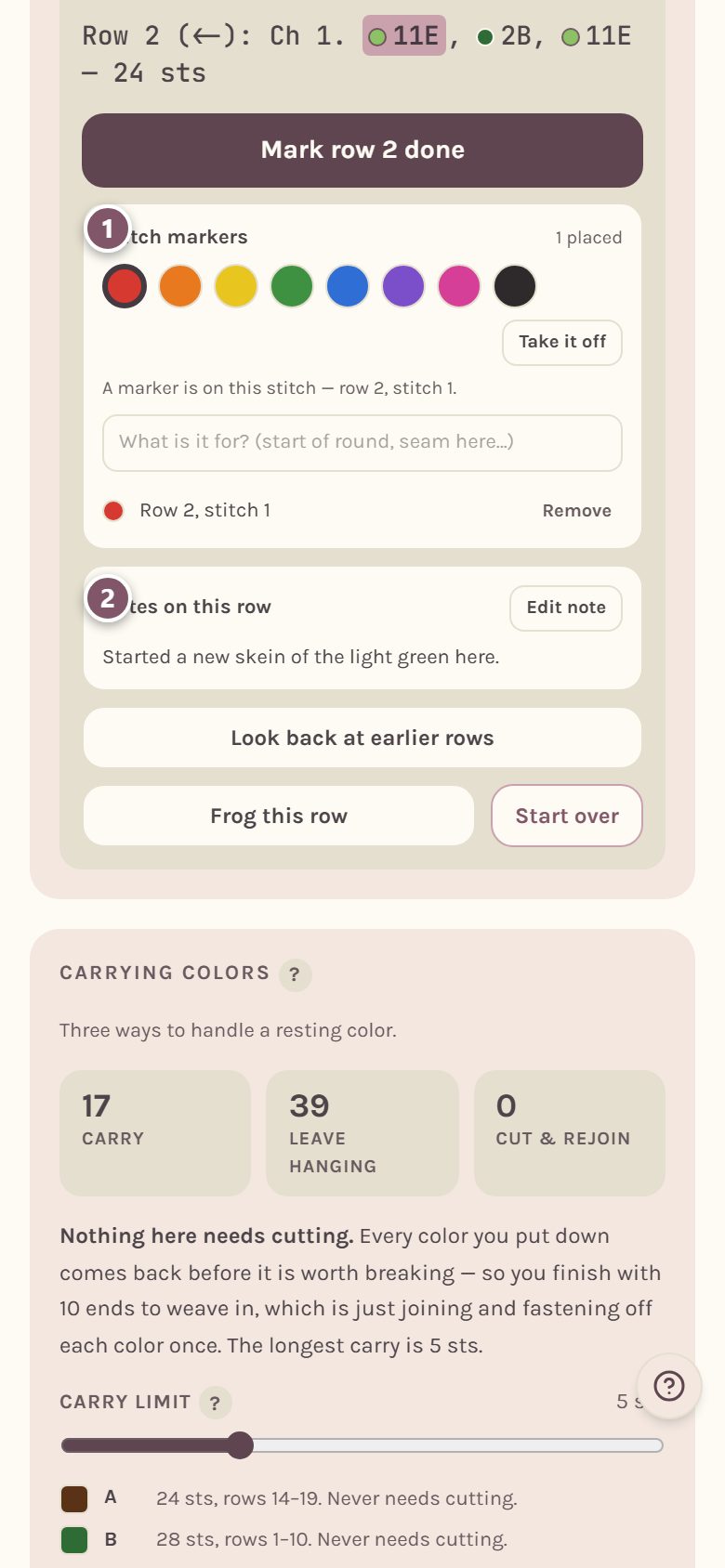
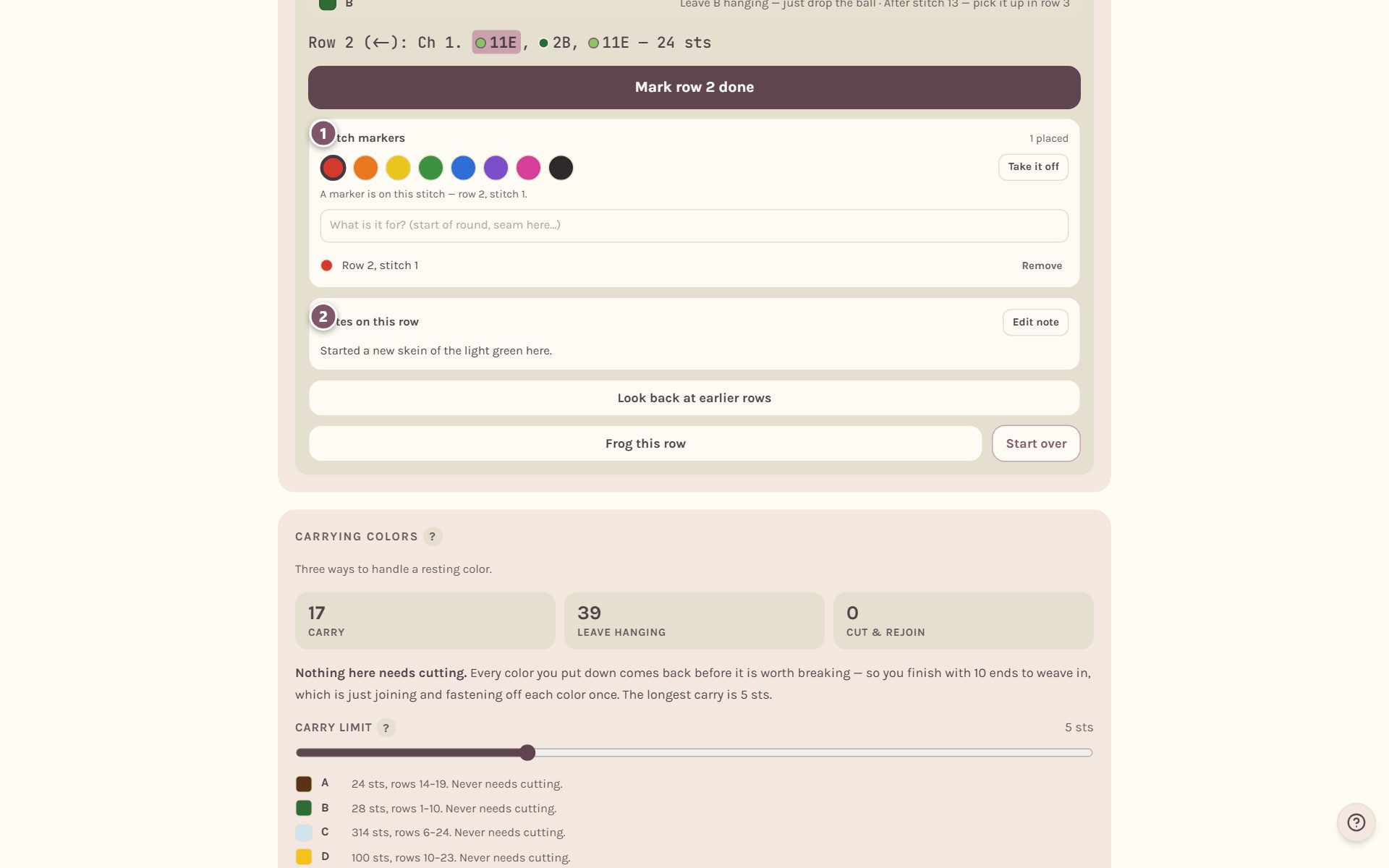
- Stitch markers. Tap a color to mark the stitch you're on. Add a few words about what it's for, and tap Take it off when you're done with it. Every marker you've placed is listed underneath.
- Notes on this row. Tap Add a note to jot down anything worth remembering: a new skein, a stitch that ran tight. Tap Save note. Notes from other rows are listed under it, so you can find them later.
Pick it back up from Home
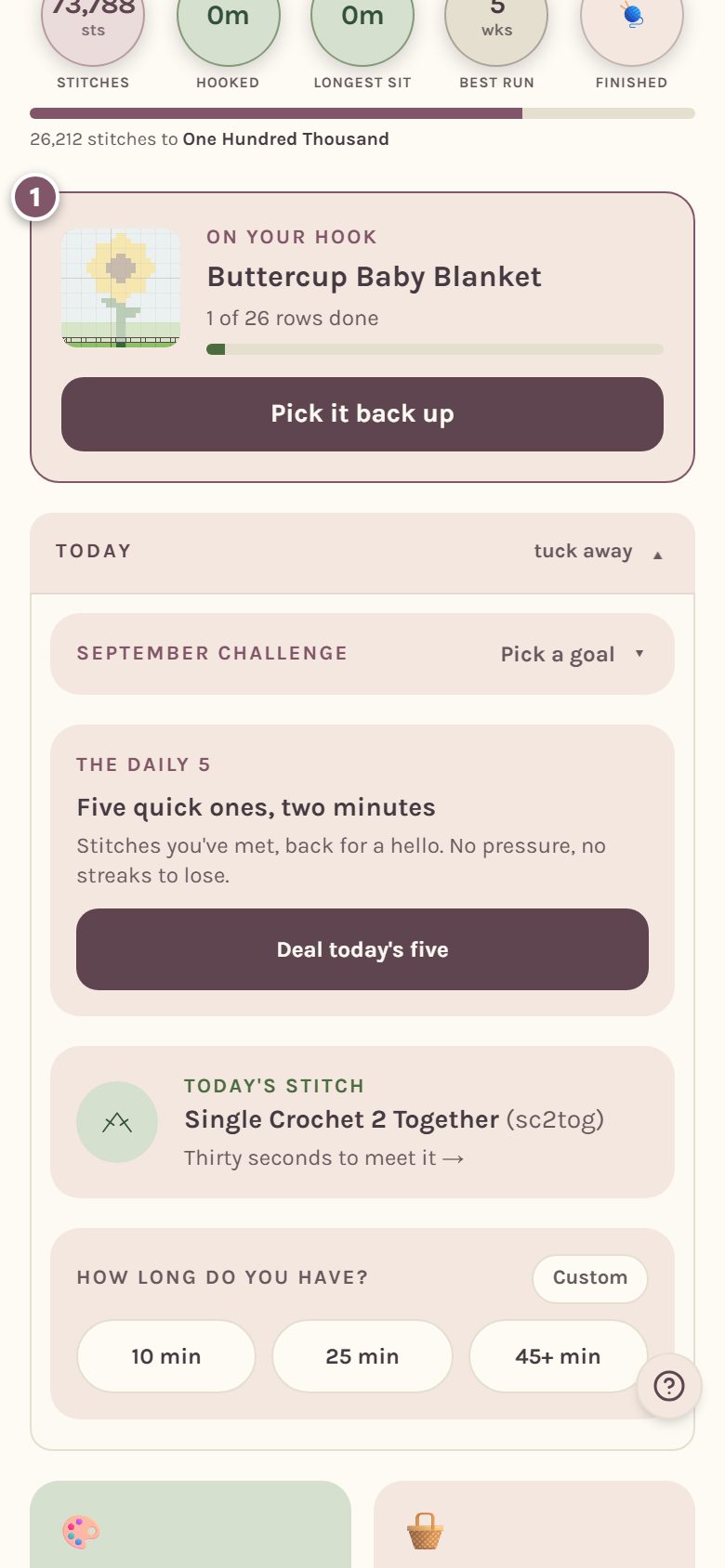
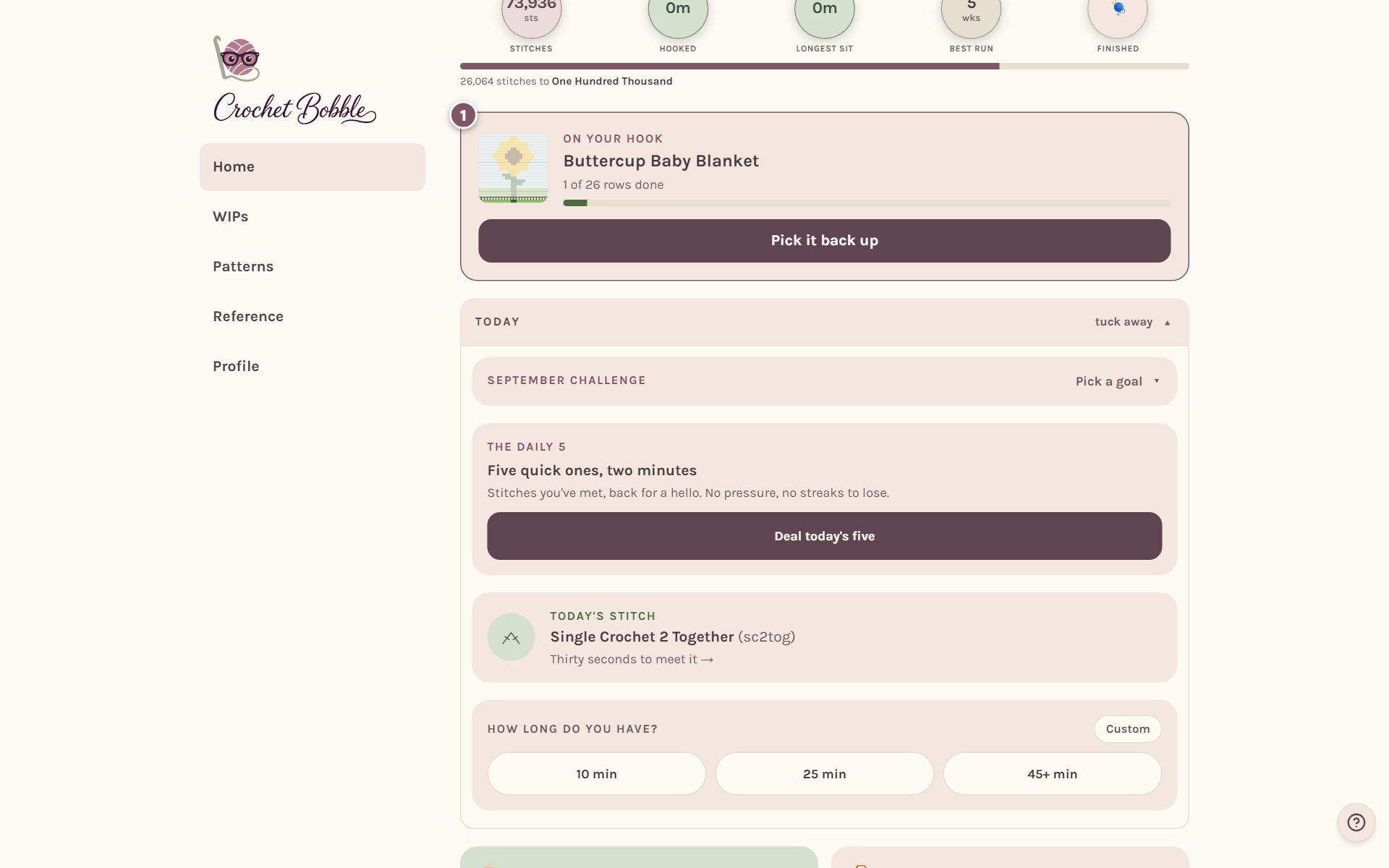
Once you've finished a row, your blanket shows on Home under On your hook, with how many rows are done. If you have several blankets on the go, it shows the one you worked on last. Tap Pick it back up to land right back in the tracker.
When the last row is done
When you finish the last row, the tracker says so, with your blanket's own count: All 26 rows done! 🎉 Your WIP stays open, because there are still ends to weave in and blocking to do. When it's truly finished, tap It’s finished and it moves into your project journal. After that you can tap Share this finished blanket for a share card with your photo, your stitch count and your time.
Frequently asked questions
Does Back frog my stitches? No. Back and Look back only move what you're looking at. Stitches only come out when you tap Frog this row, Frog from here or Start over, and each of those asks first.
Can I stop in the middle of a row? Yes. The tracker saves your place stitch by stitch, so you can close the app mid-run and pick up at the same stitch.
Does it time my crocheting? Only when you ask it to. The WIP timer sits right under Progress. See how to use the crochet project timer.
Where do my photos of the blanket go? Scroll down to Photos of this blanket. See your crochet project journal.
Ready to try it? Crochet Bobble opens right in your browser, on a phone or a computer.
Open Crochet Bobble