
Crochet Chart Maker Tips: Repeats, Chain Spaces, Stitch Length and Colors
The deeper tools in Crochet Bobble's chart builder. Repeat a stitch group around the round, insert and swap stitches, lengthen a stitch, close a round without a join, move the round numbers and color your chart.
Once you know how to place stitches (see how to make a crochet stitch chart), these tools save you a lot of tapping and let you draw the chart exactly the way the fabric looks.
Repeat a group of stitches around the round
Most rounds repeat. Draw the repeat once, then let the app copy it around.
- Place one repeat, for example dc then ch for a "[dc, ch 1]" round.
- Tap Multi, then tap each stitch of the repeat.
- Tap Repeat in the toolbar.
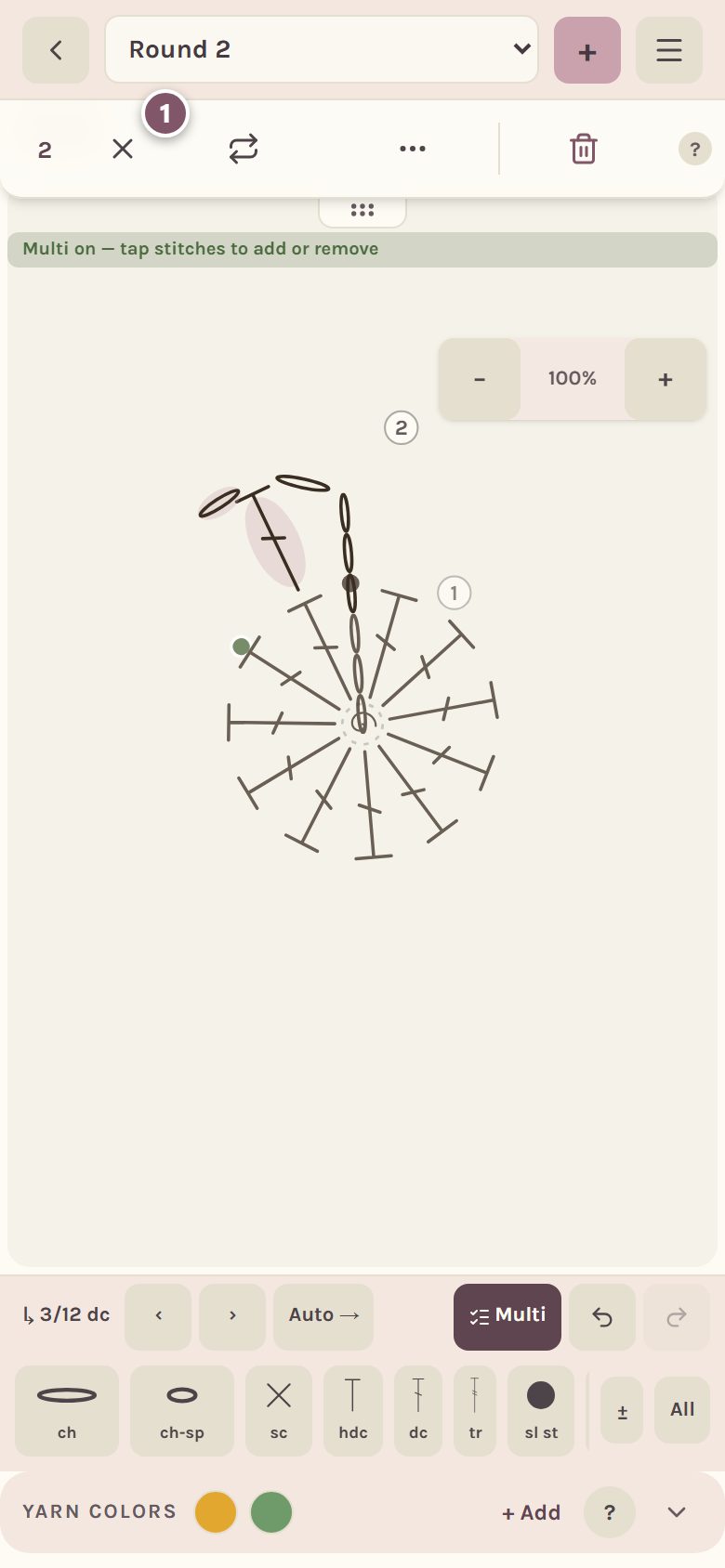
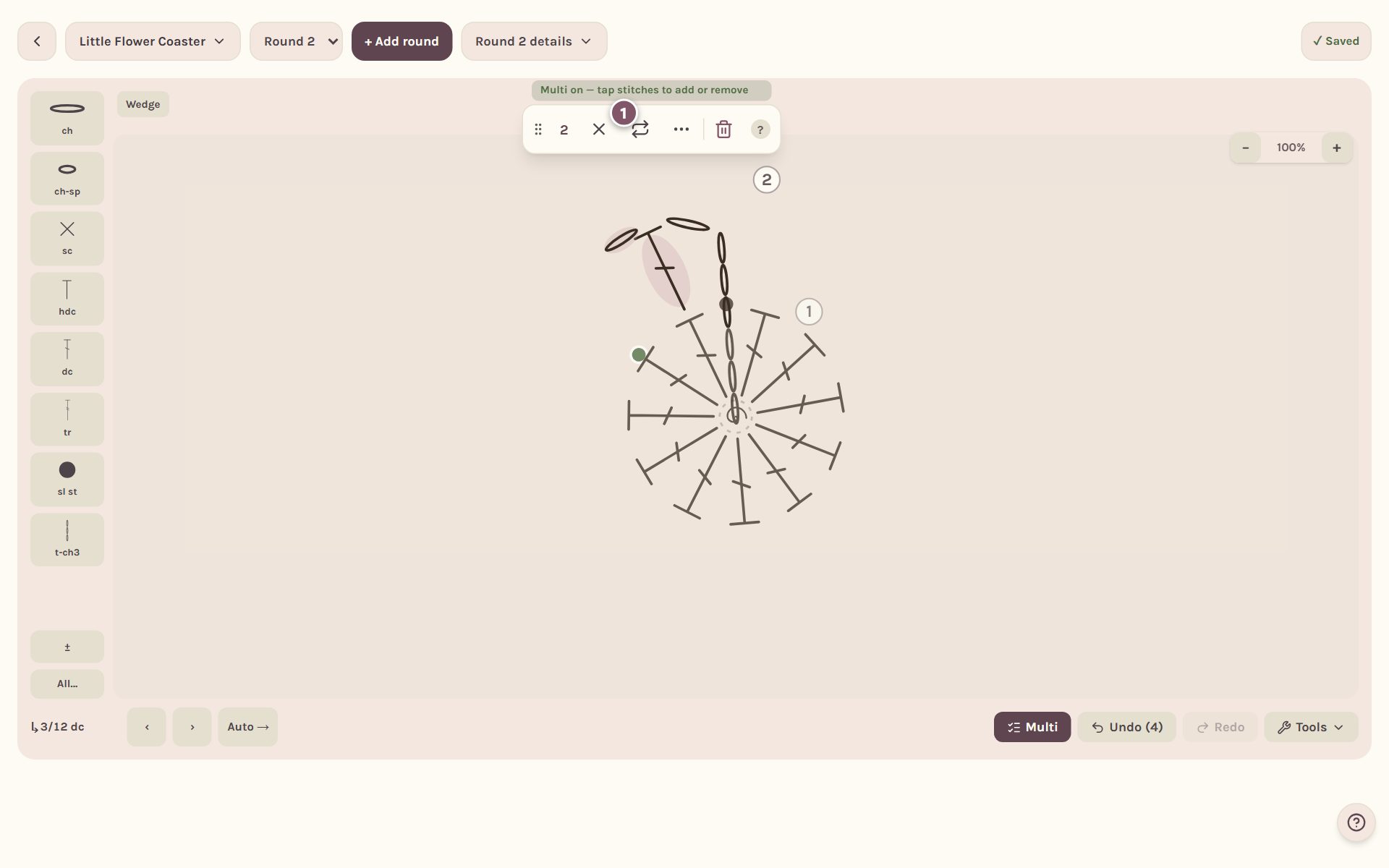
The Repeat sheet says where each copy will land before you tap anything.
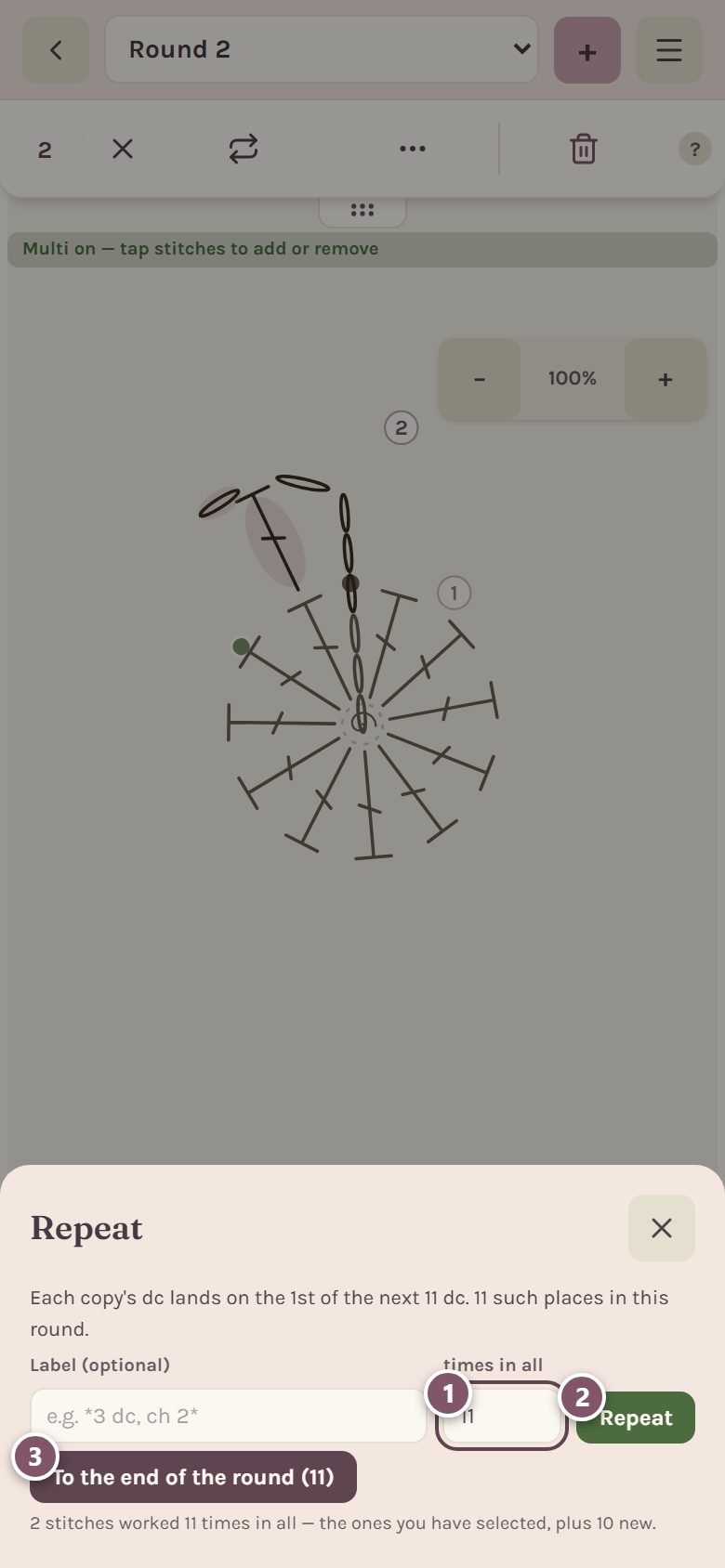
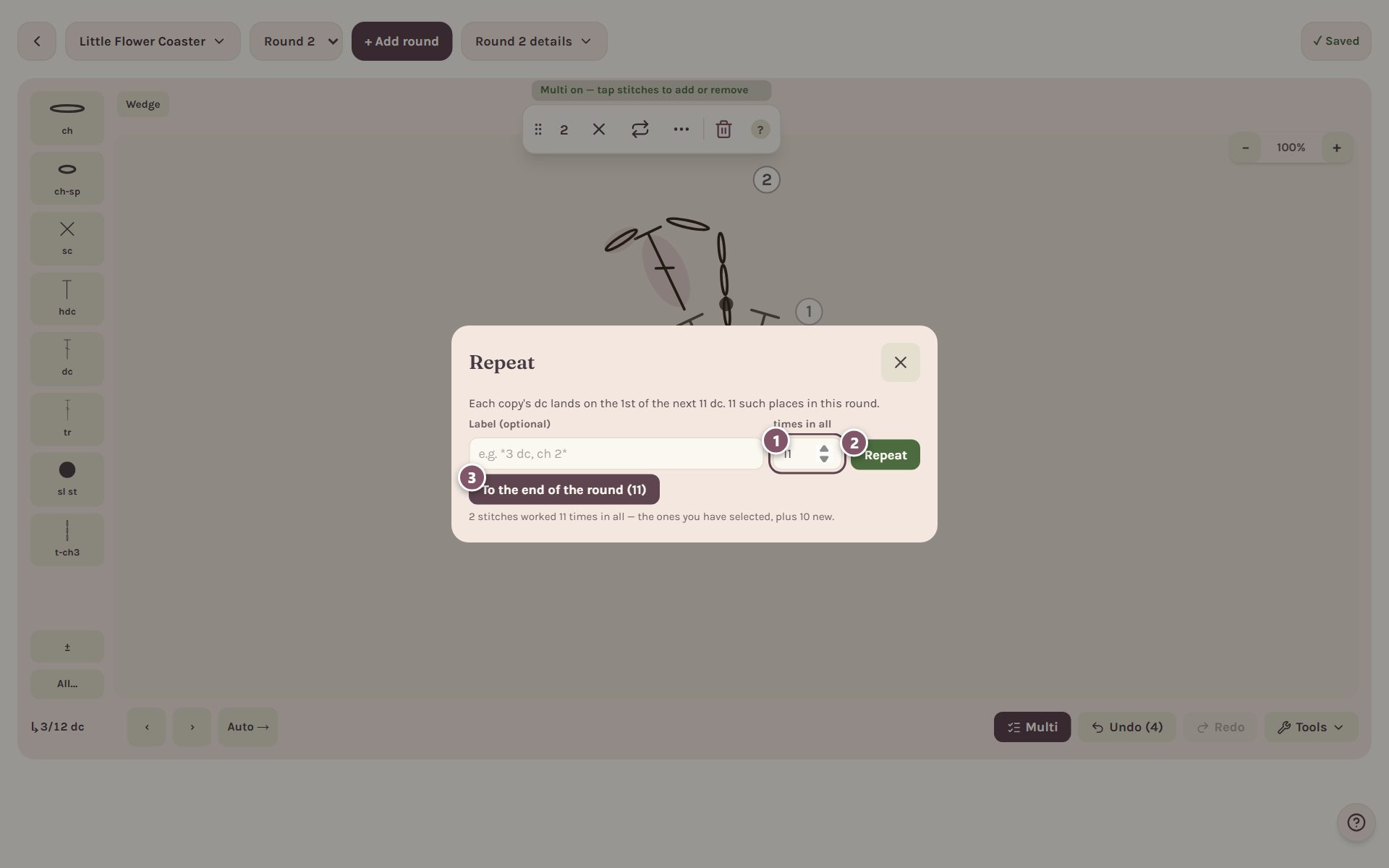
- Type how many times in all you want. The number includes the stitches you picked, so 11 means your repeat plus 10 new copies.
- Tap Repeat.
- Or tap To the end of the round and the app fills in how many places match in the round below.
Tip: a round that starts with a ch 3 counting as a stitch already stands on the first stitch below. To the end of the round leaves that stitch out of its count for you, so the copies end right where the round does.
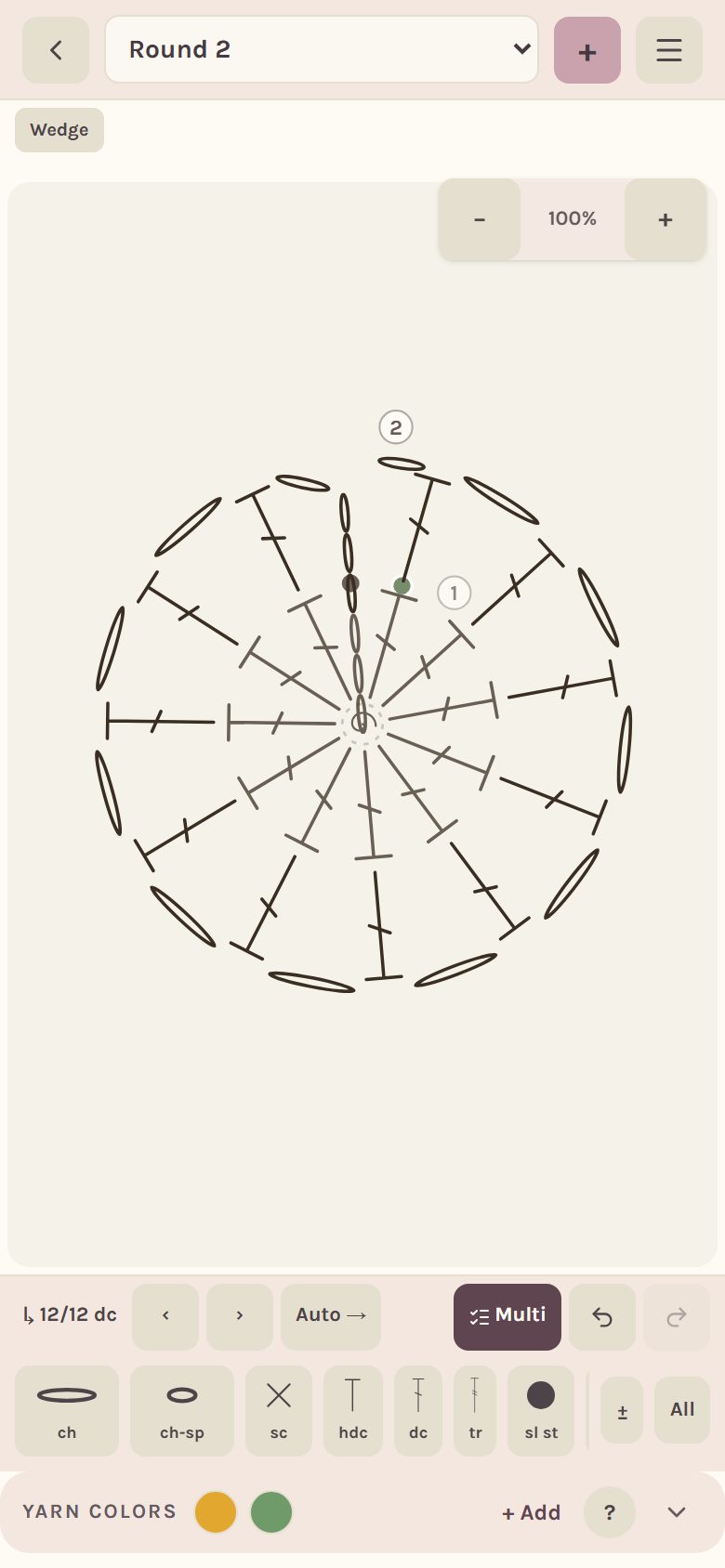
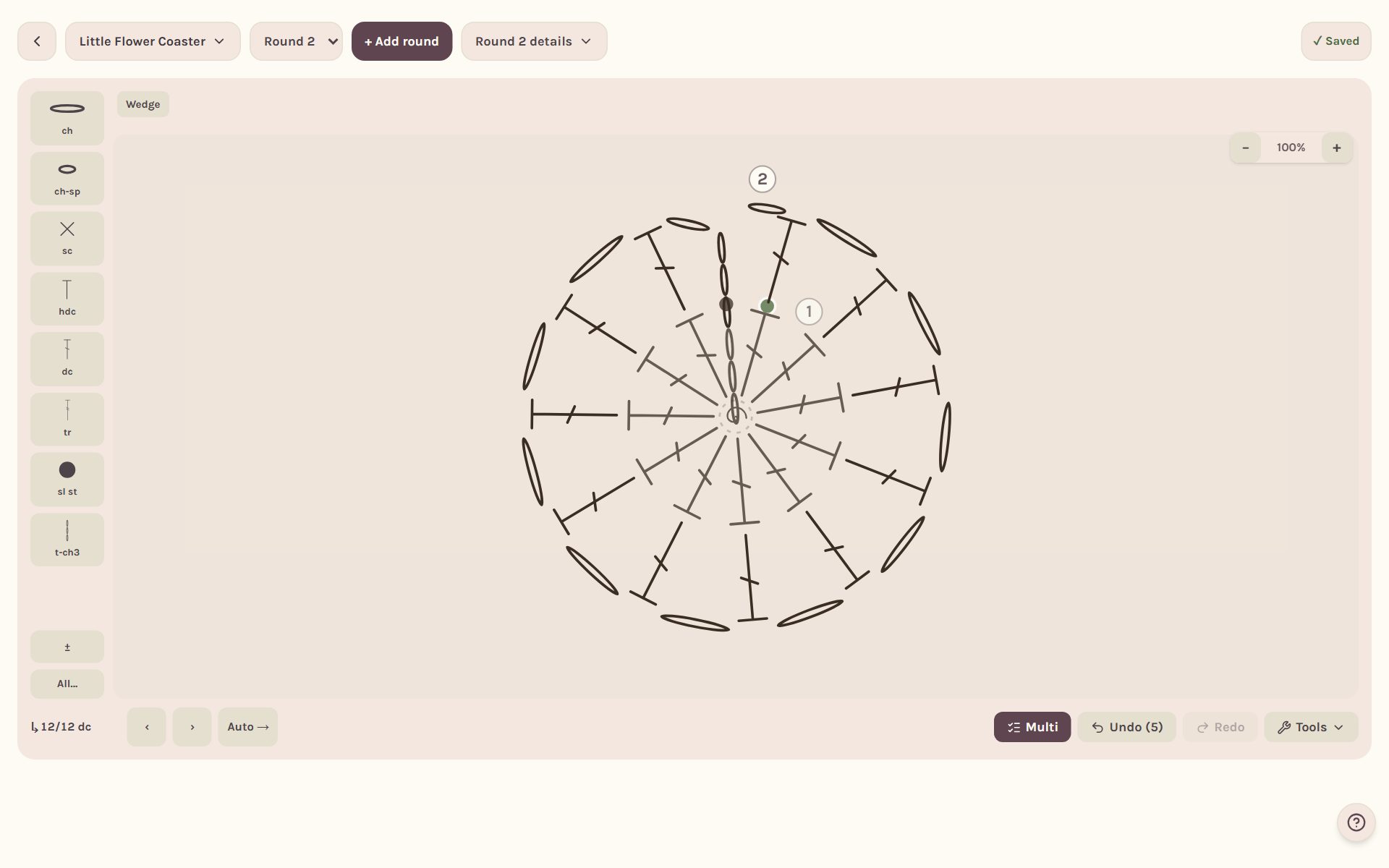
A whole block of rows can repeat too: open the pattern's menu and use Repeat rows… to pick the first and last row and how many more times.
Chains and chain spaces
The stitch strip has two chain symbols. ch is a single chain, and a run of them is drawn link by link. ch-sp is a chain space. When you work a group of stitches into a run of chains, like 5 dc in the next ch-7 space, the chart spreads them along the whole run the way they really sit, instead of stacking them on one link.
Insert or swap a stitch
- Tap the stitch, then tap Insert.
- Pick Before this stitch or After this stitch. The stitches you place next go in on that side until you tap Done.
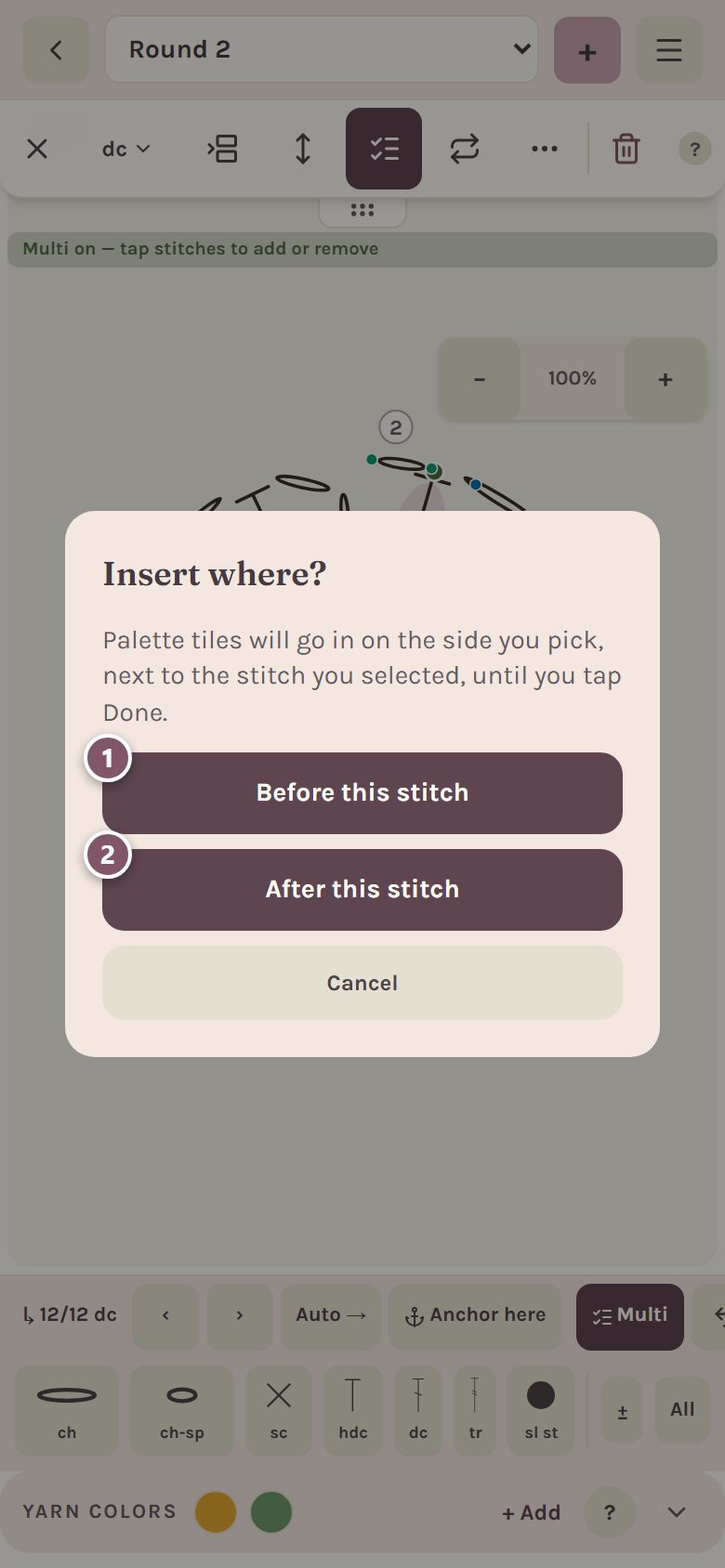
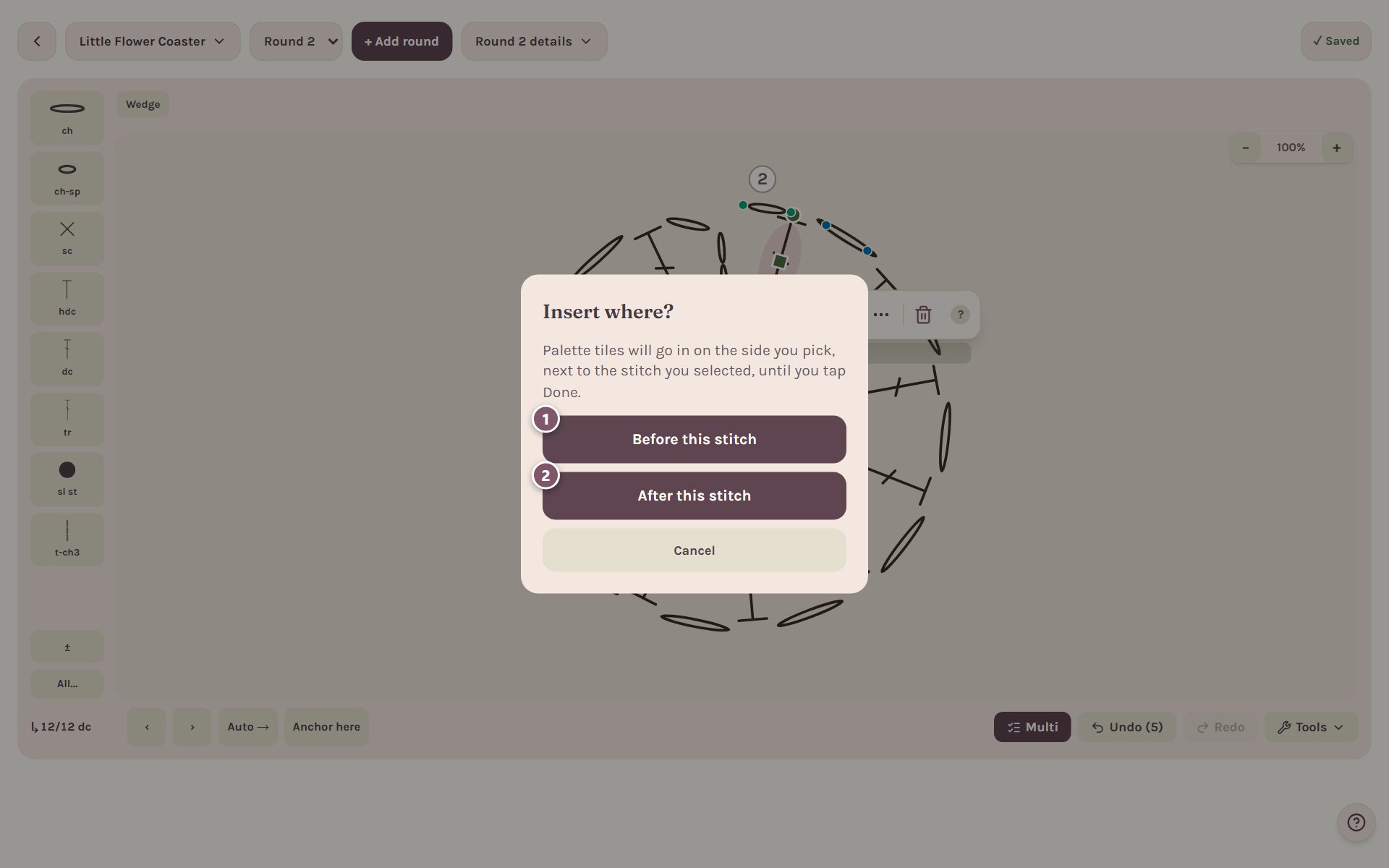
To change a stitch into a different one, tap More and then Swap. The next stitch you pick in the strip replaces it, and it keeps its place and what it's worked into.
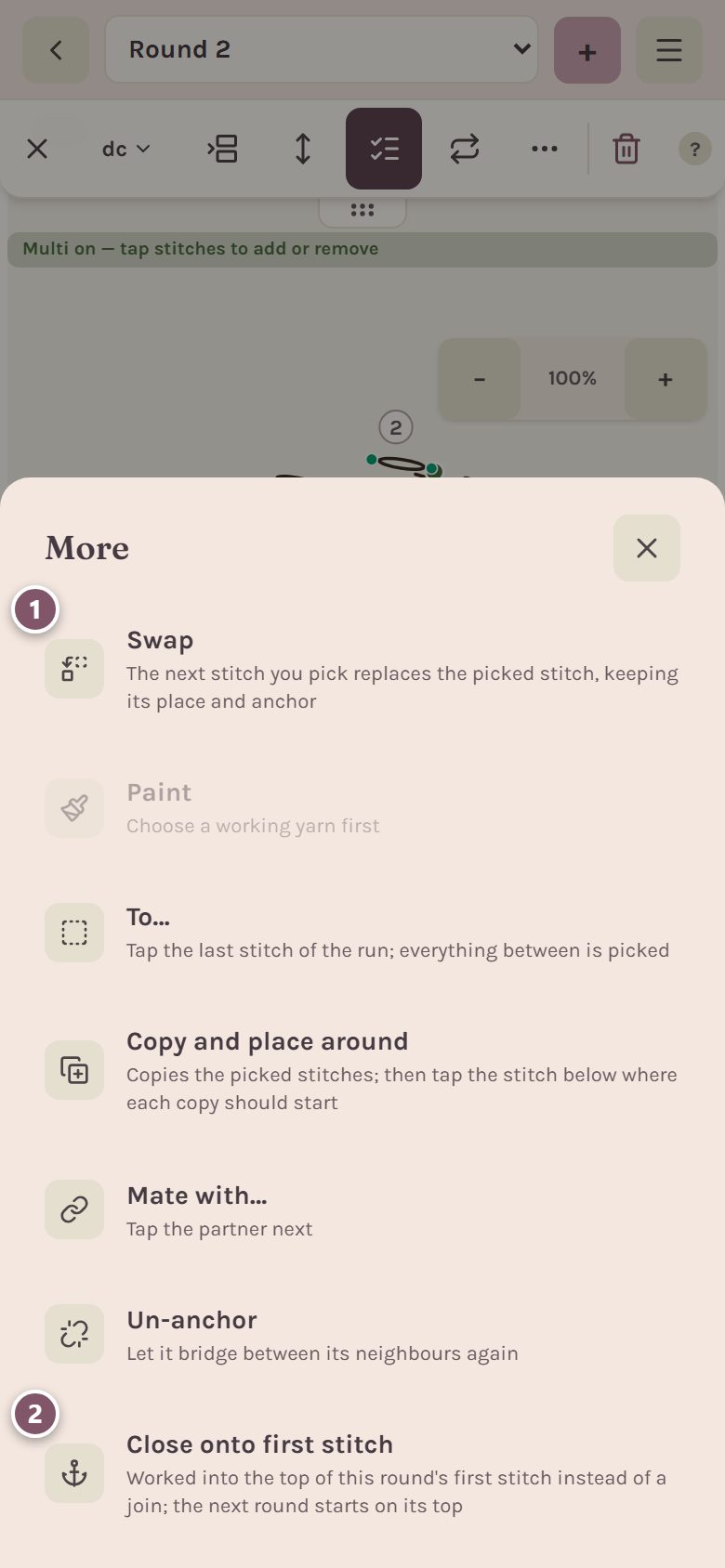
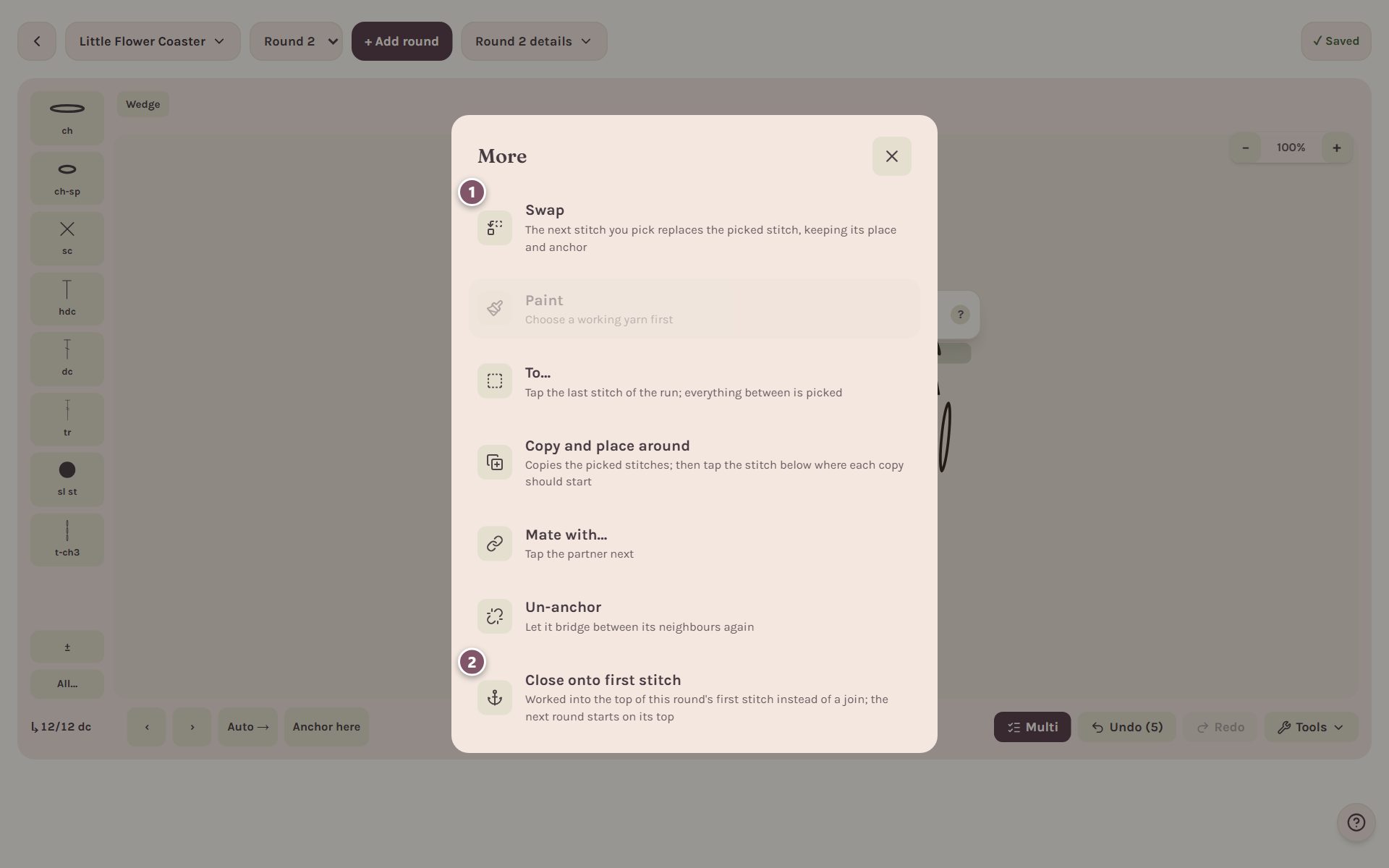
- Swap replaces the stitch.
- Close onto first stitch is for rounds that end with a stitch instead of a join, like a dc or tr worked into the top of the first stitch. The next round then starts on top of it.
The More sheet also has Copy and place around (copy stitches, then tap where each copy starts), To… (pick everything between two stitches) and Un-anchor.
Make a stitch longer or shorter
- Tap the stitch, then tap Length (the up-and-down arrow).
- A small panel opens over the chart so you can watch the stitch change. Tap − or + to shorten or lengthen it.
- Tap Auto to go back to its normal length.
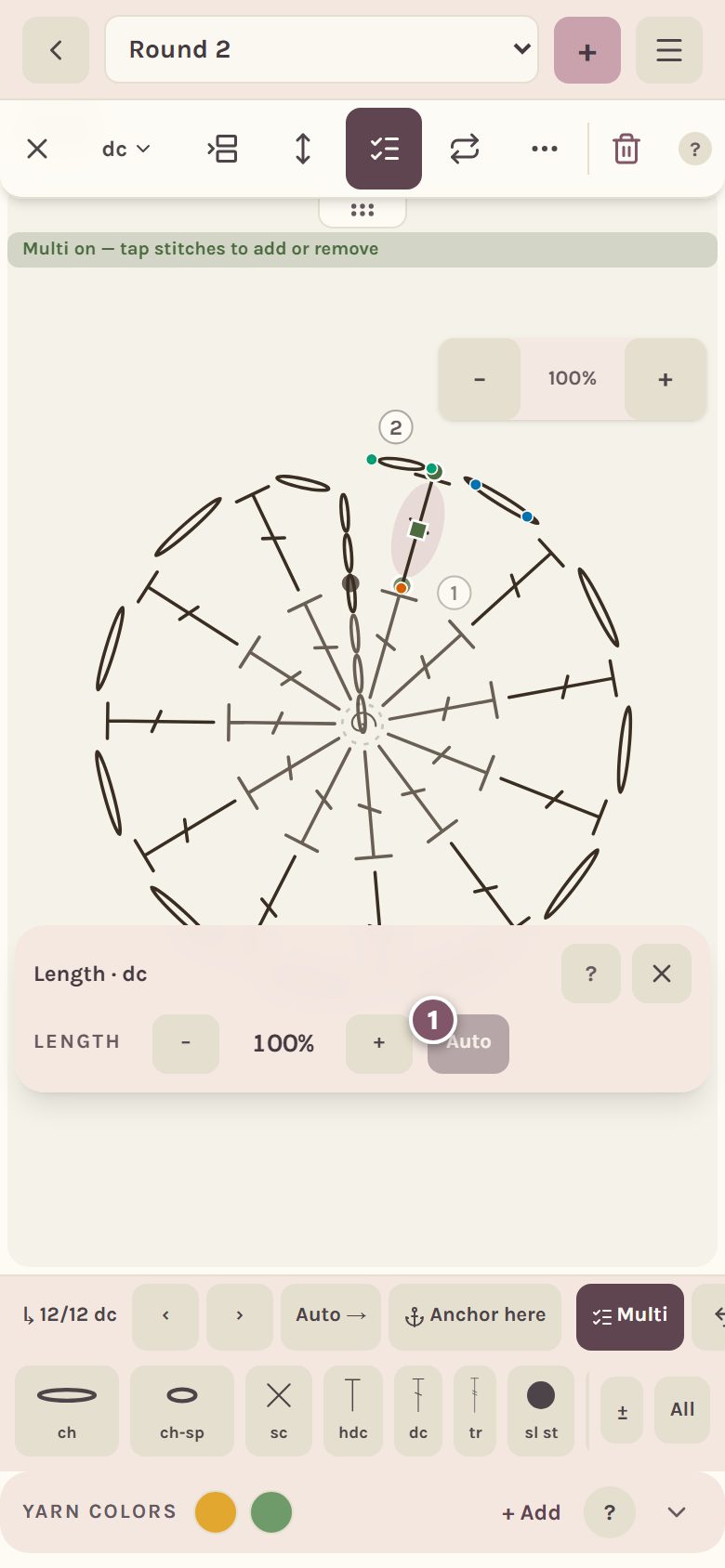
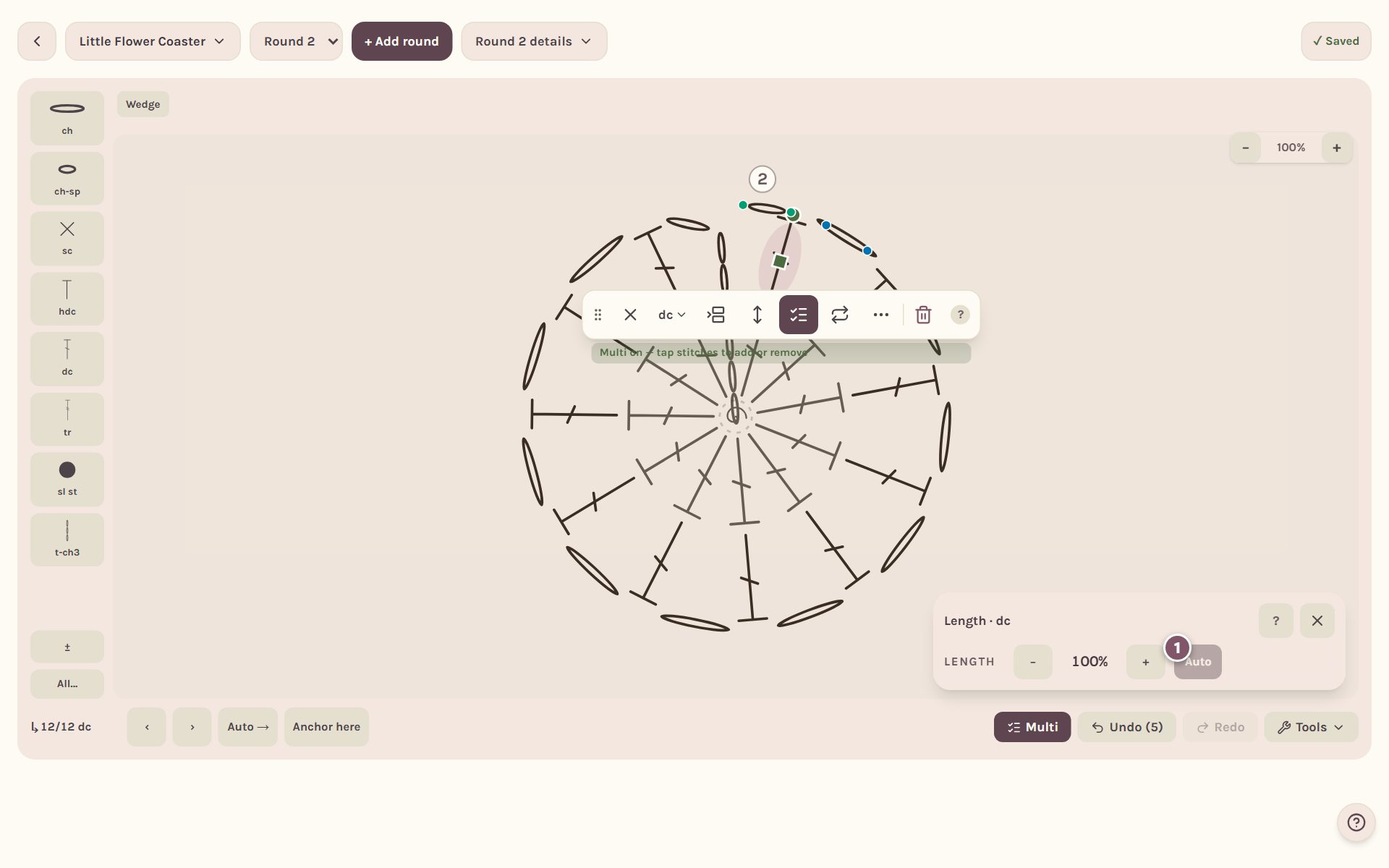
For decreases and fans, the panel also lets you pick one leg and drag its foot. Drop a foot on a stitch in the round below and that leg is worked into it. Length is on round charts only.
Color your chart with your yarns
Each pattern keeps its own yarn colors. On a phone they're in Yarn colors under the stitch strip. On a computer they're in Tools.
- Tap a color swatch to work every new stitch in that yarn.
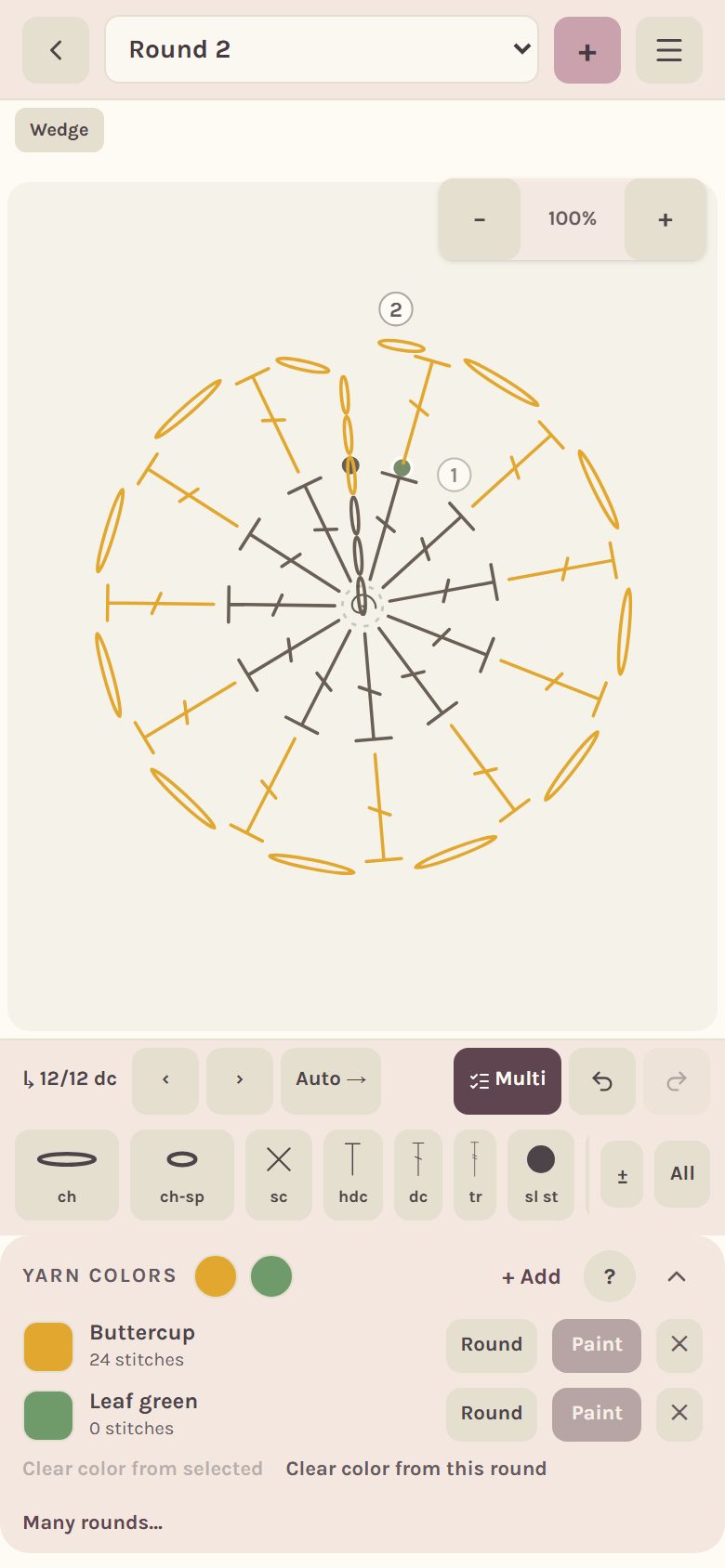
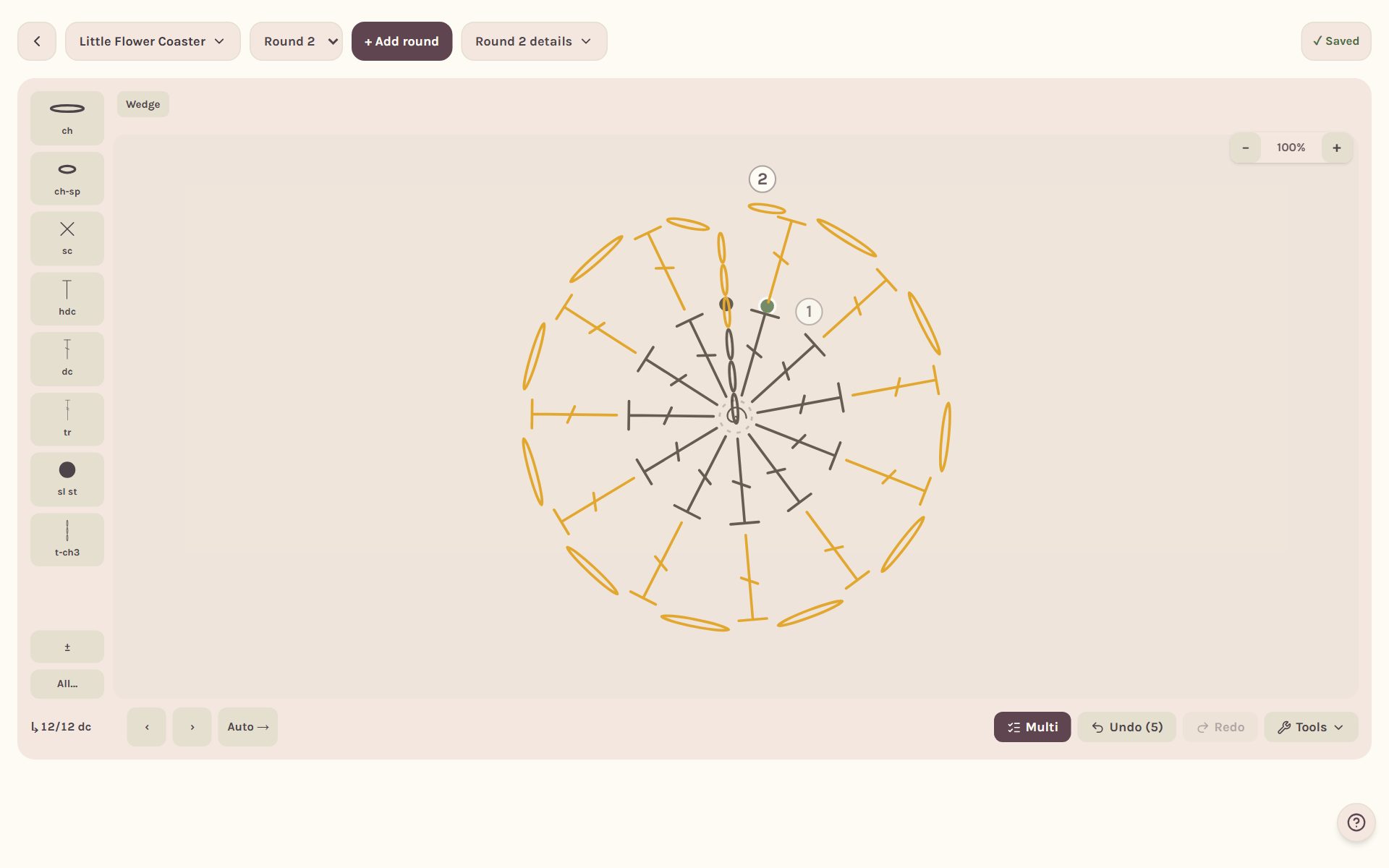
- Tap Round to color the whole round you're on.
- Tap Many rounds… to color several rounds at once. Odd and Even make stripes in one tap.
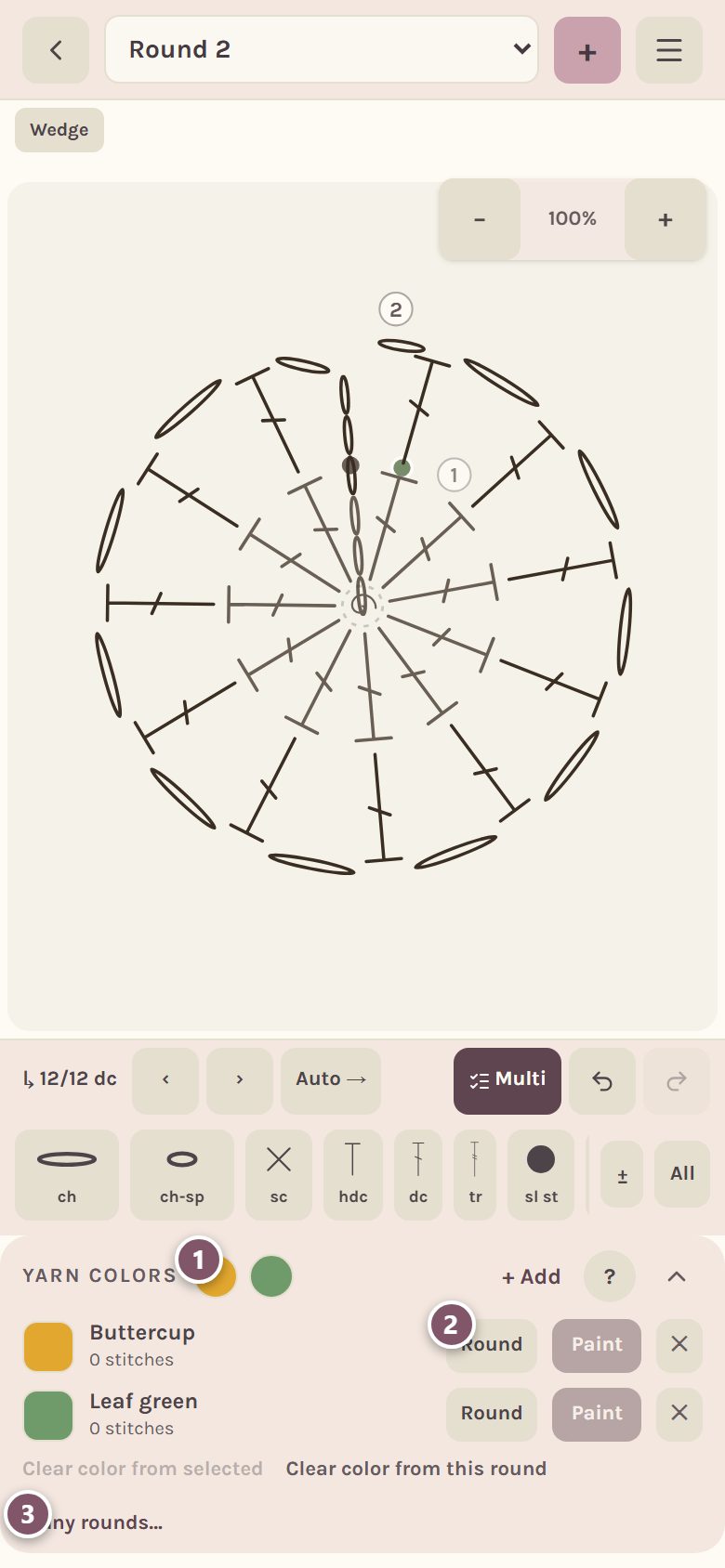
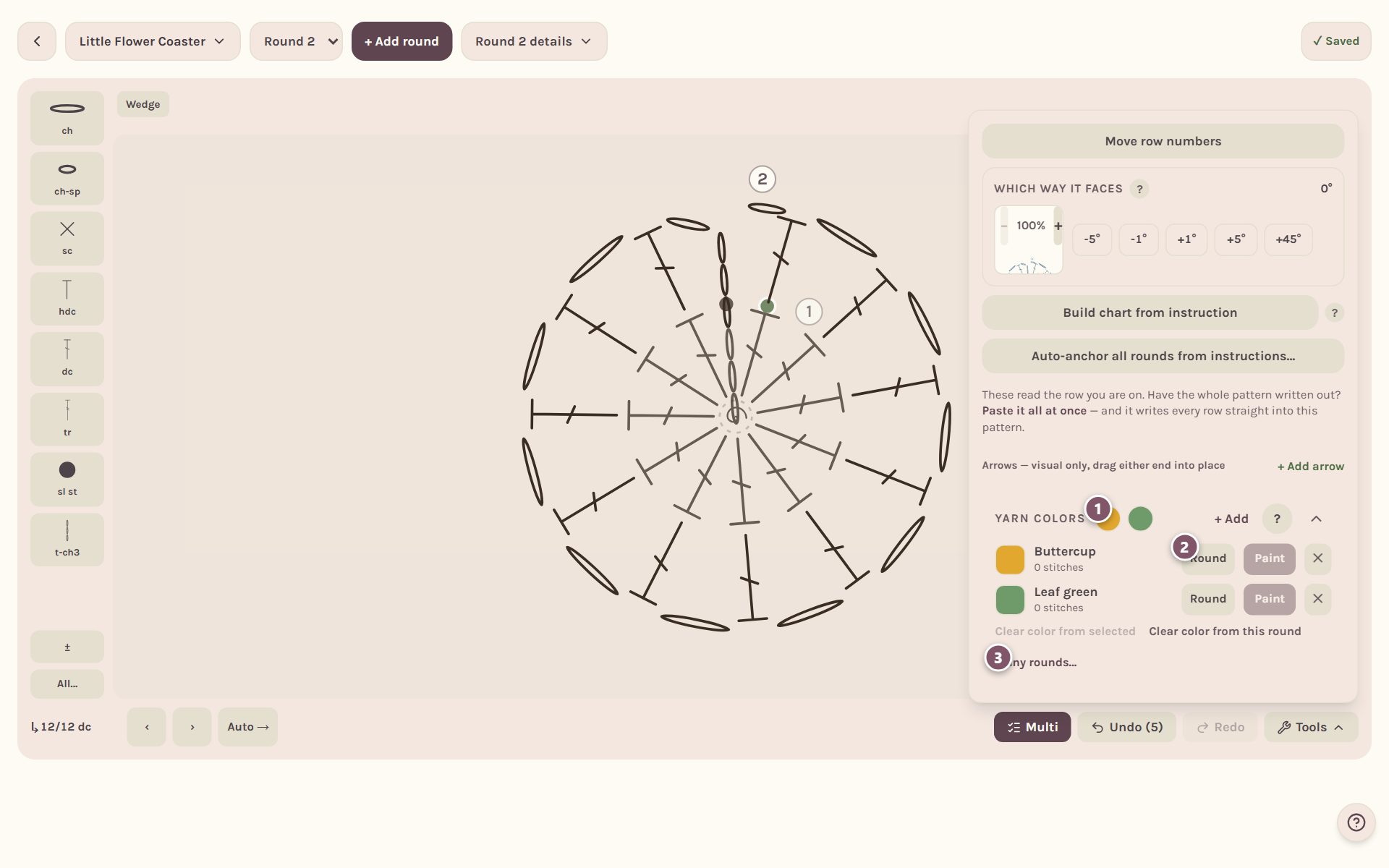
To color only certain stitches, pick them on the chart and tap Paint. + Add adds another yarn from your stash or the yarn list.
Move the round numbers
If a round number sits on top of your stitches, you can slide it out of the way.
- On a phone, open the menu at the top right. On a computer, open Tools. Tap Move row numbers.
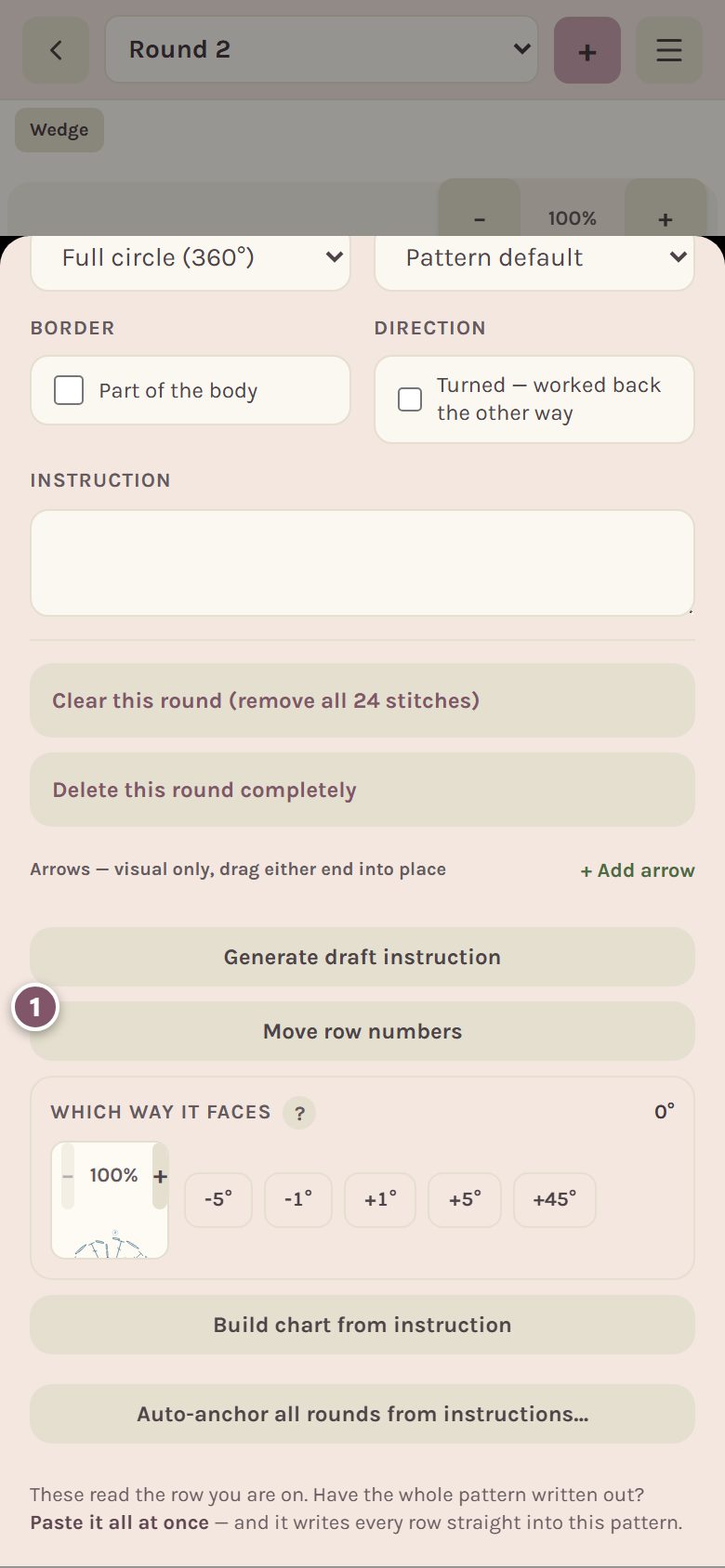
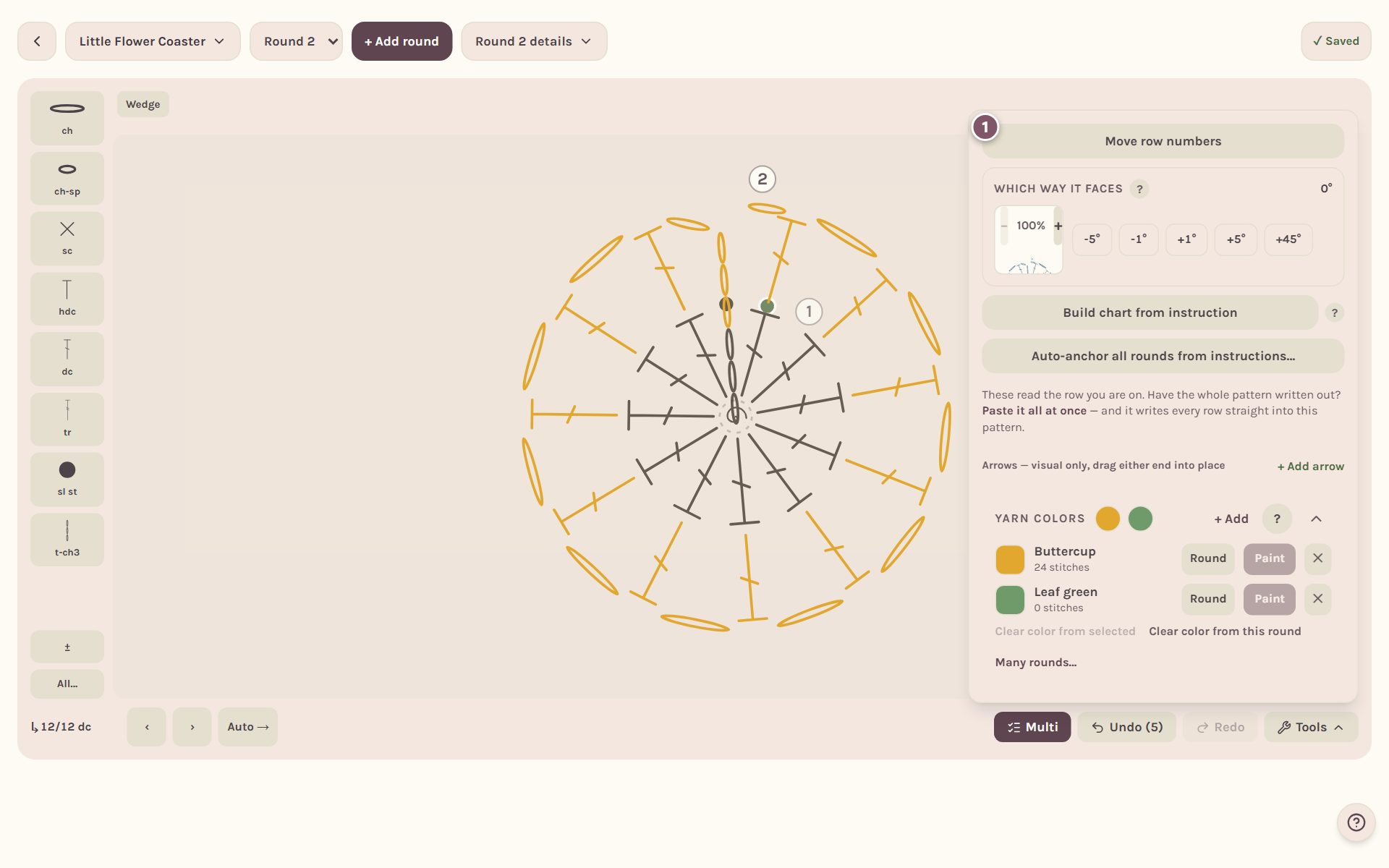
- Drag any number where you want it, then tap Done moving numbers.
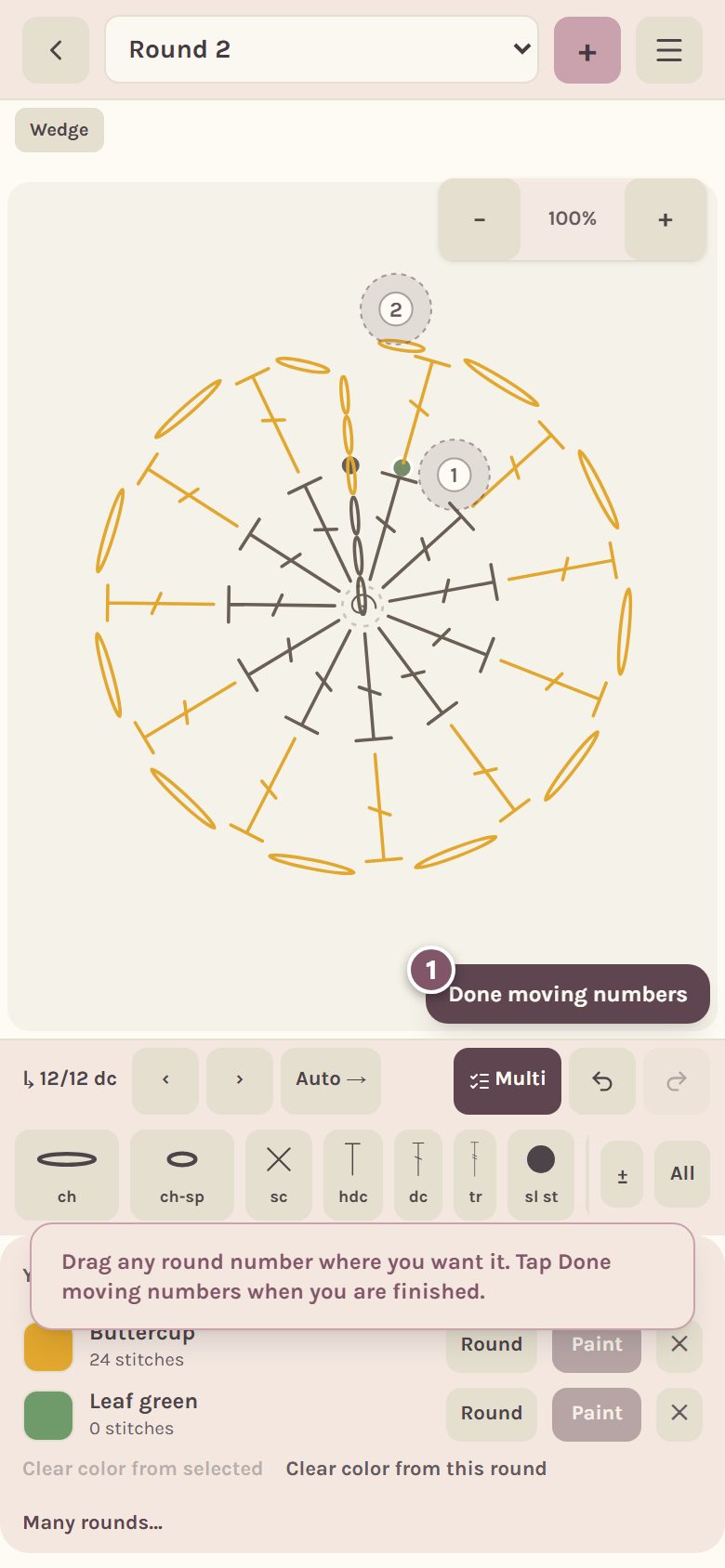
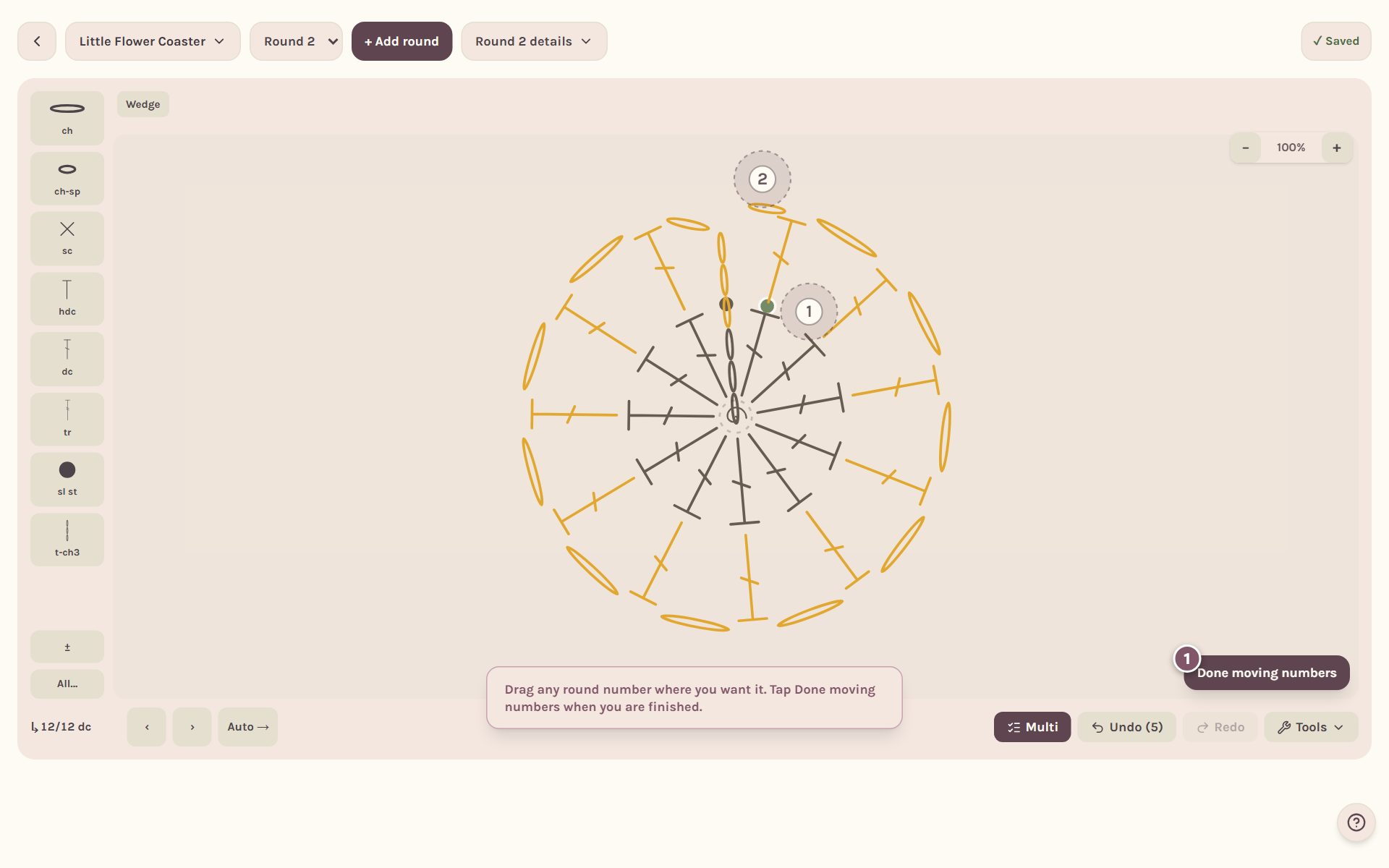
The numbers print where you put them. Put numbers back puts them back where the app placed them.
Frequently asked questions
Why does Repeat want the stitches side by side? A repeat copies a run of stitches in the order you work them. If you picked stitches with gaps between them, tap Fill to pick everything in between first.
Can I undo a repeat? Yes. Tap Undo. Or pick the repeated stitches, open Repeat again and use Undo repeat, which keeps your first copy so you can fix it and repeat again.
Do the colors change my instructions? No. They color the chart so you can see your color changes. The written instructions stay the same.
Next, let the app write the instructions from your chart.
Ready to try it? Crochet Bobble opens right in your browser, on a phone or a computer.
Open Crochet Bobble