
How to Make a Crochet Stitch Chart (Crochet Chart Maker)
Draw a crochet chart stitch by stitch with real chart symbols, in rows or in rounds. Here is how to start a chart in Crochet Bobble, place stitches and work each round into the one below.
Crochet Bobble's chart builder lets you draw a crochet chart one stitch at a time, with the standard chart symbols. You tap a stitch and it lands on the chart, and each new round works into the round below it, just like your hook does. When you're done, the app can write the instructions for you.
What you need
- A Crochet Bobble toolbox membership.
- A rough idea of your first round or row. You can change anything later.
Start a new chart
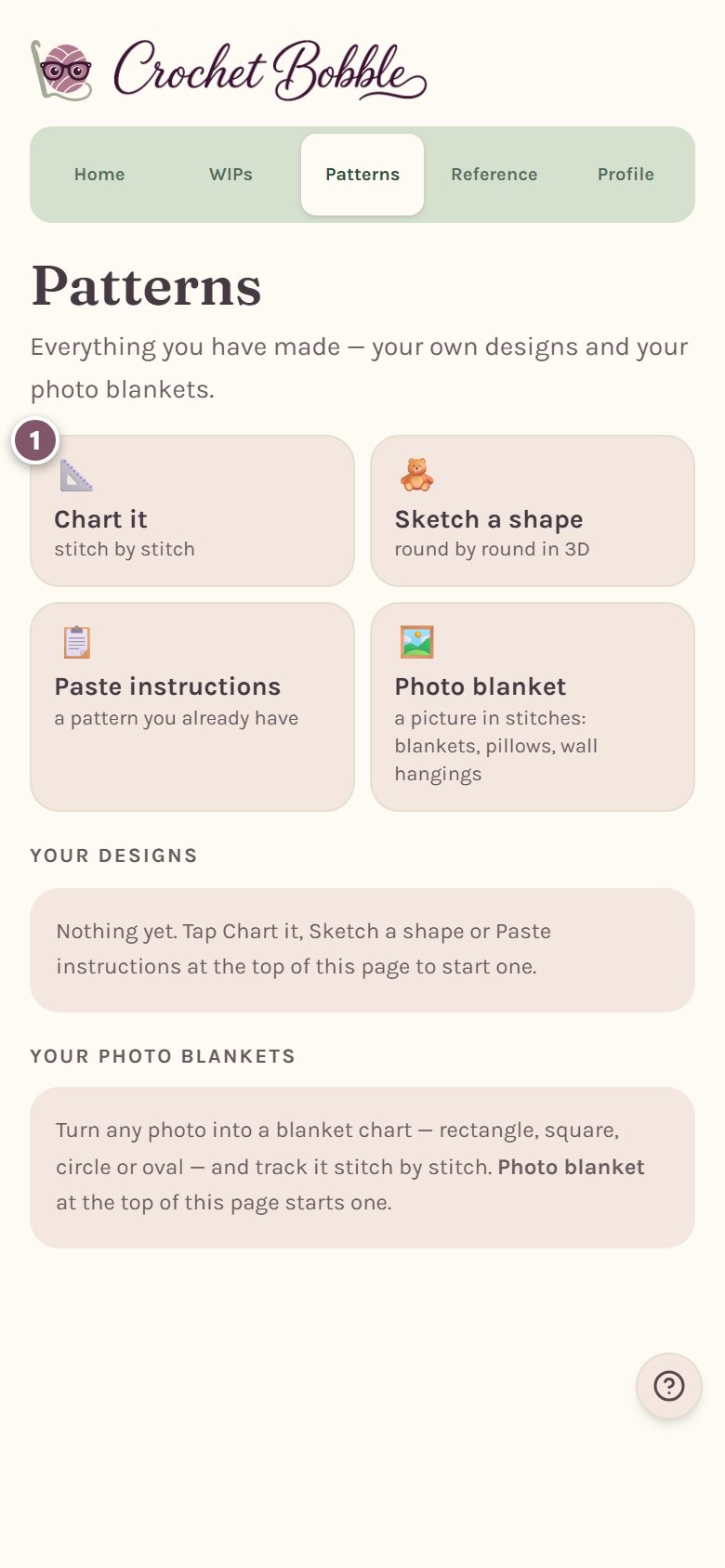
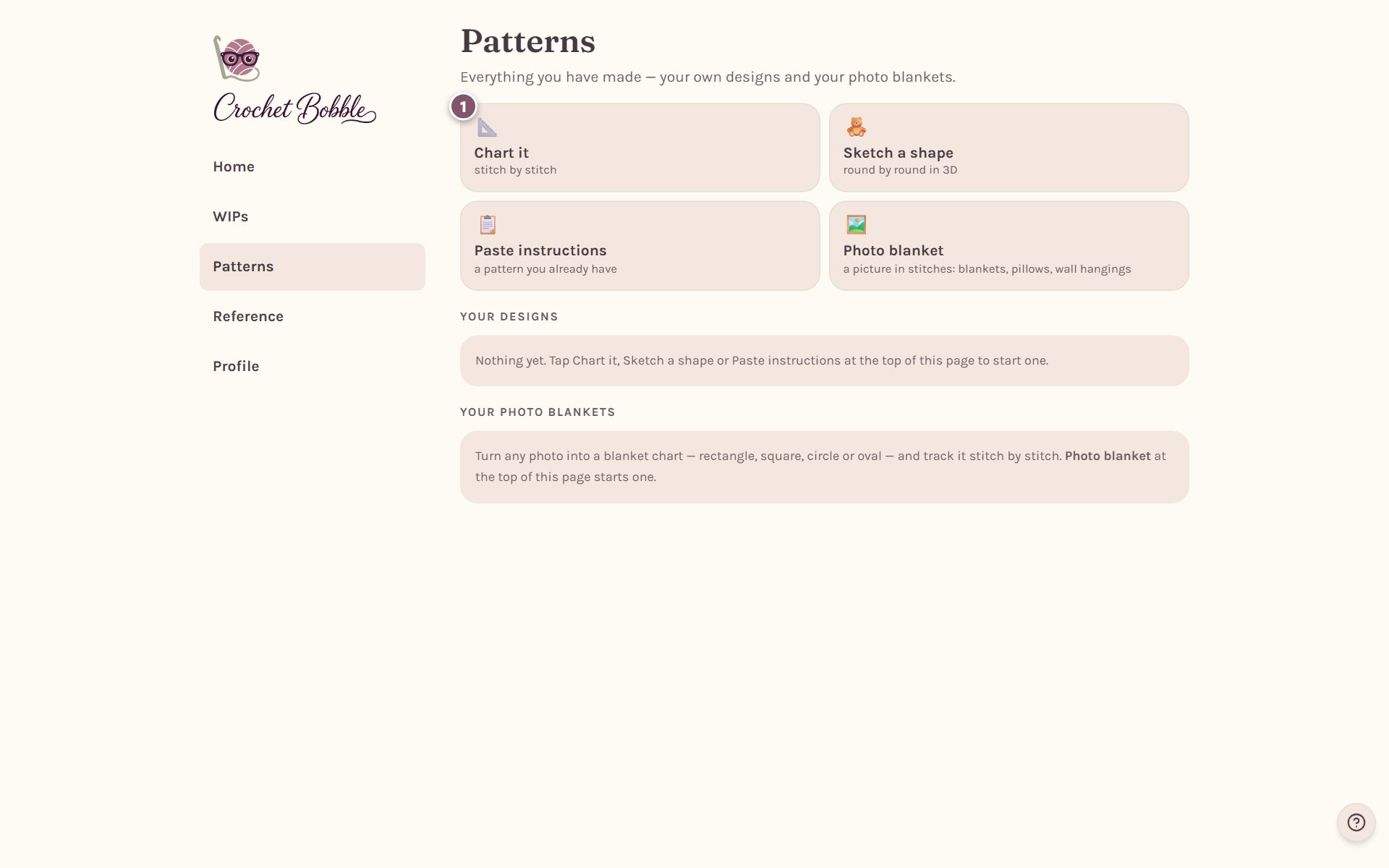
- Open the Patterns tab.
- Tap Chart it.
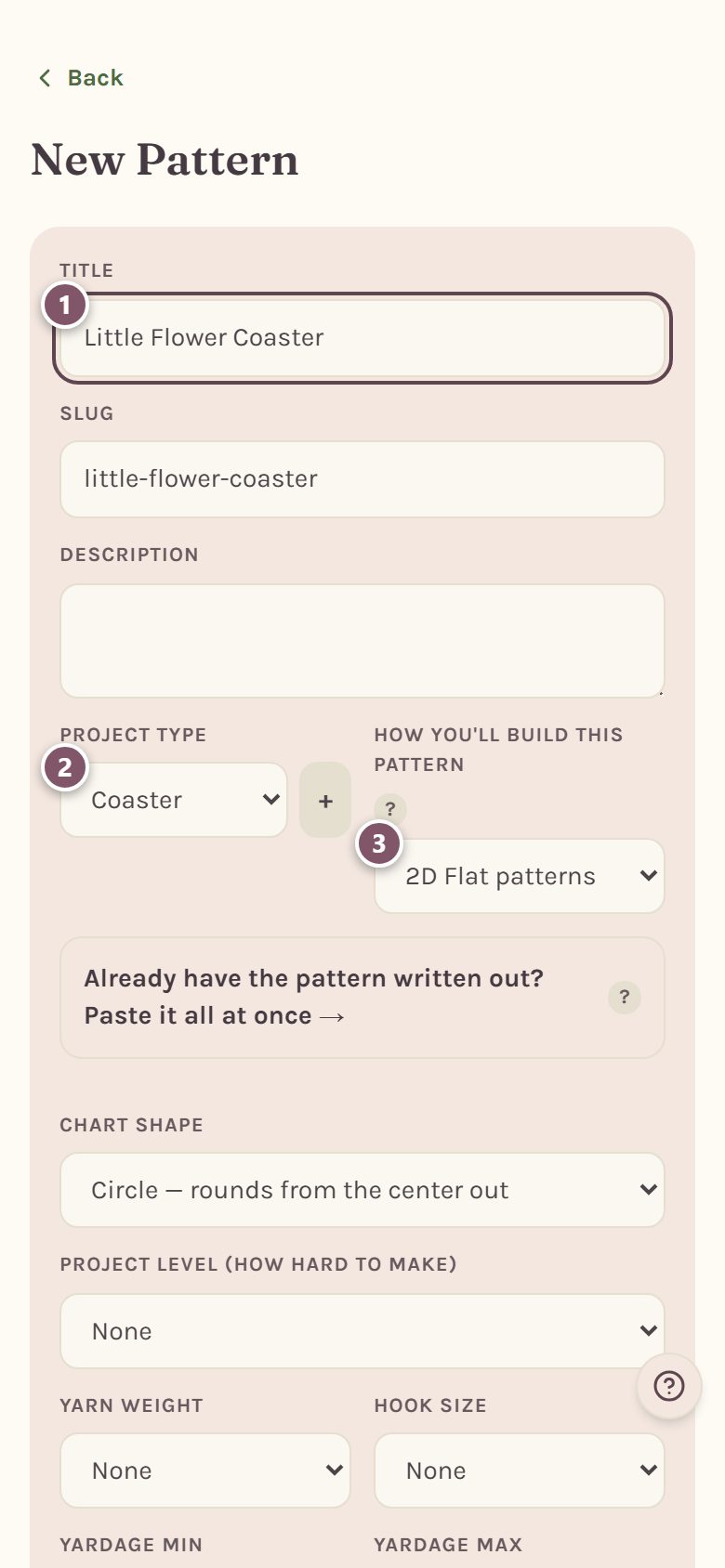
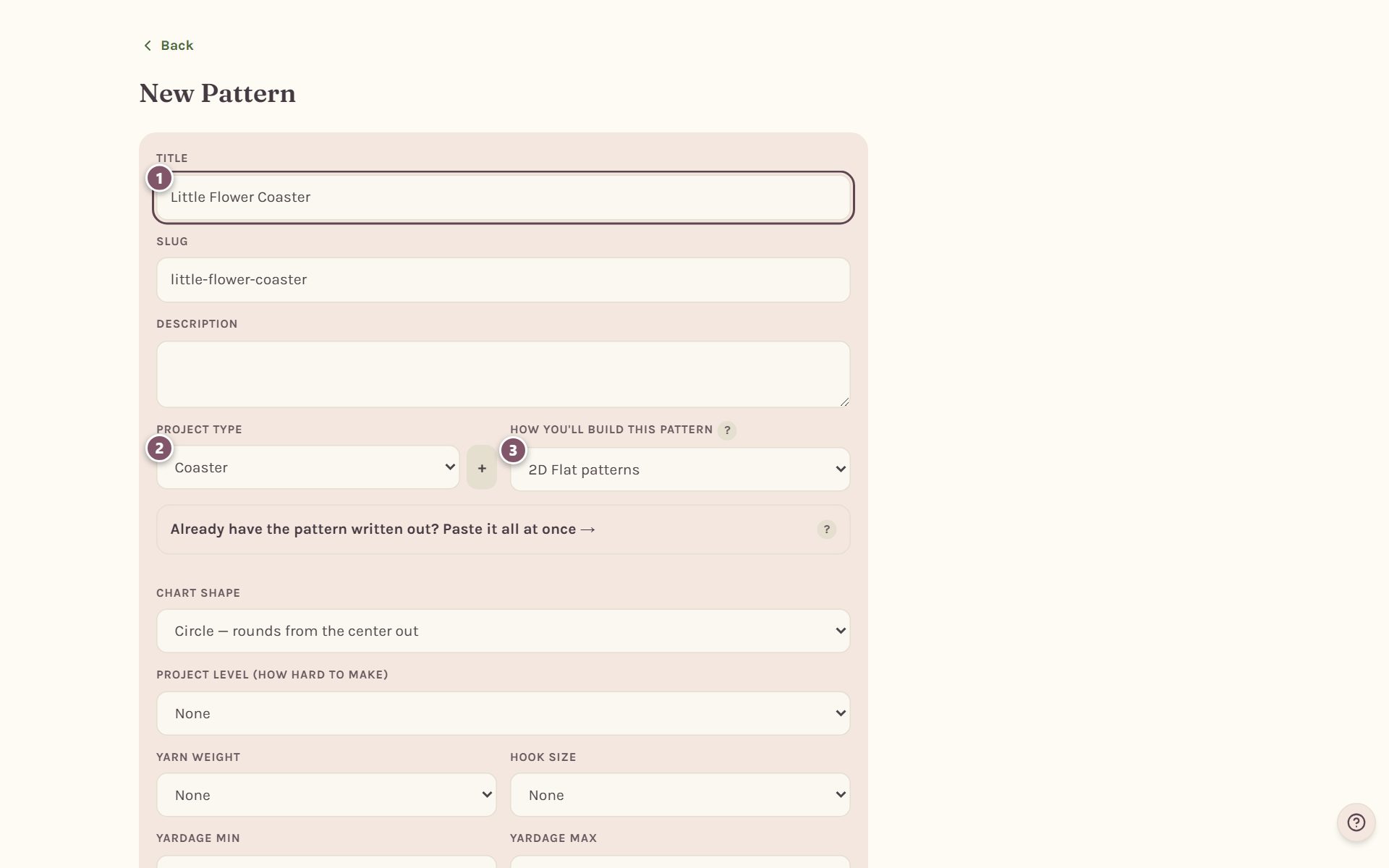
The New Pattern form opens.
- Type a Title, like "Little Flower Coaster".
- Pick a Project type. Coasters, doilies, granny squares and other flat pieces are set up for charting.
- Under How you'll build this pattern, choose 2D Flat patterns. That's the chart builder. (3D / Shaped pieces is for amigurumi and hats, in the Shape Studio.)
Choose rows or rounds
Chart shape decides how your chart is laid out.
- Pick the shape that matches your piece: Circle for rounds worked from the center out, Oval for rounds around a starting chain, Square for granny-style rounds with corners, Circle into square, or Square/rectangle for rows worked back and forth.
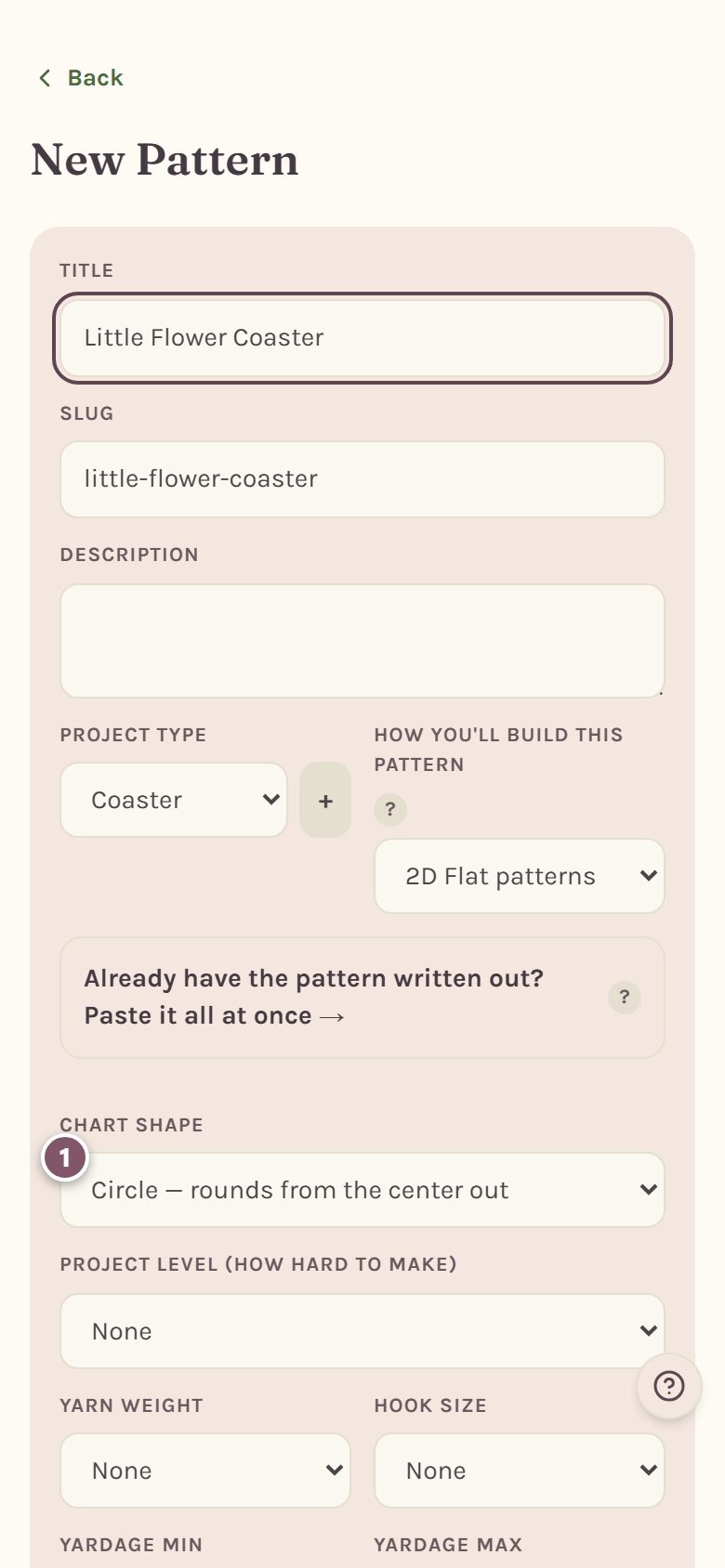
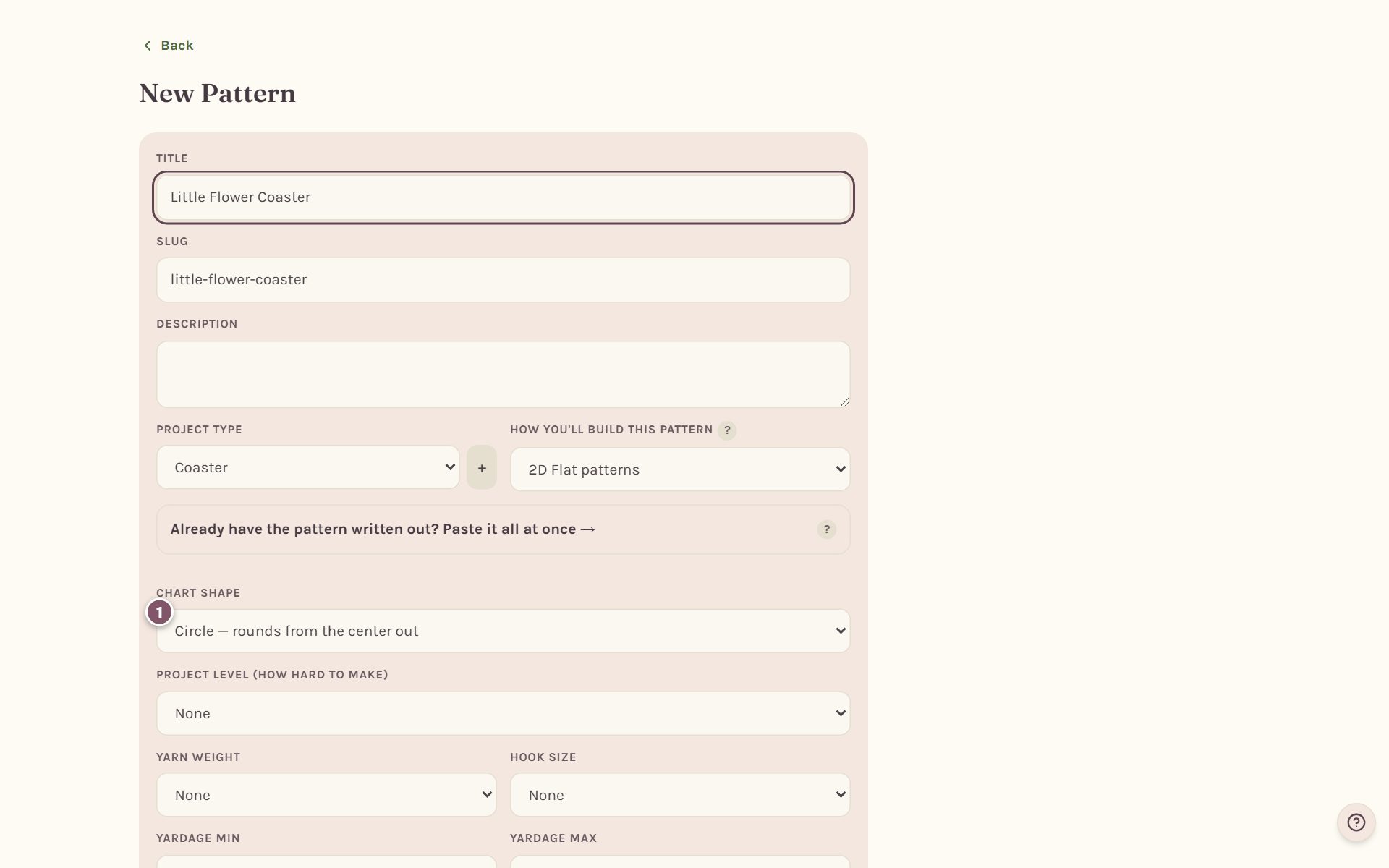
Then scroll down and tap Create & continue to builder.
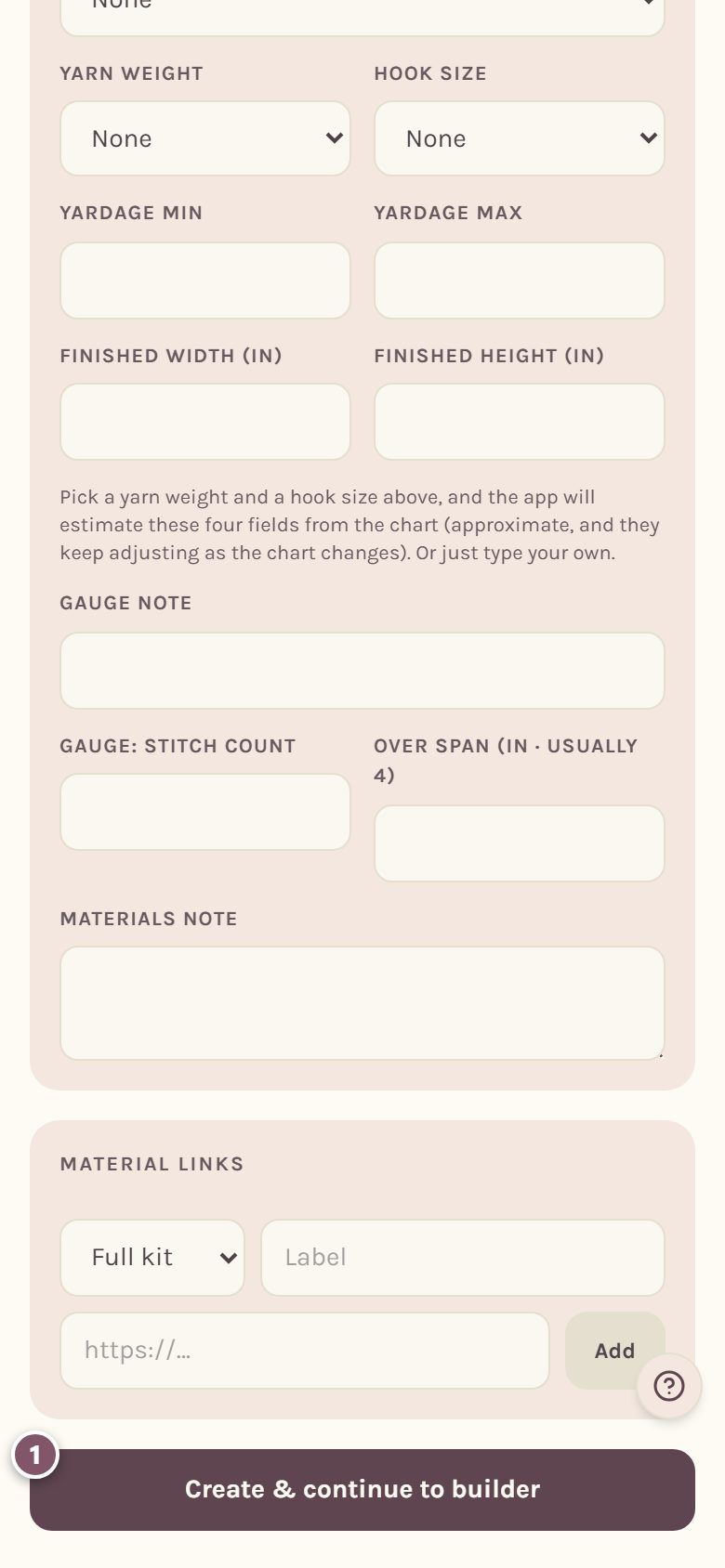
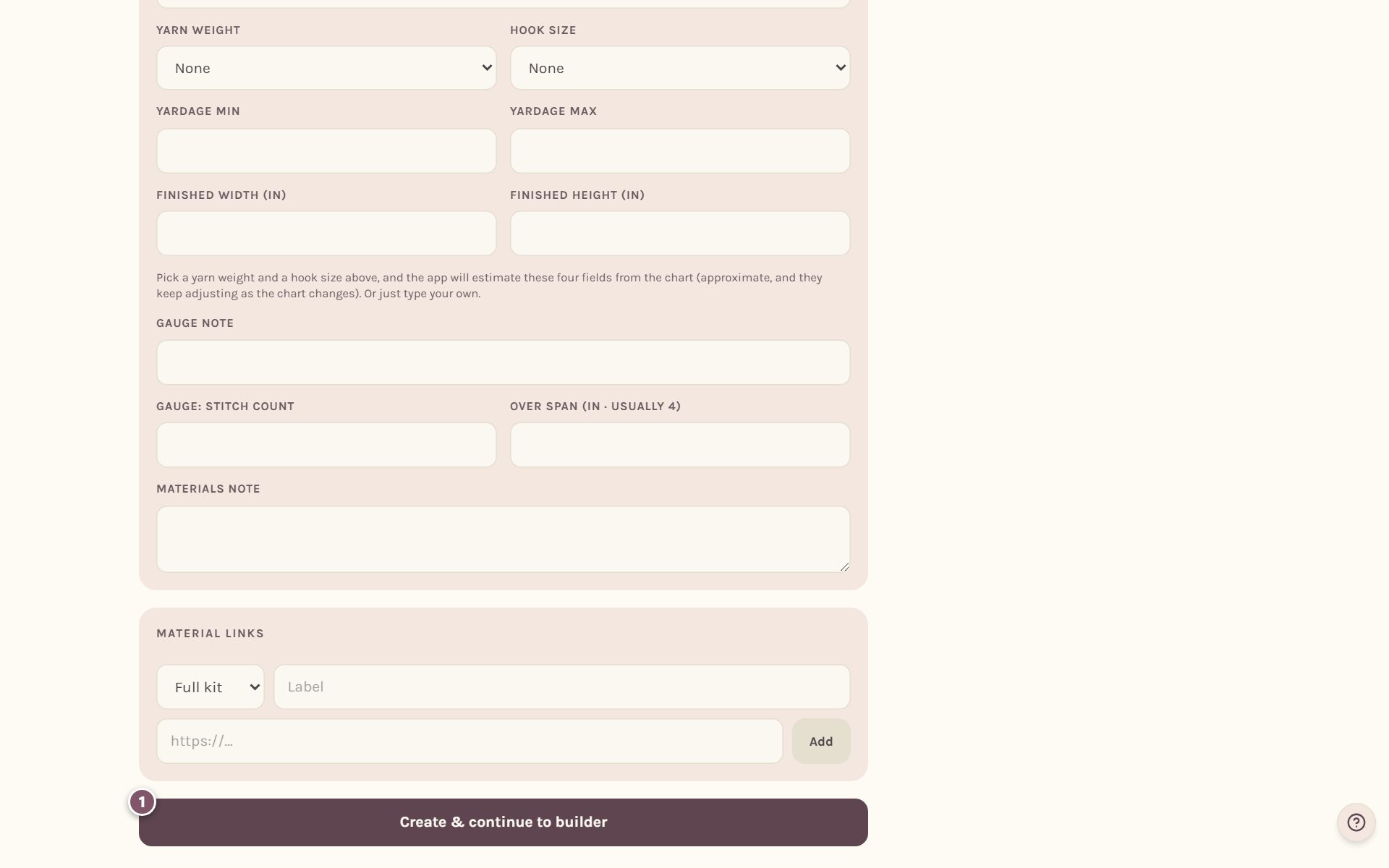
Tip: you can fill in the yarn weight and hook size on this form too. With both picked, the app estimates the yardage and finished size from your chart as it grows.
Add your first round
The builder opens on your new pattern.
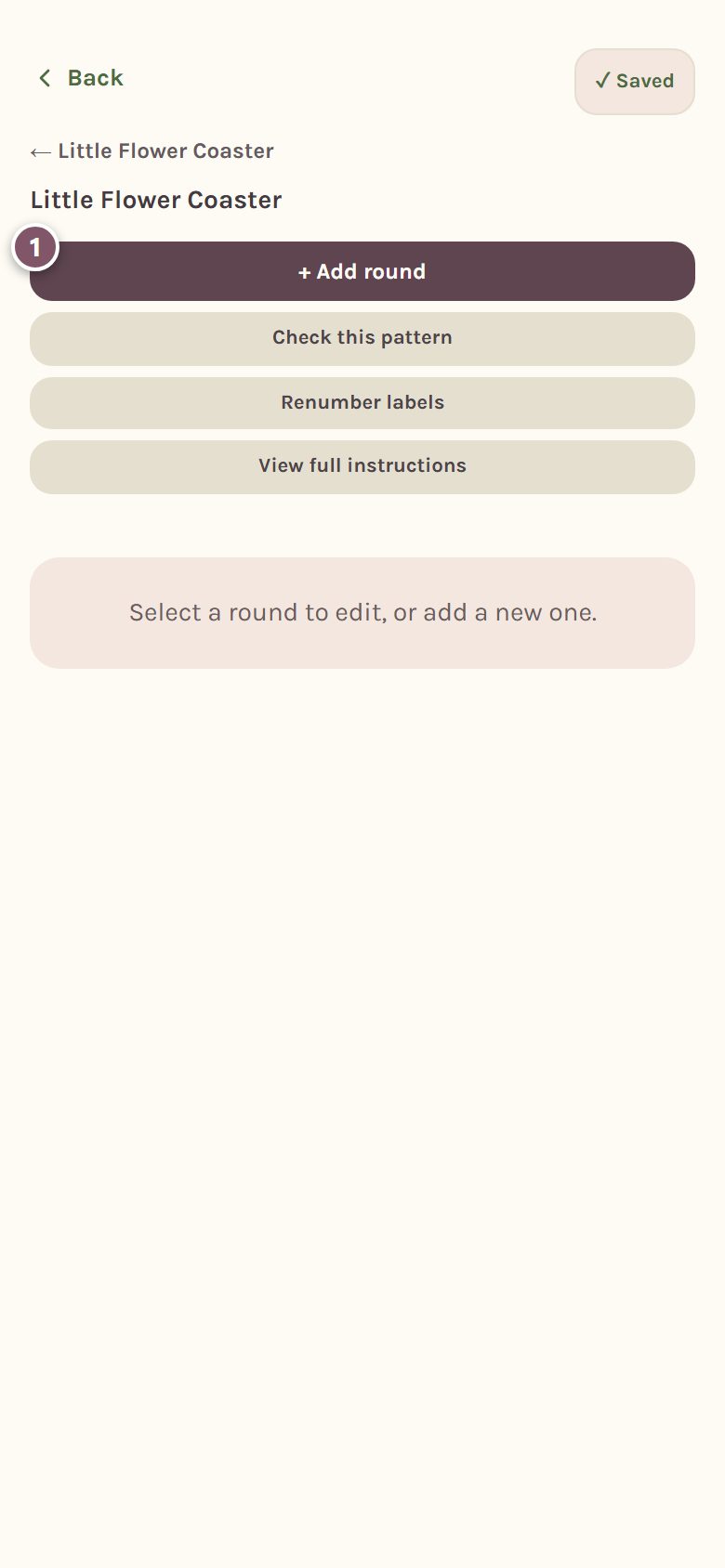
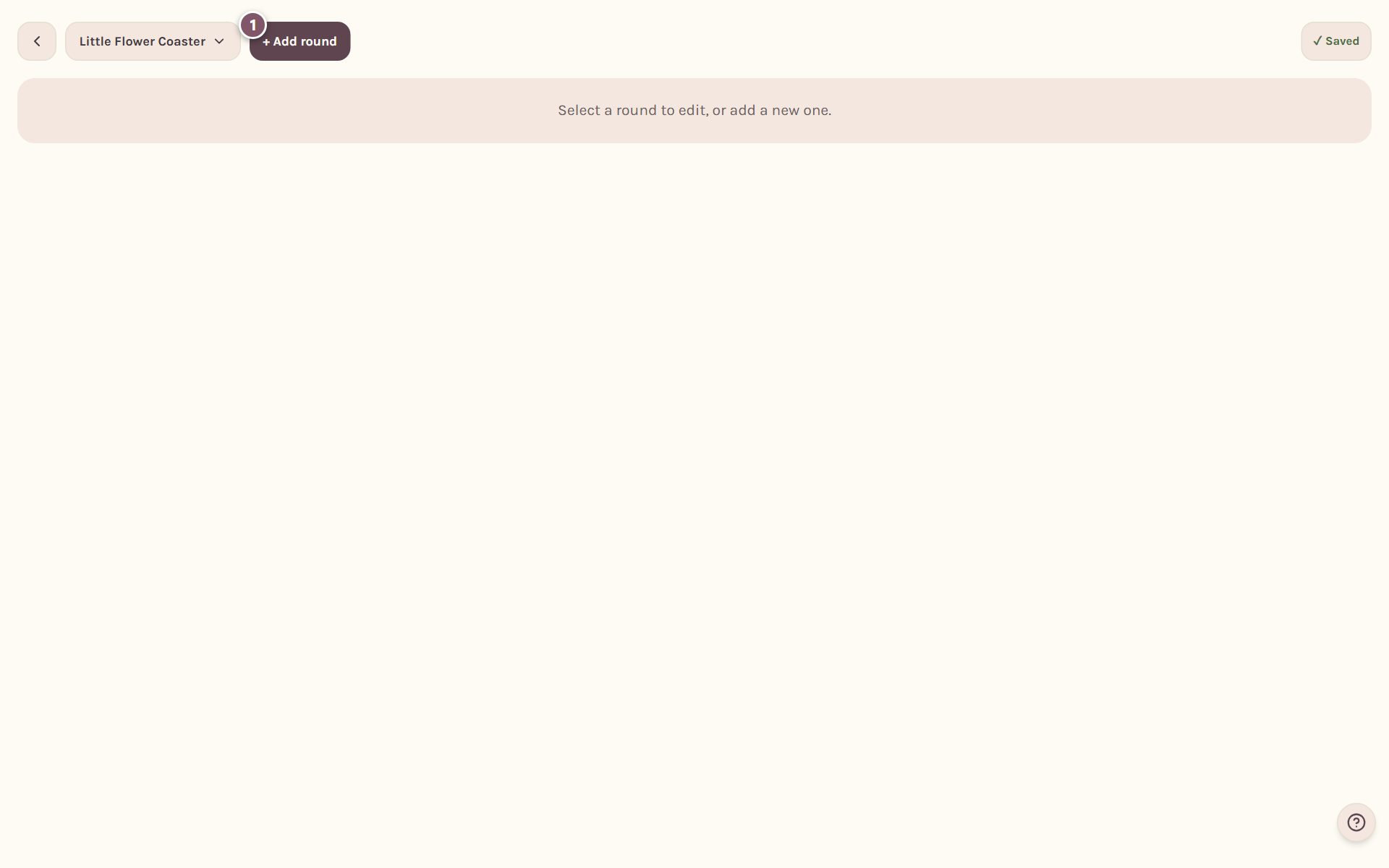
- Tap + Add round (or + Add row on a row chart).
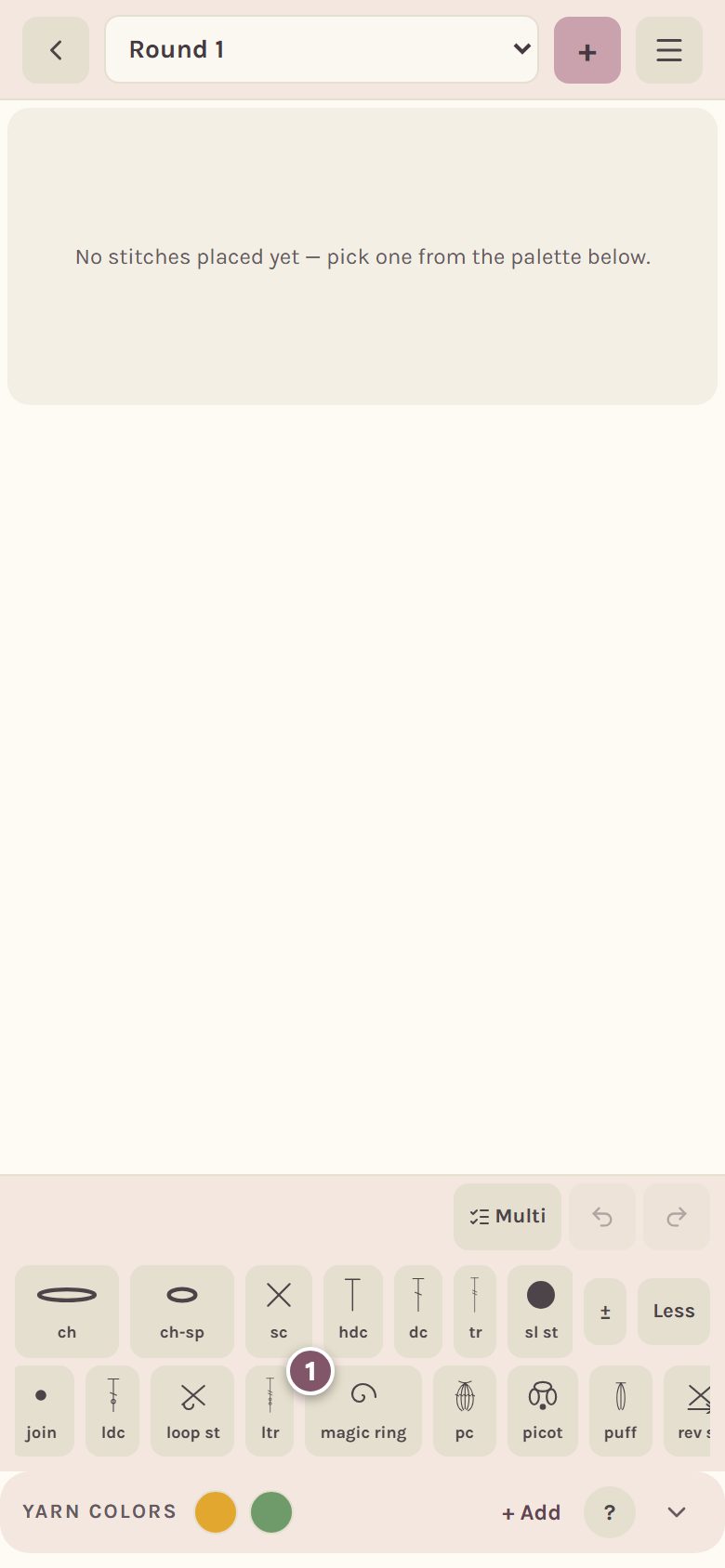
The stitch strip sits along the bottom on a phone and down the left side on a computer. It starts with the everyday stitches: ch, ch-sp, sc, hdc, dc, tr, sl st and a ch-3 turning chain.
- For anything else, tap All at the end of the strip. Every standalone chart symbol appears, from clusters and puffs to the magic ring.
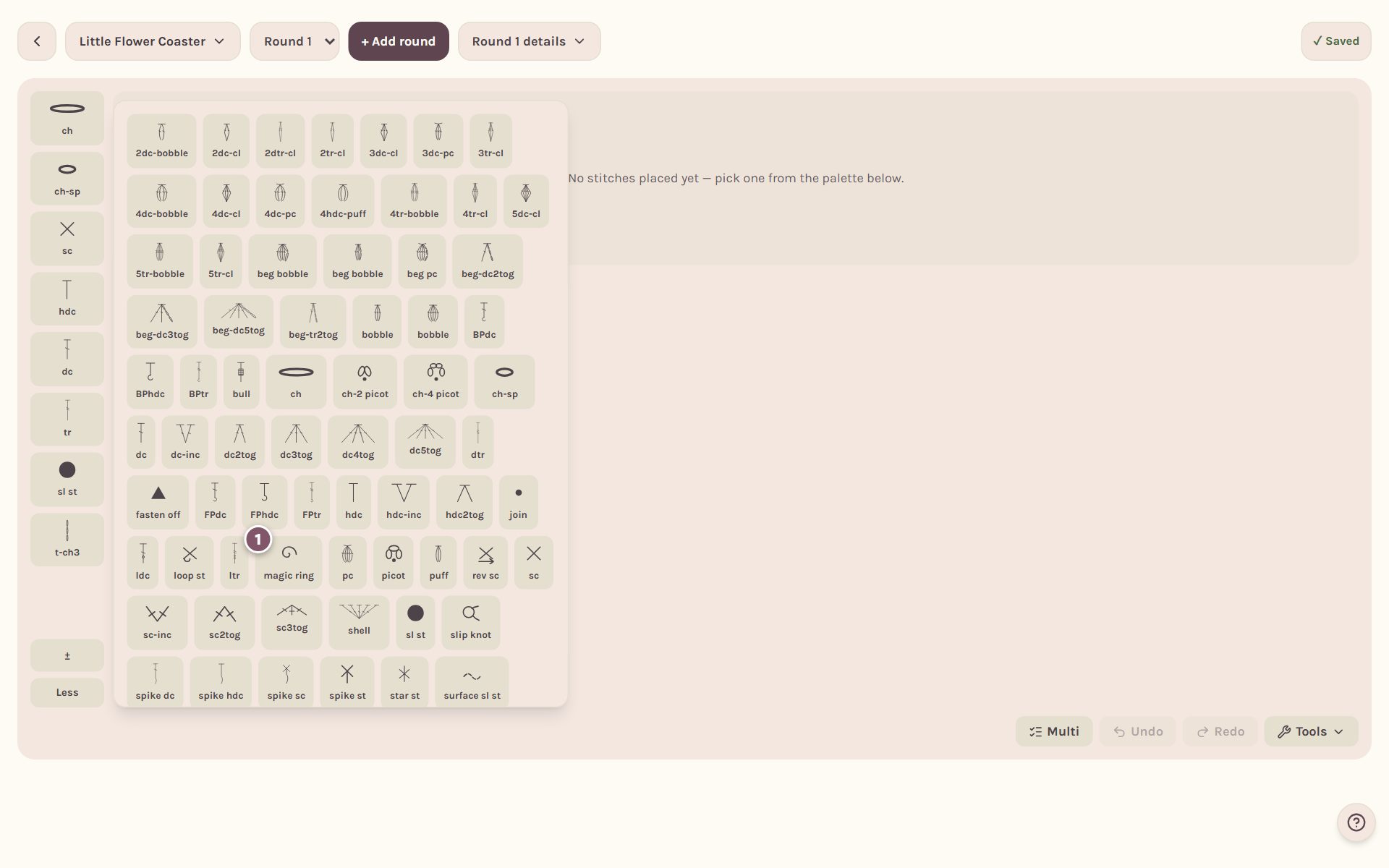
Now tap stitches in the order you'd work them. For a flower coaster that's the magic ring, then the ch 3, then 11 dc, then join from the full list. Each tap adds the stitch to the round.
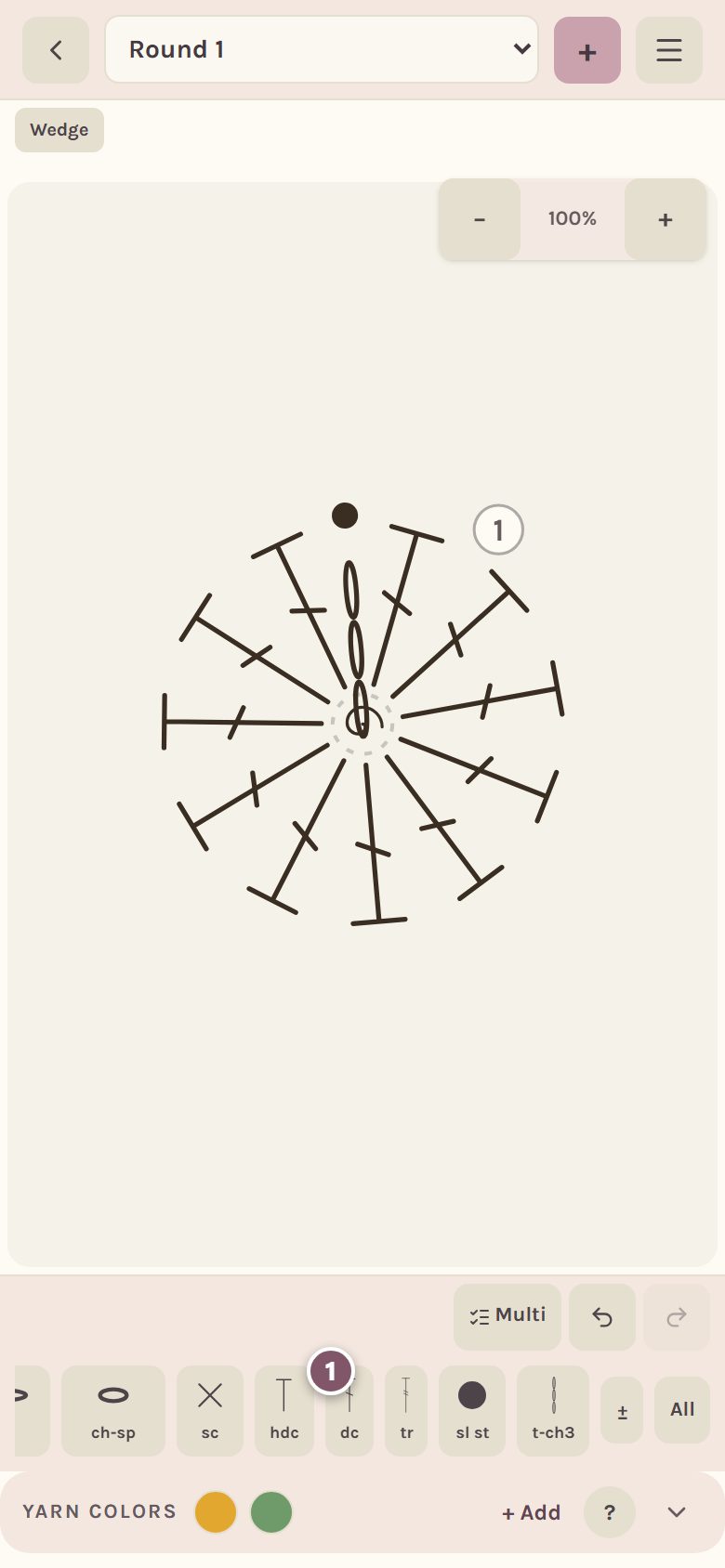
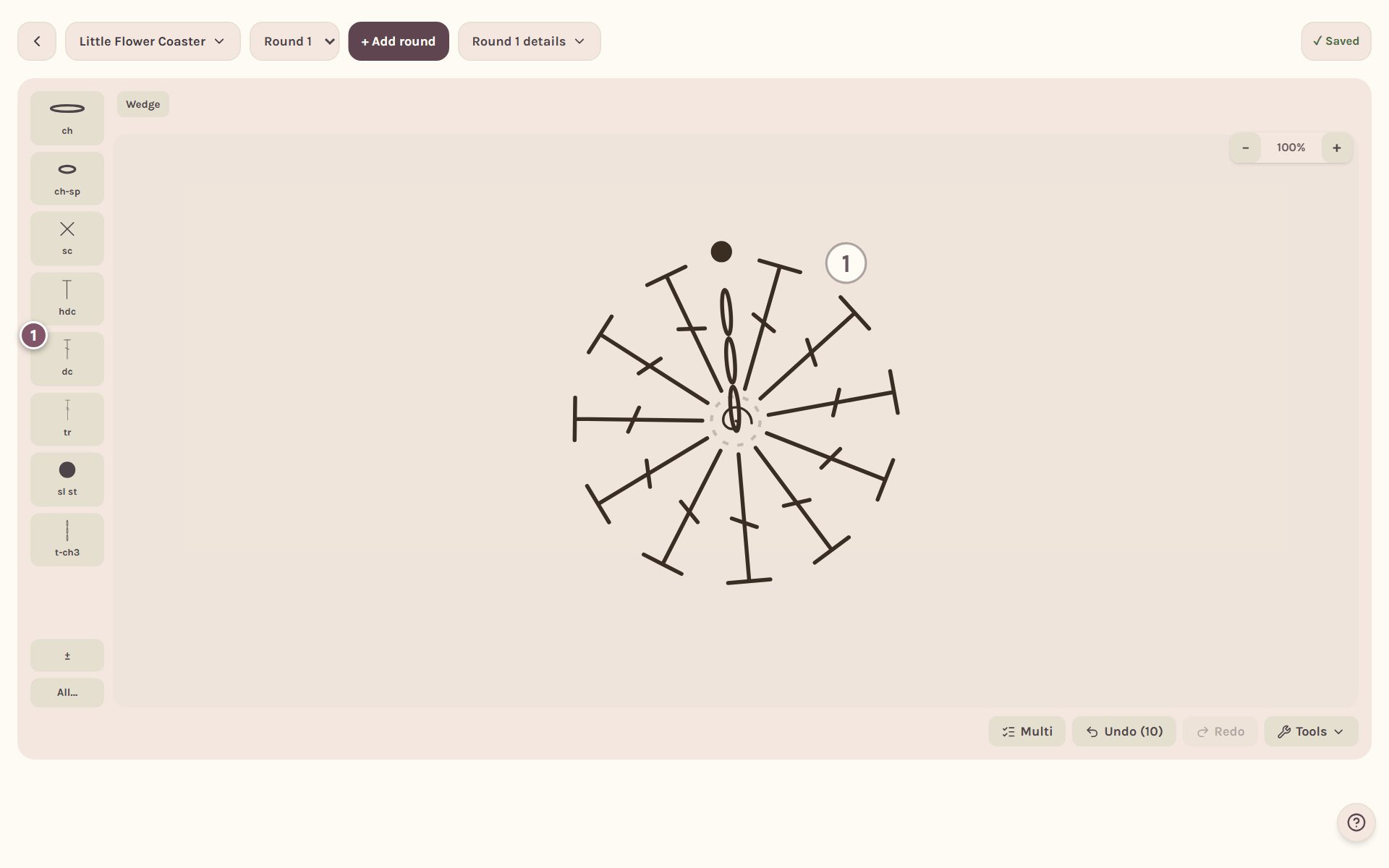
A magic ring can only be the very first stitch of Round 1 on a round chart, so the app only offers it there.
Work into the round below
Tap + Add round again (the + at the top on a phone) for Round 2. From here on, every stitch you place works into a stitch of the round below. The one it will go into is ringed on the chart, and the counter beside the arrows says which one, like "↳ 6/12 dc".
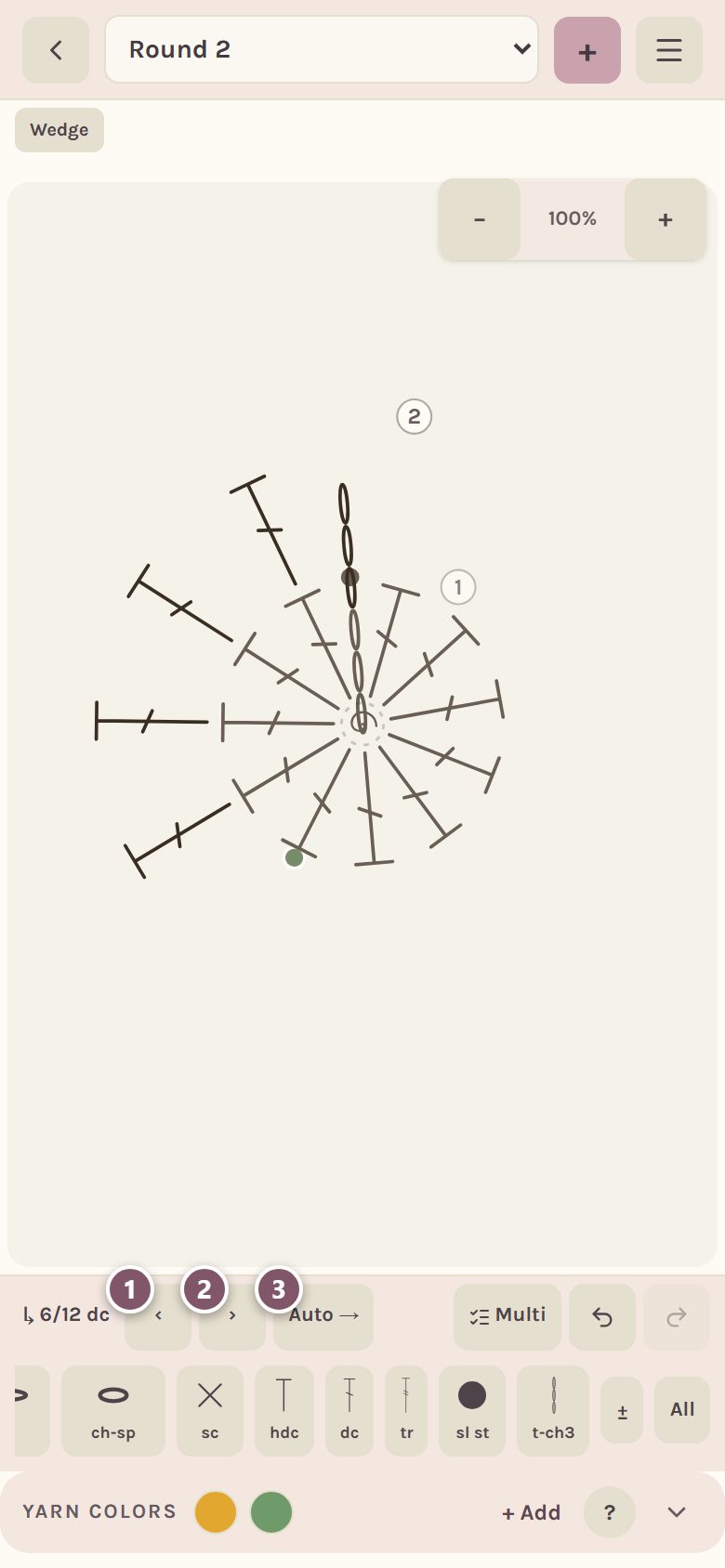
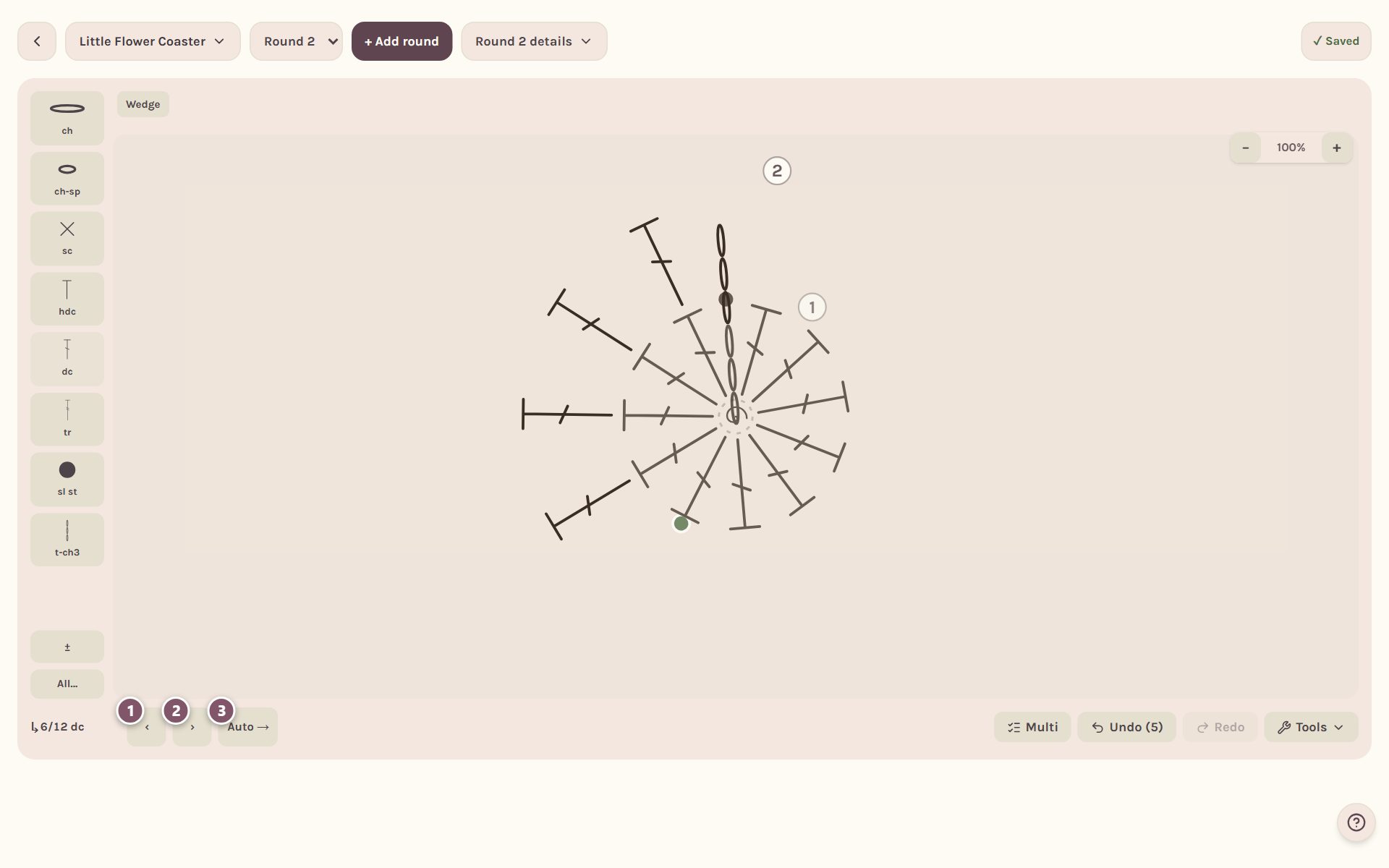
- Tap ‹ to move the ring back a stitch.
- Tap › to move it forward, for example to skip a stitch.
- Auto → moves the ring along after each stitch you place. Tap it to switch to 📌 Pinned, which holds the ring still so several stitches go into the same stitch, like a shell or an increase.
Tip: a ch 3 turning chain stands on the stitch it rises from and counts as that stitch, so the ring moves on by one and the first stitch after it goes into the next stitch. A ch 1 or ch 2 doesn't count, so the ring stays where it is.
Pick a stitch to change it
Tap any stitch in the round you're on. A row of buttons appears for that stitch.
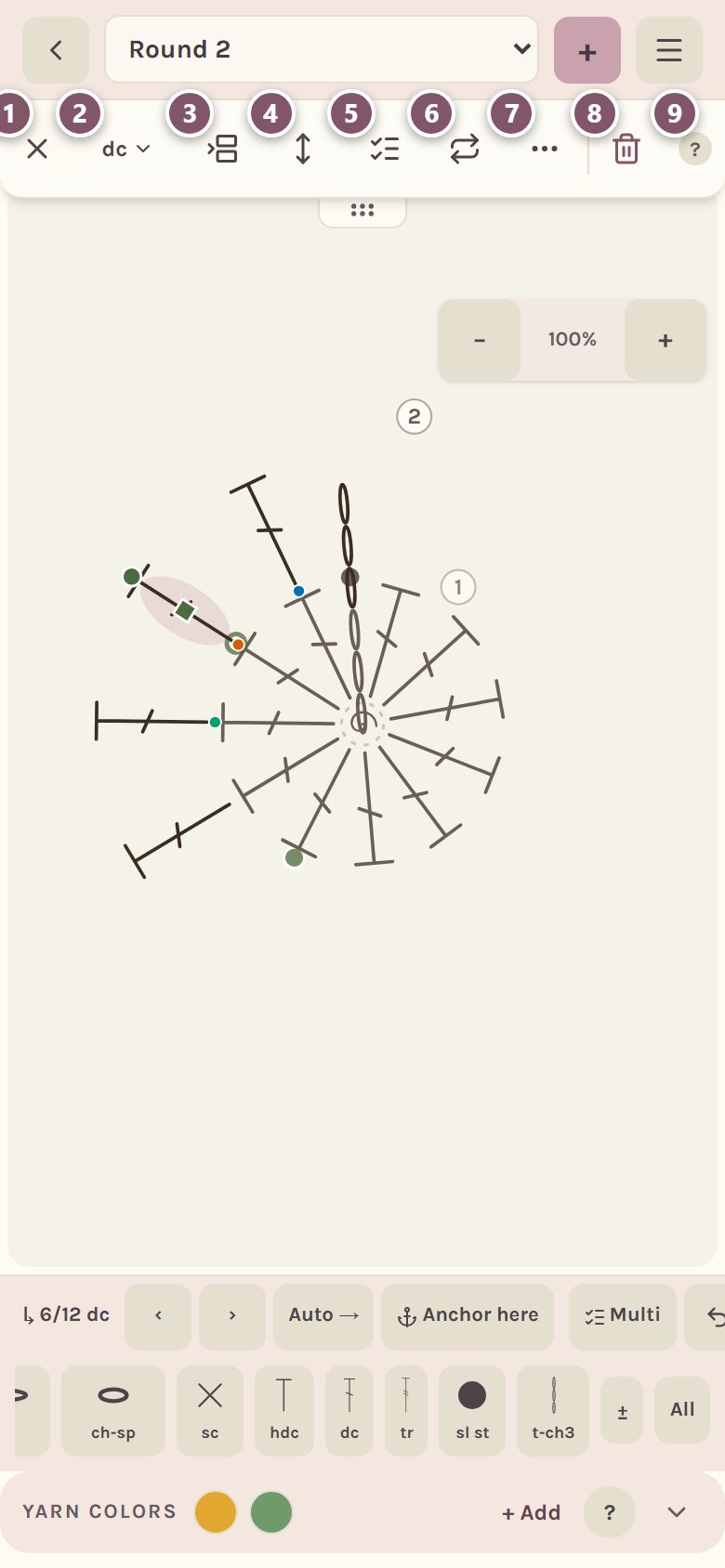
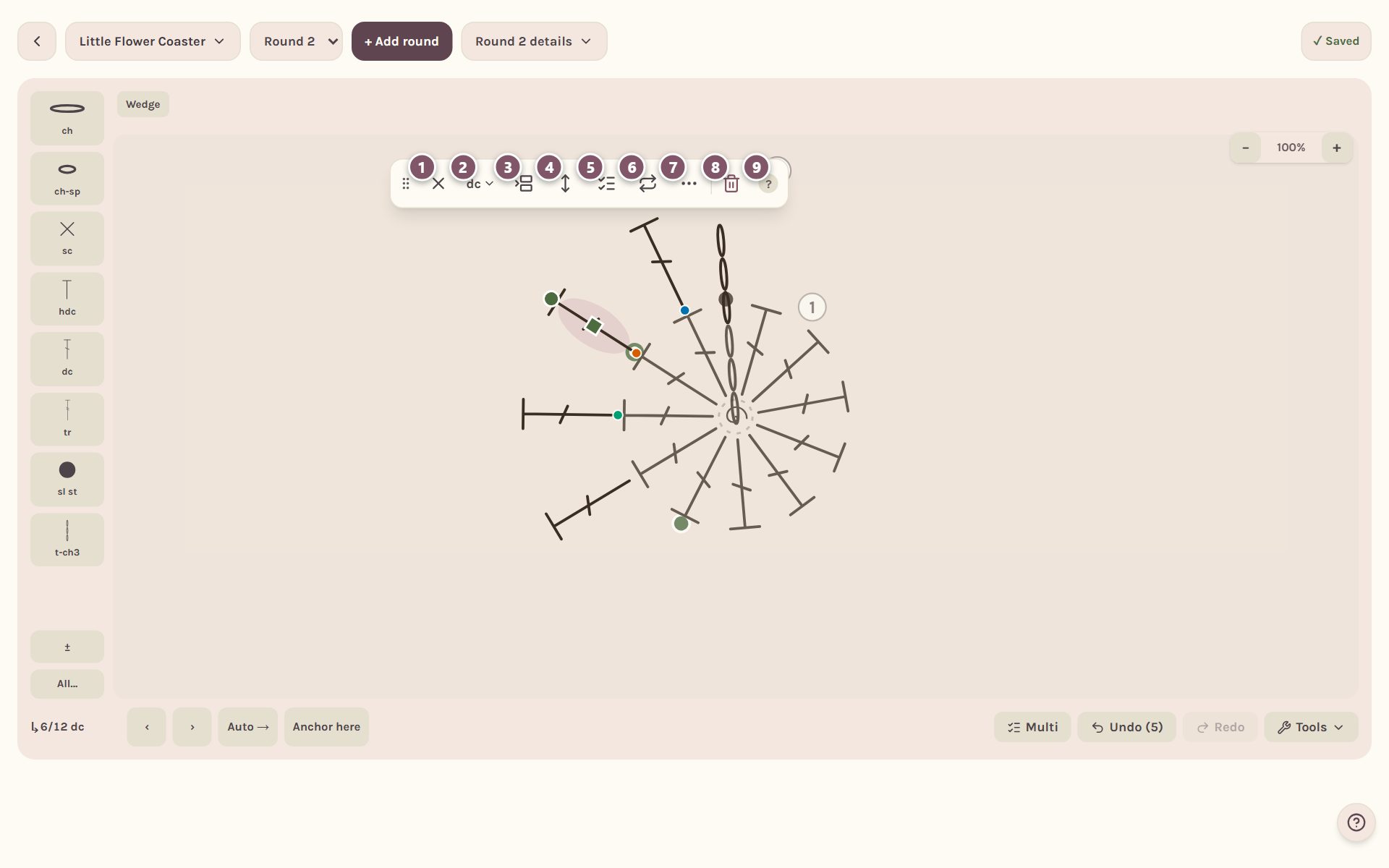
- Deselect lets go of the stitch. Tapping the chart somewhere else doesn't, so a stray tap never loses your selection.
- This stitch (it shows the stitch's name, like dc ▾) opens the stitch's own sheet: its loop (front loop, back loop) and how it lines up.
- Insert adds stitches before or after this one.
- Length makes the stitch longer or shorter.
- Multi lets you pick several stitches, one tap each.
- Repeat copies the picked stitches around the round.
- More holds the rarer tools, like Swap.
- Delete removes it in one tap. Undo brings it back.
- ? explains every button.
The deeper tools have their own guide: crochet chart maker tips.
What do the buttons mean?
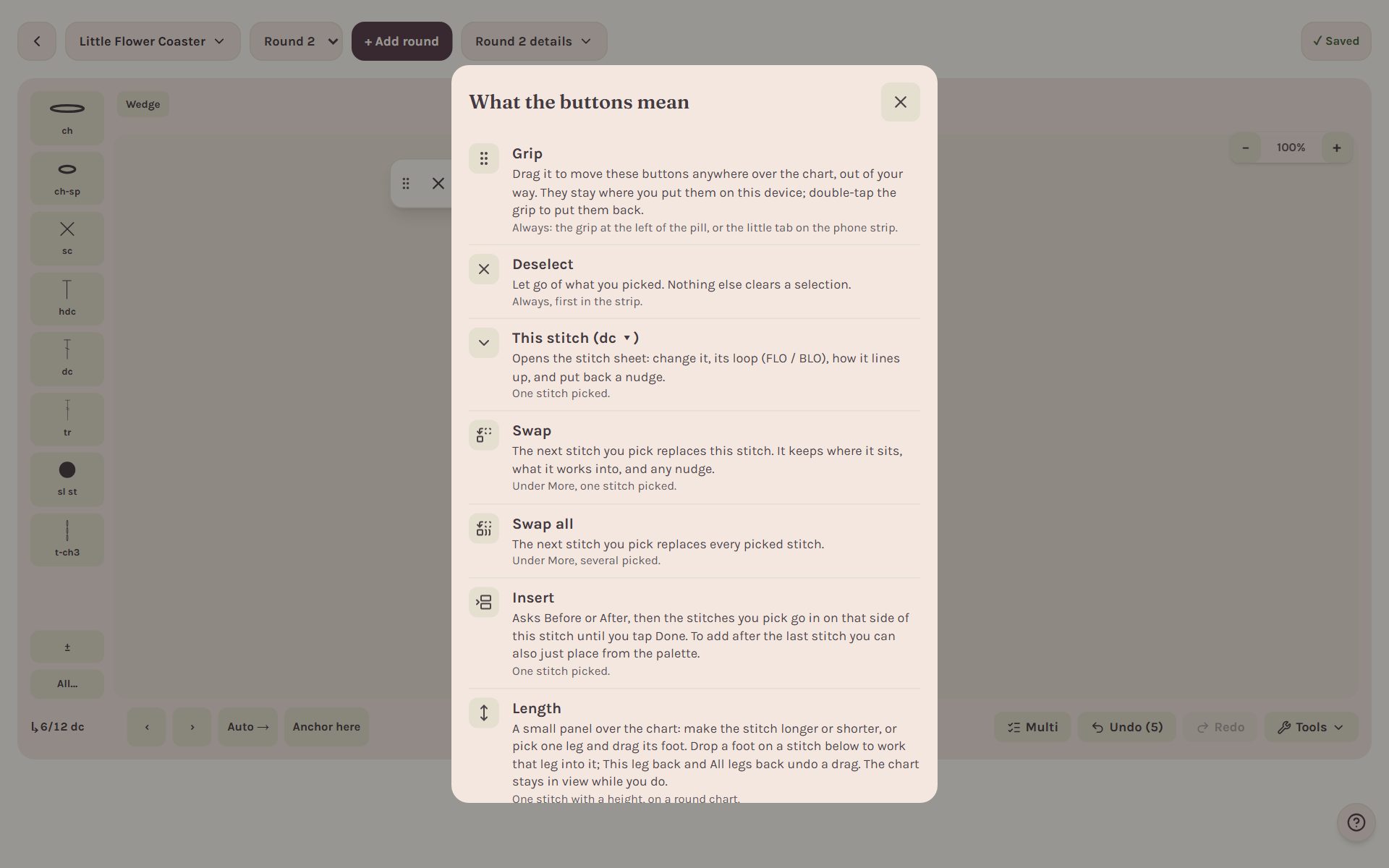
Tap ? at the end of the toolbar for What the buttons mean, a list of every icon and when it shows up.
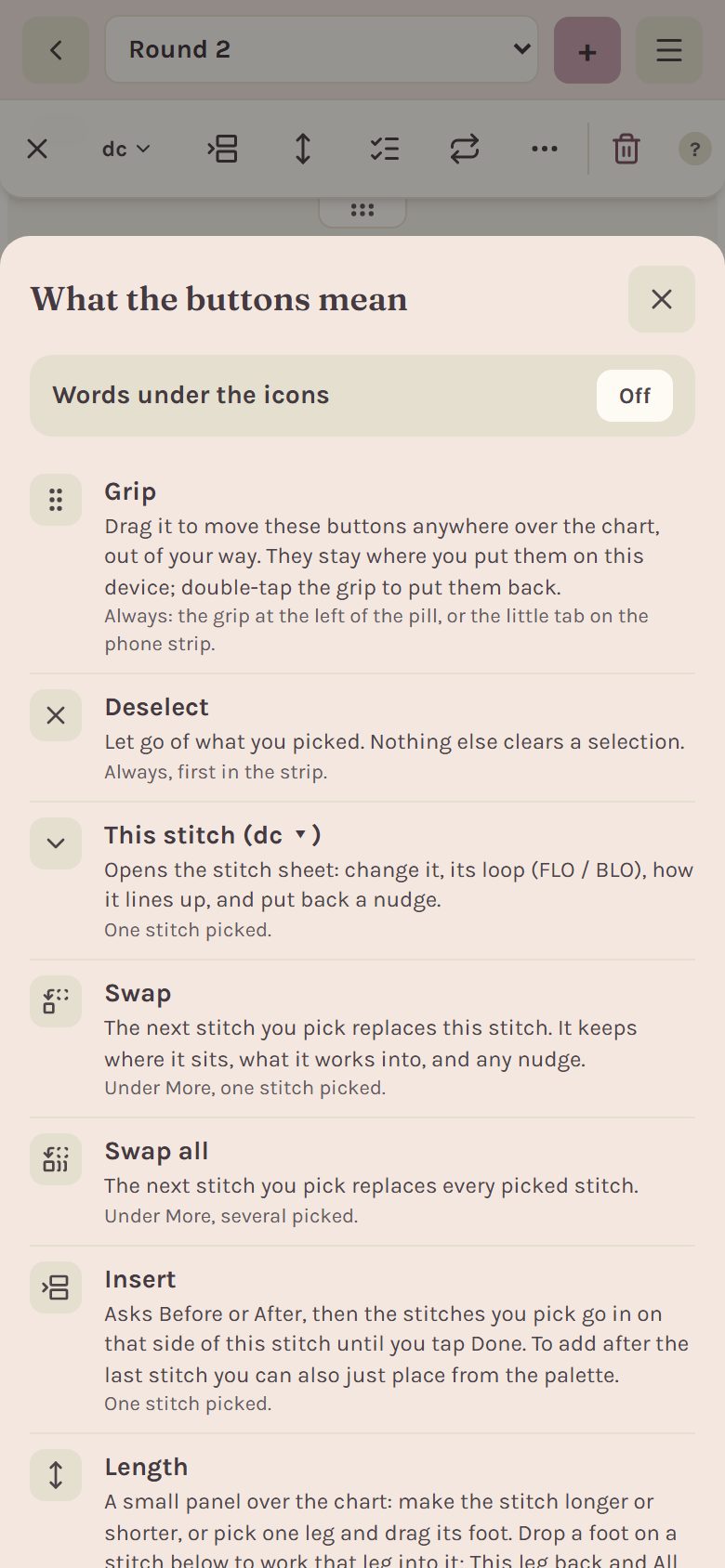
On a phone, the Words under the icons switch at the top puts a word under each icon if you'd rather read than guess.
Undo, redo and zoom
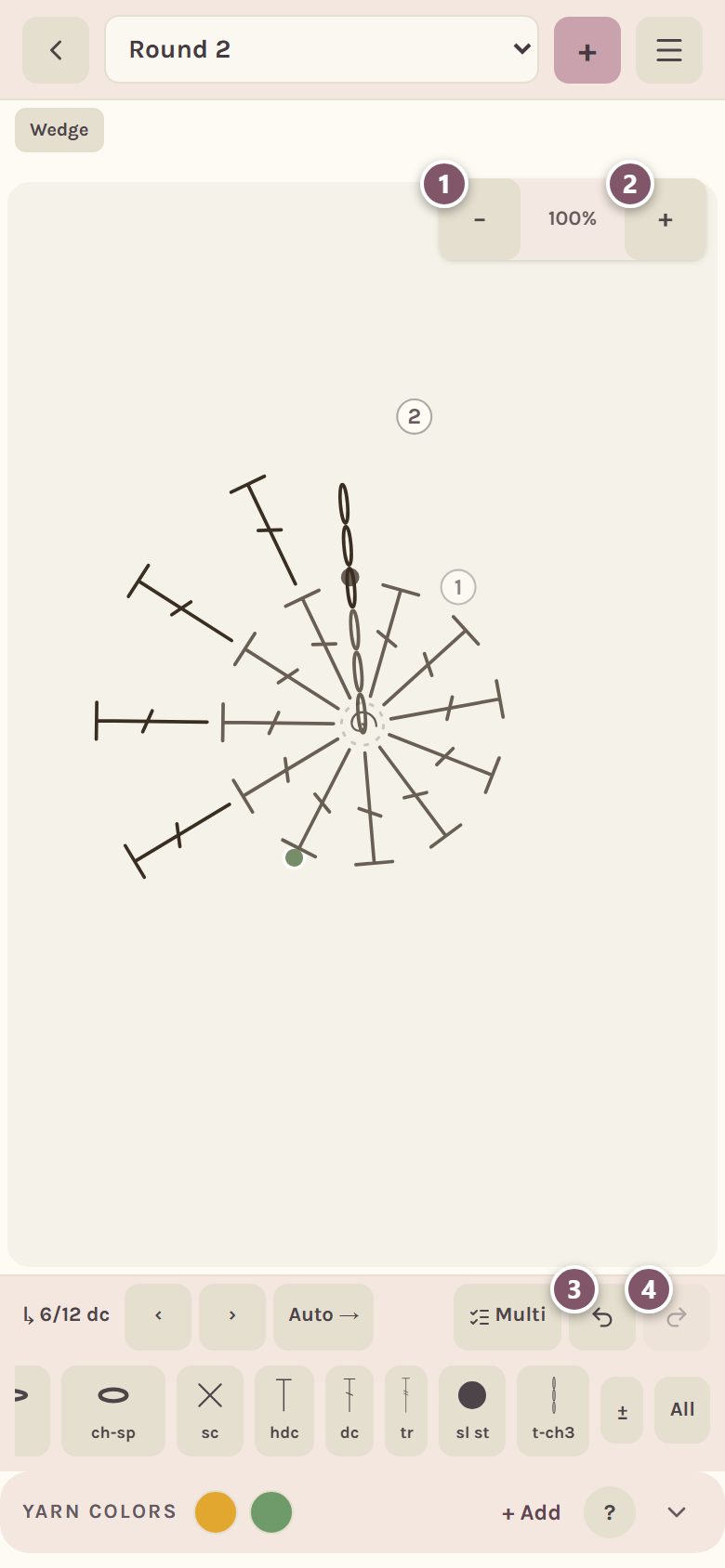
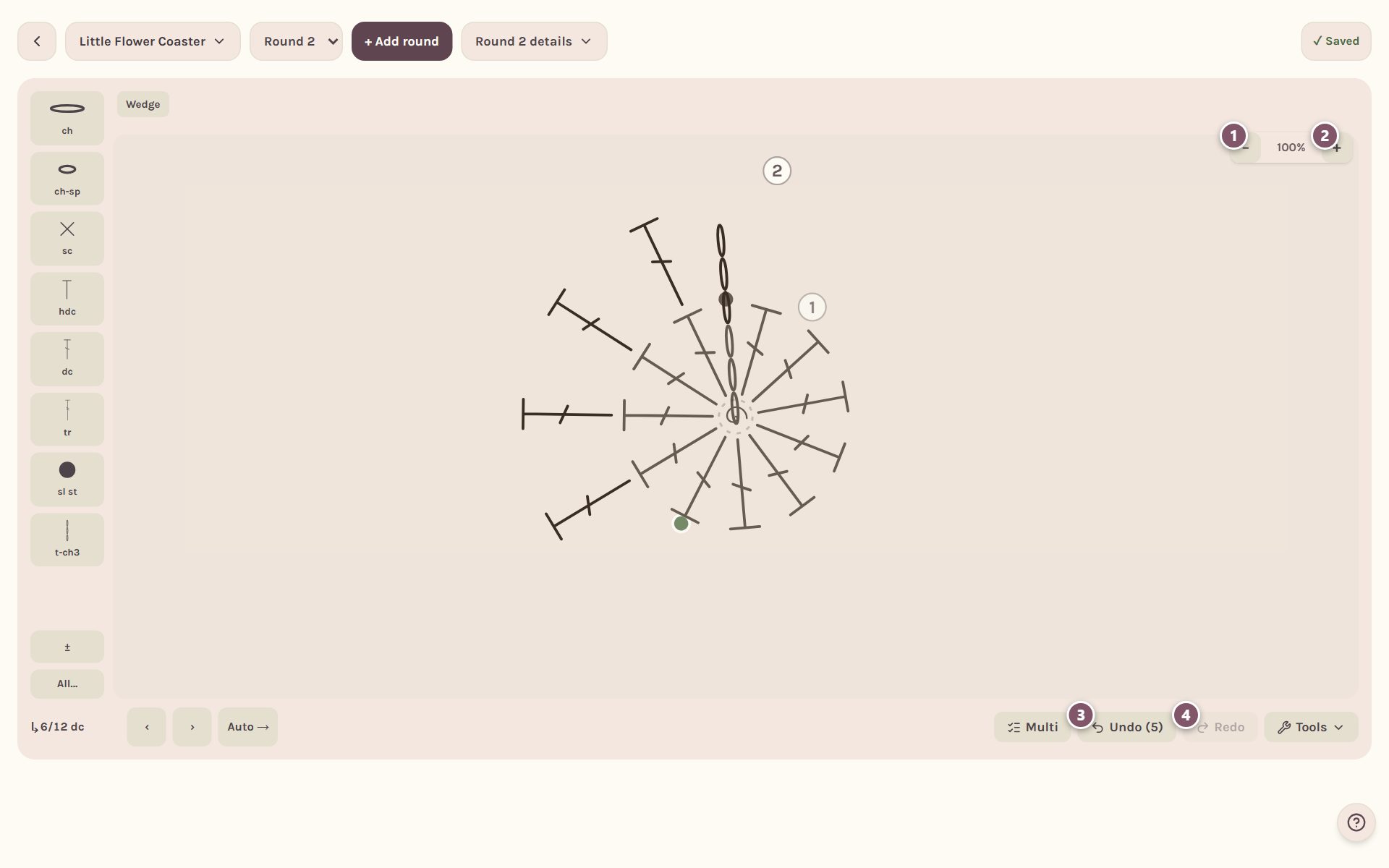
- − zooms out.
- + zooms in.
- Undo steps back through the round's last ten changes.
- Redo puts back what you undid.
On a phone, one finger places and picks stitches, and two fingers slide the chart around. On a computer, drag with the left mouse button to move the chart, drag with the right button to zoom, or hold Ctrl (Cmd on a Mac) and scroll.
Everything saves as you go. The ✓ Saved badge at the top tells you it's safe.
Frequently asked questions
Can I make a chart in rows instead of rounds? Yes. Pick Square/rectangle — rows, worked back & forth as the chart shape. Each new row is a row, and the builder works it into the row below.
Where do I find stitches like puff, popcorn or cluster? Tap All at the end of the stitch strip. To keep one handy, tap ± beside it and add the stitch to the strip for this pattern.
Will it write the pattern for me? Yes. See write crochet pattern instructions.
I already have the pattern written out. Do I have to tap every stitch? No. Paste it instead and the app charts it for you: import a crochet pattern from text.
Ready to try it? Crochet Bobble opens right in your browser, on a phone or a computer.
Open Crochet Bobble