
Turn a Written Crochet Pattern Into a Chart (Paste Instructions)
Paste a typed crochet pattern into Crochet Bobble and it reads every round, charts the stitches it can read with standard symbols, and saves it as your own pattern you can track.
Have a pattern written out as words? Paste it into Crochet Bobble and the app reads it round by round, draws the chart for every round it can read, and saves it as a pattern of your own. Then you can track it, print it, or keep editing the chart.
What you need
- The pattern as text you can copy, like from an email, a document or a website you're allowed to copy from.
Open Paste instructions
- Open the Patterns tab.
- Tap Paste instructions.
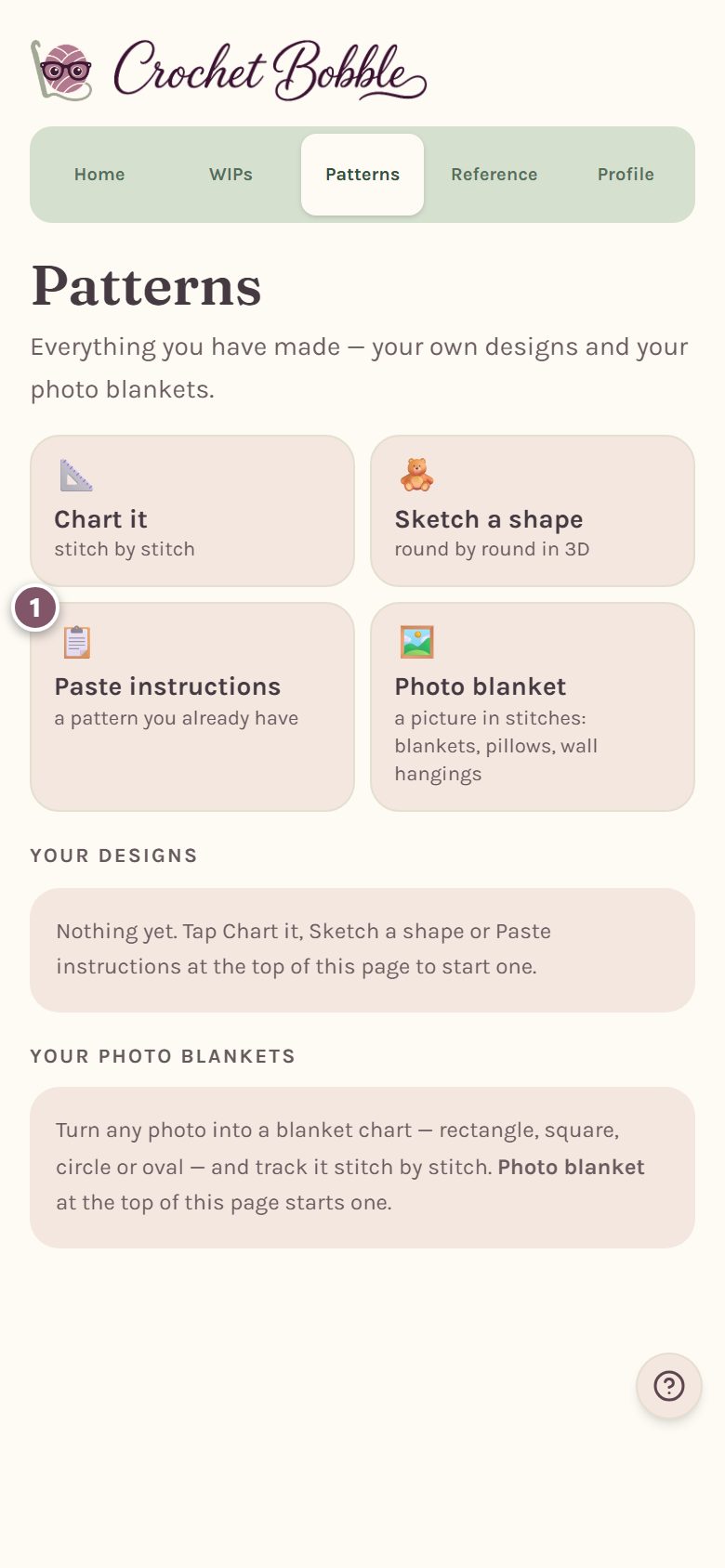
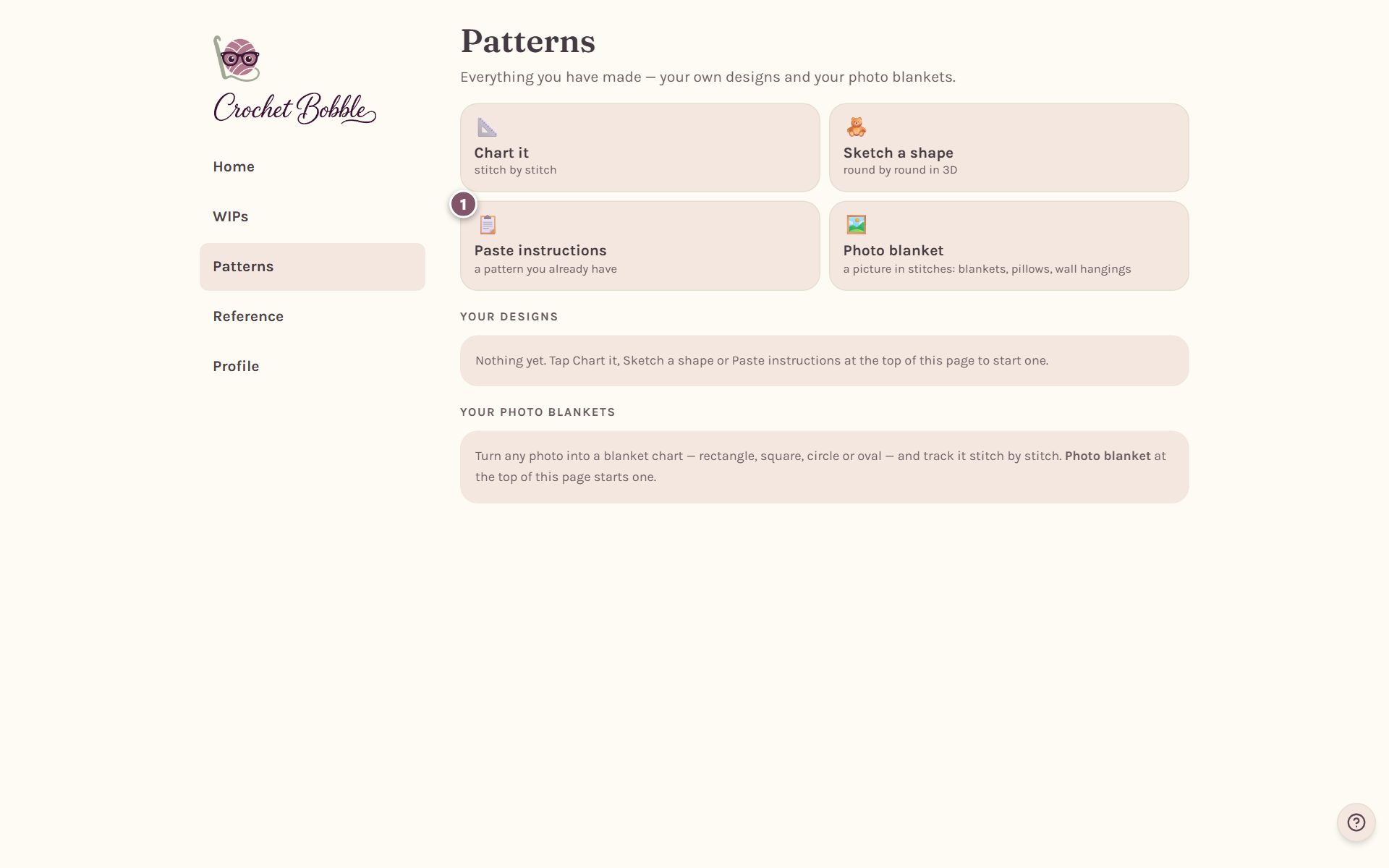
You can also get here from the New Pattern form: tap Already have the pattern written out? Paste it all at once.
Fill in the details and paste
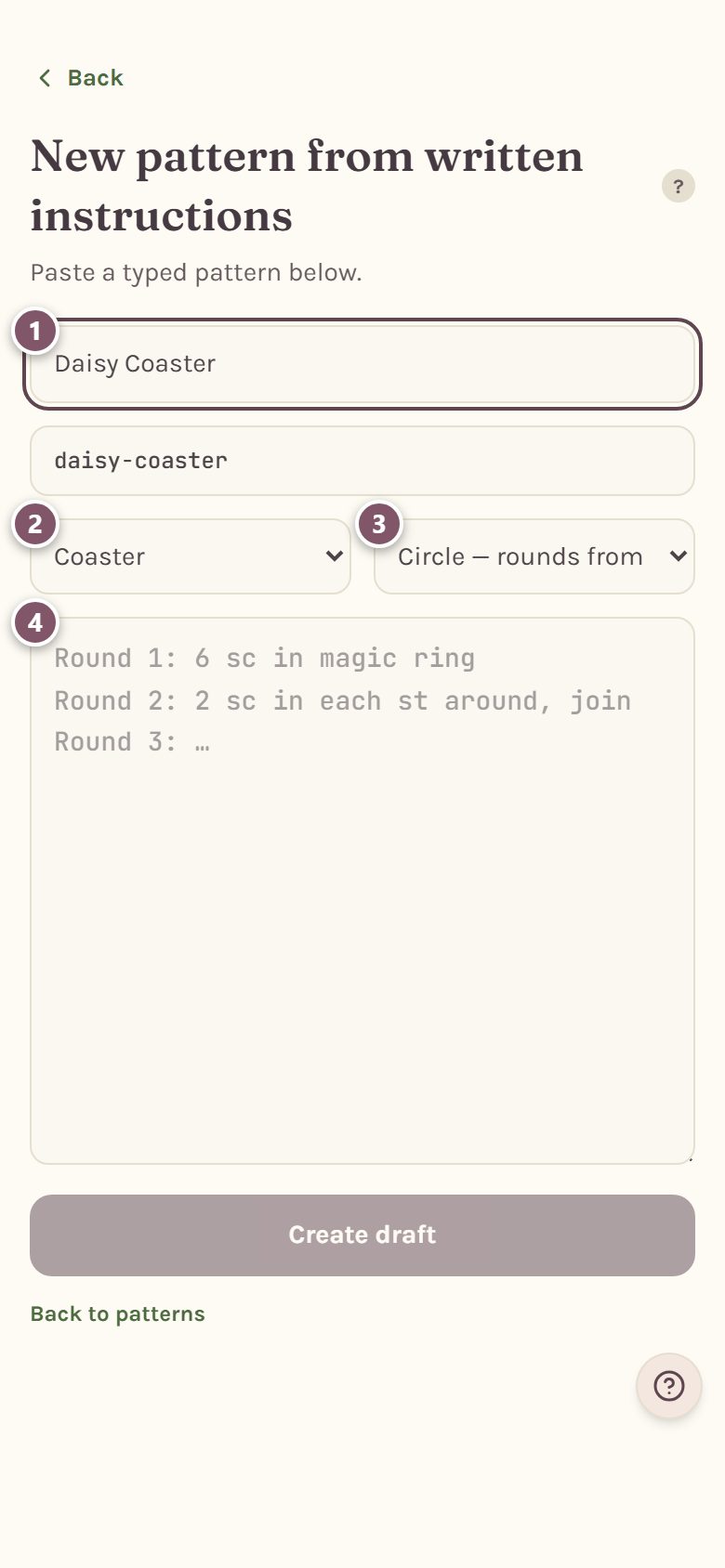
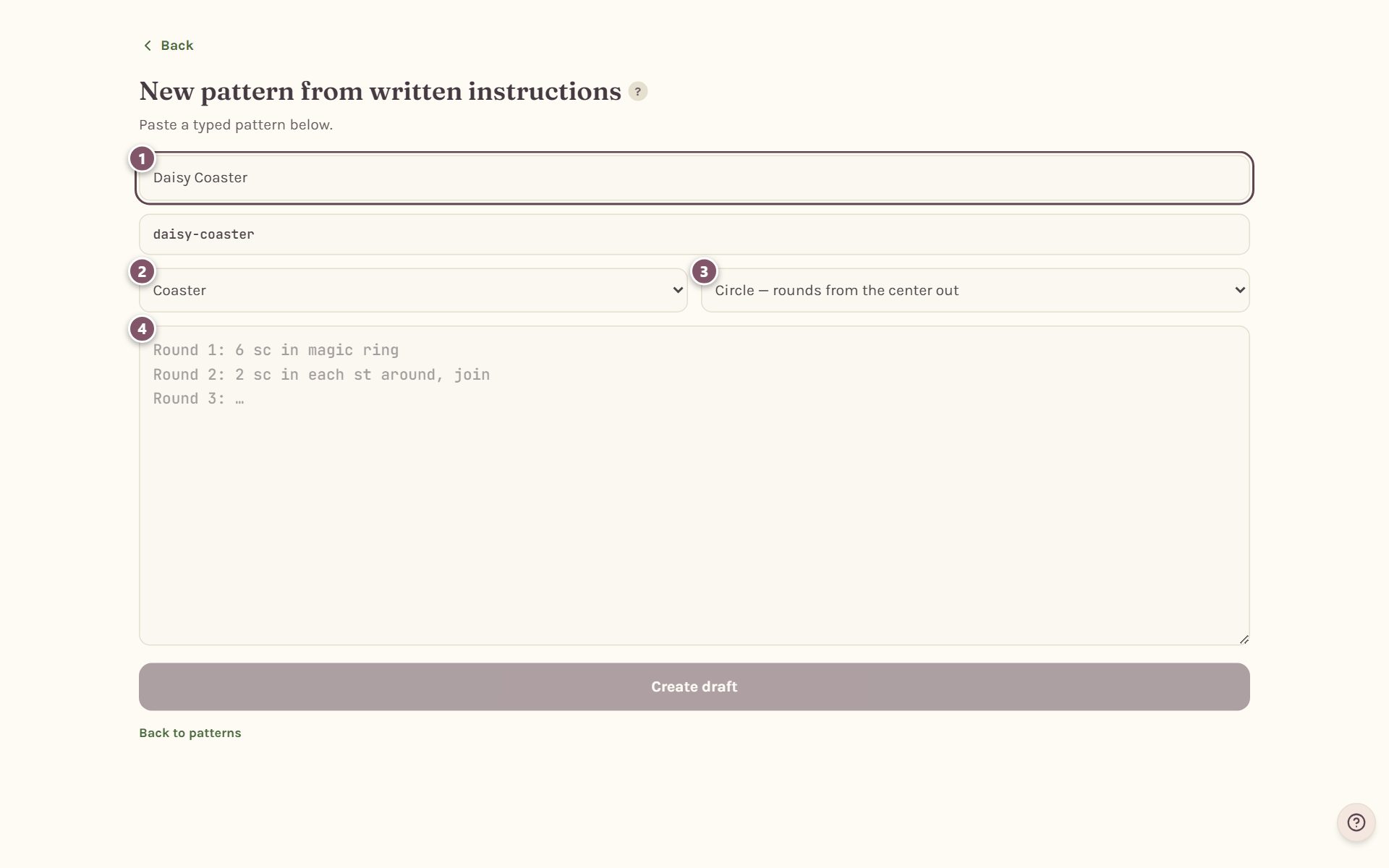
- Type a Pattern title, like "Daisy Coaster".
- Pick a Project type.
- Pick the Chart shape: a circle, an oval, a granny-style square, a circle into a square, or rows worked back and forth.
- Paste the pattern into the big box.
Paste the whole thing if you like. The title, yarn, hook and gauge at the top are read into the pattern's details, and only the rounds or rows become rows.
Check what it will become
As soon as you paste, What this will become shows every round and how it will be charted.
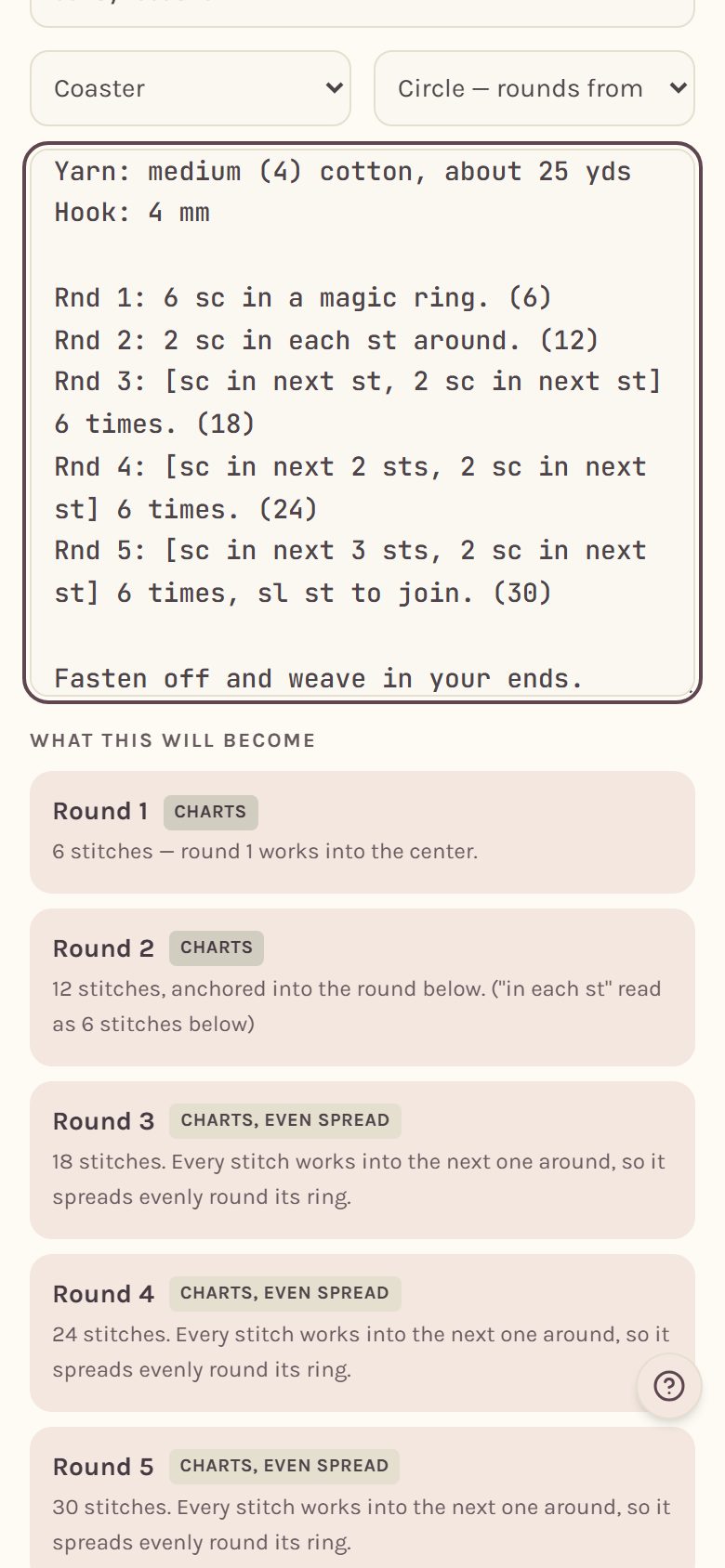
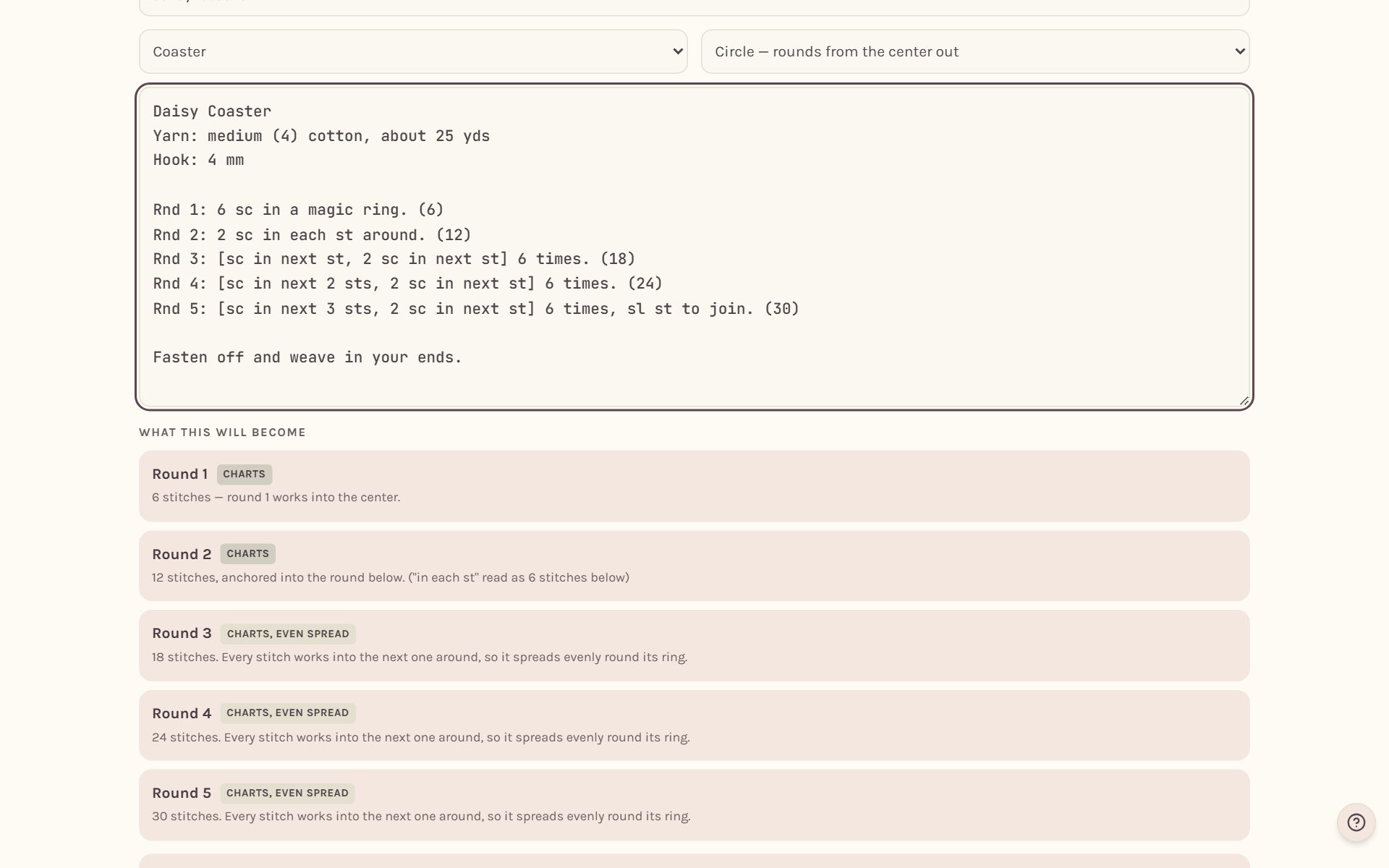
- Charts means the app read the round and will draw it, anchored into the round below.
- Charts, even spread means it will draw the round spread evenly around its ring. That happens when every stitch simply works into the next one around, like a plain round of sc or increases, or when it can't match the stitches to the round below and won't guess.
- Written row means it couldn't read the stitches. The round still comes in with its words, so you can follow and track it. It just isn't drawn.
Under that, What the pattern says about itself lists the yarn, hook and yardage it found, and how many lines it skipped.
Create the pattern
Tap Create draft. The button says how many rows it will chart.
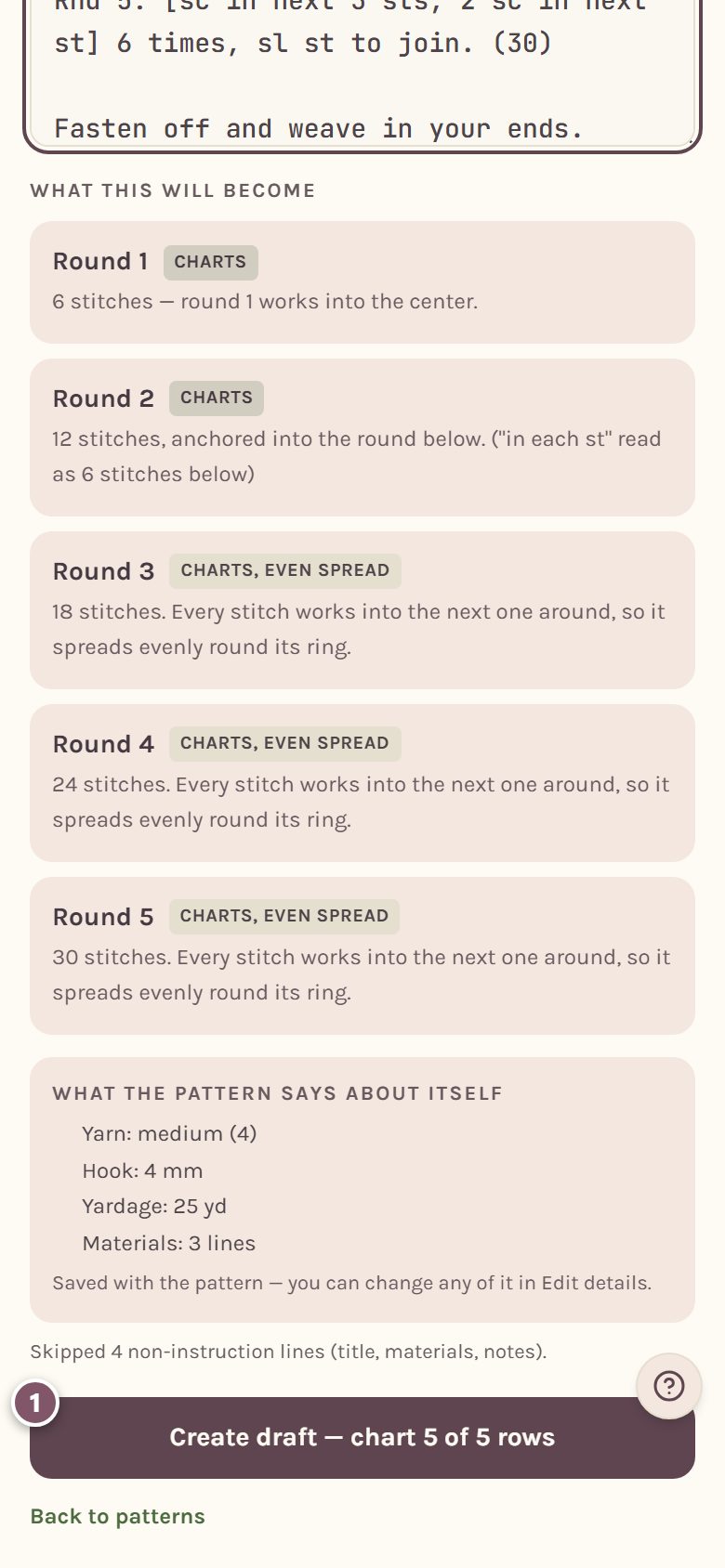
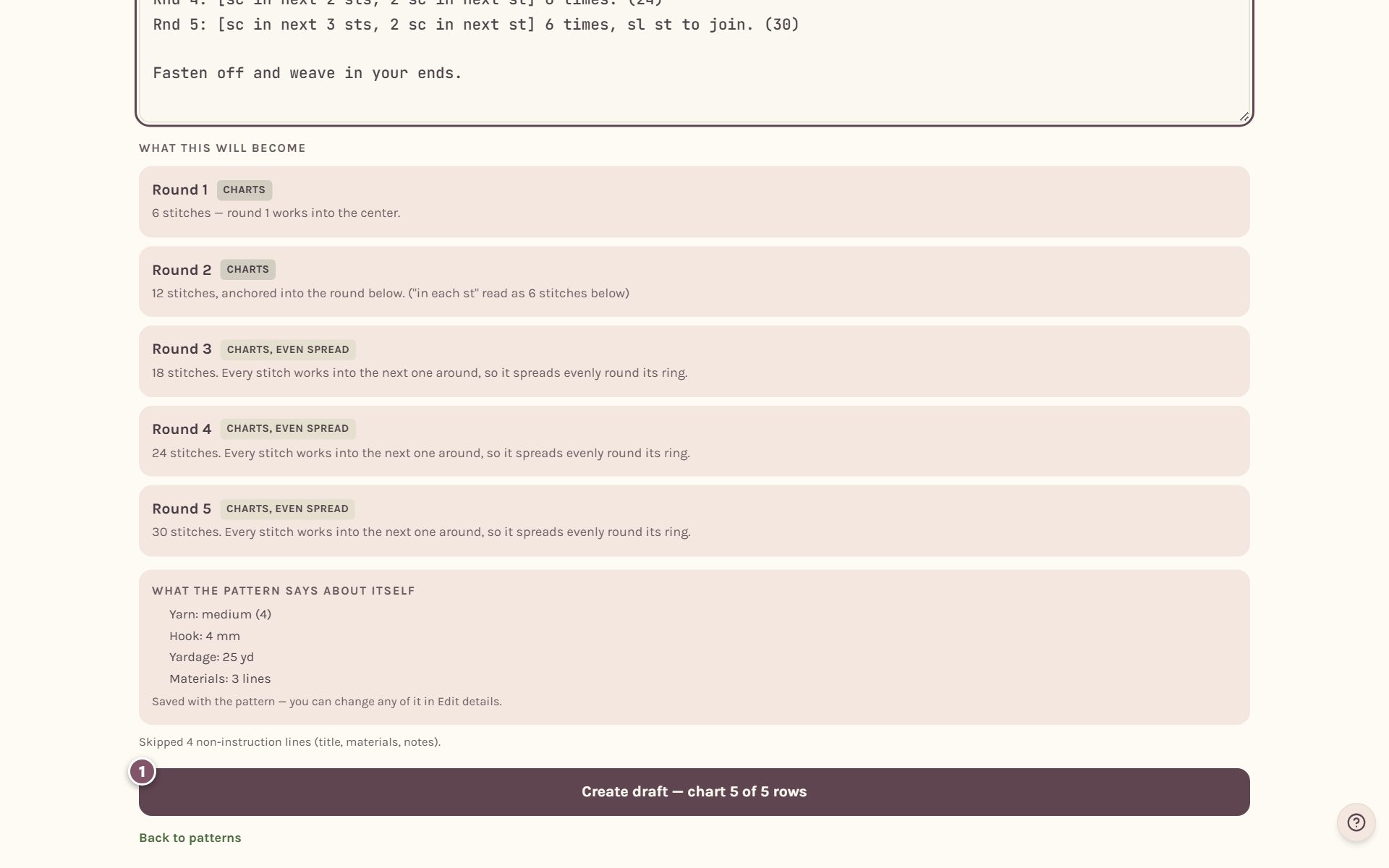
A big lace pattern can take a couple of minutes, because every stitch is drawn and joined to the round below. Leave the page open while it works.
Open your new pattern
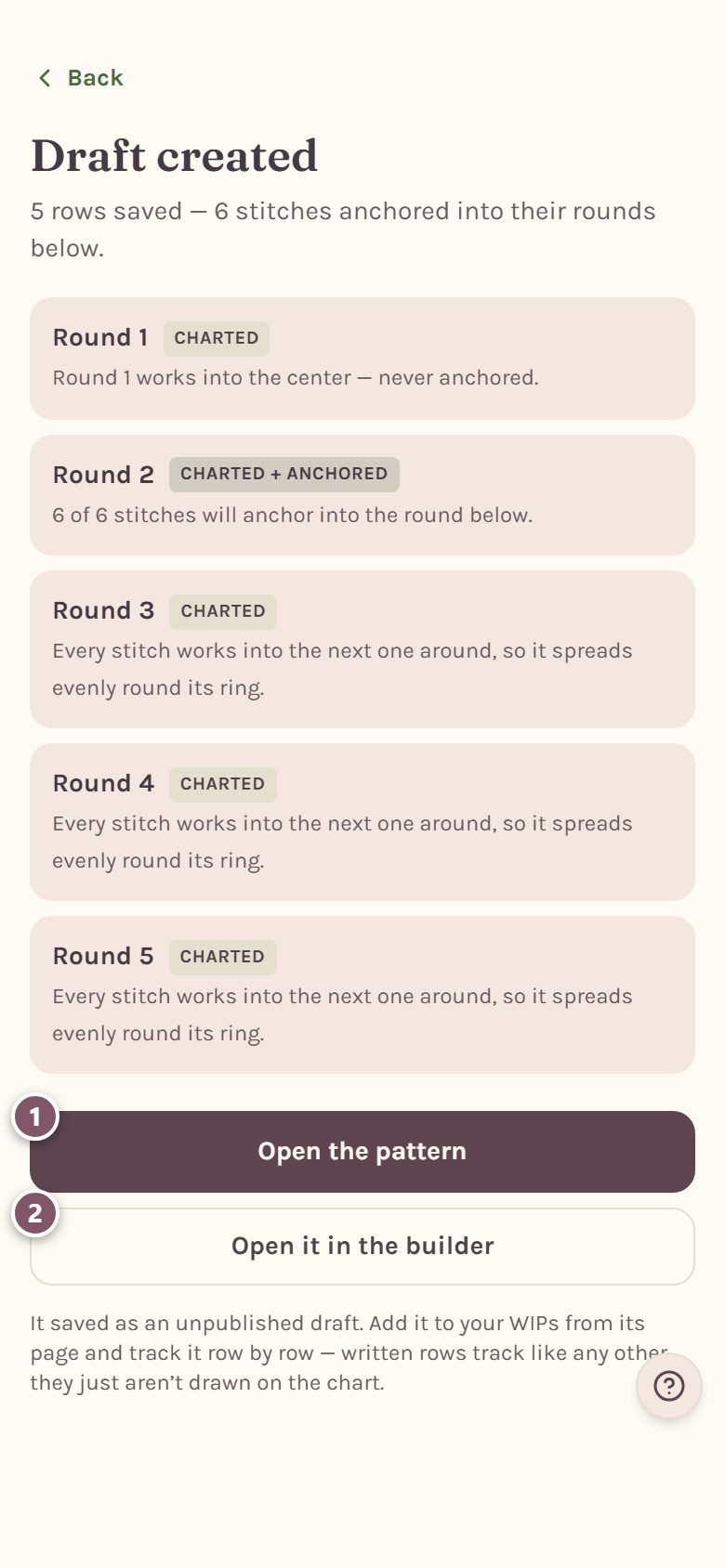
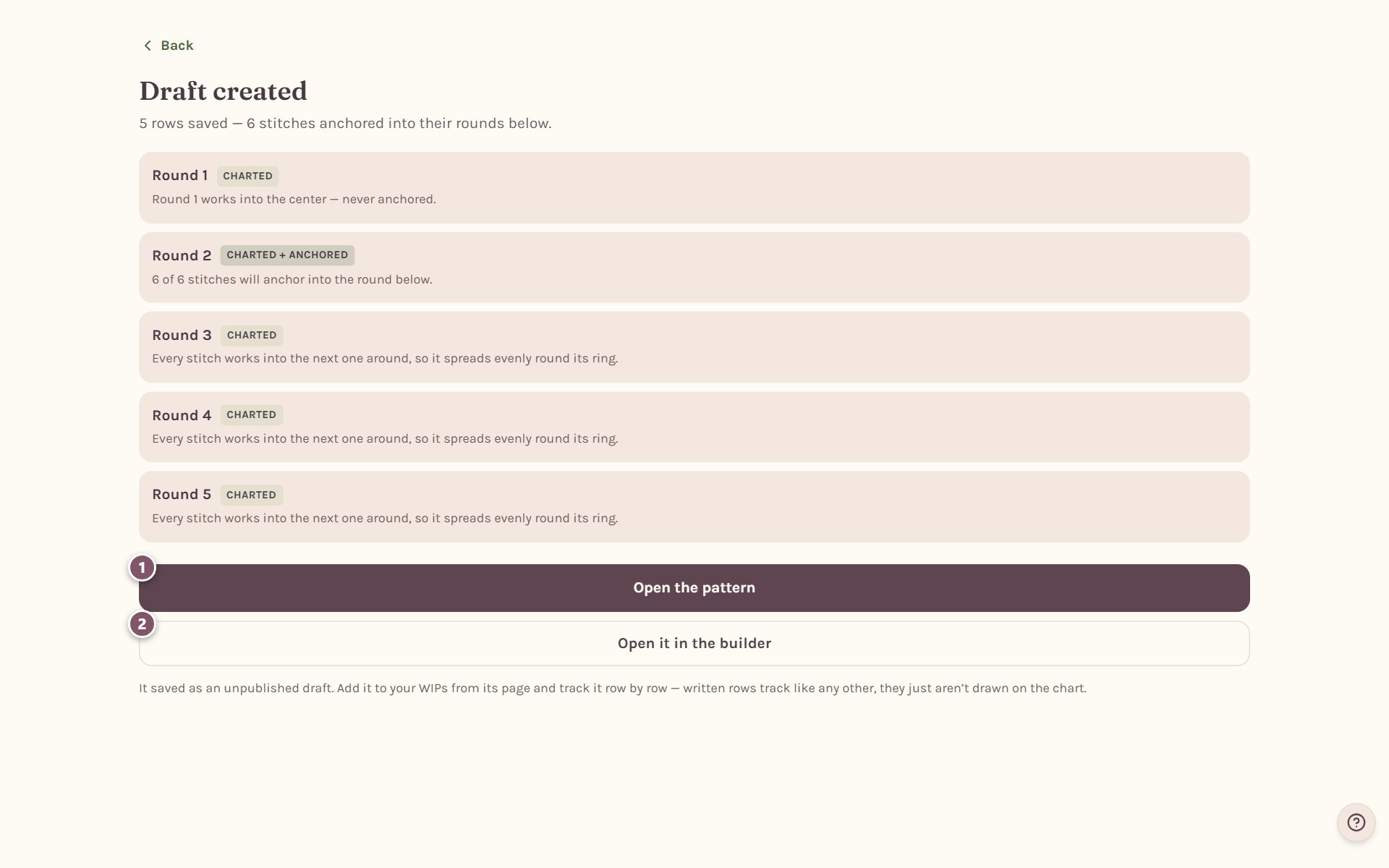
- Open the pattern goes to its page, where you can read it, print it and tap Add to my WIPs.
- Open it in the builder opens the chart, so you can fix anything the app drew differently from what you meant.
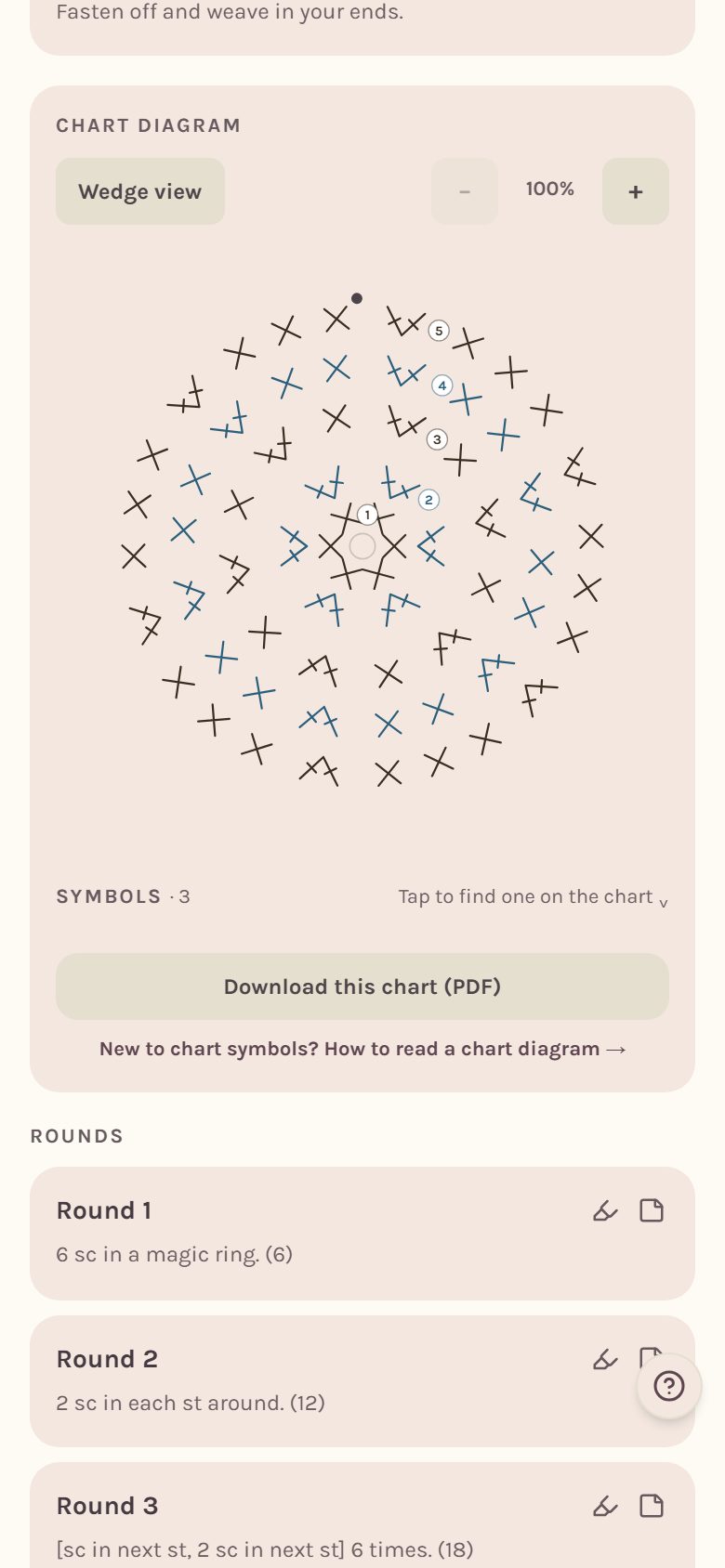
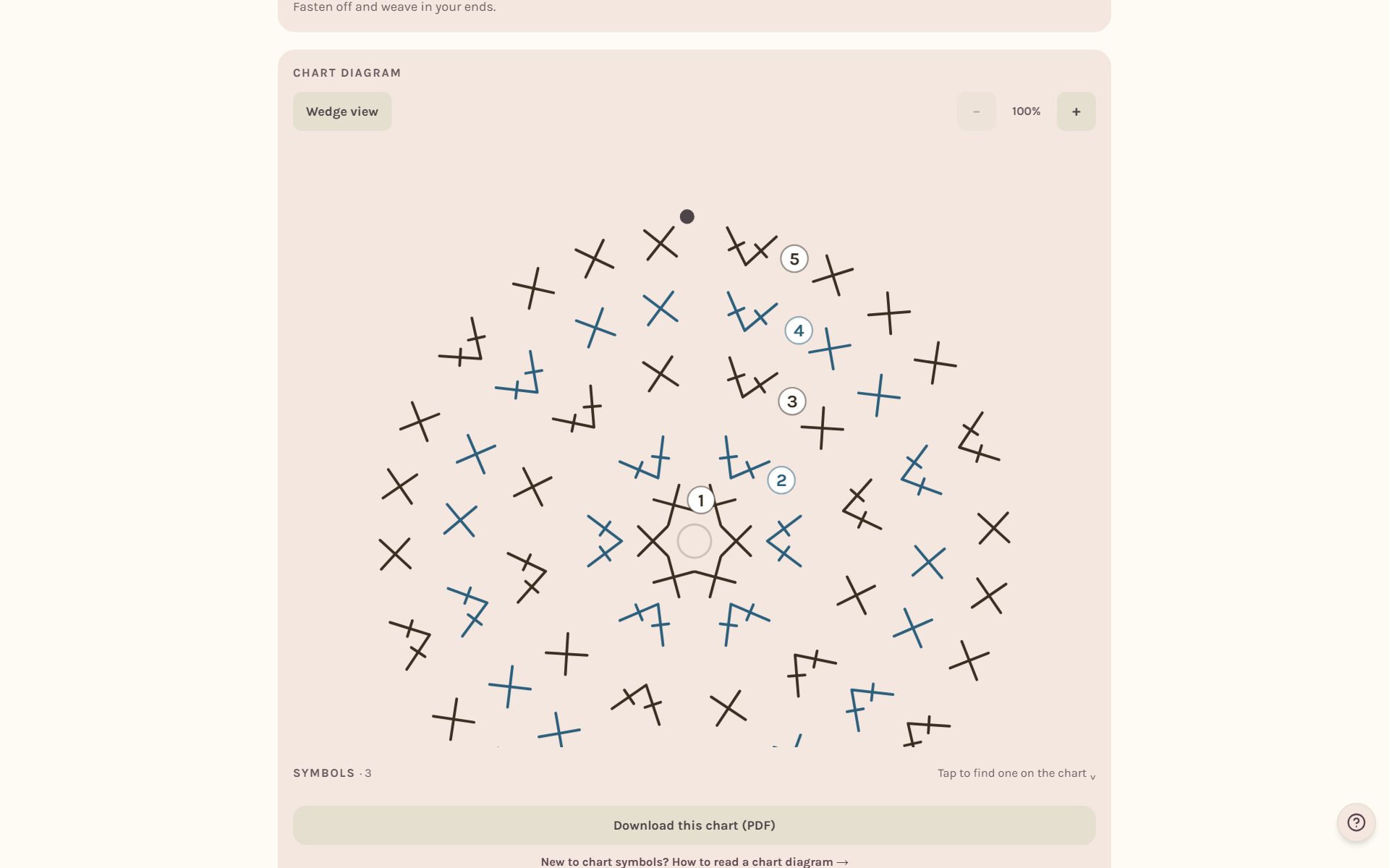
Tip: if a round came in as a written row, open it in the builder, tidy its words, then try Build chart from instruction in Tools (on a phone, it's in the Options menu at the top right).
Frequently asked questions
What if my pattern has sizes, like "ch 52 (58, 64)"? The app notices and asks which size you're making before it reads anything.
Is the imported pattern private? Yes. It saves as a draft that only you can see, in Your designs on the Patterns tab.
Can I paste into a pattern I already started? Yes. In the builder, the menu has a Paste it all at once link that writes the pasted rows into that pattern.
For 3D amigurumi patterns, paste into the Shape Studio instead: type or paste a crochet pattern. To draw a chart from scratch, see how to make a crochet stitch chart.
Ready to try it? Crochet Bobble opens right in your browser, on a phone or a computer.
Open Crochet Bobble